הקדמה
This manual provides instructions for the Matias Wired USB-C Keyboard for Mac with Numeric Keypad, Model FK316CS. It covers setup, operation, maintenance, troubleshooting, and product specifications to ensure optimal use of your keyboard.
פּעקל אינהאַלט
- Matias Wired USB-C Keyboard
סעטאַפּ
The Matias Wired USB-C Keyboard is designed for simple plug-and-play functionality with compatible Mac devices. No additional drivers or software installation is required.
- Locate an available USB-C port on your Mac computer (e.g., MacBook Pro, MacBook Air, iMac).
- Insert the USB-C connector of the keyboard into the USB-C port on your Mac.
- The keyboard should be recognized automatically by your operating system.
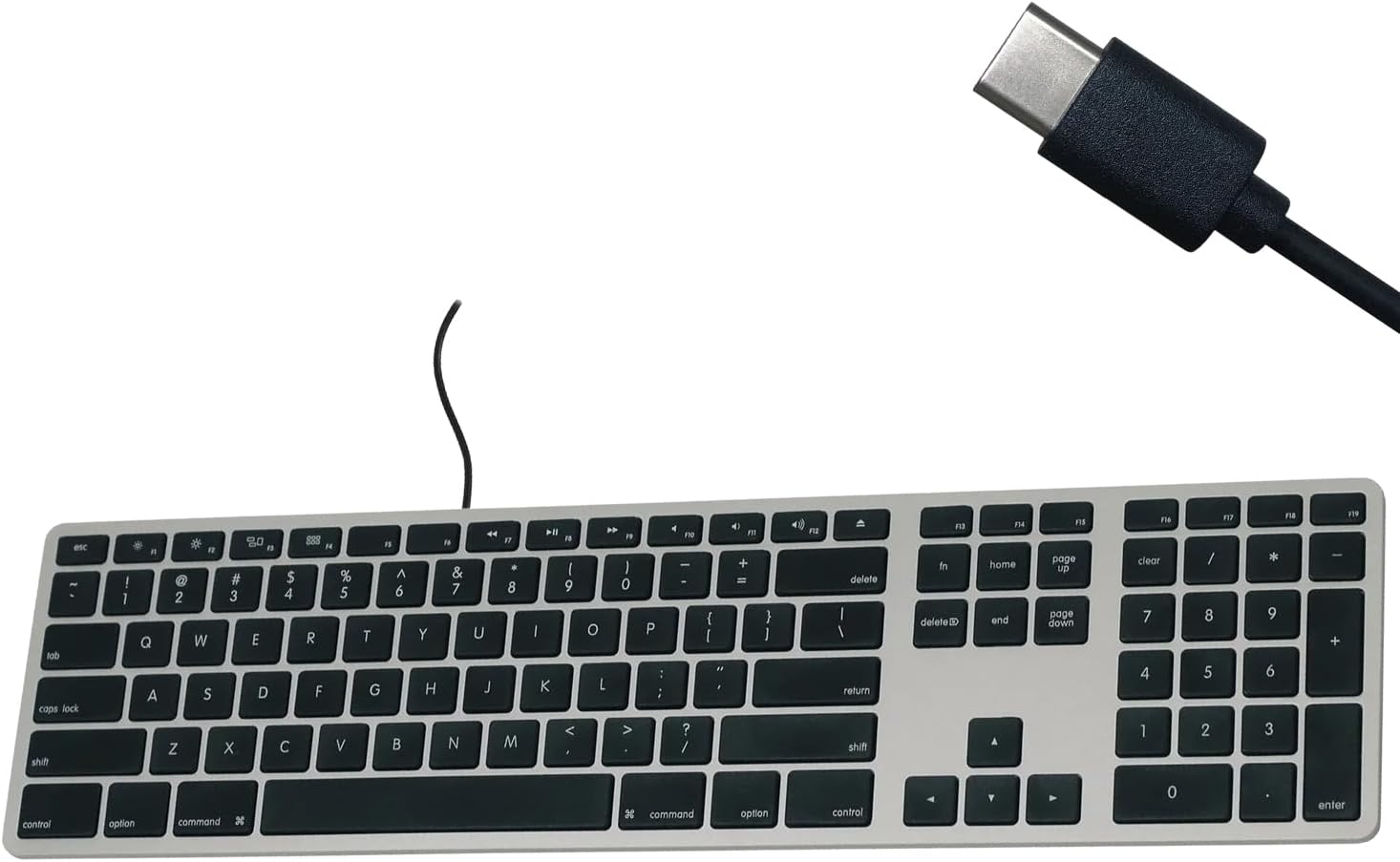
Figure 1: Matias USB-C Keyboard with its USB-C connector, ready for connection.

Figure 2: The keyboard connected to a Mac computer, demonstrating a typical setup.
אַפּערייטינג ינסטראַקשאַנז
גרונטלעכע טייפּינג
The keyboard features a standard QWERTY layout with a full numeric keypad. Simply begin typing after connecting the keyboard to your Mac.
נומעריק קיפּאַד
The integrated numeric keypad allows for efficient data entry and calculations. Ensure the 'Num Lock' function is active if numbers are not registering (though typically not required on Mac keyboards for the numeric pad).
מעק פֿונקציע קיז
The top row of keys (F1-F12) provides dedicated Mac-specific functions. These keys allow for quick access to controls such as screen brightness, volume adjustment, media playback, and Mission Control.

פיגורע 3: נאָענט-אַרויף view of the Mac-specific function keys (F1-F12) on the keyboard.
וישאַלט
To maintain the performance and appearance of your Matias keyboard, follow these guidelines:
- רייניקונג: ניצן אַ ווייך, לינט-פֿרייַ שטאָף אַ ביסל דampened with water or a mild, non-abrasive cleaner to wipe the surface of the keyboard. Avoid spraying liquids directly onto the keyboard.
- באַזייַטיקונג פון שטויב: ניצט קאמפרעסט לופט צו באזייטיגן שטויב און שמוץ פון צווישן די קנעפלעך.
- סטאָרידזש: Store the keyboard in a clean, dry environment when not in use.
טראָובלעשאָאָטינג
If you encounter issues with your Matias Wired USB-C Keyboard, consider the following steps:
- קלאַוויאַטור ניט ריספּאַנדינג:
- Ensure the USB-C cable is securely connected to both the keyboard and your Mac.
- Try connecting the keyboard to a different USB-C port on your Mac.
- ריסטאַרט דיין מעק קאָמפּיוטער.
- Test the keyboard on another compatible Mac computer, if available, to determine if the issue is with the keyboard or the computer.
- קנעפּלעך אַרבעטן נישט ריכטיק:
- Check for any physical obstructions or debris under the affected keys.
- זייט זיכער אז אייער מעק'ס אפערירן סיסטעם איז אפ טו דעיט.
אויב די טריט לייזן נישט דעם פראבלעם, ביטע זעט די שטיצע סעקציע פאר ווייטערדיגע הילף.
ספּעסאַפאַקיישאַנז
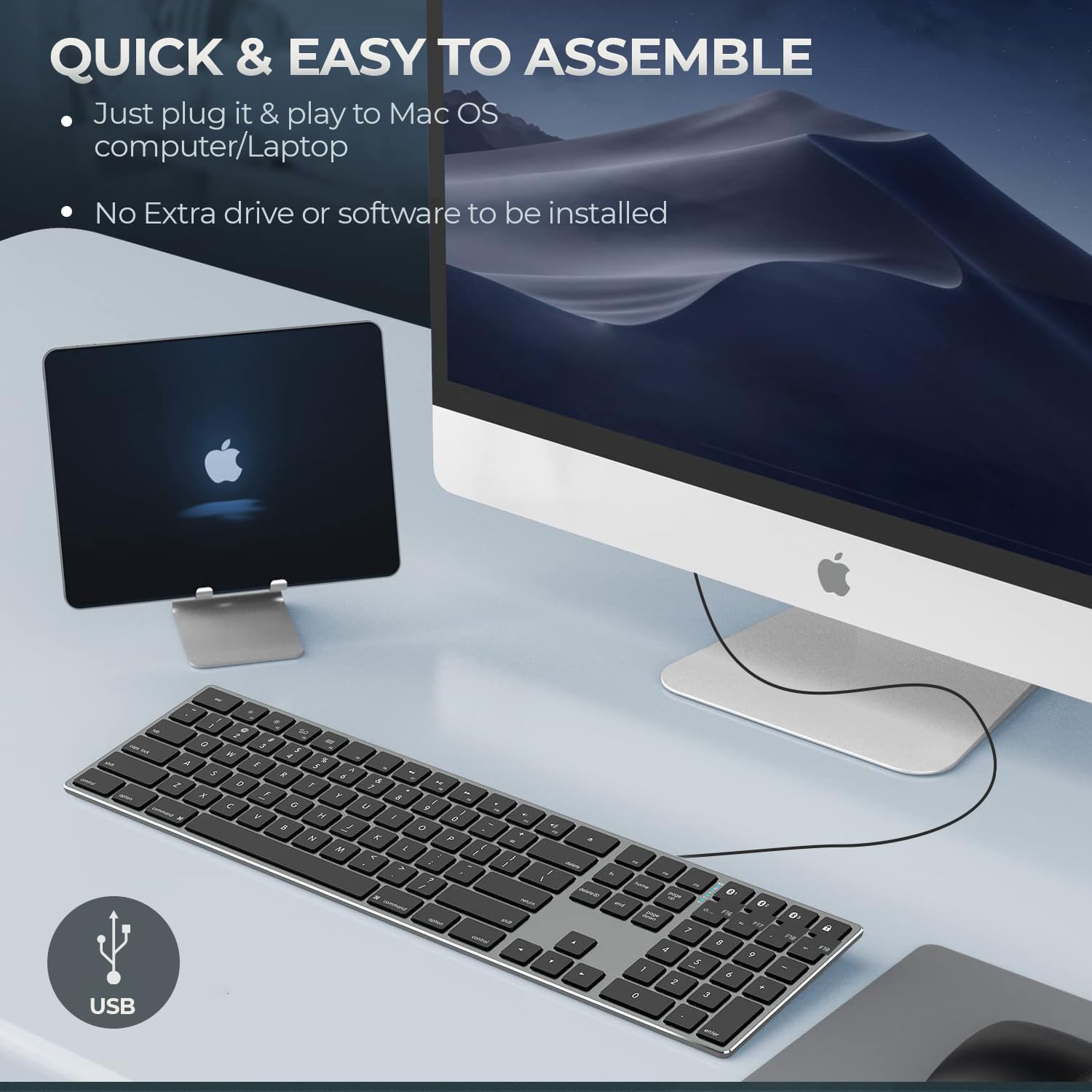
Figure 4: Key specifications of the Matias USB-C Keyboard.
| שטריך | דעטאַל |
|---|---|
| מאָדעל נומער | FK316CS |
| קאַנעקטיוויטי טעכנאָלאָגיע | יו-עס-בי-סי (ווייערד) |
| קאַמפּאַטאַבאַל דעוויסעס | MacBook Pro, MacBook Air, iMac, Mac OS X v.10.6.8 and later |
| פּראָדוקט דימענשאַנז | 17.35 X 4.58 X 0.75 אינטשעס (44.07 X 11.63 X 1.91 סענטימעטער) |
| פּונקט וואָג | 1.35 פונט (612 גראַמז) |
| קאַבלע לענג | 5 פֿיס (1.5 מעטער) |
| מאַטעריאַל | Plastic keyframe |
| קאָליר | אָרט גריי |

Figure 5: Keyboard dimensions and ergonomic tilt angle.
וואָראַנטי אינפֿאָרמאַציע
Matias products are covered by a manufacturer's warranty. For specific details regarding the warranty period and terms, please refer to the warranty card included with your product or visit the official Matias webפּלאַץ.
שטיצן
For further assistance, technical support, or to inquire about replacement parts, please contact Matias customer service through their official webפּלאַץ:
- Matias Official Webפּלאַץ: www.matias.ca
Please have your product model number (FK316CS) and purchase information ready when contacting support.


