הקדמה
This manual provides comprehensive instructions for the setup, operation, and maintenance of your MageGee STAR98 Mechanical Gaming Keyboard and Mouse. Please read this manual thoroughly before using the product to ensure optimal performance and longevity.
פּראָדוקט איבערview
The MageGee STAR98 Mechanical Gaming Keyboard and Mouse combo is designed for an enhanced gaming and computing experience, featuring responsive mechanical switches, customizable backlighting, and an ergonomic design.
קלאַוויאַטור פֿעיִקייטן
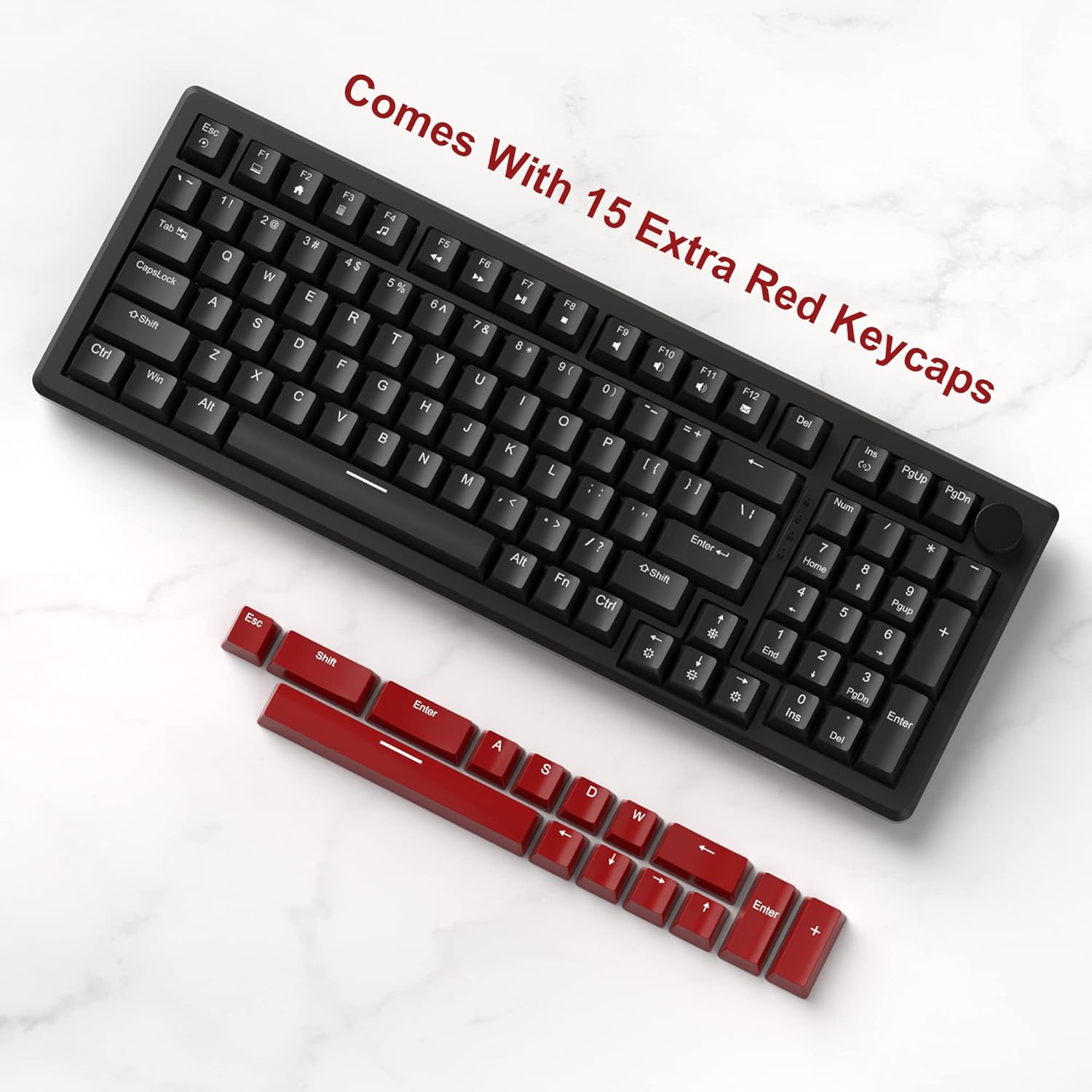
- 94% Layout with Number Pad: This keyboard features 98 keys, providing a compact design while retaining essential keys like arrow keys, number keys, and multimedia keys. It offers more desk space compared to a standard full-size keyboard.
- Adjustable Tilt Angles: Two-step rear feet allow for setting the keyboard at 3 different tilt angles for ergonomic comfort.
- 2-in-1 Multifunctional Knob: Located in the upper right corner, this knob controls both audio volume and backlight settings.
- לינעאַרע רויטע סוויטשיז: Equipped with responsive red mechanical switches, offering a smooth and less audible keystroke, ideal for gaming and typing. These switches have an expected lifespan of 50 million actuations.
- 100% אַנטי-גהאָסטינג: Ensures every keystroke is detected correctly, even when multiple keys are pressed simultaneously.
- Gorgeous Rainbow Backlighting: Features 8 light modes (static & dynamic), 5 brightness levels, and 4 speed levels for customizable illumination.
- Extra Keycaps: Includes an additional 15 red/yellow keycaps for DIY customization.
מויז פֿעיִקייטן
- Ergonomic Gaming Mouse: Designed for comfort and control, fitting perfectly in the palm with an anti-slip design.
- 7 קנעפּלעך: Provides versatile control for various applications and games.
- 6 Speed Levels (DPI): Adjustable DPI settings (600/800/1200/1600/2400/3200) allow for easy customization of mouse speed to suit different scenarios.
- 7-Color Breathing LED Lights: The mouse features breathing LED lights in white, yellow, blue, purple, green, red, and cyan, enhancing the gaming atmosphere.
- Accurate Positioning and Stable Transmission: Ensures smooth and precise gameplay.
סעטאַפּ
Follow these steps to set up your MageGee STAR98 Mechanical Gaming Keyboard and Mouse:
- אָפּלייגן די פּראָדוקט: Carefully remove the keyboard and mouse from their packaging. Ensure all components, including the additional keycaps and USB cable, are present.
- פֿאַרבינדן די קלאַוויאַטור: Locate the USB cable attached to the keyboard. Plug the USB-A connector into an available USB port on your computer (desktop PC or laptop). The keyboard is plug-and-play and does not require additional drivers for basic functionality.
- פאַרבינדן די מויז: Locate the USB cable attached to the mouse. Plug the USB-A connector into another available USB port on your computer. The mouse is also plug-and-play.
- אַדזשאַסטירן קלאַוויאַטור טילט: Flip the keyboard over and extend the two-step adjustable feet to your preferred typing angle. There are three possible angles.
- ערשטע איינשטראָם: Once connected, the keyboard and mouse backlighting should illuminate, indicating they are powered on and ready for use.


אַפּערייטינג ינסטראַקשאַנז
קלאַוויאַטור אָפּעראַציע
- מולטימעדיאַ שליסלען: The function keys (F1-F12) often have secondary multimedia functions. These are typically accessed by pressing the Fn קנעפּל גלײַכצײַטיק מיטן געוואונטשענעם פֿונקציע קנעפּל. למשלampלא, Fn + F1 for Media Player, Fn + F2 for Volume Down, etc.
- מולטיפונקטיאָנאַל קנופּ:
- Volume Control (Default): Turn the knob left to decrease volume, right to increase volume. Short press the knob to pause or play media.
- באַקלייט מאָדע: Long press the knob to switch to backlight control mode. The 'M' indicator light will illuminate. In this mode:
- Turn the knob left or right to adjust backlight brightness.
- Short press the knob to cycle through different backlight effects/modes.
- Backlight Control (Fn Combinations):
- טוישן ליכט מאָדעס: דרוק Fn + ינס to cycle through 8 different light modes (static & dynamic).
- אײַנשטעלן/אויסלעשן ליכט: דרוק Fn + Del to toggle the backlight on or off.
- Adjust Light Speed: דרוק Fn + לינקס עראָו to decrease light speed, Fn + רעכט עראָו to increase light speed (for dynamic modes).
- אַדזשאַסטירן ליכט ברייטקייט: דרוק Fn + אַרויף עראָו to increase brightness, Fn + אַראָפּ עראָו צו פאַרמינערן ברייטנאַס.
- Keycap קוסטאָמיזאַטיאָן: Use the provided keycap puller (if included) to carefully remove existing keycaps and replace them with the additional red/yellow keycaps for a personalized look.


מויז אָפּעראַציע
- דפּי אַדזשאַסטמאַנט: The mouse features a dedicated DPI button (usually located behind the scroll wheel). Press this button to cycle through the 6 available speed levels (600/800/1200/1600/2400/3200 DPI). The LED lighting may change color to indicate the current DPI setting.
- 7-Color Breathing LED: The mouse's LED lights automatically cycle through 7 colors, creating a breathing effect. There is no manual control for specific colors or modes for the mouse lighting.
- ערגאָנאָמיק פּלאַן: Position your hand comfortably over the mouse, utilizing its ergonomic shape and anti-slip surface for extended use.

וישאַלט
Proper maintenance ensures the longevity and optimal performance of your keyboard and mouse:
- רייניקונג:
- אָפּשטעקן די דעוויסעס פֿון אייער קאָמפּיוטער איידער איר רייניגט זיי.
- ניצן אַ ווייך, לינט-פֿרייַ שטאָף אַ ביסל דampened with water or a mild cleaning solution to wipe down the surfaces.
- For the keyboard, use compressed air to remove dust and debris from between the keycaps.
- For deeper cleaning, keycaps can be carefully removed using a keycap puller and cleaned separately. Ensure they are completely dry before reattaching.
- ויסמיידן ניצן שטרענגע כעמיקאַלן, אַברייסיוו רייניגער, אָדער סאָלוואַנץ.
- סטאָרידזש: האַלט די קלאַוויאַטור און מויז אין אַ קיל, טרוקן אָרט אַוועק פון דירעקט זונשייַן און עקסטרעמע טעמפּעראַטורן ווען נישט אין באַנוץ פֿאַר לענגערע פּעריאָדן.
- האַנדלינג: Avoid dropping the devices or exposing them to excessive force, which can damage internal components or switches.
טראָובלעשאָאָטינג
If you encounter issues with your MageGee STAR98 Mechanical Gaming Keyboard and Mouse, refer to the following common solutions:
| פּראָבלעם | מעגלעך סיבה | לייזונג |
|---|---|---|
| קלאַוויאַטור/מויז רעאַגירט נישט | לויזע USB פֿאַרבינדונג, דעפֿעקטיווער USB פּאָרט, דרייווער פּראָבלעם. |
|
| באַקלייט אַרבעט נישט אָדער פליקערט | Backlight turned off, brightness too low, software conflict. |
|
| מויז קורסאָר נישט ריכטיק אָדער נישט רעאַגירנדיק | Dirty sensor, incorrect DPI setting, surface issue. |
|
| שליסלען רעגיסטרירן זיך נישט אדער טייפן זיך צוויי מאל | שמוץ אונטערן קאפ, דעפעקטיווער סוויטש. |
|
ספּעסאַפאַקיישאַנז
- סאָרט: MageGee
- מאָדעל: STAR98
- קלאַוויאַטור אויסלייג: 94% (98 שליסלען)
- באַשטימען טיפּ: לינעאַרע רויטע סוויטשיז
- באַקלייט: Rainbow LED (8 modes, 5 brightness, 4 speed)
- קאַנעקטיוויטי: ווייערד וסב
- קלאַוויאַטור דימענשאַנז: בעערעך 15.1 X 5.4 X 1.6 אינטשעס
- מויז קנעפּלעך: 7
- מויז DPI לעוועלס: 6 (600/800/1200/1600/2400/3200)
- Mouse Lighting: 7-Color Breathing LED
- מויז דימענשאַנז: בעערעך 5.1 X 2.8 X 1.6 אינטשעס
- נומער וואָג: 2.44 פונט (קלאַוויאַטור און מויז צוזאַמען)
- קאַמפּאַטאַבאַל דעוויסעס: לאַפּטאַפּ, פערזענלעכע קאָמפּיוטער
- אַפּערייטינג סיסטעם קאַמפּאַטאַבילאַטי: Windows


וואָראַנטי און שטיצן
MageGee products are manufactured to high-quality standards. For warranty information, technical support, or service inquiries, please refer to the contact information provided with your product packaging or visit the official MageGee webזייטל. ביטע באַהאַלטן אייער קויפן באַווייַז פֿאַר קיין וואָראַנטי קליימז.


