1. הקדמה
Thank you for choosing the ATTACK SHARK X2 Wireless Gaming Mouse. This manual provides detailed instructions for setting up, operating, and maintaining your mouse to ensure optimal performance. The X2 mouse features a transparent shell, 3-mode connectivity (2.4GHz wireless, Bluetooth 5.0, USB-C wired), adjustable DPI, 3D RGB lighting, and a rechargeable battery.

Image 1.1: The ATTACK SHARK X2 Wireless Gaming Mouse, showcasing its transparent design and vibrant RGB lighting. A USB receiver is also visible.
2. פּראָדוקט איבערview
2.1 פּעקל אינהאַלט
- אַטאַק שאַרק X2 וויירלעס גיימינג מויז
- וסב-C טשאַרדזשינג קאַבלע
- 2.4GHz USB Receiver (stored in the mouse)
- באַניצער מאַנואַל
2.2 מויז קאָמפּאָנענטן

בילד 2.1: אונטן view of the X2 mouse, highlighting the USB receiver slot, mode switch, and light effect switch.
- לינקס דריקט קנעפּל
- רעכט גיט קנעפּל
- מעגילע וויל (also functions as a button)
- דפּי קנעפּל (below scroll wheel)
- פאָרויס קנעפּל (לינקע זייט)
- צוריק קנעפּל (לינקע זייט)
- מאָדע סוויטש (bottom of mouse: OFF / 2.4G / Bluetooth)
- ליכט אַפעקט סוויטש (bottom of mouse)
- וסב ופנעמער שפּעלטל (bottom of mouse)
- USB-C טשאַרדזשינג פּאָרט (front of mouse)
3. סעטאַפּ און קאַנעקשאַן
3.1 אויפלאָדן די מויז
The X2 mouse features an 800mAh rechargeable battery. Before first use, or when the battery is low, connect the mouse using the provided USB-C cable.
- Connect the USB-C end of the cable to the mouse's charging port.
- Connect the USB-A end to a power source (e.g., computer USB port, USB wall adapter).
- א פולע אָפּלאָד נעמט געוויינטלעך אַרום 4 שעה.
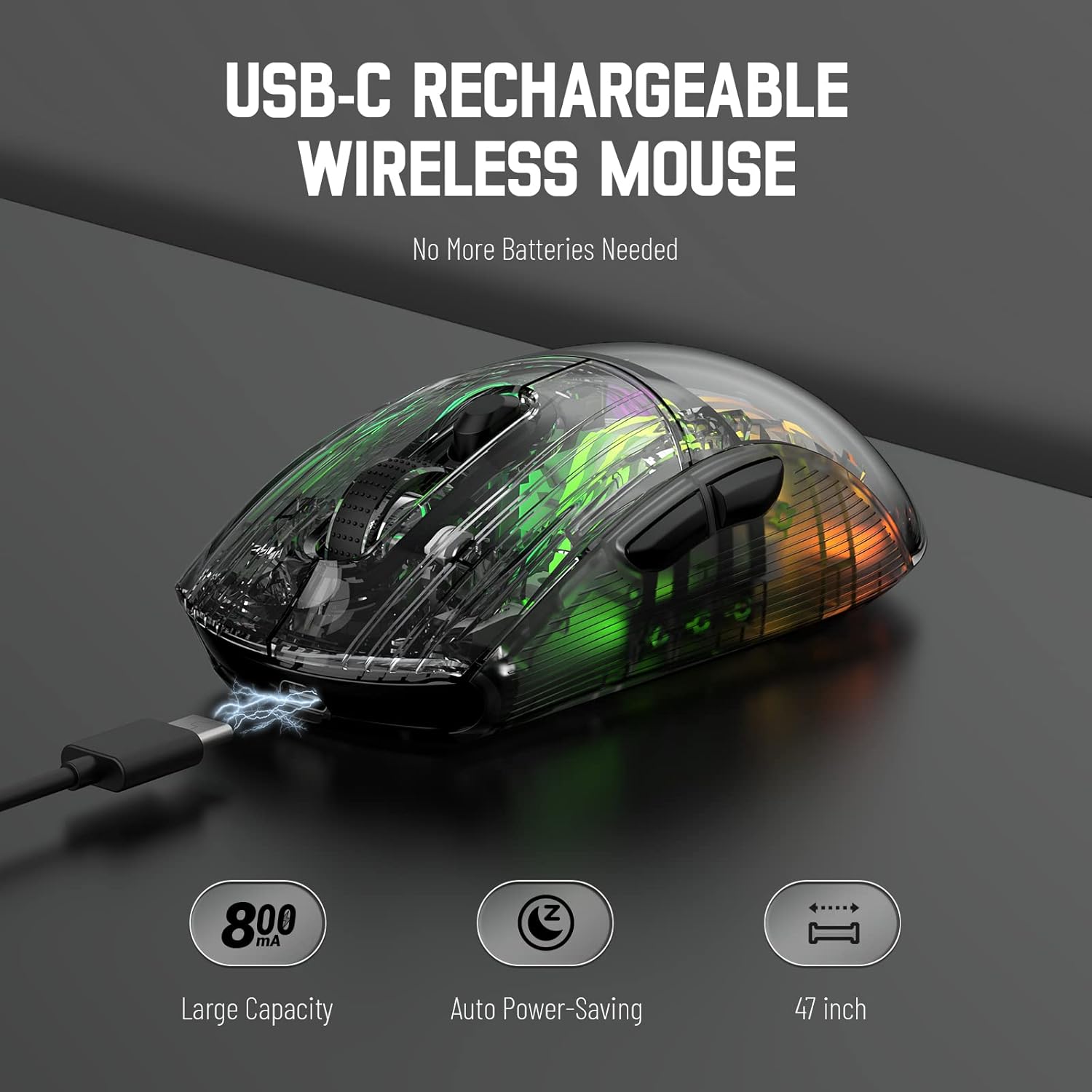
Image 3.1: The X2 mouse connected via its USB-C cable, illustrating the charging process.
3.2 2.4GHz ווירעלעס פֿאַרבינדונג
For a stable and responsive wireless connection, use the 2.4GHz USB receiver.
- Locate the USB receiver stored in the slot on the bottom of the mouse.
- Push the mode switch on the bottom of the mouse to the "2.4G" position.
- שטעקט אריין דעם USB ריסיווער אין א פאראן USB פארט אויף אייער קאמפיוטער אדער דעווייס.
- The computer should automatically detect and install the necessary drivers. The mouse is ready for use once installation is complete (typically plug-and-play).
- If the mouse is unresponsive, try plugging the receiver into a different USB port.
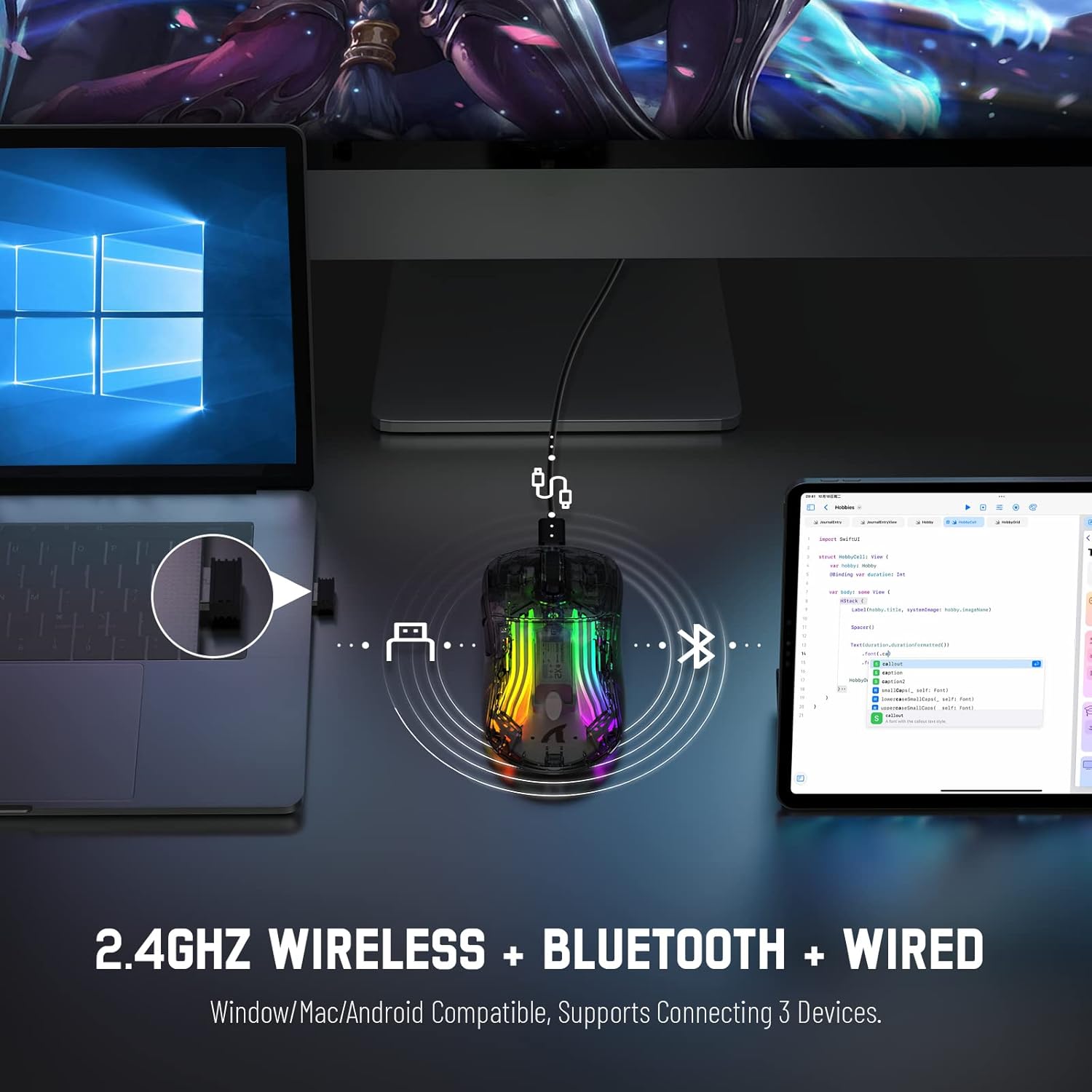
Image 3.2: Illustration of the 2.4GHz wireless connection, showing the USB receiver plugged into a laptop.
3.3 בלועטוט 5.0 פֿאַרבינדונג
Connect your X2 mouse via Bluetooth for devices that support it, such as laptops, tablets, or smartphones.
- Push the mode switch on the bottom of the mouse to the "Bluetooth" position.
- דריקן און האַלטן די לינקס דריקט קנעפּל + מעגילע וויל קנעפּל + רעכט גיט קנעפּל simultaneously for approximately 3-4 seconds. The blue light on the mouse will flash rapidly, indicating it is in pairing mode.
- On your device, navigate to Bluetooth settings and enable Bluetooth.
- זוכן פֿאַר available devices. Select "X2 Mouse" from the list to connect.
- Once connected, the blue light will stop flashing and remain solid or turn off, depending on the lighting mode.
3.4 USB-C ווייערד קאנעקשאן
For a direct and reliable connection, use the USB-C cable in wired mode.
- Connect the USB-C end of the cable to the mouse's charging port.
- Connect the USB-A end to an available USB port on your computer or device.
- The mouse will function immediately as a wired mouse (plug-and-play).
4. אַפּערייטינג ינסטרוקטיאָנס
4.1 דפּי אַדזשאַסטמאַנט
The mouse features 5 adjustable DPI levels to suit various tasks and gaming preferences. The game chip used is PixArt 3212.
- דרוק די דפּי קנעפּל (located below the scroll wheel) to cycle through the available DPI settings.
- Available DPI levels: 800 / 1200 / 1400 / 2000 / 2400.
4.2 RGB לייטינג קאָנטראָל
The X2 mouse features 3D RGB lighting with 11 different light colors and various effects.
- דרוק די ליכט אַפעקט סוויטש (located on the bottom of the mouse) to cycle through the different RGB lighting modes and colors.

Image 4.1: The X2 mouse displaying its 3D RGB lighting, complementing a gaming setup.
4.3 מאַכט מאַנאַגעמענט
The mouse is designed with auto power-saving features to conserve battery life.
- The mouse will enter a sleep mode after a period of inactivity.
- צו וועקן די מויז, פשוט באַוועגט עס אָדער גיט אויף קיין קנעפּל.
- When the battery is low, the mouse's indicator light may flash red.
4.4 שטילע קליקן
The X2 mouse features silent click buttons, reducing noise during use.

בילד 4.2: א זייטיקער פּראָfile of the X2 mouse, emphasizing its ergonomic shape and silent click functionality.
5. וישאַלט
5.1 רייניקונג
- Disconnect the mouse from your device before cleaning.
- ניצט אַ ווייכן, טרוקענעם, לינט-פֿרייע שטאָף צו ווישן די ייבערפלאַך פֿון דער מויז.
- פֿאַר שווערן שמוץ, אַ ביסל דampווישט דעם שטאָף מיט וואַסער אָדער אַ מילדער רייניקונג לייזונג. פֿאַרמייַדט שטרענגע כעמיקאַליעס.
- לאָזט נישט צו אַז פליסיקייטן זאָלן אַרײַן אין דער מויז'ס אינעווייניק.
5.2 סטאָרידזש
- האַלט די מויז אין אַ קיל, טרוקן אָרט אַוועק פון דירעקט זונשייַן און עקסטרעמע טעמפּעראַטורן.
- When not in use, ensure the mode switch is set to "OFF" to conserve battery life.
- Keep the USB receiver stored in its designated slot on the bottom of the mouse to prevent loss.
6. טראָובלעשאָאָטינג
6.1 מויז רעאַגירט נישט
- קאָנטראָלירן די באַטאַרייע: זיכער מאַכן אַז די מויז איז אויפגעלאָדן. פֿאַרבינדט עס דורך אַ USB-C קאַבל צו לאָדן.
- טשעק מאָדע סוויטש: Verify the mode switch on the bottom of the mouse is set to the correct connection mode (2.4G, Bluetooth, or OFF for wired).
- 2.4GHz קאַנעקשאַן: זיכער מאַכן אַז דער USB ריסיווער איז זיכער אַרײַנגעשטעקט אין אַ פֿונקציאָנירנדיקן USB פּאָרט. פּרוּווט אַן אַנדער USB פּאָרט.
- בלועטאָאָטה קאַנעקשאַן: Re-enter pairing mode (Left + Scroll + Right buttons for 3-4 seconds) and re-pair with your device. Ensure Bluetooth is enabled on your device.
- ווייערד קשר: Ensure the USB-C cable is securely connected to both the mouse and the device.
6.2 אומגעריכטע פֿאַרבינדונג
- דיסטאַנסע: Ensure the mouse is within the effective range (up to 50ft for 2.4GHz).
- ינטערפיראַנס: Move the mouse and receiver away from other wireless devices or large metal objects that may cause interference.
- באַטערי מדרגה: Low battery can affect connection stability. Charge the mouse.
6.3 RGB Lights Not Working
- Check Light Switch: Press the Light Effect Switch on the bottom of the mouse to cycle through modes or turn lights on.
- באַטערי מדרגה: Ensure the mouse has sufficient charge, as low battery might disable lighting to conserve power.
7. ספּעסאַפאַקיישאַנז
| שטריך | באַשרייַבונג |
|---|---|
| מאָדעל | X2 |
| קאַנעקטיוויטי | 2.4GHz ווירעלעס, בלועטוט 5.0, USB-C מיט ווייערס |
| דפּי לעוועלס | 800 / 1200 / 1400 / 2000 / 2400 (PixArt 3212 Chip) |
| קנעפּלעך | 7 (Left, Right, Scroll Wheel, DPI, Forward, Backward, Light Effect Switch) |
| לייטינג | 3D RGB Lighting (11 light colors) |
| באַטערי | 800 מאַה קריקאָנלאָדלעך |
| טשאַרדזשינג צייט | בעערעך. 4 שעה |
| אַפּערייטינג קייט | Up to 50ft (2.4GHz) |
| קאַמפּאַטאַבילאַטי | Windows 7/8/10/XP, Vista 7/8, Mac OS, Linux (PC, Laptop, Tablet, PS4, PS5, Xbox One) |
| פּונקט וואָג | 6.4 אונסעס |
| דימענשאַנז | 6.89 x 4.61 x 1.81 אינטשעס (פּאַקעט) |
8. וואָראַנטי און שטיצן
ATTACK SHARK products are designed and manufactured to high-quality standards. For warranty information or technical support, please refer to the warranty card included with your product or contact the seller directly through your purchase platform. Please retain your proof of purchase for any warranty claims.
For further assistance, please visit the official ATTACK SHARK store on Amazon: ATTACK SHARK Store


