1. הקדמה
Thank you for choosing the ENDORFY Thock TKL Wireless Keyboard. This manual provides detailed instructions for setting up, operating, maintaining, and troubleshooting your new keyboard. Please read this manual carefully before use to ensure optimal performance and longevity of your device.
2. פּעקל אינהאַלט
ביטע באַשטעטיקן אַז אַלע זאכן זענען פאַראַן אין דיין פּעקל:
- ENDORFY Thock TKL Wireless Keyboard
- וסב-C צו וסב-א קאַבלע
- 2.4 GHz USB וויירלעס ריסיווער
- קייקאַפּ / באַשטימען פּולער געצייַג
- באַניצער מאַנואַל (דעם דאָקומענט)
3. סעטאַפּ
3.1 Initial Setup and Charging
Before first use, it is recommended to fully charge the keyboard. Connect the provided USB-C cable to the keyboard's USB-C port and the USB-A end to a powered USB port on your computer or a wall adapter. The keyboard's indicator light will show charging status.
3.2 קאַנעקשאַן מאָדעס
The ENDORFY Thock TKL Wireless Keyboard supports three connection modes: 2.4 GHz Wireless, Bluetooth, and Wired (USB-C).
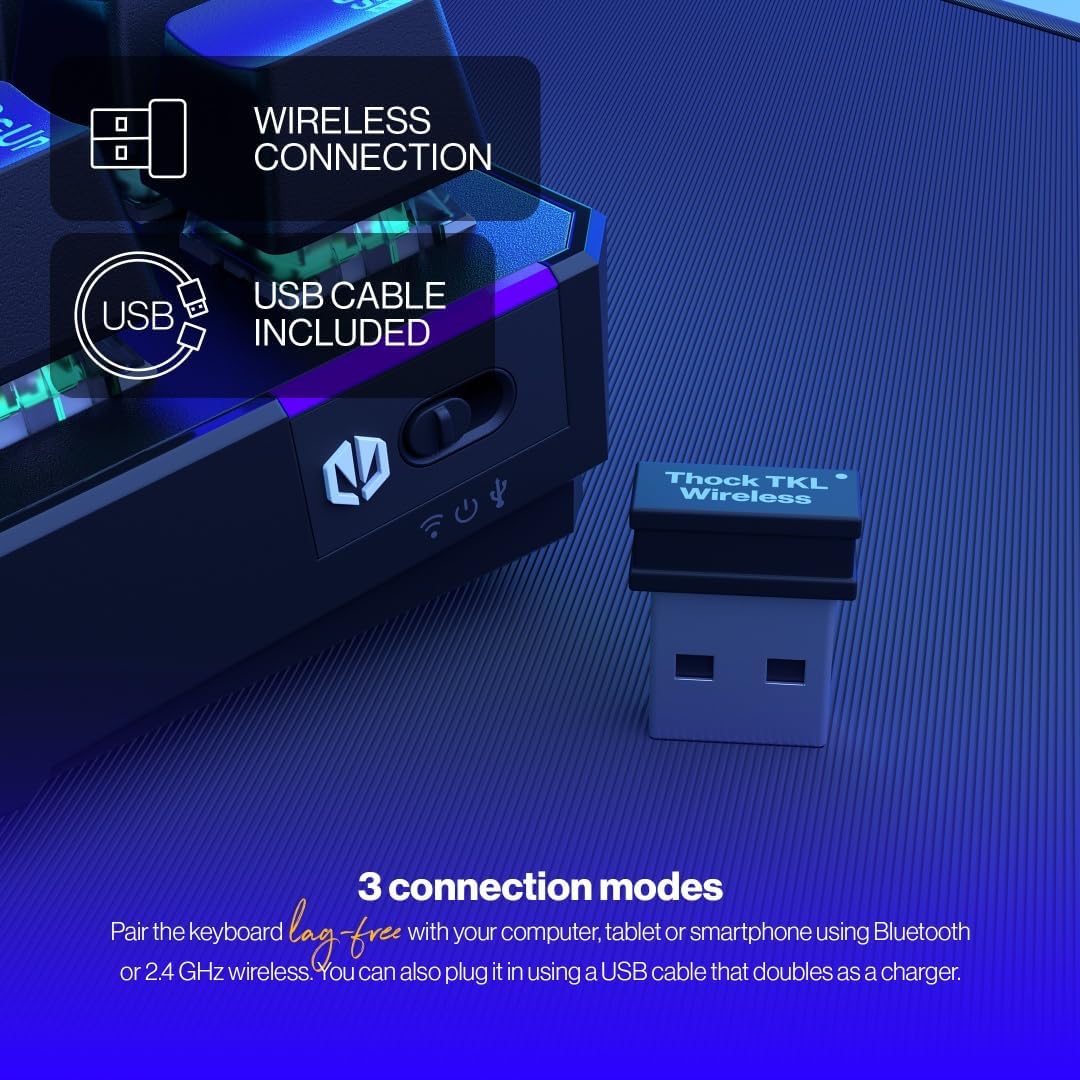
The keyboard offers versatile connectivity options including 2.4 GHz wireless, Bluetooth, and a wired USB connection.
3.2.1 2.4 GHz דראָטלאָזע פֿאַרבינדונג
- Locate the 2.4 GHz USB wireless receiver in your package.
- צאַפּן די וסב ופנעמער אין אַ בנימצא וסב פּאָרט אויף דיין קאָמפּיוטער.
- On the keyboard, locate the mode switch (usually on the side or back) and set it to the '2.4G' or wireless icon position.
- The keyboard should automatically connect to your computer.
3.2.2 בלועטאָאָטה קאַנעקשאַן
- On the keyboard, set the mode switch to the 'BT' or Bluetooth icon position.
- The keyboard will enter pairing mode (indicator light may flash).
- אויף אייער קאָמפּיוטער אָדער מיטל, עפֿנט די בלועטוט סעטטינגס און זוכט פֿאַר נײַע דעוויסעס.
- Select 'ENDORFY Thock TKL' (or similar name) from the list of available devices to pair.
3.2.3 ווייערד קאַנעקשאַן
- Connect the USB-C end of the provided cable to the USB-C port on the keyboard.
- פֿאַרבינדט דעם USB-A עק פֿונעם קאַבל צו אַ פֿאַראַן USB פּאָרט אויף אייער קאָמפּיוטער.
- The keyboard will function as a wired keyboard and will also charge its internal battery.

The USB-C port on the side of the keyboard allows for wired connection and charging.
4. אַפּערייטינג ינסטרוקטיאָנס
4.1 שליסל פאַנגקשאַנז
The Thock TKL keyboard features a standard 87-key US layout. Many keys have secondary functions accessible via the 'Fn' key. Refer to the keycaps for specific Fn combinations (e.g., Fn + F1-F12 for media controls, volume, etc.).
4.2 RGB באַקלייט קאַסטאַמייזיישאַן
The keyboard features programmable ARGB backlighting. You can cycle through various lighting effects and colors directly on the keyboard using specific Fn key combinations, or through the dedicated software for more advanced customization.
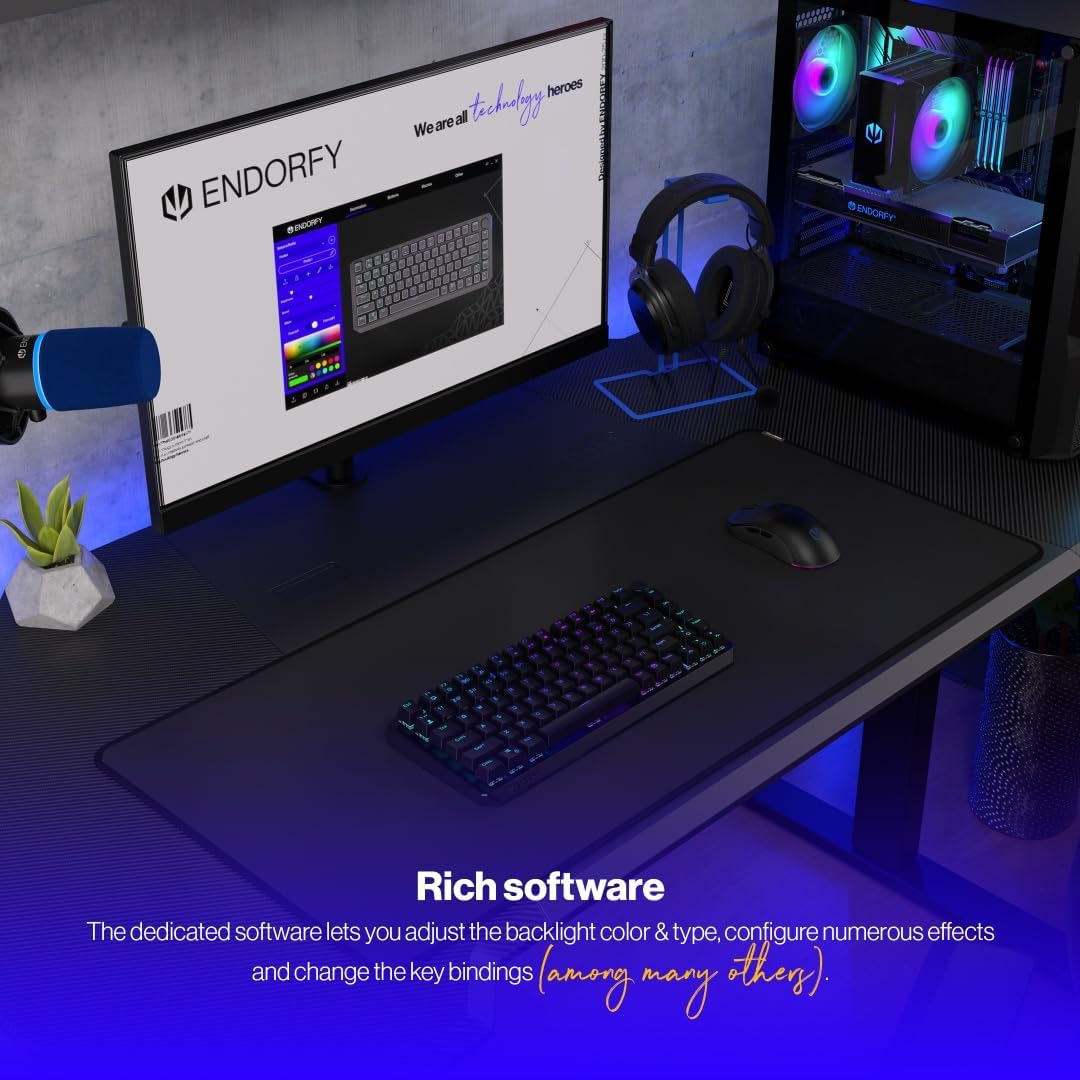
The keyboard features excellent ARGB backlighting, allowing for various color and effect customizations.
4.3 Software Usage
For advanced customization of key bindings, macros, and RGB lighting effects, download and install the dedicated ENDORFY software from the official website. The software provides a graphical interface to fine-tune your keyboard settings.

The dedicated software allows for comprehensive adjustment of backlight color, type, effects, and key bindings.
5. וישאַלט
5.1 רייניקונג
To clean your keyboard, first disconnect it from your computer. Use a soft, dry cloth to wipe down the keycaps and chassis. For deeper cleaning, you may use a can of compressed air to remove dust and debris from between the keys. Avoid using harsh chemicals or abrasive materials.
5.2 הייס-סוואַפּינג סוויטשעס
The ENDORFY Thock TKL keyboard features hot-swappable switches, allowing you to easily change them without soldering. Use the provided switch puller tool to carefully remove switches. Align the new switch with the pins and gently press it into place until it clicks.

The hot-swap feature allows for easy replacement of switches using the included tool.

The keyboard comes equipped with Kailh Box Red switches, known for their smooth and linear actuation.
5.3 קלאַוויאַטור פאַרבייַט
The keyboard uses durable PBT Double Shot keycaps. To remove a keycap, use the keycap puller tool (often combined with the switch puller) to gently pull it upwards. To install a new keycap, align it with the switch stem and press down firmly until it is seated.

The durable PBT Double Shot keycaps are resistant to wear and maintain their appearance over time.
6. טראָובלעשאָאָטינג
6.1 קלאַוויאַטור רעאַגירט נישט
- זייט זיכער אַז די קלאַוויאַטור איז אויפגעלאָדן.
- קאָנטראָלירט צי דער פֿאַרבינדונג מאָדע סוויטש (2.4G, BT, Wired) איז ריכטיק איינגעשטעלט.
- For wireless connections, ensure the USB receiver is properly plugged in or Bluetooth is paired. Try a different USB port.
- For wired connection, try a different USB cable or port.
- ריסטאַרט דיין קאָמפּיוטער.
6.2 Backlight Not Working or Incorrect
- Ensure the backlight is enabled via Fn key combinations.
- Check the brightness level.
- If using the software, ensure settings are applied correctly.
- Perform a factory reset if available (refer to software or advanced Fn commands).
6.3 שליסלען רעגיסטרירן זיך נישט
- זייט זיכער אַז די קלאַוויאַטור איז ריין און פריי פון שמוץ אונטער די קלאַוויאַטור קאַפּס.
- If a specific key is not working, try hot-swapping the switch with a known working one to diagnose if the issue is with the switch or the keyboard PCB.
- דערהייַנטיקט די קלאַוויאַטור פירמווער אויב בנימצא.
7. ספּעסאַפאַקיישאַנז
| מאָדעל נומער | EY5A080 |
| קלאַוויאַטור טיפּ | Mechanical, TKL (Tenkeyless) |
| סוויטשיז | Kailh Box Red (Hot-Swappable) |
| קייקאַפּס | פּבט טאָפּל שאָט |
| אויסלייג | US Layout, 87 Keys |
| קאַנעקטיוויטי | 2.4 GHz Wireless, Bluetooth, USB-C Wired |
| באַקלייט | ARGB Programmable |
| באַטערי | 1 ליטהיום יאָן באַטאַרייע (אַרייַנגערעכנט) |
| פּראָדוקט דימענשאַנז | 14.23 X 5.51 X 1.67 אינטשעס (361.50 X 140 X 42.50 מם) |
| פּונקט וואָג | 1.74 פונט |
| קאַמפּאַטאַבאַל דעוויסעס | PC, Gaming Consoles, Tablets, Smartphones |

Top view dimensions of the ENDORFY Thock TKL Wireless Keyboard.

זייַט view dimensions illustrating the adjustable height options of the keyboard.
8. וואָראַנטי און שטיצן
The ENDORFY Thock TKL Wireless Keyboard comes with a 2 יאָר וואָראַנטי פֿון דעם קויף־דאַטום. ביטע באַהאַלטן אייער קויף־באַווייַז פֿאַר גאַראַנטיע־קליימז.
For technical support, driver downloads, firmware updates, or further information, please visit the official ENDORFY webפּלאַץ:
http://endorfy.com/kb/EY5A-THOCK-TKL-WIRELESS
You may also contact ENDORFY customer support directly through the contact information provided on their webפּלאַץ.


