1. הקדמה
The PikDik Mini Portable Photo Printer PD-Q2 is a compact thermal printer designed for on-the-go printing. It connects via Bluetooth to compatible Android and iOS devices, allowing users to print photos, labels, lists, and more without the need for ink cartridges. This manual provides essential information for setting up, operating, maintaining, and troubleshooting your PD-Q2 printer.
2. זיכערקייַט אינפֿאָרמאַציע
- Do not expose the printer to water or excessive moisture.
- Avoid extreme temperatures. Operate and store the printer within recommended environmental conditions.
- Use only the provided charging cable and recommended power sources.
- האַלטן אויס פון דערגרייכן פון קינדער.
- פרובירט נישט צו צענעמען אדער פאררעכטן דעם דרוקער אליין. קאנטאקטירט קאסטומער סופארט פאר הילף.
3. פּעקל אינהאַלט
ביטע טשעק די פּאַקעט פֿאַר די פאלגענדע זאכן:
- PikDik Mini Portable Photo Printer PD-Q2
- וסב טיפּע- C טשאַרדזשינג קאַבלע
- Roll of Thermal Photo Paper
- באַניצער מאַנואַל
4. פּראָדוקט איבערview
The PD-Q2 printer features a compact design with a single power/function button and a paper output slot. It utilizes thermal printing technology, eliminating the need for ink. The device is powered by a built-in rechargeable lithium battery.
5. סעטאַפּ גייד
5.1 אויפלאָדן דעם דרוקער
Before first use, fully charge the printer. Connect the provided USB Type-C cable to the printer's charging port and a compatible USB power adapter. The LED indicator will show charging status.
5.2 לאָדן טערמיש פּאַפּיר
- Open the printer's paper compartment cover.
- Insert a new roll of thermal paper, ensuring the printing side faces the print head.
- Pull a small length of paper out of the slot and close the cover securely.
5.3 אַפּ אינסטאַלאַציע און בלועטוט פֿאַרבינדונג
The PikDik PD-Q2 printer requires the "Meta Print" application for operation. Follow these steps to connect your device:
- קער אויף די דרוקער: דריק און האַלט דעם מאַכט קנעפּל ביז די אינדיקאַטאָר ליכט צינדט זיך אָן.
- Download and Install the "Meta Print" APP: זוכן פֿאַר "Meta Print" on your smartphone's app store (Google Play for Android or App Store for iOS) and install it.
- געבן בלועטאָאָטה: On your phone or tablet, go to your device's settings and ensure Bluetooth is turned on.
- Connect in the APP: Open the "Meta Print" app. The app will guide you to link the printer via Bluetooth. Select the PD-Q2 from the list of available devices.
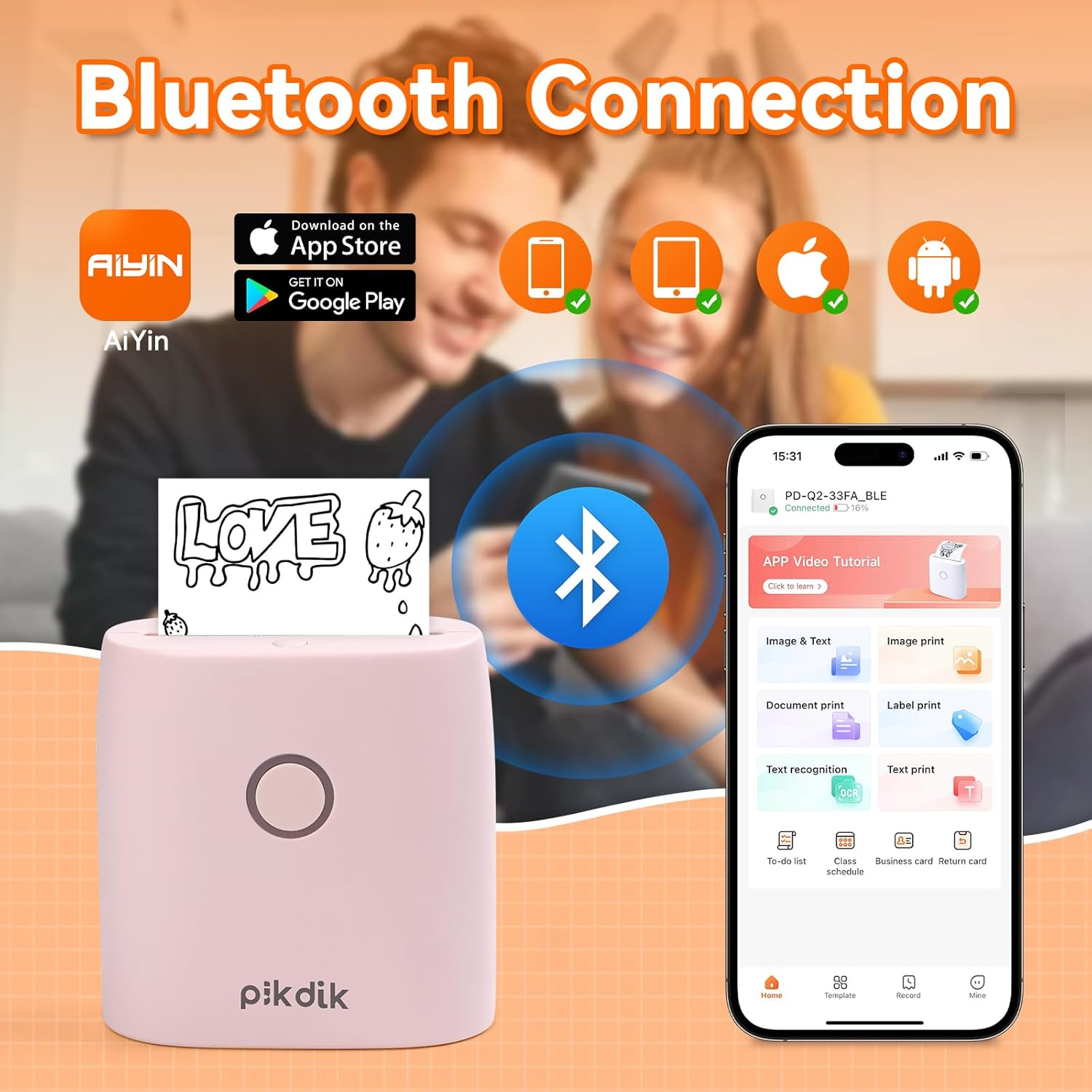
Image: The printer connects to your smartphone via Bluetooth using the Meta Print app, available on both Android and iOS.
6. אַפּערייטינג ינסטרוקטיאָנס
6.1 Printing Content
Once connected to the "Meta Print" app, you can select various content types for printing:
- Image & Text: Print photos, graphics, or combine them with text.
- דאָקומענט דרוק: Print documents or notes.
- Label Print: שאַפֿן און דרוקן מנהג-געמאַכטע עטיקעטן.
- טעקסט דערקענונג: Convert images of text into editable text for printing.
- מוסטערן: Utilize pre-designed templates for to-do lists, business cards, emojis, and more.
After selecting and editing your content within the app, tap the print button to initiate printing. The printer will output the thermal paper with your printed content.

Image: The printer is suitable for various applications such as journaling, scrapbooking, printing shopping lists, and notes.
6.2 Print Quality and Limitations
The PD-Q2 printer offers a 300 DPI resolution for clear and detailed black and white prints. As a thermal printer, it does not support color printing.
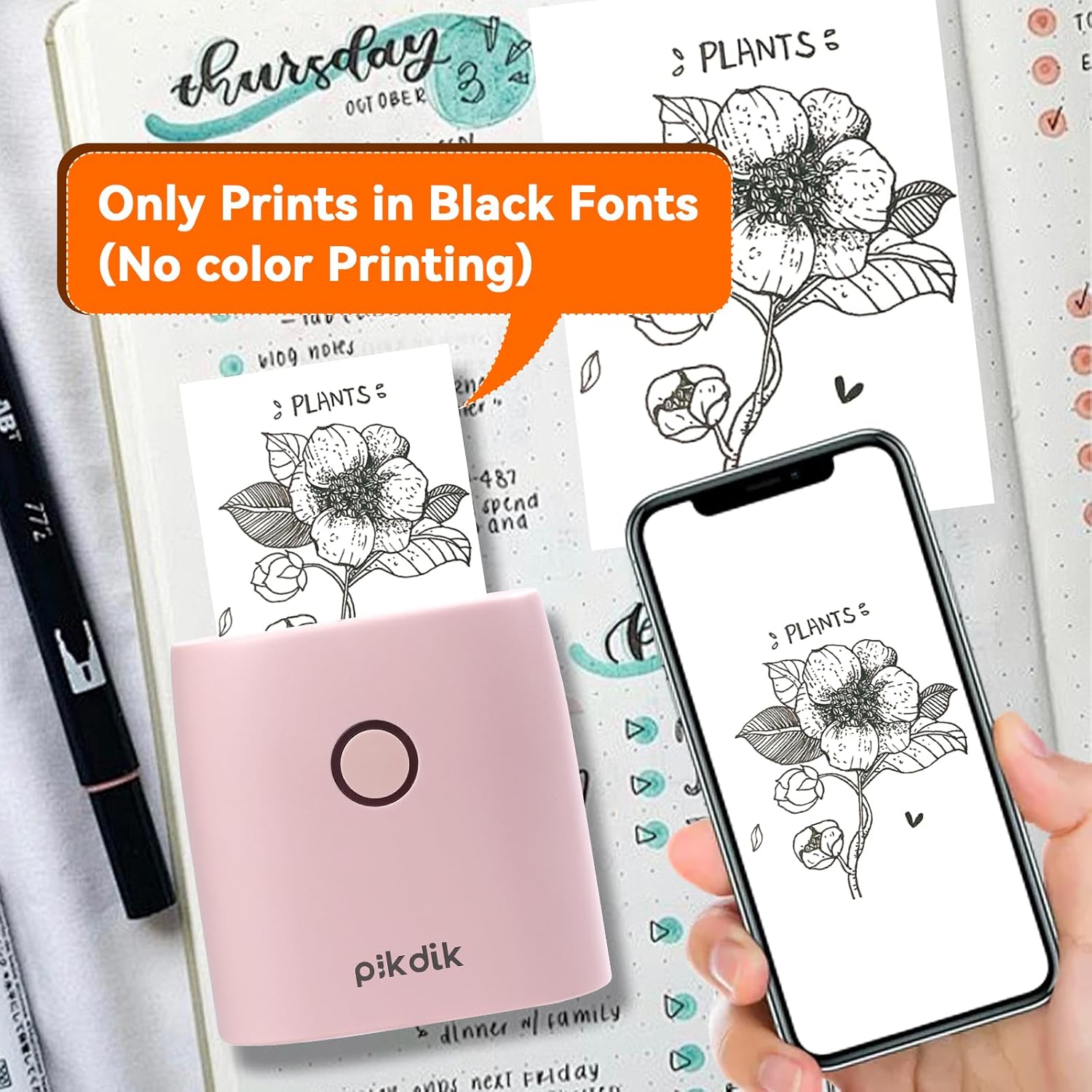
Image: The printer produces prints exclusively in black and white, as shown with a plant illustration.

Image: The 300 DPI resolution of the Q2 printer provides enhanced clarity and detail in prints compared to lower resolution alternatives.
7. וישאַלט
7.1 רייניקונג די פּרינטער
To maintain optimal print quality, periodically clean the print head. Use a soft, lint-free cloth lightly dampened with isopropyl alcohol. Gently wipe the print head surface. Ensure the printer is turned off and completely dry before use.
7.2 אויסטוישן טערמישע פאפיר
When the paper roll is depleted, replace it by following the steps in Section 5.2. Use only thermal paper compatible with the PD-Q2 printer to ensure proper function and print quality.
8. טראָובלעשאָאָטינג
| פּראָבלעם | מעגלעך סיבה | לייזונג |
|---|---|---|
| פּרינטער איז נישט קער אויף | נידעריגע באַטעריע; מאַכט קנעפּל נישט ריכטיק געדריקט | Charge the printer; Press and hold the power button for a few seconds. |
| קענען ניט פאַרבינדן דורך בלועטאָאָטה | Bluetooth off on phone; Printer not in pairing mode; App issue | Ensure phone Bluetooth is on; Restart printer and app; Re-pair device in app. |
| Poor print quality (faint, pixelated) | Low battery; Print head dirty; Incorrect paper type; Image resolution too low | Charge printer; Clean print head (Section 7.1); Use correct thermal paper; Use higher resolution images. |
| פּאַפּיר קלעם | Paper not loaded correctly; Foreign object in paper path | Open cover, remove jammed paper, reload correctly; Check for obstructions. |
| דרוקער רעאגירט נישט | סיסטעם טעות | Perform a soft reset by turning the printer off and on again. If issue persists, contact support. |
9. ספּעסאַפאַקיישאַנז
| שטריך | דעטאַל |
|---|---|
| מאָדעל | Q2 |
| דימענשאַנז (די רענטגענ וו x ה) | 4.1 X 8.4 X 8.4 סענטימעטער (1.6 X 3.3 X 3.3 אינטשעס) |
| וואָג | 0.57 פונט (אומגעפער 258.55 ג) |
| דרוק טעכנאָלאָגיע | טערמאַל |
| דרוק האַכלאָטע | 300 DPI (Monochrome) |
| קאַנעקטיוויטי | בלועטאָאָטה |
| קאַמפּאַטאַבאַל דעוויסעס | Smartphones, Tablets (Android, iOS) |
| מאַקסימום מעדיע גרייס | 2 אינטשעס |
| מאַכט מקור | Built-in Lithium Polymer Battery (Rechargeable via USB Type-C) |
| אַפּ נאָמען | Meta Print |
10. וואָראַנטי און שטיצן
For warranty information and technical support, please refer to the warranty card included with your product or contact PikDik customer service directly. Keep your purchase receipt as proof of purchase.


