1. הקדמה
This manual provides comprehensive instructions for the setup, operation, and maintenance of your iDPRT 320E Thermal Label Printer. Please read this manual thoroughly before using the device to ensure proper functionality and to prevent damage. The iDPRT 320E is designed for efficient label printing in various environments, supporting multiple operating systems and connectivity options.
2. וואָס איז אין דער קעסטל
באַשטעטיקן אַז אַלע קאָמפּאָנענטן זענען פאַראַן ביים אויספּאַקן:
- iDPRT 320E Thermal Label Printer
- ינסטראַקשאַנז מאַנואַל
- וסב דאַטאַ קאַבלע
- מאַכט אַדאַפּטער
- Sampלאַ לאַבעלס
3. פּראָדוקט איבערview
The iDPRT 320E Thermal Label Printer is a compact device designed for high-speed, high-resolution label printing. It features a simple design with essential ports for connectivity and an intuitive LED indicator for operational status.
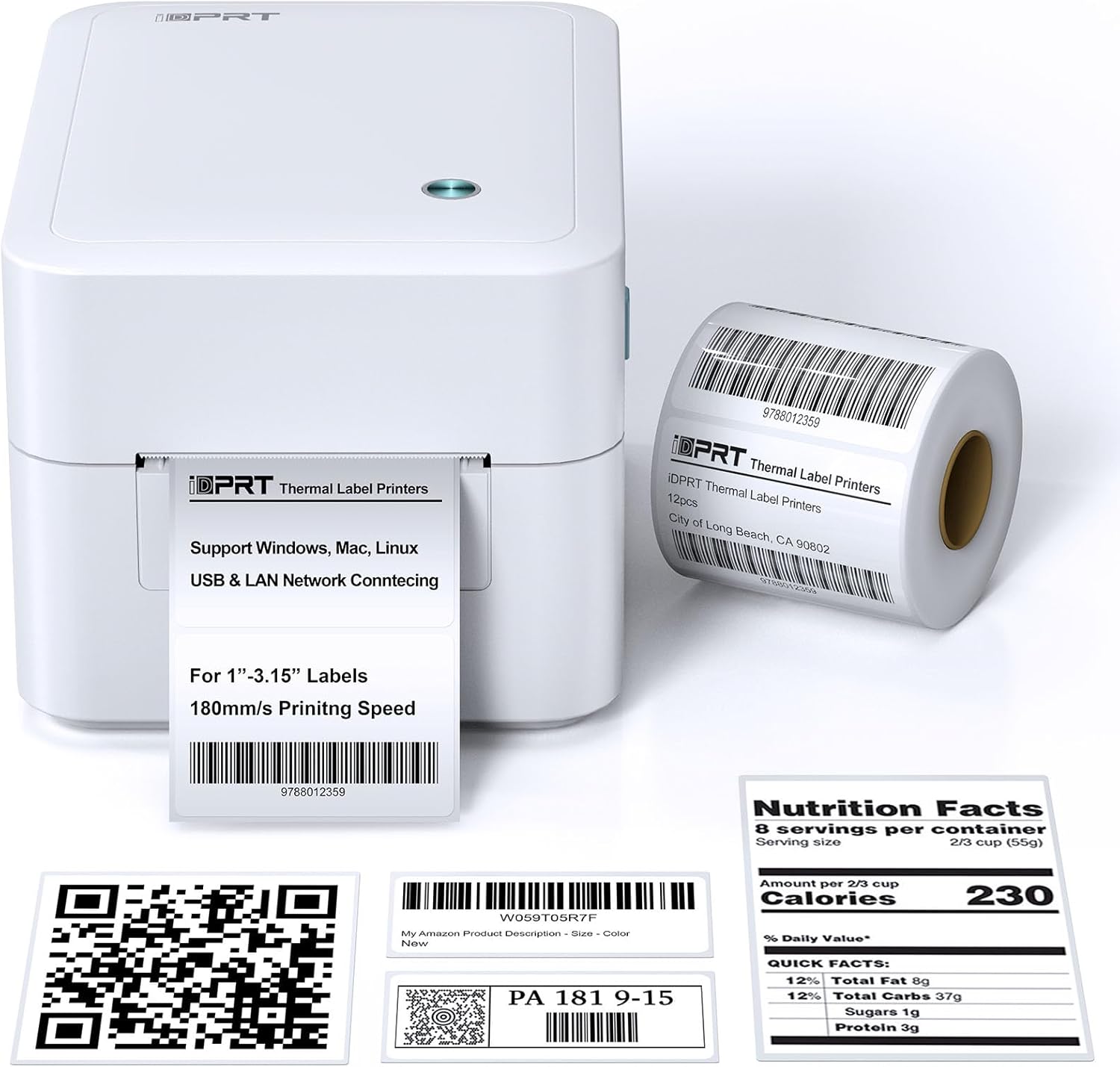
פיגורע 3.1: פראָנט view of the iDPRT 320E Thermal Label Printer with sampדי עטיקעטן.
שליסל קאַמפּאָונאַנץ:
- Label Exit Slot: Where printed labels emerge.
- Cover Release Latches: Used to open the printer cover for label loading.
- מאַכט פּאָרט: קאַנעקץ צו די מאַכט אַדאַפּטער.
- וסב פּאָרט: פֿאַר דירעקטן פֿאַרבינדונג צו אַ קאָמפּיוטער.
- לאַן פּאָרט: פֿאַר נעץ קאָנעקטיוויטי.
- LED ינדיקאַטאָר: דיספּלייז דרוקער סטאַטוס.
4. סעטאַפּ אינסטרוקציעס
4.1 מאַכט קאַנעקשאַן
- Connect the power adapter to the printer's power port.
- צאַפּן די מאַכט אַדאַפּטער אין אַ פּאַסיק עלעקטריקאַל ווענטיל.
4.2 לאָדן עטיקעטן
The printer supports thermal labels with widths between 1 and 3.15 inches.
- Gently press the cover release latches on both sides of the printer to open the top cover.
- Place the roll of thermal labels into the label compartment, ensuring the labels feed from the bottom of the roll and the printable side faces upwards.
- Adjust the label guides to fit the width of your labels snugly, without creasinג זיי.
- Pull a few labels past the print head and out through the label exit slot.
- מאַכט פעסט צו דעם אויבערשטן דעקל ביז עס קליקט אַרײַן אין פּלאַץ.

Figure 4.1: Correct method for loading thermal labels into the printer.
4.3 דרייווער און ווייכווארג אינסטאַלאַציע
To use the printer with your computer, you must install the appropriate drivers and the Label Designer software.
- Visit the official iDPRT website to download the latest drivers for your operating system (Windows, Mac, or Linux).
- Download and install the free Label Designer software from the official website. This software is available for Windows and as an online editor for Mac users.
- Follow the on-screen instructions to complete the installation process for both the drivers and the software.

Figure 4.2: The iDPRT 320E printer supports multiple operating systems.
4.4 קאָנעקטיוויטי אָפּציעס
The iDPRT 320E offers flexible connectivity:
- USB קשר: Connect the printer directly to your computer using the provided USB cable.
- LAN Network Connection: Connect the printer to your local area network using an Ethernet cable for shared access.
- מאָביל אַפּ: For direct printing from your smartphone, download the iDPRT mobile application.

Figure 4.3: USB and LAN network connectivity options.
5. אַפּערייטינג ינסטרוקטיאָנס
5.1 Creating Labels with Label Designer Software
The Label Designer software allows you to create and customize various label types.
- Launch the Label Designer software on your computer.
- Select a template or start a new label design.
- Customize your labels with text, barcodes, QR codes, images, and various fonts. The software supports different label sizes and layouts.
- Ensure the label dimensions in the software match the physical labels loaded in the printer.

Figure 5.1: Designing labels using the Label Designer software.
5.2 דרוקן עטיקעטן
Once your label design is complete and labels are loaded:
- In the Label Designer software, click the 'Print' button.
- Select the iDPRT 320E printer from the list of available printers.
- Adjust print settings such as quantity and print speed if necessary. The printer supports speeds up to 180mm/s and a resolution of 203 DPI.
- Confirm the settings and initiate printing.

Figure 5.2: The printer delivers high-quality 203 DPI resolution for clear labels.
Figure 5.3: The printer is capable of high-speed printing up to 180mm/s.
5.3 LED אינדיקאַטאָר באַדייטונגען
The LED indicator on the printer provides visual feedback on its status:
- Green (Solid On): The printer is currently printing.
- Red (Solid On): The printer cover is not properly closed, or there is a paper jam/error.
- Blue (Solid On): דער דרוקער איז גרייט פֿאַר אָפּעראַציע.
6. וישאַלט
6.1 רייניקונג די פּרינטער
רעגולערע רייניקונג העלפט אויפהאלטן די דרוק קוואַליטעט און פארלענגערט די לעבנסדויער פונעם דרוקער.
- זיכער מאַכן אַז דער דרוקער איז אויסגעלאָשן און נישט אַרויסגעטראָגן פֿון דער מאַכט איידער איר רייניקט עס.
- ניצן אַ ווייך, לינט-פֿרייַ שטאָף דampened with isopropyl alcohol to gently wipe the print head. Avoid touching the print head with bare hands.
- Clean the exterior of the printer with a dry, soft cloth. Do not use abrasive cleaners or solvents.
- Remove any dust or label debris from the label compartment.
7. טראָובלעשאָאָטינג
If you encounter issues with your iDPRT 320E printer, refer to the following common problems and solutions:
| פּראָבלעם | מעגלעך סיבה | לייזונג |
|---|---|---|
| דרוקער גייט נישט אן | שטראָם קאַבל אָפּגעטיילט; שטראָם אַוטלעט דעפעקטיוו | קאָנטראָלירט די עלעקטרישע פֿאַרבינדונגען; פּרוּווט אַן אַנדער ווענטיל. |
| עטיקעטן דרוקן זיך נישט | Labels loaded incorrectly; Printer cover open; No drivers installed; Incorrect printer selected | Reload labels correctly; Close cover firmly; Install drivers; Select iDPRT 320E in print dialog. |
| Poor print quality (faded, blurry) | Print head dirty; Low-quality labels; Incorrect print density settings | Clean the print head; Use recommended thermal labels; Adjust print density in software settings. |
| Cannot connect via USB/LAN | Cable faulty; Driver issue; Network configuration problem | Try a different cable; Reinstall drivers; Verify network settings (for LAN). |
| Cannot connect via mobile app | App not installed; Printer not discoverable; Network issue | Ensure app is installed and updated; Check printer's network connection; Restart printer and app. |
| Mac Bluetooth connectivity issues | Direct Bluetooth printing to Mac is not supported; Driver limitations | Connect via USB or LAN for Mac systems. Mobile app connectivity is available for smartphones. |
8. ספּעסאַפאַקיישאַנז
Detailed technical specifications for the iDPRT 320E Thermal Label Printer:
| שטריך | באַשרייַבונג |
|---|---|
| מאָדעל נאָמען | 320E |
| דרוק טעכנאָלאָגיע | טערמאַל |
| מאַקסימום פּרינט ספּיד | 180 מ״מ/ס (מאָנאָכראָם) |
| מאַקסימום פּרינט האַכלאָטע | 203 דפּי |
| מאַקסימום מעדיע גרייס | 1"-3.15" inches width |
| קאַנעקטיוויטי טעכנאָלאָגיע | וסב, לאַן |
| קאַמפּאַטאַבאַל דעוויסעס | PC (Windows, Mac, Linux), Mobile (iOS/Android via App) |
| קאָנטראָל מעטאָד | App, Software |
| פּראָדוקט דימענשאַנז | 8.11"ד רענטגענ 6.1"וו רענטגענ 5.28"ה |
| פּונקט וואָג | 3.78 פונט |
| ספּעציעלע פֿעיִקייטן | Automatic Label Recognition, LAN Network Connectivity |
9. וואָראַנטי און שטיצן
9.1 וואָראַנטי אינפֿאָרמאַציע
The iDPRT 320E Thermal Label Printer comes with a limited warranty. Please refer to the warranty card included in your product packaging or visit the official iDPRT webפּלאַץ פֿאַר דיטיילד טערמינען און באדינגונגען.
9.2 קונה שטיצן
For technical assistance, troubleshooting, or any inquiries regarding your iDPRT 320E printer, please contact our customer service team. You can reach us via the Amazon messaging system or through the contact information provided on the official iDPRT website. Our team is available to assist you with any pre-sales or after-sales support needs.


