1. הקדמה און איבערview
The Calix GigaCenter 844E-1 is a high-performance wireless router and modem designed to provide robust and reliable internet connectivity for home and small office environments. It supports dual-band Wi-Fi (2.4GHz and 5GHz) for optimal wireless performance and includes multiple Ethernet ports for wired connections. This manual provides detailed instructions for setting up, operating, maintaining, and troubleshooting your GigaCenter 844E-1 device.
2. פּראָדוקט פֿעיִקייטן
- צוויי-באַנד ווי-פי: Supports 2.4GHz and 5GHz frequencies for flexible and high-speed wireless connections (802.11ac, 802.11n, 802.11a/g/b compatible).
- High LAN Data Rate: Capable of up to 1000 Mbps for fast wired connections.
- קייפל פּאָרץ: Includes Ethernet (RJ-45) ports (4 LAN ports), USB 2.0, and RJ-11 ports for versatile connectivity.
- Integrated Modem: Functions as both a router and a modem, simplifying network setup.
- סאָליד פּלאַן: Designed for efficient space utilization.
3. פּעקל אינהאַלט
ביטע באַשטעטיקן אַז אַלע זאכן זענען פאַראַן אין דיין פּעקל:
- Calix GigaCenter 844E-1 Wireless Router Modem
- אַק אַדאַפּטער מאַכט סופּפּלי
- (Optional: Ethernet Cable, Phone Cable - may vary by package)
4. סעטאַפּ גייד
Follow these steps to set up your Calix GigaCenter 844E-1:
- פּאַזישאַנינג די מיטל: Place the GigaCenter 844E-1 in a central location in your home, away from obstructions and sources of interference (e.g., microwaves, cordless phones). Ensure adequate ventilation.
- פאַרבינדן מאַכט: Connect the provided AC Adapter Power Supply to the "POWER" port on the back of the GigaCenter 844E-1 and then plug the adapter into a standard electrical outlet. The Power indicator light on the front panel should illuminate.

פיגורע 4.1: פראָנט view of the Calix GigaCenter 844E-1 showing indicator lights and the included power adapter.
- פֿאַרבינדן זיך צום אינטערנעט מקור: Connect your internet service provider's (ISP) cable or fiber optic line to the appropriate WAN/Broadband port on the GigaCenter 844E-1. This port is typically labeled "ETH-WAN" or "Broadband". The Broadband indicator light should turn solid green once a connection is established.

פיגורע 4.2: זייַט view of the GigaCenter 844E-1 highlighting the ETH-WAN, Power, and Phone ports.
- פֿאַרבינדן דראָטיקע דעוויסעס (אָפּציאָנאַל): Use standard Ethernet cables to connect computers, gaming consoles, or other network devices to the "ETHERNET 1-4" ports on the back of the GigaCenter 844E-1. The corresponding Ethernet indicator light will illuminate when a device is connected and active.

Figure 4.3: Top/back view of the GigaCenter 844E-1 displaying the USB, Reset, Ethernet (LAN), and Phone ports.
- Connect Phone Devices (Optional): If your service includes voice, connect analog phones to the "PHONE 1" or "PHONE 2" ports using RJ-11 cables.
- ערשטע Wi-Fi פֿאַרבינדונג:
- Locate the Wi-Fi Network Name (SSID) and Password (WPA Key) on the label usually found on the bottom or back of your GigaCenter 844E-1.
- אויף אייער ווייערלעס מיטל (לאַפּטאַפּ, סמאַרטפאָון, טאַבלעט), זוכט פֿאַר בנימצא Wi-Fi נעטוואָרקס.
- Select your GigaCenter's SSID and enter the WPA Key when prompted.
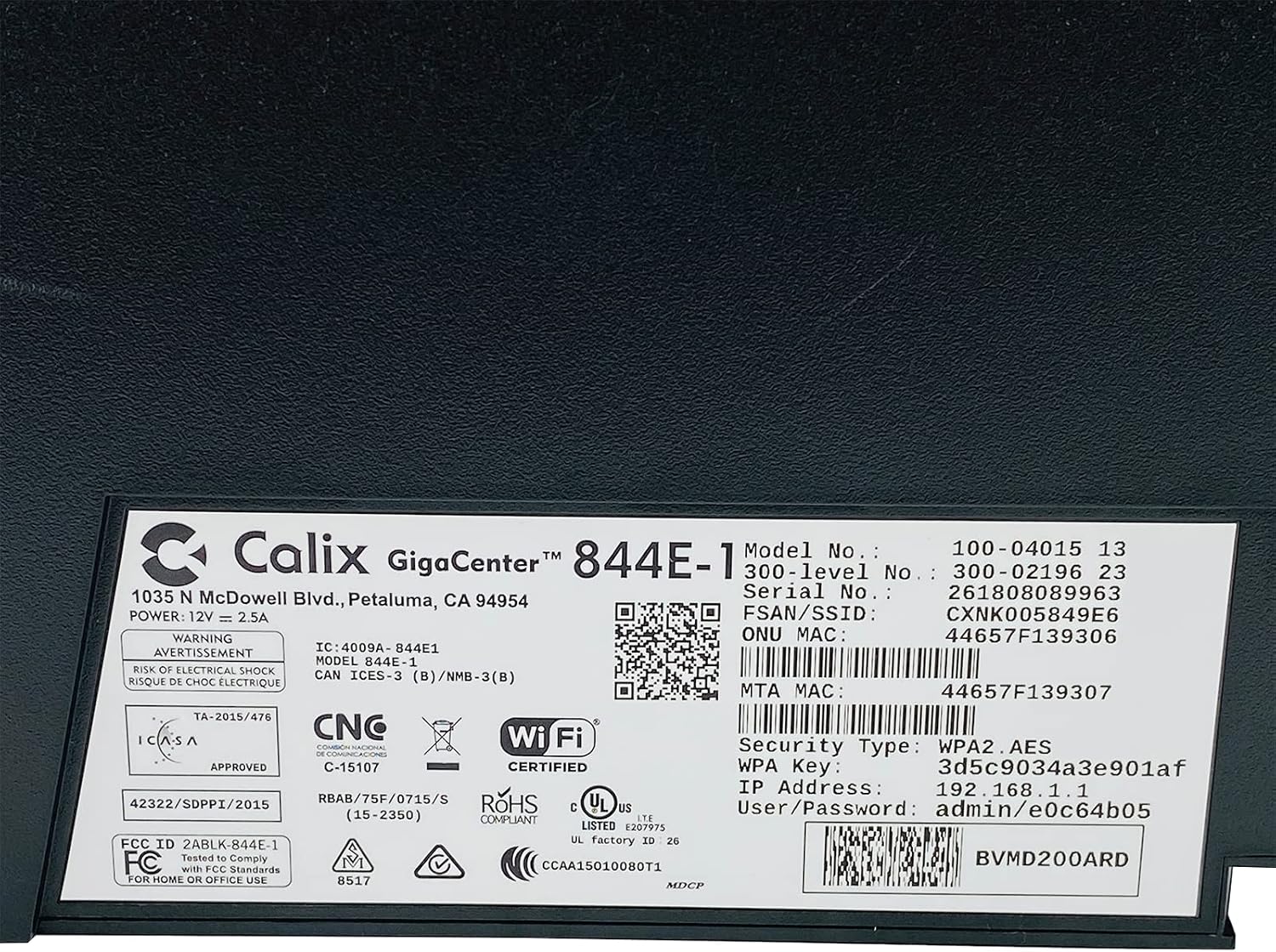
פיגורע 4.4: דעטאַילעד view of the bottom label, providing essential information such as model number, serial number, Wi-Fi SSID, and WPA Key for network access.
- באַשטעטיקן קשר: אַמאָל קאָננעקטעד, עפֿענען אַ web browser and try to access a webזייטל (למשל, www.google.com). If successful, your GigaCenter 844E-1 is set up and ready for use.
5. אַפּערייטינג ינסטרוקטיאָנס
5.1 ינדיקאַטאָר לייץ
The front panel of the GigaCenter 844E-1 features several indicator lights that provide status information:
| ליכט | סטאַטוס | באַשרייַבונג |
|---|---|---|
| מאַכט | האַרט גרין | מיטל איז פּאַוערד אויף. |
| ברייטבאַנד | האַרט גרין | אינטערנעט פֿאַרבינדונג איז אַקטיוו. |
| סערוויס | האַרט גרין | Service is active and provisioned. |
| WIFI 2.4 גהז | Solid Green/Flashing | 2.4 GHz Wi-Fi is active/data transfer. |
| WIFI 5 גהז | Solid Green/Flashing | 5 GHz Wi-Fi is active/data transfer. |
| עטהערנעט 1-4 | Solid Green/Flashing | Wired connection active/data transfer. |
| PHONE 1-2 | Solid Green/Flashing | Phone service active/in use. |
| וסב | Solid Green/Flashing | USB device connected/data transfer. |
| WPS | פלאַשינג | WPS פּערינג אין פּראָגרעס. |
5.2 אַקסעס די Web צובינד
To configure advanced settings, you can access the GigaCenter's web צובינד:
- Ensure your device is connected to the GigaCenter via Wi-Fi or Ethernet.
- עפענען א web browser and enter the IP Address (e.g., 192.168.1.1) found on the product label into the address bar.
- Enter the User/Password (e.g., admin/e0c64b05) from the product label when prompted.
- You can now configure settings such as Wi-Fi name, password, port forwarding, and parental controls.
6. וישאַלט
- רייניקונג: ניצט אַ ווייכע, טרוקענע שטאָף צו רייניקן די אויסערלעכע זייט פון דעם אַפּאַראַט. ניצט נישט קיין פליסיקע רייניקונגס-מיטלען אדער אַעראָזאָלן.
- ווענטילאַטיאָן: Ensure the device's ventilation slots are not blocked to prevent overheating.
- Firmware דערהייַנטיקונגען: Periodically check with your Internet Service Provider (ISP) for available firmware updates to ensure optimal performance and security.
- ריסטאַרטינג: If you experience connectivity issues, try restarting the device by unplugging the power adapter for 10 seconds and then plugging it back in.
7. טראָובלעשאָאָטינג
די סעקציע באהאנדלט אלגעמיינע פראבלעמען וואס איר קענט באגעגענען:
7.1 קיין אינטערנעט פֿאַרבינדונג
- טשעק קאַבלעס: Ensure all cables (power, internet source, Ethernet) are securely connected.
- ינדיקאַטאָר לייץ: Verify that the POWER, BROADBAND, and SERVICE lights are solid green. If not, refer to Section 5.1 or contact your ISP.
- ריסטאַרט דיווייס: Power cycle the GigaCenter 844E-1 by unplugging it for 10 seconds and plugging it back in.
- אינטערנעט סערוויס אויtage: Check with your ISP for any service outagעס איז אין דיין געגנט.
7.2 Wi-Fi Not Working or Slow
- Wi-Fi Lights: Ensure the WIFI 2.4 GHz and/or WIFI 5 GHz lights are solid green.
- שפּריכוואָרט: Double-check that you are entering the correct Wi-Fi password (WPA Key).
- סיגנאַל שטאַרקייט: Move closer to the GigaCenter 844E-1 to improve signal strength.
- ינטערפיראַנס: רעדוצירן אריינמישונג פון אנדערע עלעקטראָנישע דעוויסעס.
- קאַנאַל אָפּטימיזאַציע: אַקסעס די web interface to change Wi-Fi channels if experiencing congestion.
7.3 קען נישט צוטריטן Web צובינד
- IP אַדרעס: Confirm you are using the correct IP Address (e.g., 192.168.1.1).
- קשר: Ensure your device is connected to the GigaCenter's network.
- קרעדענטיאַלס: Verify the User/Password from the product label.
- פיירוואַל/אַנטיוויירוס: צייטווייליג אויסלעשן יעדע פיירוואַל אדער אנטי-ווירוס ווייכווארג אויף אייער קאמפיוטער וואס קען בלאקירן צוטריט.
7.4 WPS פונקציאָנאַליטעט
The WPS (Wi-Fi Protected Setup) button allows for easy connection of WPS-compatible devices without manually entering the password. Press the WPS button on the GigaCenter 844E-1 and then activate WPS on your client device within two minutes. The WPS light will flash during the pairing process.
8. ספּעסאַפאַקיישאַנז
| שטריך | דעטאַל |
|---|---|
| מאָדעל | GigaCenter 844E-1 (100-04015 13) |
| סאָרט | קאַליקס |
| קאַנעקטיוויטי טעכנאָלאָגיע | Wireless-Wi-Fi 802.11ac, Ethernet (RJ-45) Hub/Switch, 5G |
| ווירעלעסס סטאַנדאַרדס | 802.11ac, 802.11n, 802.11a/g/b |
| אָפטקייַט באַנד קלאַס | צוויי-באַנד (2.4 GHz, 5 GHz) |
| Maximum LAN Data Rate | 1000 מבפּס |
| פּאָרץ | 4 x Ethernet (RJ-45), 1 x USB 2.0, 2 x RJ-11 (Phone) |
| קאַמפּאַטאַבאַל דעוויסעס | Personal Computer, Network Devices |
| רעקאַמענדיד נוצן | היים |
| אַרייַנגערעכנט קאַמפּאָונאַנץ | מאַכט צושטעלן |
| פּונקט וואָג | 3 פונט |
9. זיכערקייַט אינפֿאָרמאַציע
- דו זאלסט נישט ויסשטעלן די מיטל צו וואַסער אָדער נעץ.
- נישט עפענען דעם אפאראט casinז. איבערגעבן אלע סערוויסינג צו קוואַליפֿיצירטע פּערסאָנעל.
- ניצן בלויז די צוגעשטעלט מאַכט אַדאַפּטער.
- האַלטן די מיטל אַוועק פון היץ קוואלן און דירעקט זונשייַן.
- פאַרזיכערן געהעריק ווענאַליישאַן צו פאַרמייַדן אָוווערכיטינג.
10. וואָראַנטי און שטיצן
For warranty information and technical support, please contact your Internet Service Provider (ISP) or the vendor from whom you purchased this device. The Calix GigaCenter 844E-1 is typically provided and supported by your ISP as part of your internet service package.
For general inquiries or to find more information about Calix products, you may visit the official Calix website (if available, search online for "Calix official website").


