1. הקדמה
This manual provides comprehensive instructions for the safe and efficient use of your MARKLIFE P50 Portable Bluetooth Thermal Label Printer. Please read this manual thoroughly before operating the device and retain it for future reference.
2. זיכערקייַט אינפֿאָרמאַציע
- דו זאלסט נישט דיסאַסעמבאַל, פאַרריכטן אָדער מאָדיפיצירן די מיטל.
- האַלט דעם אַפּאַראַט אַוועק פון וואַסער, נעץ און הויכע טעמפּעראַטורן.
- Use only MARKLIFE approved labels and accessories.
- פֿאַרמײַדט צו אָנרירן דעם דרוק קאָפּ גלייך נאָכן דרוקן, ווײַל ער קען זײַן הייס.
- האַלטן אויס פון דערגרייכן פון קינדער.
3. פּעקל אינהאַלט
באַשטעטיקן אַז אַלע זאכן זענען פאַראַן אין דיין פּעקל:
- MARKLIFE P50 לאַבעל פּרינטער
- 3 Rolls of Labels (2x 1.57"x1.18" white gap labels, 1x 2"x2" circle gap label)
- וסב-C טשאַרדזשינג קאַבלע
- באַניצער מאַנואַל (דעם דאָקומענט)
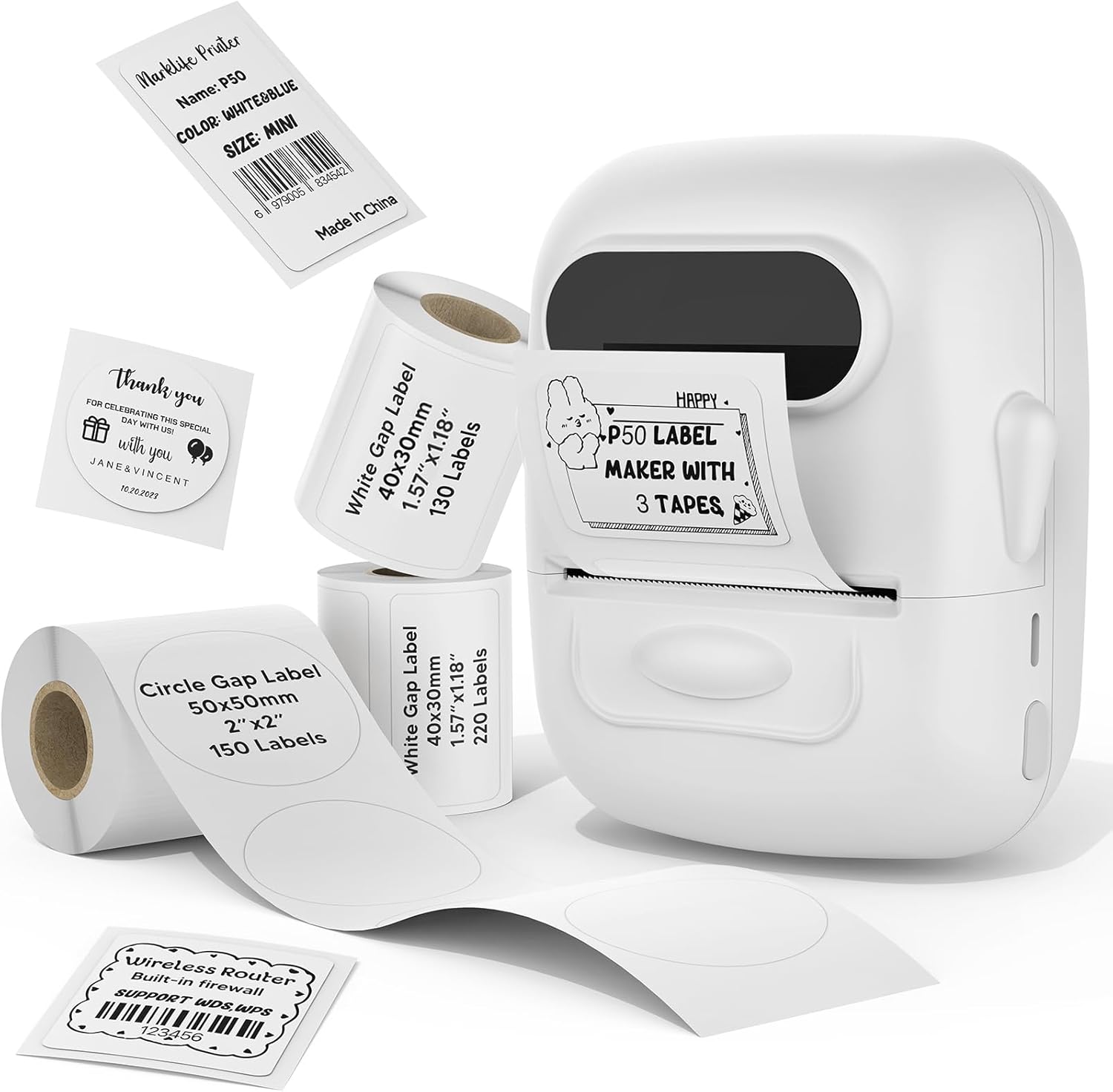
Image: MARKLIFE P50 Label Printer and various label rolls included in the package.
4. פּראָדוקט איבערview
The MARKLIFE P50 is a compact, portable thermal label printer designed for various labeling needs. It connects wirelessly via Bluetooth to your smartphone or tablet and can also connect to a Windows PC via USB. It utilizes thermal printing technology, requiring no ink, and supports black and white printing only.

Image: The MARKLIFE P50 printer being placed into a handbag, highlighting its portable design and built-in 1200mAh battery with Type-C charging.
5. סעטאַפּ
5.1 טשאַרדזשינג די מיטל
Before first use, fully charge the printer using the provided USB-C cable and a compatible power adapter (not included). The charging indicator light will show the charging status.
5.2 לאָדן עטיקעטן
- עפֿנט דעם דעקל פֿון דעם עטיקעט־אָפּטייל.
- Insert the label roll with the printing surface facing upwards.
- Ensure the label edge is aligned and extends slightly out of the printer slot.
- Close the cover firmly. The printer will automatically detect the label type and size.

Image: Illustration of label loading and compatible label widths (0.59 to 2.24 inches) for the P50 printer.
5.3 App Installation and Bluetooth Pairing (for Mobile Devices)
- Download the "Marklife" app from your device's app store (iOS or Android).
- Turn on the P50 printer.
- געבן בלועטאָאָטה אויף דיין סמאַרטפאָנע אָדער טאַבלעט.
- Open the Marklife app and follow the on-screen instructions to connect to your P50 printer. The app will typically detect the printer automatically.
5.4 PC Connection (for Windows)
For Windows PC connectivity, download the official software from the MARKLIFE website. Connect the printer to your PC using the USB-C cable. The software will guide you through the printing process.

Image: The P50 label printer connected to both a laptop and a smartphone, illustrating its support for mobile and PC devices.
6. אָפּעראַציע
6.1 Basic Printing (via App)
- Ensure the printer is powered on and connected to the Marklife app.
- Select a template or create a new label design within the app.
- Enter your desired text, add images, barcodes, or QR codes.
- Adjust print settings (e.g., quantity, density) as needed.
- Tap the "Print" button in the app to initiate printing.

Image: Various label applications, such as clothing tags with barcodes, handmade soap labels, and price tags for baked goods, demonstrating the printer's versatility.
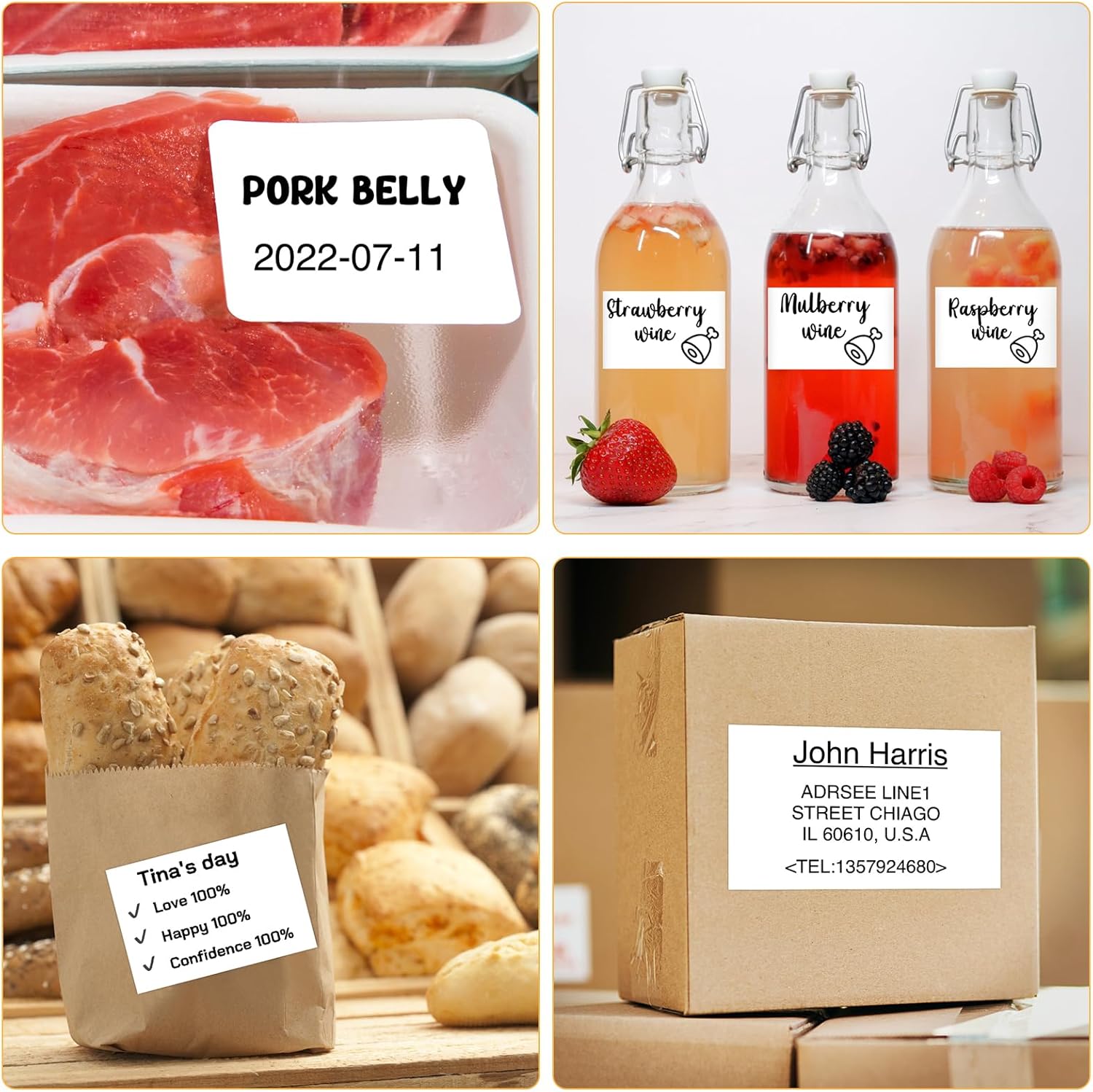
בילד: עקסamples of labels for food items (pork belly, beverages) and a shipping address label, showcasing different label content possibilities.
6.2 פּעקל פּרינטינג
The Marklife app supports batch printing for multiple copies of the same label or sequential labels. Refer to the app's specific instructions for detailed steps on batch printing functionality.

Image: The MARKLIFE P50 printer actively printing multiple barcode labels in a batch, demonstrating stable printing over a long duration.
7. וישאַלט
- רייניקונג די פּרינט קאָפּ: ניצן אַ ווייך, לינט-פֿרייַ שטאָף לייטלי דampened with alcohol to gently wipe the print head. Ensure the printer is off and cooled down before cleaning.
- רייניקונג די יקסטיריער: Wipe the printer's exterior with a soft, dry cloth. Do not use harsh chemicals.
- לייבל סטאָרידזש: Store label rolls in a cool, dry place away from direct sunlight to preserve their quality.
8. טראָובלעשאָאָטינג
| פּראָבלעם | מעגלעך סיבה | לייזונג |
|---|---|---|
| דרוקער טוט זיך נישט אן | נידעריק באַטאַרייע אָדער מאַכט אַרויסגעבן | Charge the printer using the USB-C cable. |
| קענען ניט פאַרבינדן דורך בלועטאָאָטה | Bluetooth off, app issue, or printer not discoverable | Ensure Bluetooth is enabled on your device. Restart the printer and the app. Try re-pairing. |
| נעבעך דרוק קוואַליטעט | Dirty print head, incorrect label loading, or low print density setting | Clean the print head. Re-load labels correctly. Adjust print density in the app. |
| עטיקעטן ווערן נישט ריכטיק צוגעפֿירט | Improper label loading or label jam | Open the cover, re-seat the label roll, ensuring it's aligned. Clear any jammed labels. |
9. ספּעסאַפאַקיישאַנז
| שטריך | דעטאַל |
|---|---|
| מאָדעל | P50 |
| דרוק טעכנאָלאָגיע | טערמאַל |
| קאַנעקטיוויטי | בלועטאָאָטה, וסב |
| קאַמפּאַטאַבאַל דעוויסעס | Android, iOS, Windows PC |
| מאַקס מידיאַ גרייס | 2 אינטשעס (57 מם) |
| Print Width Range | 0.59" - 2.24" (15 מ"מ - 57 מ"מ) |
| דרוקער רעזולטאַט | מאָנאָטשראָם (שוואַרץ און ווייס) |
| באַטערי | Built-in 1200mAh (rechargeable) |
| טשאַרדזשינג פּאָרט | וסב-C |
| פּראָדוקט דימענשאַנז | 4"ד x 3"ברייט x 2"ה (אומגעפער) |
| פּונקט וואָג | 6 אונסעס (בעערעך) |
10. וואָראַנטי און שטיצן
The MARKLIFE P50 Label Printer comes with a limited warranty. For warranty details, technical support, or customer service inquiries, please refer to the official MARKLIFE webזייטל אדער קאנטאקט זייער קאסטומער סופארט גלייך. האלט אייער קויף קוויטל אלס באווייז פון קויפן.
פאַבריקאַנט: MARKLIFE


