1. הקדמה
Thank you for choosing the Cherry KW 9100 Slim Wireless Keyboard. This manual provides essential information for setting up, operating, and maintaining your new keyboard. The KW 9100 Slim is designed for both work and home office environments, offering flexible connectivity options and a comfortable typing experience with its silent SX Scissor Mechanism.

פיגור 1.1: פון אויבן אַראָפּ view of the Cherry KW 9100 Slim Wireless Keyboard, showcasinג זײַן פולער אויסלייג און גלאַטן דיזיין.
2. פּעקל אינהאַלט
ביטע באַשטעטיקן אַז אַלע זאכן זענען פאַראַן אין דיין פּעקל:
- Cherry KW 9100 Slim Wireless Keyboard
- USB קאַבל (USB-A צו USB-C)
- USB Receiver (2.4 GHz RF dongle)
- ינסטרוקטיאָן מאַנואַל (דעם דאָקומענט)
- Magnetic Support Bar (pre-attached or separate)
3. שליסל פֿעיִקייטן
- צווייענדיק קאַנעקטיוויטי: Seamlessly switch between wireless RF (2.4 GHz) and Bluetooth transmission modes.
- קריקאָנלאָדלעך באַטערי: Built-in lithium rechargeable battery with USB-C connection for convenient charging.
- SX Scissor Mechanism: Cherry's proprietary low-profile scissor technology ensures a quiet and precise typing experience.
- Slim and Stable Design: Features a thin profile with a built-in metal plate for maximum stability and rigidity.
- אַדזשאַסטאַבאַל טייפּינג ווינקל: Includes a removable magnetic support bar for a steeper typing angle preference.
- סטאַטוס לעדס: Integrated LEDs for CAPS LOCK, NUM, and SCROLL keys.
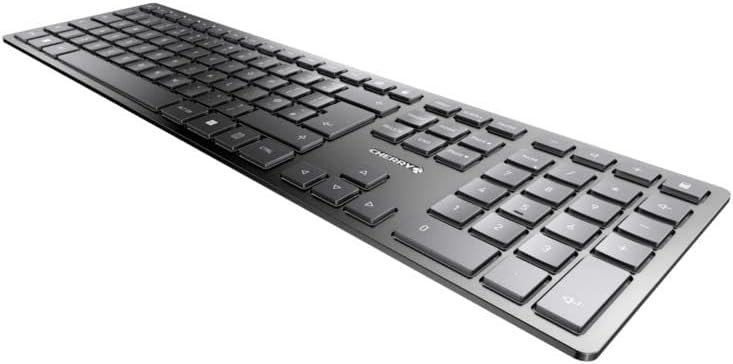
פיגור 3.1: ווינקלדיק view highlighting the slim profile and key layout of the keyboard.

פיגורע 3.2: נאָענט-אַרויף view of the keys, illustrating the low-profile design and quiet SX Scissor Mechanism.
4. סעטאַפּ און קאַנעקשאַן
4.1 אויפלאָדן די קלאַוויאַטור
Before first use, it is recommended to fully charge the keyboard.
- Connect the supplied USB-A to USB-C cable to the USB-C port on the keyboard.
- Connect the other end of the cable to a USB-A port on your computer or a compatible USB power adapter.
- The charging indicator LED will illuminate. The keyboard can be used while charging.

Figure 4.1: Location of the USB-C charging port on the Cherry KW 9100 Slim keyboard.
4.2 Connecting via 2.4 GHz RF Wireless
For a stable and fast wireless connection, use the included USB receiver.
- Locate the USB receiver (dongle) in the package.
- שטעקט אריין דעם USB ריסיווער אין א פאראן USB-A פארט אויף אייער קאמפיוטער.
- On the keyboard, locate the connectivity switch (usually on the back or side) and set it to the "RF" or 2.4 GHz icon position.
- די קלאַוויאַטור זאָל זיך אויטאָמאַטיש פֿאַרבינדן צו דיין קאָמפּיוטער.
4.3 קאַנעקטינג דורך בלועטאָאָטה
The keyboard supports Bluetooth connectivity for devices with Bluetooth capabilities.
- On the keyboard, set the connectivity switch to the "Bluetooth" icon position.
- The Bluetooth indicator LED on the keyboard will start blinking, indicating it's in pairing mode.
- אויף אייער קאָמפּיוטער אָדער מיטל, עפֿנט די בלועטוט סעטטינגס.
- זוכן פֿאַר new devices and select "Cherry KW 9100 Slim" from the list.
- גיי קיין פּראַמפּס אויף דעם עקראַן צו פאַרענדיקן דעם פּערינג פּראָצעס.
4.4 Attaching the Magnetic Support Bar
The keyboard comes with a magnetic support bar that can be attached to adjust the typing angle.
- Locate the magnetic support bar.
- Align the bar with the magnetic strip on the underside of the keyboard.
- The magnets will snap the bar into place, providing an elevated typing angle.
- To remove, simply pull the bar away from the keyboard.

פיגורע 4.2: זייַט view of the keyboard demonstrating the elevated angle with the magnetic support bar attached.

Figure 4.3: Illustration of how the magnetic support bar attaches to the keyboard's underside.
5. אָפּעראַציע
5.1 יקערדיק באַניץ
Once connected, the Cherry KW 9100 Slim functions as a standard keyboard. Type as you normally would.

Figure 5.1: A user demonstrating typing on the Cherry KW 9100 Slim keyboard in an office setting.
5.2 Function Keys (F-Keys)
The F-keys (F1-F12) on the top row may have secondary functions accessible by pressing the Fn key simultaneously. Refer to the keycap legends for specific functions such as media control, volume adjustment, or brightness control.
5.3 סטאַטוס לעדס
The keyboard features indicator LEDs for:
- קאַפּס לאַק: לייכט זיך ווען קאַפּס לאַק איז אַקטיוו.
- NUM: Illuminates when Num Lock is active.
- מעגילע: Illuminates when Scroll Lock is active.
- Battery/Charging: ווײַזט אָן אויף טשאַרדזשינג סטאַטוס אָדער אַ נידעריקע באַטאַרייע.
6. וישאַלט
6.1 רייניקן די קלאַוויאַטור
כדי צו אויפהאלטן די קלאַוויאַטור'ס אויסזען און פונקציאָנאַליטעט:
- אָפּשטעקן די קלאַוויאַטור פֿון אייער קאָמפּיוטער איידער איר רייניקט.
- ניצן אַ ווייך, לינט-פֿרייַ שטאָף אַ ביסל דampמיט וואַסער אָדער אַ מילד רייניקונג לייזונג.
- פֿאַרמײַדט איבעריקע פֿײַכטקייט און שפּריצט נישט רייניגער גלייך אויף דער קלאַוויאַטור.
- פֿאַר שטויב און שמוץ צווישן שליסלען, ניצט קאָמפּרעסירטע לופט.
6.2 באַטערי קער
The built-in rechargeable battery is designed for long life.
- Recharge the keyboard when the battery indicator shows low power.
- פֿאַרמײַדט אָפֿט פֿולשטענדיק אויסצולאָדן די באַטעריע כּדי צו פֿאַרלענגערן איר לעבן.
- האַלט די קלאַוויאַטור אין אַ קיל, טרוקן אָרט אויב עס ווערט נישט גענוצט פֿאַר לענגערע צייטן.
7. טראָובלעשאָאָטינג
| פּראָבלעם | מעגלעך סיבה | לייזונג |
|---|---|---|
| Keyboard not responding (RF) | USB receiver not plugged in; keyboard not in RF mode; low battery. | Ensure USB receiver is securely plugged in. Set keyboard switch to RF mode. Charge the keyboard. Try a different USB port. |
| קלאַוויאַטור רעאַגירט נישט (בלוטעט) | Keyboard not in Bluetooth mode; not paired; out of range; low battery. | Set keyboard switch to Bluetooth mode. Ensure keyboard is paired with the device. Move keyboard closer to the device. Charge the keyboard. |
| קנעפלעך זענען קלעפּיק אָדער נישט רעאַגירנדיק | Debris under keys; liquid spill. | Clean the keyboard using compressed air. If liquid spill, disconnect immediately and allow to dry completely before use. Do not attempt to disassemble. |
| די באַטאַרייע איז נישט טשאַרדזשינג | Faulty USB cable or port; power source issue. | Try a different USB cable and/or USB port. Ensure the power source is active. |
8. ספּעסאַפאַקיישאַנז
| שטריך | דעטאַל |
|---|---|
| מאָדעל נומער | JK-9100US-2 |
| קאַנעקטיוויטי | Bluetooth, 2.4 GHz RF (with USB receiver), USB-C (for charging) |
| קלאַוויאַטור באַשרייַבונג | Wireless, Full-size |
| Key Mechanism | SX Scissor Mechanism |
| נומער פון קיז | 108 |
| קאָליר | שוואַרץ |
| מאַטעריאַל | Metal (built-in plate) |
| פּונקט וואָג | 1.49 פונט (בעערעך 676 גראַמז) |
| פּעקל דימענשאַנז | 18.19 X 6.69 X 1.26 אינטשעס |
| פאַבריקאַנט | קאַרש |
| קאַמפּאַטאַבאַל דעוויסעס | PC |
| רעקאָממענדעד ניצט | Gaming, Office, Work |
9. וואָראַנטי און שטיצן
פֿאַר וואָראַנטי אינפֿאָרמאַציע און טעכנישע שטיצע, ביטע זען די באַאַמטער טשערי webזייטל אדער קאנטאקטירן טשערי קאסטומער סערוויס. האלט אייער באווייז פון קויפן פאר גאראנטיע טענות.
אפיציעלע טשערי Webפּלאַץ: www.cherry.de/en/
קונה סערוויס: זעט די קאָנטאַקט סעקציע אויף דער באַאַמטער webזייטל פֿאַר רעגיאָנאַלע שטיצע דעטאַילס.