1. הקדמה
This manual provides essential information for the safe and efficient use of your AOC U34V5C/BK 34-inch WQHD LED Monitor. Please read this manual thoroughly before operating the device and retain it for future reference. The AOC U34V5C/BK is designed to deliver a high-quality visual experience with its 3440 x 1440 WQHD resolution and 21:9 aspect ratio, suitable for various applications from professional work to entertainment.
2. זיכערקייַט אינפֿאָרמאַציע
Observe the following safety precautions to prevent damage to the monitor and ensure personal safety:
- שטעלט נישט אויס דעם מאָניטאָר צו רעגן אָדער פייכטקייט כּדי צו פֿאַרמייַדן פֿײַער אָדער שאָק געפֿאַרן.
- עפֿנט נישט דעם מאָניטאָר casinז. עס זענען נישטאָ קיין טיילן וואָס דער באַניצער קען סערוויסן אינעווייניק. לאָזט איבער אַלע סערוויסינג צו קוואַליפֿיצירטע סערוויס פּערסאָנעל.
- שטעלט דעם מאָניטאָר אויף אַ סטאַבילער, גלאַטער ייבערפלאַך כּדי צו פאַרהיטן אַז ער זאָל נישט פאַלן.
- זיכער מאַכן אַז די ווענטילאַציע אַרום דעם מאָניטאָר איז ריכטיק. בלאָקירט נישט די ווענטילאַציע עפענונגען.
- ניצט נאָר דעם מאַכט שנור און אַדאַפּטער וואָס ווערט צוגעשטעלט מיטן מאָניטאָר.
- נעמט ארויס דעם מאָניטאָר פֿון דער עלעקטרישער אַוטלעט בעת בליץ-שטורעמס אָדער ווען ער ווערט נישט גענוצט פֿאַר לאַנגע פּעריאָדן.
3. פּעקל אינהאַלט
באַשטעטיקן אַז אַלע זאכן זענען פאַראַן אין פּעקל:
- AOC U34V5C/BK Monitor
- מאָניטאָר שטאַנד (באַזע און האַלדז)
- מאַכט קאַבלע
- HDMI קאַבלע
- DisplayPort קאַבלע
- וסב- C קאַבלע
- באַניצער מאַנואַל (דעם דאָקומענט)
4. פּראָדוקט איבערview
The AOC U34V5C/BK monitor features a 34-inch VA panel with WQHD resolution, USB-C connectivity with 65W Power Delivery, and a 100Hz refresh rate with AMD FreeSync support.
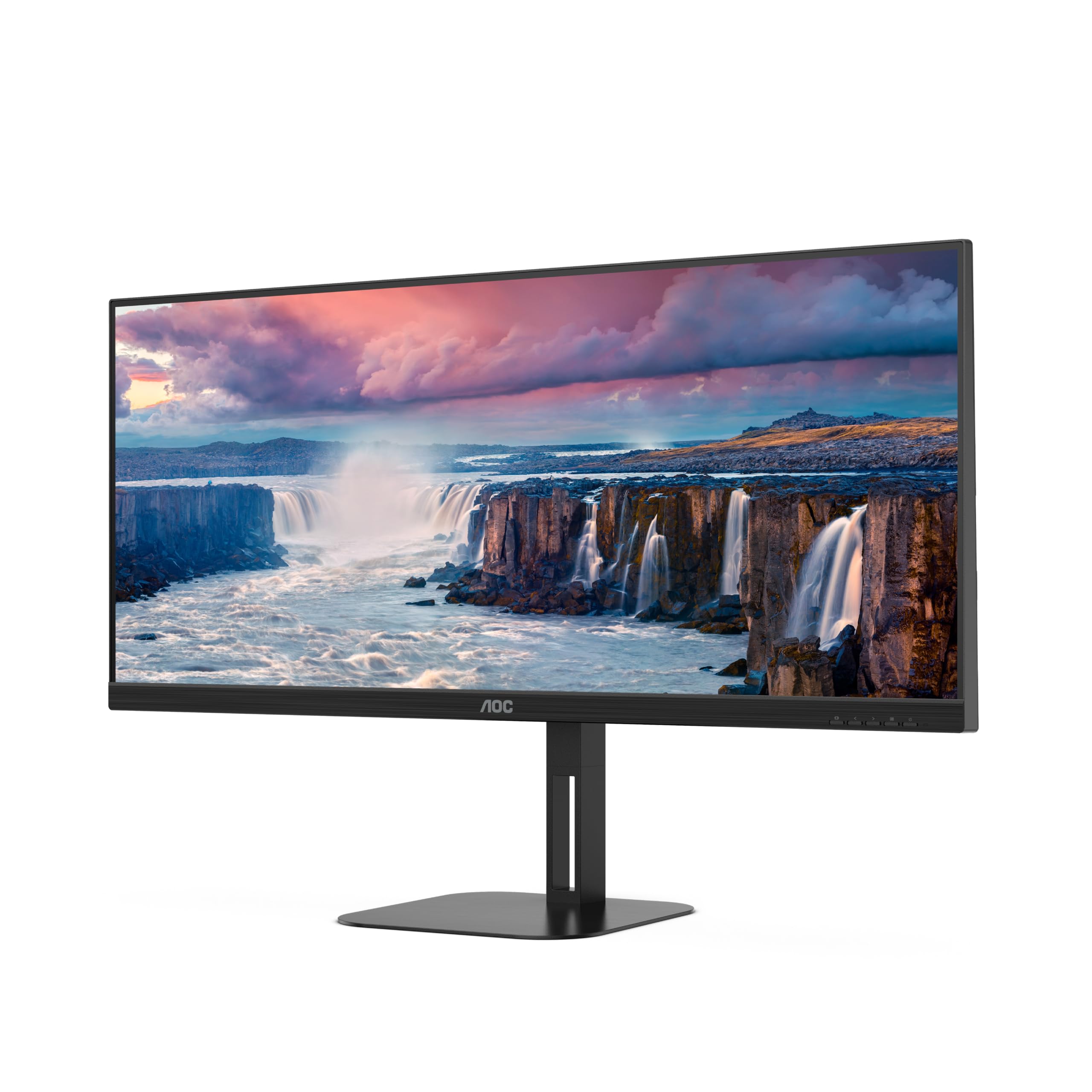
פיגורע 4.1: פראָנט view of the AOC U34V5C/BK monitor highlighting its 34-inch VA panel, USB-C port with 65W Power Delivery, 100Hz refresh rate, and AMD FreeSync technology.
4.1 Monitor Components
Familiarize yourself with the various parts of your monitor:
- פראָנט פּאַנעל: Display screen, OSD control buttons (usually located on the bottom right bezel).
- ריר פּאַנעל: Power input, video input ports (HDMI, DisplayPort, USB-C), USB hub ports, security lock slot.
- שטיין: Provides stable support and allows for height, tilt, and swivel adjustments.

פיגורע 4.2: דערציען view of the AOC U34V5C/BK monitor, showing the VESA mount compatibility and the stand attachment point.

פיגורע 4.3: דנאָ view of the AOC U34V5C/BK monitor, detailing the power input, DisplayPort, HDMI, USB-C, and USB-A hub ports.
5. סעטאַפּ
5.1 צוזאַמענשטעלן דעם שטאַנד
- לייגט פֿאָרזיכטיק דעם מאָניטאָר מיטן פּנים אַראָפּ אויף אַ ווייכן, ריינעם שטאָף כּדי צו פֿאַרמייַדן קראַצן.
- באַפעסטיקט דעם שטאַנד האַלדז צו דער הינטערשטער טייל פֿון מאָניטאָר ביז עס קליקט אַרײַן אין פּלאַץ אָדער איז פֿעסטגעשטעלט מיט שרויפֿן (אויב אָנווענדלעך).
- באַפעסטיקט דעם שטאַנד באַזע צום שטאַנד האַלדז און פֿעסטציִען די געפֿאַנגענע שרויף בײַם דנאָ פֿון דער באַזע.
- הייב פֿאָרזיכטיק דעם מאָניטאָר און שטעל אים אויף אַ סטאַבילן טיש.
5.2 קאַנעקטינג די מאָניטאָר
זיכער מאַכן אַז אייער קאָמפּיוטער און מאָניטאָר זענען אויסגעלאָשן איידער איר מאַכט קיין קאַנעקשאַנז.
- מאַכט קשר: פֿאַרבינדט דעם מאַכט קאַבל צום מאָניטאָר'ס מאַכט אַרייַנגאַנג און דערנאָך צו אַ געערדטער עלעקטרישער ווענטיל.
- ווידעא קשר: קלייַבן איינער פון די פאלגענדע אָפּציעס:
- הדמי: Connect one end of the HDMI cable to your computer's HDMI output and the other end to an HDMI input on the monitor.
- DisplayPort: Connect one end of the DisplayPort cable to your computer's DisplayPort output and the other end to the DisplayPort input on the monitor.
- וסב- C: Connect one end of the USB-C cable to your computer's USB-C port (which supports video output) and the other end to the USB-C input on the monitor. This connection can also provide power delivery and USB data transfer.
- יו-עס-בי כאַב פֿאַרבינדונג (אָפּציאָנעל): If using the monitor's USB hub, connect a USB upstream cable (USB-C to USB-A or USB-C to USB-C, depending on your computer) from your computer to the monitor's USB upstream port. This enables the monitor's USB-A ports for peripherals.
6. אַפּערייטינג די מאָניטאָר
6.1 מאַכט אויף / אַוועק
Press the power button, usually located on the bottom right bezel, to turn the monitor on or off. The power indicator light will illuminate when the monitor is on.
6.2 אויף-סקרין ווייַז (אָסד) מעניו
The OSD menu allows you to adjust various monitor settings. Use the control buttons (joystick or individual buttons) on the monitor's bezel to navigate the menu.
- Press the Menu button (or push the joystick) to open the OSD menu.
- Use the navigation buttons (or joystick) to move through the menu options.
- Press the Select button (or push the joystick) to enter a sub-menu or confirm a selection.
- Use the Exit button (or move the joystick left) to go back to the previous menu or exit the OSD.
6.3 געוויינטלעכע OSD סעטטינגס
- לומינאַנסע: Adjust brightness, contrast, and gamma.
- בילד סעטאַפּ: Fine-tune image quality, sharpness, and pixel clock.
- קאָליר סעטאַפּ: אויסקלייבן קאָליר טעמפּעראַטור, sRGB מאָדע, אָדער באַניצער-דעפינירטע קאָליר סעטטינגס.
- Picture Boost: Enhance specific areas of the screen.
- OSD סעטאַפּ: Adjust OSD language, position, and transparency.
- שפּיל באַשטעטיקן: Enable/disable FreeSync, adjust overdrive, and game modes.
- עקסטרע: Select input source, reset settings, view אינפֿאָרמאַציע.
7. וישאַלט
7.1 רייניקונג די מאָניטאָר
- שטענדיק אָפּשטויסן די מאָניטאָר איידער רייניקונג.
- ניצן אַ ווייך, לינט-פֿרייַ שטאָף לייטלי דampאָפּגעווישט מיט וואַסער אָדער אַ מילד, נישט-אַברייסיוו פאַרשטעלן רייניגער.
- Do not use alcohol, ammonia, or abrasive cleaners, as they may damage the screen or casing.
- Wipe the screen gently. Do not apply excessive pressure.
7.2 אַלגעמיינע קער
- פֿאַרמײַדט צו שטעלן שווערע זאַכן אויף דעם מאָניטאָר אָדער זײַנע קאַבלען.
- האַלט דעם מאָניטאָר אַוועק פון דירעקט זונשייַן, היץ קוועלער און עקסטרעמע טעמפּעראַטורן.
- Do not expose the monitor to strong vibrations or impacts.
8. טראָובלעשאָאָטינג
אויב איר טרעפט פּראָבלעמען מיט אייער מאָניטאָר, זעט די פאלגענדע געוויינטלעכע פּראָבלעמען און לייזונגען:
| פּראָבלעם | מעגלעך סיבה | לייזונג |
|---|---|---|
| קיין בילד אויף פאַרשטעלן | Monitor not powered on; Incorrect input source; Loose video cable | Press power button; Select correct input via OSD; Reconnect video cable securely |
| בילד צו טונקל/העל | ליכטיקייט/קאנטראסט סעטינגס נישט ריכטיג | Adjust Brightness and Contrast in OSD menu |
| פליקקערינג בילד | Incorrect refresh rate; Faulty cable | Set refresh rate to 100Hz in display settings; Try a different video cable |
| וסב פּאָרץ נישט ארבעטן | יו-עס-בי אַפּסטרים קאַבל נישט פארבונדן | Connect the USB-C upstream cable from the monitor to your computer |
If the problem persists after trying these solutions, contact AOC customer support.
9. ספּעסאַפאַקיישאַנז
Below are the technical specifications for the AOC U34V5C/BK monitor:

Figure 9.1: Product Information Sheet for AOC U34V5C/BK, detailing energy efficiency and technical parameters.
| פּאַראַמעטער | ווערט |
|---|---|
| סאָרט | AOC |
| מאָדעל | U34V5C/BK |
| פאַרשטעלן גרייס | 34 אינטשעס (86.4 סענטימעטער) |
| האַכלאָטע | 3440 X 1440 WQHD |
| אַספּעקט פאַרהעלטעניש | 21:9 |
| ענטפער צייט | 4 מיליסעקאַנדז |
| דערפרישן קורס | 100 Hz (default 60 Hz) |
| פּאַנעל טעכנאָלאָגיע | VA Panel, LED LCD |
| Viewינג אַנגלע | 178 גראַד (האָריזאָנטאַל/ווערטיקאַל) |
| ייַזנוואַרג צובינד | DisplayPort, HDMI, USB-C |
| גאַנץ וסב פּאָרץ | 4 (USB Hub) |
| מאַכט עקספּרעס (וסב-C) | 65 וו |
| Voltage | 5 Volts (Internal Power Supply) |
| פּראָדוקט דימענשאַנז | 50 X 25 X 40 סענטימעטער; 7 קג |
| ענערגיע עפעקטיווקייַט קלאַס (SDR) | G |
| מאַכט קאַנסאַמשאַן (SDR) | 34.0 וו |
| ענערגיע עפעקטיווקייַט קלאַס (HDR) | G |
| מאַכט קאַנסאַמשאַן (HDR) | 35.0 וו |
| סטאַנדביי מאַכט | 0.5 וו |
| Minimum guaranteed software/firmware updates | 8 יאר |
| Minimum guaranteed spare parts availability | 7 יאר |
| מינימום געראַנטיד פּראָדוקט שטיצן | 8 יאר |
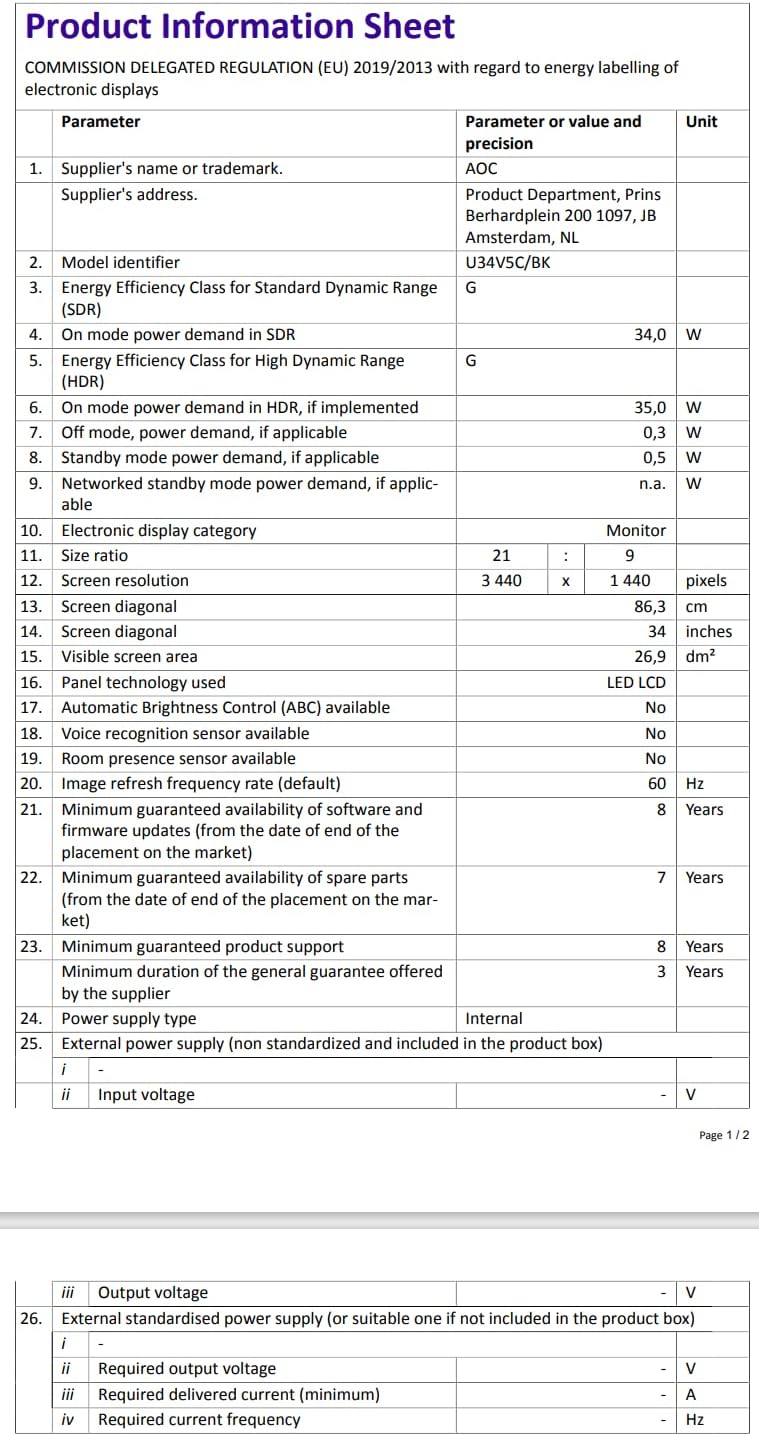
Figure 9.2: Energy Label for AOC U34V5C/BK. For more details, visit the EPREL דייטאַבייס.
10. וואָראַנטי און שטיצן
The AOC U34V5C/BK monitor comes with a minimum guaranteed general warranty of 3 יאָר צוגעשטעלט דורך די סאַפּלייער.
For technical support, warranty claims, or service inquiries, please visit the official AOC website or contact your local AOC customer service center. Ensure you have your monitor's model number (U34V5C/BK) and serial number ready when contacting support.


