1. הקדמה
This manual provides essential information for setting up, operating, maintaining, and troubleshooting your Alienware X17 R2 Gaming Laptop. Please read this guide thoroughly to ensure optimal performance and longevity of your device.
The Alienware X17 R2 is designed for high-performance gaming and demanding tasks, featuring advanced cooling technologies, powerful processors, and dedicated graphics.
2. פּראָדוקט איבערview
The Alienware X17 R2 is engineered to deliver an immersive gaming experience in a thin 17-inch form factor. Key features include:
- Powerful Intel CPUs: Experience high-performance action across all your favorite games with 12th Gen Intel Core processors.
- Next-Gen GPUs: Game unrestrained with NVIDIA GeForce RTX 3070Ti graphics, Dynamic Boost 2.0, and Deep Learning Super Sampling technology.
- Patented Quad Cooling: An industry-first design uses four intelligently controlled and programmable fans to dissipate heat.
- עקסטענדעד שפּיל צייט: Improve battery life with Advanced Optimus technology from NVIDIA—now available on all display options.
- Legend 2.0 Industrial Design: A fresh evolution in design with a high-endurance finish and customizable AlienFX lighting.

פיגורע 2.1: פראָנט view of the Alienware X17 R2 Gaming Laptop displaying a game.
3. סעטאַפּ
3.1 אויספּאַקן די קעסטל און ערשטע דורכקוק
- פֿאָרזיכטיק אַרויסנעמען דעם לאַפּטאָפּ און אַלע אַקסעסאָריעס פֿון דער פּאַקאַדזשינג.
- באַשטעטיקט אַז אַלע זאכן וואָס זענען אויסגערעכנט אין דער "וואָס איז אין דער קעסטל" סעקציע זענען פאַראַן.
- קאָנטראָלירט דעם לאַפּטאָפּ פֿאַר קיין גשמיותדיקע שאָדן. אויב מען טרעפט שאָדן, קאָנטאַקטירט גלייך אייער הענדלער.
3.2 קאַנעקטינג מאַכט
- Connect the power adapter to the charging port located at the rear of the laptop.
- צאַפּן די מאַכט שנור אין אַ וואַנט ווענטיל.
- The power indicator light will illuminate, indicating the laptop is receiving power.
3.3 ערשטער בוט און אָפּערייטינג סיסטעם סעטאַפּ
- Press the Alienware head power button to turn on the laptop.
- Follow the on-screen instructions to complete the Windows 11 Home setup process. This includes selecting your region, connecting to a Wi-Fi network, and creating a user account.
- Allow the system to download and install any necessary updates.
4. אפערירן דיין לאַפּטאָפּ
4.1 קלאַוויאַטור און טאָוטשפּאַד
The Alienware X17 R2 features a backlit keyboard and a responsive touchpad. The AlienFX lighting allows for customizable colors and effects across the keyboard and other zones.

פיגורע 4.1: דעטאַילעד view פון די באַקלייט קלאַוויאַטור און טאָוטשפּאַד.
4.2 ווייַז און גראַפיקס
Enjoy stunning visuals on the 17.3-inch FHD display with a 480Hz refresh rate and 3ms response time. The NVIDIA GeForce RTX 3070Ti graphics card ensures smooth gameplay and high-fidelity rendering. The laptop supports Dolby Vision for optimized color profiles.
4.3 אַודיאָ
Experience immersive 3D sound via Dolby Atmos, designed to deliver audio as studios intended.
4.4 פּאָרטן און קאָנעקטיוויטי
The laptop offers a variety of ports for peripherals and external displays:

פיגורע 4.2: דערציען view illustrating the various connectivity ports.
- וסב 3.0 פּאָרץ: 3 ports for connecting various USB devices.
- USB-C פּאָרץ: For versatile connectivity, including Thunderbolt 4.
- הדמי 2.1: Supports up to 4K/120Hz output for external displays.
- עטהערנעט: Killer E3100 RJ45 Ethernet for stable wired network connections.
- ווירעלעסס: Killer Wi-Fi 6 (802.11ax) and Bluetooth for wireless connectivity.
5. וישאַלט
5.1 רייניקונג
- ניצט אַ ווייכן, לינט-פֿרייע שטאָף צו רייניקן דעם עקראַן און די אויסערלעכע ייבערפֿלאַכן.
- ויסמיידן ניצן האַרב קעמיקאַלז אָדער אַברייסיוו מאַטעריאַלס.
- Regularly clean the cooling vents to prevent dust buildup, which can affect performance.
5.2 ווייכווארג דערהייַנטיקונגען
Ensure your operating system and drivers are kept up-to-date. Windows Update will handle OS updates, and Alienware Command Center can assist with driver and firmware updates.
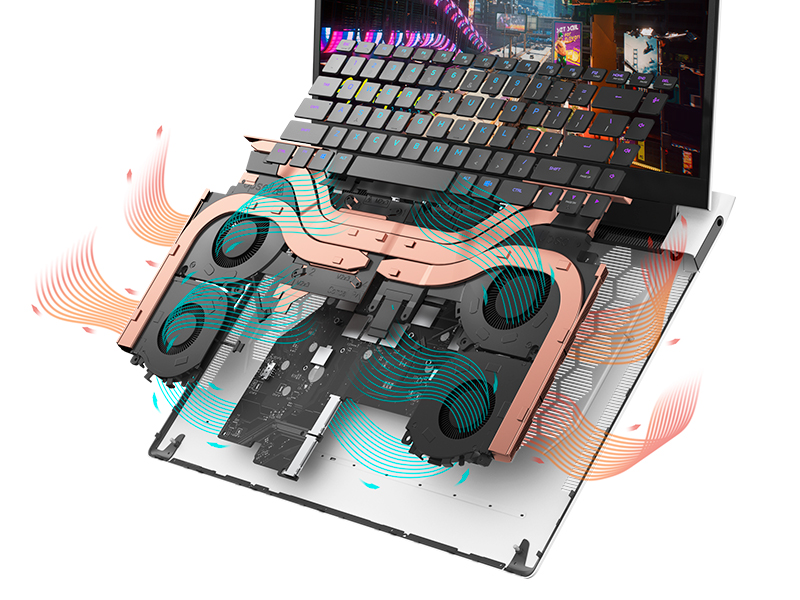
Figure 5.1: Alienware Command Center for system management.
6. טראָובלעשאָאָטינג
If you encounter issues with your Alienware X17 R2, consider the following basic troubleshooting steps:
- קיין מאַכט: זיכער מאַכן אַז דער מאַכט אַדאַפּטער איז זיכער פארבונדן צו ביידע דעם לאַפּטאַפּ און אַ אַרבעטנדיקער מאַכט אַוטלעט. קאָנטראָלירט די מאַכט אינדיקאַטאָר ליכט.
- ווייַז ישוז: If the screen is black, try connecting an external monitor to verify if the issue is with the laptop's display or the graphics card. Update graphics drivers.
- איבערהייצונג: Ensure cooling vents are clear of obstructions. Use Alienware Command Center to monitor temperatures and adjust fan profiles.
- פאָרשטעלונג פאַרלאַנגזאַמונג: שליסט אומנייטיקע אַפּליקאַציעס. קאָנטראָלירט אויב עס זענען הינטערגרונט פּראָצעסן וואָס פֿאַרנוצן אַ סך CPU אָדער RAM. זאָרגט פֿאַר גענוג פֿרײַעם פּלאַץ אויף דער SSD.
- ווייכווארג פּראָבלעמס: Restart the laptop. If issues persist, consider performing a system restore or reinstalling the problematic software.
7. ספּעסאַפאַקיישאַנז
| שטריך | באַשרייַבונג |
|---|---|
| פאַרשטעלן גרייס | 17.3 אינטשעס |
| פאַרשטעלן האַכלאָטע | 1920 x 1080 פּיקסעלס (FHD) |
| פּראַסעסער | Intel Core i9-12900H (3.8 GHz, 14 Cores) |
| באַראַן | 16 גיגאבייט DDR5 (4800 מעגהערץ) |
| שווער דרייוו | 1 טב SSD (סאָליד סטעיט) |
| גראַפיקס קאָופּראַסעסער | NVIDIA GeForce RTX 3070 Ti (8 GB GDDR6) |
| אָפּערייטינג סיסטעם | Windows 11 היים |
| ווירעלעסס טיפּ | 802.11ax (Killer Wi-Fi 6), Bluetooth |
| וסב 3.0 פּאָרץ | 3 |
| פּונקט וואָג | 6.82 פונט |
| פּראָדוקט דימענשאַנז | 11.79 X 15.72 X 0.58 אינטשעס |
8. וואָס איז אין דער קעסטל
- Alienware X17 R2 גיימינג לאַפּטאַפּ
- מאַכט אַדאַפּטער
- מאַכט שנור
- דאָקומענטאַטיאָן
9. אפיציעלע פּראָדוקט ווידעאָס
Alienware X17 R2 Gaming Laptop Overview
ווידעא 9.1: אן אפיציעלער איבערview of the Alienware X17 R2 Gaming Laptop, highlighting its design, cooling, and performance features.
About Alienware X17 R2 Gaming Laptop
Video 9.2: A detailed look at the Alienware X17 R2 Gaming Laptop, showcasing its features and design elements.
10. וואָראַנטי און שטיצן
Your Alienware X17 R2 Gaming Laptop comes with a standard manufacturer's warranty. For detailed warranty information, please refer to the documentation included with your product or visit the official Alienware support webפּלאַץ.
For technical support, driver downloads, and service requests, please visit the Alienware support portal. You can also find FAQs and community forums for additional assistance.


