
1. הקדמה
This manual provides essential information for the proper installation, operation, and maintenance of your SUNMI T2s Lite 15.6-inch Android Point of Sale (POS) system. Please read this manual thoroughly before using the device to ensure optimal performance and safety. Keep this manual for future reference.
2. זיכערקייַט אינפֿאָרמאַציע
- דו זאלסט נישט ויסשטעלן די מיטל צו עקסטרעם טעמפּעראַטורעס, הומידיטי אָדער דירעקט זונשייַן.
- ויסמיידן דראַפּינג אָדער אונטערטעניק די מיטל צו שטאַרק ימפּאַקץ.
- ניצט נאָר דעם מאַכט אַדאַפּטער וואָס קומט מיטן אַפּאַראַט. ניצן אַ פאַלשן אַדאַפּטער קען פאַרשאַפן שאָדן אָדער פייַער.
- פּרוּווט נישט צו צענעמען אָדער פאַרריכטן דעם אַפּאַראַט אַליין. ווענדט זיך צו קוואַליפֿיצירטע סערוויס פּערסאָנעל.
- האַלטן די מיטל אַוועק פון וואַסער אָדער אנדערע ליקווידס.
- זיכער מאַכן אַז די ווענטילאַציע אַרום דעם אַפּאַראַט איז ריכטיק בעתן אָפּעראַציע.
3. פּעקל אינהאַלט
באַשטעטיקן אַז אַלע זאכן זענען פאַראַן אין פּעקל:
- SUNMI T2s Lite POS Terminal
- מאַכט אַדאַפּטער
- מאַכט קאַבלע
- שנעלע אָנהייב גייד (אויב אָנווענדלעך)
- וואָראַנטי קאָרט (אויב אָנווענדלעך)
אויב עס פעלן אדער זענען געשעדיגט עפעס, ביטע קאנטאקטירט אייער פארקויפער גלייך.
4. פּראָדוקט איבערview
The SUNMI T2s Lite is an integrated Android-based POS system designed for retail environments. It features a 15.6-inch capacitive touchscreen display and various connectivity options.
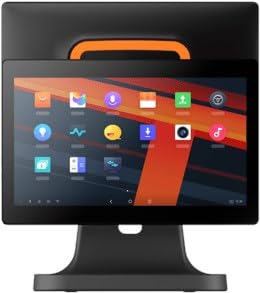
פיגורע 4.1: פראָנט view of the SUNMI T2s Lite POS system. This image displays the main 15.6-inch touchscreen, which is the primary interface for operating the device. The design is compact and suitable for various retail settings.
4.1 שליסל קאַמפּאָונאַנץ
- 15.6-אינטש טאָוטשסקרין דיספּליי: High-resolution (1920x1080) capacitive touch interface.
- מאַכט קנעפּל: Located typically on the side or rear for turning the device on/off.
- וסב פּאָרץ: For connecting peripherals such as barcode scanners, external printers, or cash drawers.
- עטהערנעט פּאָרט: פֿאַר דראָטיקער נעץ קאָנעקטיוויטי.
- מאַכט אַרייַנשרייַב: פֿאַר קאַנעקטינג די מאַכט אַדאַפּטער.
- פראָנט אַפּאַראַט: For specific applications requiring image capture.
5. סעטאַפּ
5.1 אַנפּאַקינג און פּלייסמאַנט
- Carefully remove the device and all accessories from the packaging.
- Place the POS terminal on a stable, flat surface in a well-ventilated area.
- Ensure there is sufficient space around the device for cable connections and heat dissipation.
5.2 קאַנעקטינג מאַכט
- פאַרבינדן די מאַכט קאַבלע צו די מאַכט אַדאַפּטער.
- Plug the power adapter into the power input port on the back of the SUNMI T2s Lite.
- שטעקט אריין דעם אנדערן עק פונעם עלעקטרישן קאבל אין א געערדטן עלעקטרישן אויסגאנג.
5.3 Initial Boot and Network Connection
- Press and hold the power button until the screen lights up. The device will boot into the Android operating system.
- פֿאָלגט די אינסטרוקציעס אויף דעם עקראַן פֿאַר דער ערשטער סעטאַפּ, אַרייַנגערעכנט שפּראַך אויסוואַל און צייט זאָנע.
- Wi-Fi קאַנעקשאַן: גיין צו סעטטינגס > נעץ און אינטערנעט > Wi-Fi, אויסקלייבן אייער נעץ, און אריינגעבן דאס פאסווארט.
- עטהערנעט קשר: Connect an Ethernet cable from your router/switch to the Ethernet port on the device. The device should automatically connect to the wired network.
5.4 קאַנעקטינג פּעריפעראַלס
- USB דעוויסעס: Plug USB peripherals (e.g., barcode scanner, external printer, cash drawer) into the available USB ports. The system will typically recognize them automatically.
- בלועטאָאָטה דעוויסעס: גיין צו סעטטינגס > פארבונדענע דעווייסעס > בלועטוט, enable Bluetooth, and pair with your desired device.
6. אַפּערייטינג ינסטרוקטיאָנס
6.1 פּאַוערינג אויף / אַוועק
- צו מאַכט אויף: דרוק און האַלטן די מאַכט קנעפּל ביז די פאַרשטעלן לייץ.
- צו מאַכט אַוועק: Press and hold the power button until a power menu appears. Select "Power off" and confirm. Alternatively, a short press of the power button will put the device to sleep.
6.2 Touchscreen Usage
- צאַפּן: צו אויסקלייבן אן אייטעם אדער אקטיוויזירן א קנעפל.
- טאַפּ און האַלטן: To open context menus or drag items.
- לאַקכענען: To scroll through lists or navigate between screens.
- קניפּ-צו-זומען: צו פארגרעסערן אדער פארקלענערן בילדער אדער web בלעטער.
6.3 אַנדרויד אָפּערירן סיסטעם נאַוויגאַציע
- היים פאַרשטעלן: The central hub for your applications and widgets.
- אַפּ שופלאָד: צוטריט צו אַלע אינסטאַלירטע אַפּלאַקיישאַנז.
- אָנזאָג פּאַנעל: לאַקכענען אַראָפּ פֿון די שפּיץ פון דעם עקראַן צו view נאָטיפיקאַציעס און שנעלע סעטטינגס.
- סעטטינגס: Configure Wi-Fi, Bluetooth, display, sound, and other system options.
6.4 Basic POS Functions
The specific POS functions will depend on the software application installed on your device. Refer to the documentation provided with your POS software for detailed instructions. Generally, you will:
- Launch your POS application from the home screen or app drawer.
- קלאָץ אין מיט דיין באַניצער קראַדענטשאַלז.
- Process transactions using the touchscreen and connected peripherals (e.g., scanning items, accepting payments).
- Print receipts if an external or integrated printer is configured.
7. וישאַלט
7.1 רייניקונג די מיטל
- שטענדיק אויסלעשן און ארויסציען דעם אפאראט פון עלעקטרישן פלאץ איידער איר רייניגט.
- ניצן אַ ווייך, לינט-פֿרייַ שטאָף אַ ביסל דampened with water or a mild, non-abrasive cleaner to wipe the screen and exterior surfaces.
- דו זאלסט נישט שפּריץ ליקווידס גלייַך אַנטו די מיטל.
- ויסמיידן ניצן שטרענגע כעמיקאַלן, סאָלוואַנץ, אָדער אַברייסיוו מאַטעריאַלס.
7.2 ווייכווארג דערהייַנטיקונגען
Regularly check for and install system and application updates to ensure optimal performance, security, and access to new features. You can usually find system updates in סעטטינגס > סיסטעם > סיסטעם דערהייַנטיקונג.
7.3 סטאָרידזש
When not in use for extended periods, store the device in a cool, dry place, away from direct sunlight and extreme temperatures. If storing for a long time, ensure the battery is charged to about 50% to prolong its lifespan.
8. טראָובלעשאָאָטינג
די סעקציע באהאנדלט אלגעמיינע פראבלעמען וואס איר קענט באגעגענען. פאר מער קאמפליצירטע פראבלעמען, קאנטאקטירט קאסטומער סופארט.
- דיווייס וועט נישט זיך אנצינדן:
- זיכער מאַכן אַז דער מאַכט אַדאַפּטער איז זיכער פארבונדן צום מיטל און אַ אַרבעטנדיקן מאַכט ווענטיל.
- באַשטעטיקן אַז די מאַכט ווענטיל איז פאַנגקשאַנאַל.
- Try holding the power button for 10-15 seconds to force a restart.
- Touchscreen is unresponsive:
- ריסטאַרט די מיטל.
- Ensure the screen is clean and free of debris or liquids.
- Network connection issues (Wi-Fi/Ethernet):
- Check if the Wi-Fi is enabled and you are connected to the correct network with the right password.
- For Ethernet, ensure the cable is properly connected and your router/switch is working.
- ריסטאַרט דיין ראַוטער/מאָדעם.
- Peripherals (e.g., printer, scanner) not working:
- זיכער מאַכן אַז די פּעריפערישע אַפּאַראַט איז ריכטיק פארבונדן צום ריכטיקן פּאָרט.
- Check if the peripheral has its own power supply and is turned on.
- Verify that the necessary drivers or software for the peripheral are installed and configured within your POS application.
9. ספּעסאַפאַקיישאַנז
The following are key technical specifications for the SUNMI T2s Lite:
| שטריך | באַשרייַבונג |
|---|---|
| סאָרט | סונמי |
| פאַבריקאַנט | Sunmi |
| געבוירן ווייַז האַכלאָטע | 1920x1080 פּיקסעלס |
| קאַנעקטיוויטי טעכנאָלאָגיע | Bluetooth, Ethernet, USB, WLAN |
| אַפּאַראַט באַשרייַבונג | פראָנטאַל |
| ASIN | B0B53FLFT8 |
10. וואָראַנטי און שטיצן
The SUNMI T2s Lite POS system comes with a standard manufacturer's warranty. Please refer to the warranty card included in your package for specific terms and conditions, including warranty period and coverage details.
For technical support, service, or warranty claims, please contact your authorized SUNMI dealer or the customer support channel specified in your purchase documentation. Ensure you have your product model number (T2s Lite) and ASIN (B0B53FLFT8) ready when contacting support.