1. הקדמה
This manual provides detailed instructions for the setup, operation, and maintenance of your Rapoo E9700M Wireless Keyboard. Please read this manual thoroughly before using the product to ensure proper functionality and to prevent damage.

Image 1.1: The Rapoo E9700M Wireless Keyboard. This image shows the keyboard from an angled perspective, highlighting its slim profile and dark gray finish.
2. פּעקל אינהאַלט
באַשטעטיקן אַז אַלע זאכן זענען פאַראַן אין פּעקל:
- Rapoo E9700M וויירלעס קלאַוויאַטור
- וסב-C טשאַרדזשינג קאַבלע
- Nano USB Receiver (typically stored in the keyboard's battery compartment)
- שנעלע אָנהייב גייד (דאָס דאָקומענט דינט ווי אַ פולשטענדיק גייד)
3. פֿעיִקייטן
- Multi-Mode Wireless Connectivity: Supports Bluetooth 3.0, 5.0, and 2.4 GHz for stable transmission up to 10 meters.
- Smart Switching: Automatically pairs and connects to multiple devices, allowing one-click switching.
- הינטער-שלאַנק פּלאַן: Constructed with an aluminum alloy for stability and durability.
- קריקאָנלאָדלעך באַטערי: Integrated eco-friendly lithium battery eliminates the need for disposable batteries.
- מולטימעדיאַ האָטקייס: Dedicated keys for quick access to multimedia functions.
- DE-Layout QWERTZ: German keyboard layout.
4. סעטאַפּ
4.1. אויפלאָדן די קלאַוויאַטור
Before initial use, fully charge the keyboard. Connect the supplied USB-C cable to the keyboard's charging port and the other end to a USB power source (e.g., computer USB port, USB wall adapter).
- די טשאַרדזשינג אינדיקאַטאָר ליכט וועט זיך אָנצינדן בעת טשאַרדזשינג.
- The light will turn off or change color once fully charged.
4.2. פֿאַרבינדן דורך 2.4 GHz ווירעלעס
- Locate the Nano USB receiver, typically stored in a compartment on the underside of the keyboard.
- שטעקט אריין דעם נאַנאָ USB ריסיווער אין אַ פאַראַן USB פּאָרט אויף אייער קאָמפּיוטער.
- צינדט אָן די קלאַוויאַטור מיטן מאַכט-קנעפּל (געפינט זיך געוויינטלעך אויף דער זייט אָדער הינטן).
- דרוק די fn+4 key combination to activate 2.4 GHz mode. The corresponding indicator light will blink.
- Your computer should automatically detect and install the necessary drivers. The keyboard is ready for use.

בילד 4.2: פון אויבן אַראָפּ view of the Rapoo E9700M keyboard, showing the German (DE-Layout QWERTZ) key arrangement. Note the function keys with blue icons for connectivity modes.
4.3. קאַנעקטינג דורך בלועטאָאָטה
The keyboard supports two Bluetooth channels (Bluetooth 1 and Bluetooth 2).
- קער אויף די קלאַוויאַטור ניצן די מאַכט באַשטימען.
- דרוק fn+1 for Bluetooth 1 or fn+2 for Bluetooth 2. The corresponding indicator light will blink slowly.
- צו אַרייַן פּערינג מאָדע, דריקן און האַלטן fn+1 or fn+2 פֿאַר 3 סעקונדעס ביז די גראדן ליכט בלינקס געשווינד.
- On your device (PC, Mac, smartphone, tablet), open Bluetooth settings and search for new devices.
- אויסקלייבן "Rapoo E9700M" פון דער ליסטע פון פאַראַנען דעוויסעס.
- Follow any on-screen prompts to complete the pairing process. The indicator light will stop blinking once connected.
4.4. וועקסלען צווישן פארבונדענע דעווייסעס
The Rapoo E9700M allows seamless switching between up to three connected devices (one 2.4 GHz and two Bluetooth devices).
- דרוק fn+1 צו באַשטימען צו בלועטאָאָטה מיטל 1.
- דרוק fn+2 צו באַשטימען צו בלועטאָאָטה מיטל 2.
- דרוק fn+4 to switch to the 2.4 GHz wireless connection.
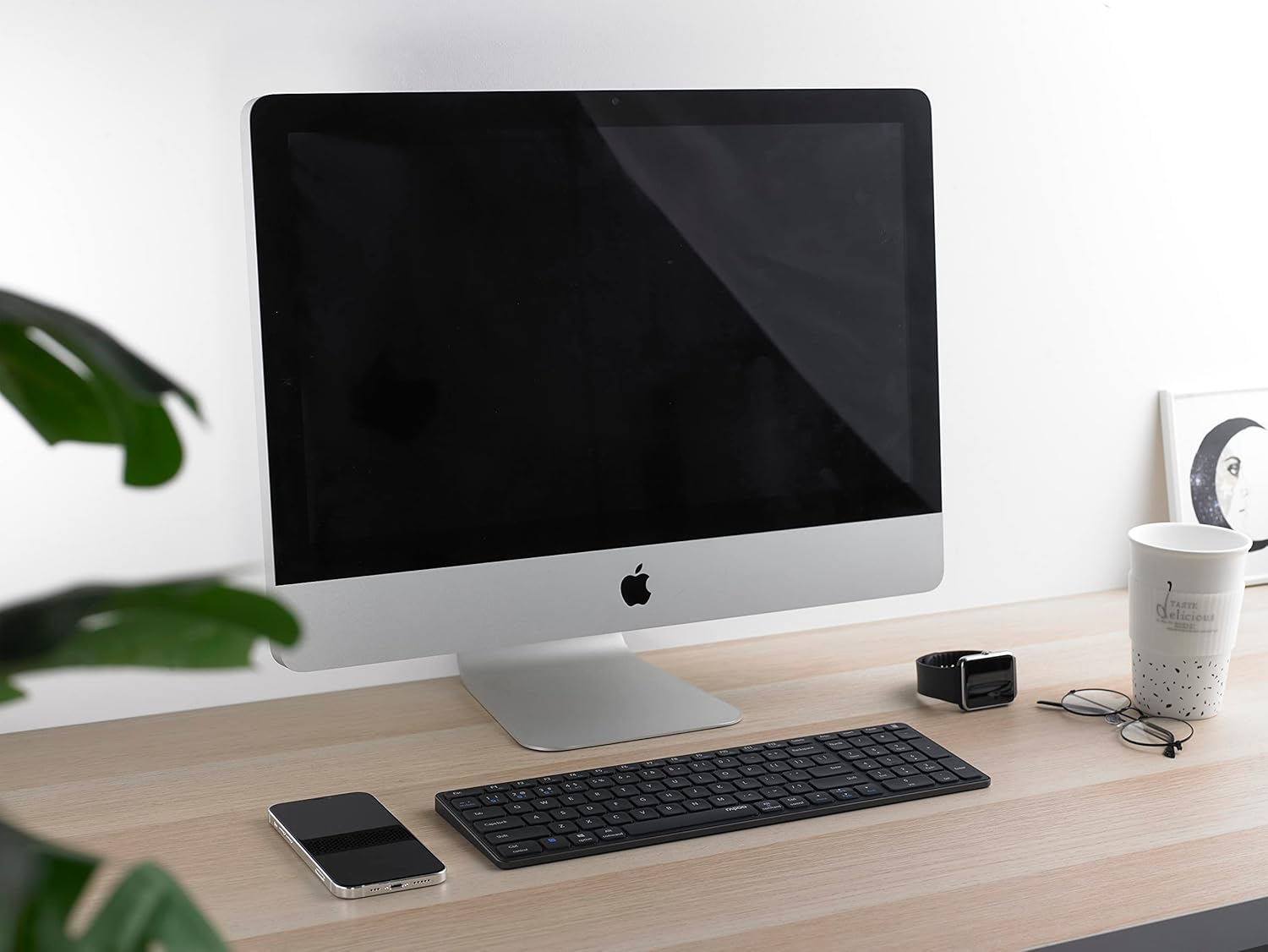
Image 4.4: The Rapoo E9700M keyboard positioned on a desk next to an iMac, demonstrating its compatibility with macOS devices.
5. אַפּערייטינג ינסטרוקטיאָנס
5.1. מולטימעדיאַ הייסע שליסלען
The keyboard features multimedia hotkeys for quick access to various functions. These keys are typically activated by pressing the Fn key simultaneously with the corresponding function key (F1-F12).
| שליסל קאָמבינאַציע | פֿונקציע |
|---|---|
| Fn + F1 | מעדיע פּלייַער |
| Fn + F2 | באַנד אַראָפּ |
| Fn + F3 | באַנד אַרויף |
| Fn + F4 | שטום |
| Fn + F5 | פֿריִערדיקע שפּירט |
| Fn + F6 | ווייַטער שפּור |
| Fn + F7 | שפּיל / פּויזע |
| Fn + F8 | האַלטן |
| Fn + F9 | היים בלאַט |
| Fn + F10 | בליצפּאָסט |
| Fn + F11 | מיין קאָמפּיוטער |
| Fn + F12 | פאַוואָריטעס |
5.2. ינדיקאַטאָר ליגהץ
The keyboard has indicator lights to show connection status and battery level:
- Bluetooth 1/2/4 (2.4G) Indicator: Blinks slowly when searching for connection, blinks rapidly when in pairing mode, solid when connected.
- קאַפּס לאַק ינדיקאַטאָר: לייכט זיך ווען קאַפּס לאַק איז אַקטיוו.
- באַטערי סטאַטוס ינדיקאַטאָר: Illuminates when charging, blinks when battery is low.
6. וישאַלט
To ensure the longevity and optimal performance of your Rapoo E9700M keyboard, follow these maintenance guidelines:
- רייניקונג: ניצט אַ ווייכע, טרוקענע שטאָף צו ווישן די ייבערפלאַך פון דער קלאַוויאַטור. פֿאַר שווערע שמוץ, אַ ביסל טרוקןampווישט דעם שטאָף מיט וואַסער אָדער אַ מילדן, נישט-שרייַבנדיקן רייניגער. פֿאַרמייַדט איבעריקע פֿײַכטקייט.
- סטאָרידזש: האַלט די קלאַוויאַטור אין אַ קיל, טרוקן אָרט אַוועק פון דירעקט זונשייַן און עקסטרעמע טעמפּעראַטורן.
- ויסמיידן ליקווידס: שטעלט נישט אויס די קלאַוויאַטור צו פליסיקייטן. אין פאַל פון אַקצידענטעלער אויסגיסונג, זאָלט איר גלייך אויסלעשן די קלאַוויאַטור און לאָזן עס גאָר טרוקן איידער איר ניצט עס ווידער.
- וסב ופנעמער: When not in use, store the Nano USB receiver in its designated compartment within the keyboard to prevent loss.

Image 6.1: The underside of the Rapoo E9700M keyboard, showing the smooth aluminum finish and regulatory markings. The USB receiver compartment is typically located here.
7. טראָובלעשאָאָטינג
אויב איר טרעפט פּראָבלעמען מיט אייער קלאַוויאַטור, זעט די פאלגענדע געוויינטלעכע פּראָבלעמען און לייזונגען:
- קלאַוויאַטור רעאַגירט נישט:
- פאַרזיכערן די קלאַוויאַטור איז פּאַוערד אויף.
- קאָנטראָלירט די באַטאַרייע מדרגה און לאָדנט אויף אויב נייטיק.
- Verify the correct connection mode (2.4 GHz, Bluetooth 1, or Bluetooth 2) is selected using Fn + 1/2/4.
- For 2.4 GHz, ensure the Nano USB receiver is securely plugged into a working USB port.
- פֿאַר בלועטוט, זאָרגט אַז בלועטוט איז אַקטיווירט אויף אייער מיטל און די קלאַוויאַטור איז געפּאָרט. פּרוּווט ווידער צו פּאָרן אויב נייטיק.
- פרובירט זיך צו פארבינדן צו אן אנדערן USB פארט אדער דעווייס צו אויסשליסן פארט/דעווייס פראבלעמען.
- פאַרהאַלטונג אָדער ינטערמיטאַנט פֿאַרבינדונג:
- Reduce the distance between the keyboard and your device (maximum 10 meters).
- Remove any obstacles that might interfere with the wireless signal (e.g., large metal objects).
- Avoid using the keyboard near other strong wireless interference sources (e.g., Wi-Fi routers, other wireless devices).
- זיכער מאַכן אַז די קלאַוויאַטור איז גאָר אויפגעלאָדן.
- Keys not working or typing incorrectly:
- Clean the keyboard to remove any debris that might be obstructing the keys.
- ריסטאַרט דיין קאָמפּיוטער/אַפּאַראַט.
- If using Bluetooth, try unpairing and re-pairing the keyboard.
8. ספּעסאַפאַקיישאַנז
| שטריך | דעטאַל |
|---|---|
| סאָרט | Rapoo |
| מאָדעל | עקסנומקסם |
| קאַנעקטיוויטי טעכנאָלאָגיע | Bluetooth 3.0, Bluetooth 5.0, 2.4 GHz Wireless (USB-C, WLAN) |
| קאַמפּאַטאַבאַל דעוויסעס | Laptop, PC, Smart TV, Gaming Console, Smartphone, Tablet |
| קלאַוויאַטור באַשרייַבונג | מולטימעדיאַ |
| ספּעציעלע שטריך | Multimedia Hotkeys, Rechargeable Battery |
| קאָליר | טונקל גרוי |
| סטייל | קלאַסיש |
| מאַטעריאַל | אַלומינום |
| אַרייַנגערעכנט קאַמפּאָונאַנץ | Keyboard, USB-C Cable, Nano USB Receiver |
| אויסלייג | DE-Layout (QWERTZ) |
9. וואָראַנטי און שטיצן
Rapoo products are designed with quality and reliability in mind. For warranty information and technical support, please refer to the warranty card included with your product or visit the official Rapoo webזייטל. האַלט דיין קויפן באַווייַז פֿאַר וואָראַנטי קליימז.
For further assistance, please contact Rapoo customer support through their official channels.


