1. הקדמה
The Xiaomi Mesh System AX3000 (Pack of 2) is designed to provide comprehensive Wi-Fi 6 coverage for complex home layouts, extending up to 370 m². This system comes pre-configured from the factory, ensuring a straightforward setup process and immediate readiness for use.
2. זיכערקייַט אינפֿאָרמאַציע
- ענשור אַז די מיטל איז געשטעלט אין אַ געזונט-ווענאַלייטיד געגנט צו פאַרמייַדן אָוווערכיטינג.
- ניצט נאָר דעם אָריגינעלן מאַכט אַדאַפּטער וואָס איז צוגעשטעלט מיטן אַפּאַראַט.
- האַלט דעם אַפּאַראַט אַוועק פון וואַסער, פייַער און הויכע טעמפּעראַטורן.
- פרובירט נישט צו צענעמען אדער פאררעכטן דאס אפאראט אליין. קאנטאקטירט קוואליפיצירטע סערוויס פערסאנעל פאר הילף.
- פֿאַרמײַדן צו שטעלן דעם אַפּאַראַט לעבן שטאַרקע עלעקטראָמאַגנעטישע פֿעלדער.
3. פּעקל אינהאַלט
באַשטעטיקן אַז אַלע זאכן זענען פאַראַן אין דיין פּעקל:
- 2 x Xiaomi Mesh System AX3000 Base Units
- 2 רענטגענ מאַכט אַדאַפּטערז
- 1 רענטגענ עטהערנעט קאַבלע
- 1 x באַניצער גייד
4. פּראָדוקט איבערview
4.1. אויסזען פון דיווייס
The Xiaomi Mesh System AX3000 units feature a sleek, minimalist design. Each unit is equipped with status indicators and essential ports for connectivity.

פראָנט view of the two Xiaomi Mesh System AX3000 units included in the pack.
4.2. פּאָרטן און אינדיקאַטאָרן
Each unit includes multiple Ethernet ports, a power input, and a reset button. The front panel features an LED indicator to show the device's status.
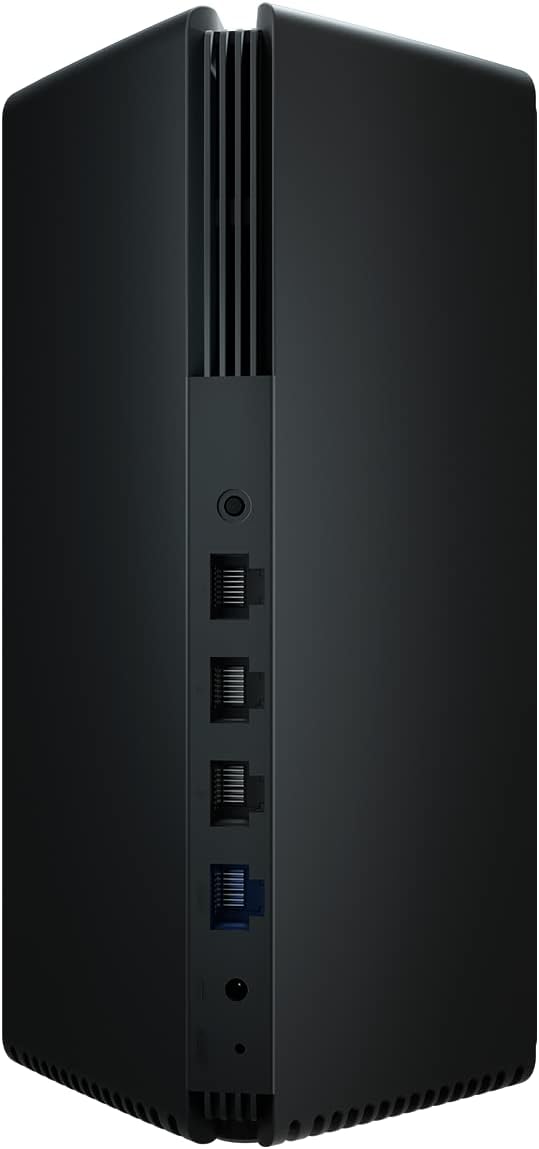
Detail of the rear panel of a Xiaomi Mesh System AX3000 unit, highlighting the Ethernet ports, power connector, and reset button.
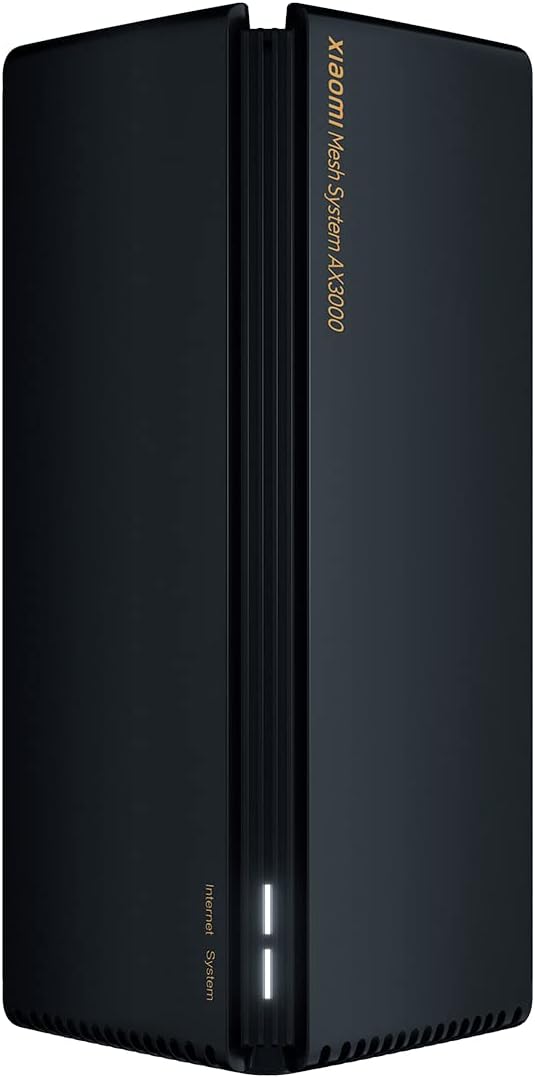
A single Xiaomi Mesh System AX3000 unit, showcasing its sleek design and front status indicator.
5. סעטאַפּ אינסטרוקציעס
5.1. Initial Setup (Main Unit)
- Connect the Main Unit: Connect one of the Mesh System units to your internet modem or router using the provided Ethernet cable. Plug one end into the WAN port (usually blue) of the Mesh unit and the other end into a LAN port on your modem/router.
- מאַכט אויף: Connect the power adapter to the main Mesh unit and plug it into a power outlet. Wait for the unit to power on and the indicator light to turn solid white (or blue, depending on the model, indicating a stable connection).
- אראפקאפיע די אַפּ: Download the Xiaomi Home or Mi Home app from your smartphone's app store.
- Configure via App: Open the app, create an account if you don't have one, and follow the on-screen instructions to add your new Mesh System. The app will guide you through setting up your Wi-Fi network name (SSID) and password.
5.2. Mesh Network Setup (Secondary Unit)
- אָרט: Place the second Mesh unit in an area where you need extended Wi-Fi coverage, ideally within range of the main unit. Avoid obstructions like thick walls or large metal objects.
- מאַכט אויף: Connect the power adapter to the secondary Mesh unit and plug it into a power outlet.
- אָטאַמאַטיק פּערינג: The secondary unit will automatically detect and pair with the main unit. The indicator light will change to reflect a successful mesh connection (e.g., solid white/blue). This process typically takes a few minutes.
- באַשטעטיקן קשר: Use the Xiaomi Home/Mi Home app to verify that both units are connected and functioning correctly within the mesh network.

The Xiaomi Home/Mi Home application interface on a smartphone, used for managing the Mesh System AX3000 network and connected devices.
6. אַפּערייטינג ינסטרוקטיאָנס
6.1. קאַנעקטינג דעוויסעס
Once your Mesh System is set up, devices can connect to the Wi-Fi network using the SSID and password you configured. The mesh system ensures seamless roaming between units, providing a consistent signal throughout your coverage area.
6.2. Network Management via App
The Xiaomi Home/Mi Home app allows you to:
- View פארבונדענע דעוויסעס און זייער נעץ באַניץ.
- Change Wi-Fi settings (SSID, password, security type).
- דורכפירן פירמווער דערהייַנטיקונגען.
- שטעלט אויף עלטערן קאָנטראָלן אדער גאַסט נעטוואָרקס.
- Monitor network status and troubleshoot issues.
6.3. אַוואַנסירטע פֿעיִקייטן
- OFDMA Transmission: This technology enables high-efficiency data transmission, allowing the system to process data streams from multiple devices simultaneously, improving overall network performance.
- ציל אויפוועקן צייט (TWT): TWT allows devices to negotiate when and how often they will wake up to send or receive data. This reduces power consumption for connected devices, especially IoT devices, by keeping them in standby mode until a transmission signal is received.
7. וישאַלט
- Firmware דערהייַנטיקונגען: Regularly check for and install firmware updates via the Xiaomi Home/Mi Home app to ensure optimal performance, security, and access to new features.
- רייניקונג: Gently wipe the exterior of the units with a soft, dry cloth. Do not use liquid cleaners or abrasive materials. Ensure ventilation slots are free from dust.
- אָפּטימאַל אָרט: פּיריאַדיקלי שייַעךview the placement of your mesh units to ensure they are in central locations, away from major obstructions, and not too close to other electronic devices that might cause interference.
8. טראָובלעשאָאָטינג
8.1. געוויינטלעכע פראבלעמען און לייזונגען
- קיין אינטערנעט פֿאַרבינדונג:
- Check if your modem/router is working correctly.
- Ensure the Ethernet cable between the main Mesh unit and your modem is securely connected.
- Restart both your modem/router and the Mesh System units.
- שוואַך Wi-Fi סיגנאַל:
- Relocate the secondary Mesh unit closer to the main unit or to a more central location.
- Ensure there are no major physical obstructions (e.g., concrete walls, large appliances) between the units.
- קוקט איבער פֿאַר קוועלער פֿון שטערונגען (למשל, מייקראַווייוון, שנורלאָזע טעלעפֿאָנען).
- קענען ניט פאַרבינדן צו Wi-Fi:
- Verify that you are using the correct Wi-Fi network name (SSID) and password.
- Restart your device (smartphone, laptop, etc.).
- Try connecting to a different Wi-Fi network to rule out device-specific issues.
8.2. פאַבריק באַשטעטיק
If you encounter persistent issues, you may need to perform a factory reset. Locate the reset button on the rear of the unit (often a small pinhole). With the unit powered on, use a paperclip to press and hold the reset button for approximately 5-10 seconds until the indicator light changes, then release. The unit will restart with factory default settings, requiring re-configuration.
9. ספּעסאַפאַקיישאַנז
| שטריך | באַשרייַבונג |
|---|---|
| סאָרט | XIAOMI |
| מאָדעל נאָמען | XIAOMI Mesh System AX3000 (2-pack) |
| נומער מאָדעל נומער | 33592 |
| ווירעלעסס קאָמוניקאַציע סטאַנדאַרד | 802.11ac, 802.11ax, 802.11n (Wi-Fi 6) |
| אָפטקייַט באַנד קלאַס | צווייענדיק-באַנד |
| קאַנעקטיוויטי טעכנאָלאָגיע | עטהערנעט, ווי-פי |
| ספּעציעלע שטריך | WPS (Wi-Fi פּראָטעקטעד סעטאַפּ) |
| קאַמפּאַטאַבאַל דעוויסעס | Compatible with any type of internet box or router |
| רעקאָממענדעד ניצט | היים |
| אַרייַנגערעכנט קאַמפּאָונאַנץ | 2x Xiaomi Mesh System AX3000 Base, Power Adapter, Ethernet Cable, User Guide |
| פאַבריקאַנט | XIAOMI |
10. וואָראַנטי און שטיצן
10.1. פאַבריקאַנט וואָראַנטי
דער פּראָדוקט איז באדעקט דורך אַ 24-חודש פאַבריקאַנט ס וואָראַנטי פֿון דעם קויף־דאַטום. ביטע באַהאַלטן אייער קויף־באַווייַז פֿאַר גאַראַנטיע־קליימז.
10.2. ווייכווארג דערהייַנטיקונגען
Software updates for this device are guaranteed until 13 אפריל 2030. Ensure your device is connected to the internet and check the Xiaomi Home/Mi Home app regularly for available updates.
10.3. קונה שטיצן
For technical assistance, troubleshooting beyond this manual, or warranty inquiries, please visit the official Xiaomi support website or contact their customer service. Refer to the packaging or official webזייטל פֿאַר ספּעציפֿישע קאָנטאַקט דעטאַלן אין דיין געגנט.


