
הקדמה
This manual provides comprehensive instructions for the setup, operation, maintenance, and troubleshooting of your Avision AD340G Compact High Speed Duplex Document Scanner. Please read this manual thoroughly before using the scanner to ensure proper and safe operation.
זיכערקייַט אינפֿאָרמאַציע
היט די פאלגענדע זיכערהייט מיטלען צו פאַרמייַדן שאָדן און שעדיקן צו די סקאַנער:
- ניצט נאָר דעם מאַכט אַדאַפּטער וואָס ווערט צוגעשטעלט מיטן סקאַנער.
- שטעלט נישט אויס דעם סקאַנער צו וואַסער אָדער צו פיל הומידיטי.
- שטעלט דעם סקאַנער אויף אַ סטאַבילער, גלייכער ייבערפלאַך.
- Keep the scanner away from direct sunlight and heat sources.
- Unplug the scanner before cleaning or if it will not be used for an extended period.
פּעקל אינהאַלט
באַשטעטיקן אַז אַלע זאכן זענען פאַראַן אין פּעקל:
- Avision AD340G Document Scanner
- מאַכט אַדאַפּטער
- וסב קאַבלע
- שנעל אָנהייב גייד
- ווייכווארג סי-די (אדער דאונלאוד אינסטרוקציעס)
פּראָדוקט איבערview
Familiarize yourself with the main components of the Avision AD340G scanner.
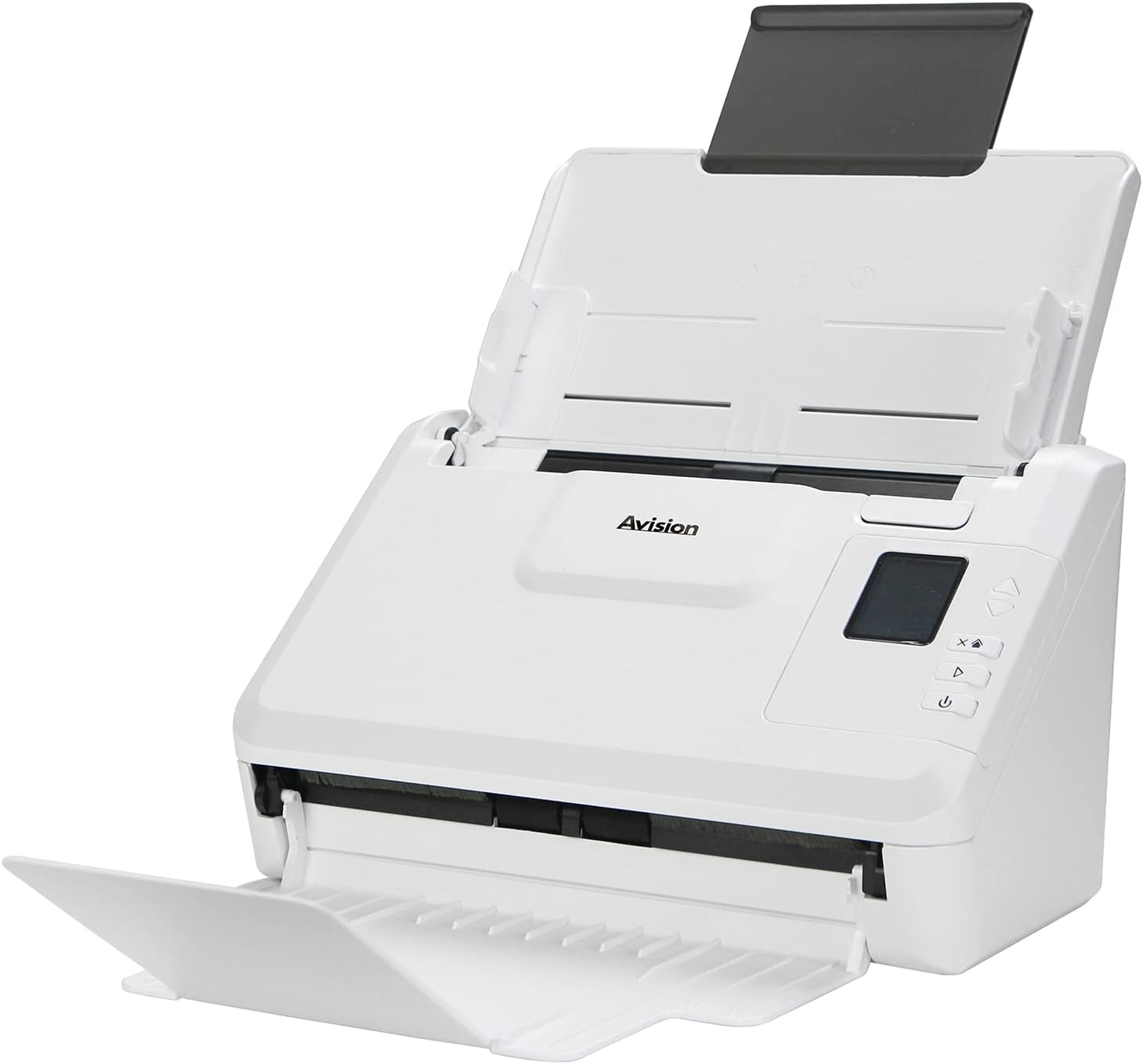
בילד: The Avision AD340G scanner shown with its input and output trays extended, ready for document feeding. This view highlights the compact design and accessible paper path.
- Document Feeder Tray: וואו דאקומענטן ווערן אריינגעלאדן צום סקענען.
- רעזולטאַט טאַץ: וואו סקאַנירטע דאָקומענטן ווערן אַרויסגעוואָרפן.
- קאָנטראָל פּאַנעל: Buttons and display for scanner operation.
- וסב פּאָרט: פֿאַר קאַנעקטינג צו אַ קאָמפּיוטער.
- מאַכט פּאָרט: פֿאַר קאַנעקטינג די מאַכט אַדאַפּטער.
סעטאַפּ
1. פיזישע אויפשטעל
- אויספּאַקן דעם סקאַנער: פֿאָרזיכטיק אַרויסנעמען דעם סקאַנער און אַלע אַקסעסאָריעס פֿון דער פּאַקאַדזשינג.
- שטעלט דעם סקאַנער: Position the scanner on a flat, stable surface with adequate space for the input and output trays.
- פאַרבינדן מאַכט:
- Connect the power adapter to the scanner's power port.
- צאַפּן די מאַכט אַדאַפּטער אין אַן עלעקטריקאַל ווענטיל.
- פאַרבינדן צו קאָמפּיוטער:
- Connect one end of the USB cable to the scanner's USB port.
- פאַרבינדן די אנדערע סוף פון די וסב קאַבלע צו אַ בנימצא וסב פּאָרט אויף דיין קאָמפּיוטער.
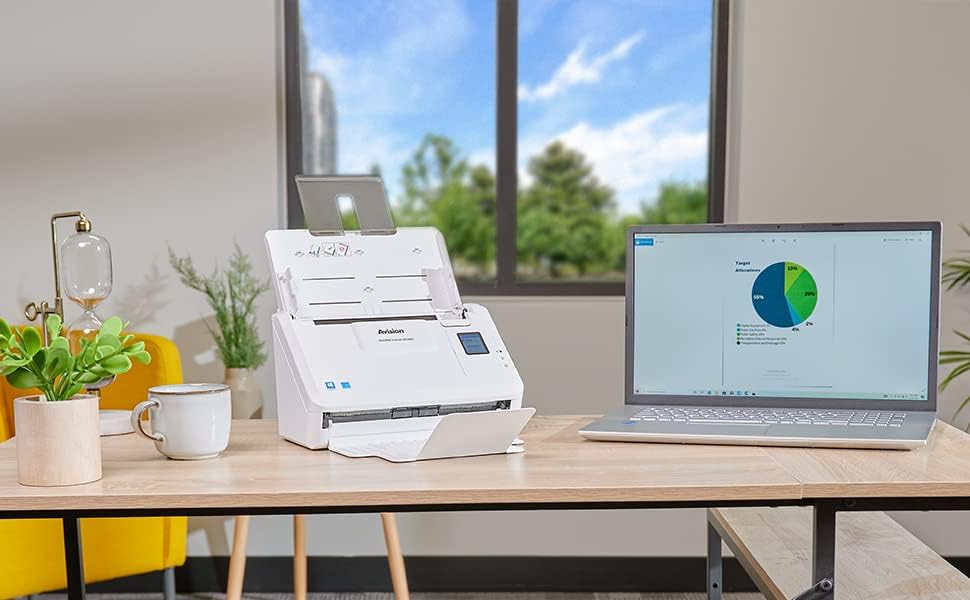
בילד: The Avision AD340G scanner set up on a desk next to a laptop, illustrating a typical connected environment. This shows the scanner's compact footprint when in use.
2. ווייכווארג ינסטאַלירונג
Install the necessary drivers and scanning software from the provided CD or by downloading them from the official Avision webפּלאַץ.
- Insert the software CD into your computer's CD/DVD drive, or navigate to the Avision support website to download the latest drivers and utilities for the AD340G model.
- Follow the on-screen instructions to complete the installation. This typically includes installing the TWAIN/ISIS drivers and the Avision scanning utility software.
- ריסטאַרט דיין קאָמפּיוטער אויב געבעטן.
אַפּערייטינג די סקאַננער
1. לאָדן דאָקומענטן
- Open the document feeder tray and extend the output tray.
- אַדזשאַסטירן די פּאַפּיר גיידס צו גלייַכן די ברייט פון דיין דאָקומענטן.
- Place the documents face-down in the input tray, ensuring they are neatly stacked and aligned. The scanner supports up to 50 sheets.

בילד: A hand carefully placing a stack of documents into the input tray of the Avision AD340G scanner, demonstrating the correct loading procedure.
2. Scanning Procedure
- קער אויף די סקאַננער דורך דרינגלעך די מאַכט קנעפּל.
- Launch the Avision scanning software on your computer.
- אויסקלייבן אייער געוואונטשענע סקענירונג פראפעסיאנאלfile (e.g., color, grayscale, black & white, resolution). The AD340G supports duplex scanning (both sides simultaneously).
- דריקט דעם "סקען" קנעפל אין דער ווייכווארג אדער דריקט דעם סקען קנעפל אויף דעם סקענער'ס קאנטראל פאנעל.
- The scanner will feed and process the documents. Once scanning is complete, the images will appear in the software.
- Review the scanned images, make any necessary adjustments (e.g., rotate, crop), and save them to your desired location and format (e.g., PDF, JPEG, TIFF).
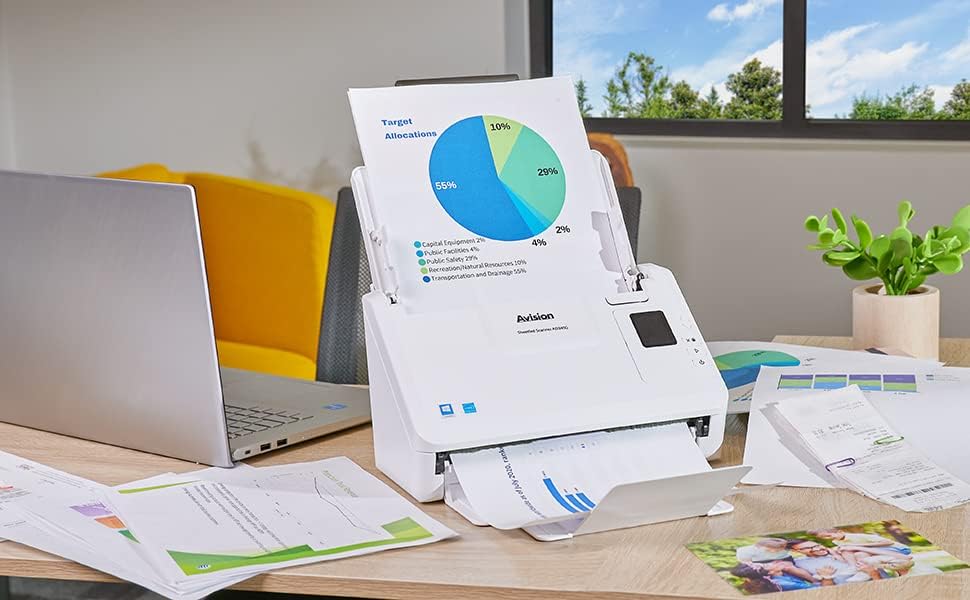
בילד: The Avision AD340G scanner in operation, feeding a document with a pie chart. This illustrates the scanner's ability to handle various document types efficiently.
וישאַלט
רייניקונג די סקאַננער
רעגולערע רייניקונג גאַראַנטירט אָפּטימאַלע פאָרשטעלונג און פאַרלענגערט די לעבן פון דיין סקאַנער.
- מאַכט אַוועק און אָפּשטויסן: Always turn off the scanner and disconnect the power adapter and USB cable before cleaning.
- ריין עקסטעריאָר: Wipe the exterior of the scanner with a soft, lint-free cloth lightly dampגעוואשן מיט וואַסער אָדער אַ מילד, נישט-אַברייזיוו רייניגער.
- Clean Interior (Rollers and Glass):
- Open the scanner cover to access the rollers and glass scanning surfaces.
- Gently wipe the feed rollers with a clean, lint-free cloth. If necessary, use a small amount of isopropyl alcohol on the cloth for stubborn residue.
- Clean the glass scanning strips with a soft cloth and glass cleaner (non-ammonia based).
- לאָזט אַלע קאָמפּאָנענטן גאָר טרוקן איידער איר מאַכט צו דעם דעקל און ווידער אַרײַנשטעלט די עלעקטריע.
טראָובלעשאָאָטינג
| פּראָבלעם | מעגלעך סיבה | לייזונג |
|---|---|---|
| דער סקאַנער גייט נישט אָן. | שטראָם קאַבל נישט פארבונדן; פּראָבלעם מיט שטראָם אַוטלעט. | זיכער מאַכן אַז דער עלעקטרישער קאַבל איז זיכער פֿאַרבונדן. פּרוּווט אַן אַנדער עלעקטרישער אַוטלעט. |
| Documents jam frequently. | Misaligned paper guides; worn rollers; dirty rollers. | Adjust paper guides. Clean the feed rollers. If problem persists, rollers may need replacement. |
| Scanned images are blurry or have lines. | Dirty scanning glass; incorrect resolution settings. | Clean the scanning glass. Adjust scanning resolution in the software. |
| Scanner not detected by computer. | USB cable disconnected; driver not installed or corrupted. | Check USB cable connection. Reinstall scanner drivers. Try a different USB port. |
ספּעסאַפאַקיישאַנז
Key technical specifications for the Avision AD340G Document Scanner:
- מאָדעל: AD340G
- סקאַננער טיפּ: ADF Duplex Document Scanner
- קאַנעקטיוויטי: וסב
- רעזאלוציע: 600 dpi (אָפּטיש)
- סקאַננינג גיכקייַט: 40 ppm (pages per minute) / 80 ipm (images per minute)
- קאָליר טיפקייַט: 48 bits input / 24 bits output
- נאָרמאַל בלאַט קאַפּאַציטעט: 50 שיץ
- אָפּטיש סענסאָר טעכנאָלאָגיע: סיס (קאָנטאַקט בילד סענסאָר)
- פּראָדוקט דימענשאַנז: 11 X 6.1 X 6.5 אינטשעס
- נומער וואָג: 8 פונט
- מינימום סיסטעם רעקווירעמענץ: Windows XP/7/8/10
וואָראַנטי און שטיצן
For warranty information, technical support, or service inquiries, please refer to the warranty card included with your product or visit the official Avision website. Contact information for customer support can typically be found on the manufacturer's webפּלאַץ.
Avision Official Webפּלאַץ: www.avision.com


