1. הקדמה
The FLYDIGI Vader 2 Pro is a versatile wireless game controller designed for an enhanced gaming experience across multiple platforms. This manual provides essential instructions for setting up, operating, and maintaining your controller.
The controller is compatible with Nintendo Switch, iOS, PC, and Android devices, offering a seamless transition between your preferred gaming systems.
2. פּראָדוקט איבערview
The Vader 2 Pro controller integrates advanced features to optimize gameplay. Key components include dual vibration motors, a 6-axis gyroscope for motion sensing, and customizable RGB lighting.

בילד 2.1: פראָנט view of the FLYDIGI Vader 2 Pro Game Controller, showcasinג זײַן ערגאָנאָמישן פּלאַן און קנעפּל אויסלייג.
שליסל פֿעיִקייטן:
- מולטי-פּלאַטפאָרם קאַמפּאַטאַבילאַטי: Supports Nintendo Switch, iOS, PC, and Android.
- דואַל ווייבריישאַן מאָטאָרן: Provides immersive haptic feedback with 3 adjustable levels.
- 6-אַקס גיראָסקאָפּ: Enables precise motion sensing for compatible games.
- קוסטאָמיזאַבלע RGB לייטינג: Personalize the controller's aesthetic with millions of color options.
- קאָנפיגוראַבלע קנעפּלעך: Four additional M1-M4 buttons on the rear for personalized controls.
- קייפל פֿאַרבינדונג מאָדעס: Bluetooth, 2.4GHz wireless (with dongle), and wired USB connection.

Image 2.2: The Vader 2 Pro controller shown with various compatible devices including a Nintendo Switch, PC laptop, iOS phone, and Android phone, illustrating its multi-platform support.

Image 2.3: The controller highlighting its built-in 6-axis gyro sensor for motion control.
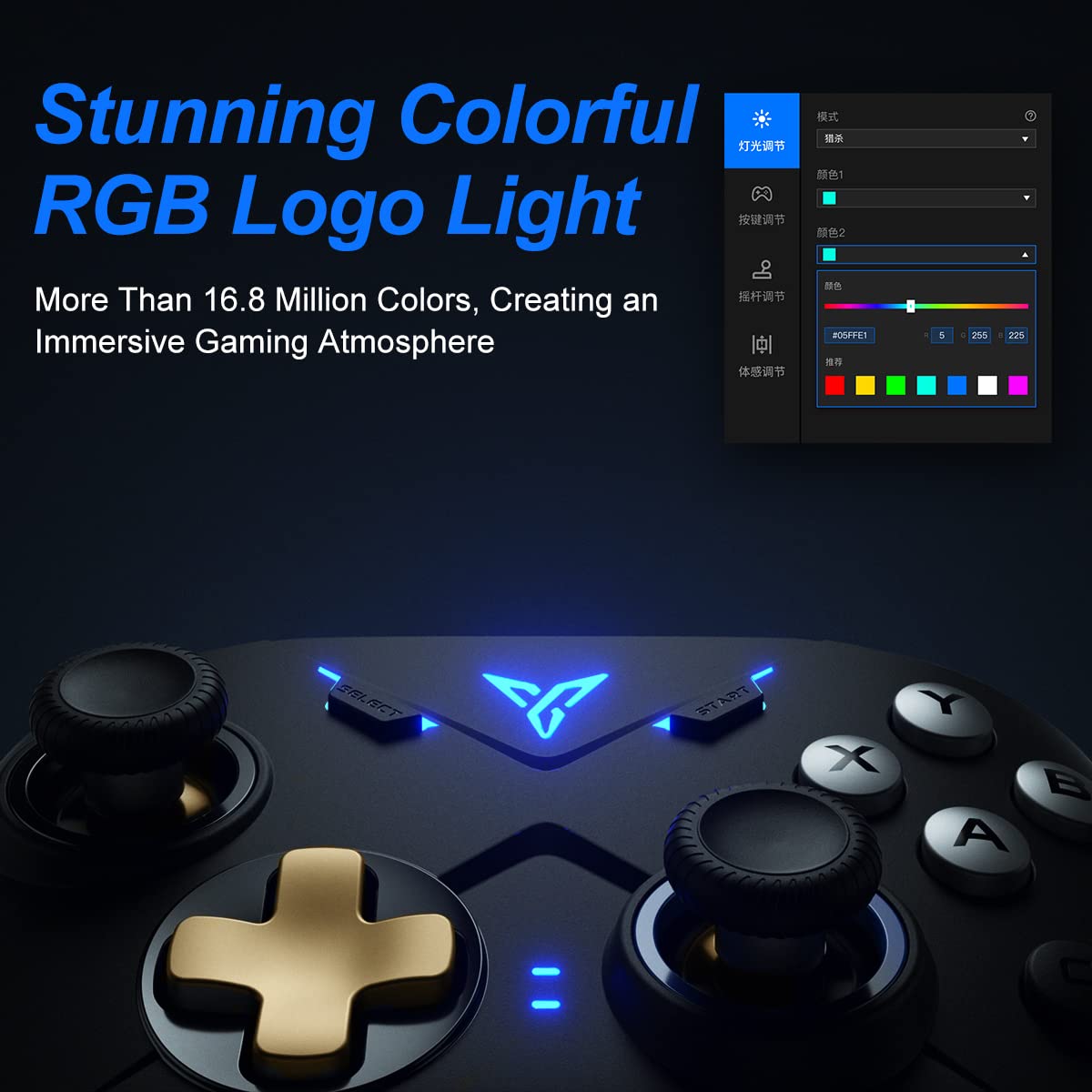
Image 2.4: Close-up of the controller's RGB logo light, demonstrating its customizable color options.

בילד 2.5: דערציען view of the controller, showing the M1-M4 configurable buttons for personalized gameplay.

Image 2.6: Illustration of the controller's asymmetric dual motor design, indicating vibration feedback.
3. סעטאַפּ און קאַנעקשאַן
The Vader 2 Pro controller offers multiple connection methods depending on your gaming platform. Refer to the table below for specific instructions.

Image 3.1: A table detailing connection instructions for Phone/Tablet, PC/Mac, and Nintendo Switch.
פֿאַרבינדונג אינסטרוקציעס:
| לימעד | Connect to Phone/Tablet | Connect to PC/Mac | פאַרבינדן צו סוויטש |
|---|---|---|---|
| באַשטימען מעטאַד | Press "+" and "B" buttons simultaneously for 3 seconds. | Press "+" and "A" buttons simultaneously for 3 seconds. | Press "+" and "X" buttons simultaneously for 3 seconds. |
| קשר אופֿן | בלועטאָאָטה קשר | 2.4GHz connector connection or USB wired connection | בלועטאָאָטה קשר |
| שטיצן מאָדע | בלועטאָאָטה מאָדע | 360 mode, Android mode (Press "+" and "SELECT" to switch) | באַשטימען מאָדע |
| גראדן לייץ סטאַטוס | No. 1 Indicator light on blue | No. 1 Indicator light on white (No. 2 red for Android mode) | No. 1 Indicator light on orange |
Additional Connection Notes:
- For PC/Mac, a 2.4GHz USB dongle is included for wireless connection. A USB-C to A cable is also provided for wired play.
- Ensure your device's Bluetooth is enabled when connecting wirelessly to phones, tablets, or Nintendo Switch.
- For iOS devices running iOS 13.4 or higher, follow the specific pairing instructions: Press and hold '+' and 'C' until the first light blinks orange and the second light stays red. Then, long press '+' for more than 3 seconds until the first light flashes orange. Go to your iOS Bluetooth settings and select the device to connect.

Image 3.2: The included USB wireless dongle and USB-C charging/data cable.
4. אַפּערייטינג ינסטרוקטיאָנס
4.1. Button Mapping and Customization
The FLYDIGI Vader 2 Pro controller supports extensive customization through the dedicated FLYDIGI PC Space Station software. This software allows you to:
- Remap buttons, including the M1-M4 rear buttons.
- Adjust joystick curves for precision control.
- Fine-tune motion sensing sensitivity.
- Program macro combos for complex actions.
- Change RGB light settings and effects.
Up to 4 sets of custom configurations can be saved directly on the controller. Download the software from the official FLYDIGI webפּלאַץ: flydigi.com/index/down?nav_id=2
4.2. Motion Sensing
The integrated 6-axis gyroscope provides accurate motion control in games that support this feature, enhancing your interactive experience.
4.3. ווייבריישאַן פידבעק
The asymmetric dual vibration motors offer tactile feedback. You can adjust the vibration intensity to one of three levels to suit your preference.
4.4. RGB לייטינג
The controller features a customizable RGB logo light, offering over 16.8 million colors. Use the FLYDIGI PC Space Station software to select your preferred lighting modes and colors.
5. אויפלאָדן און באַטעריע לעבן
The Vader 2 Pro controller is equipped with a rechargeable battery designed to provide up to 80 hours of gameplay on a single charge. To charge the controller, connect it to a USB power source using the provided USB-C cable.

Image 5.1: The controller positioned above a charging indicator, symbolizing its rechargeable battery.
באַמערקונג: Actual battery life may vary based on usage patterns, vibration intensity, and RGB lighting settings.
6. טראָובלעשאָאָטינג
If you encounter issues with your FLYDIGI Vader 2 Pro controller, refer to the following common solutions:
- קאָנטראָללער פֿאַרבינדט זיך נישט:
- Ensure the controller is in the correct switching mode for your platform (Phone/Tablet, PC/Mac, Switch) as per Section 3.
- Verify that Bluetooth is enabled on your device or that the 2.4GHz dongle is properly inserted into your PC/Mac.
- פּרוּווט ריסטאַרטן ביידע דעם קאָנטראָללער און דיין דעווייס.
- For PC connections, if Bluetooth fails, try using the 2.4GHz dongle or a wired USB connection.
- Buttons Not Responding/Mapping Issues:
- Ensure the FLYDIGI PC Space Station software is correctly installed and updated.
- Check your custom profiles within the software to ensure buttons are mapped as intended.
- Reset the controller to factory settings if custom mappings are causing issues (refer to software documentation for this process).
- קורץ באַטאַרייע לעבן:
- Ensure the controller is fully charged before use.
- Reduce vibration intensity or RGB lighting brightness/effects to conserve battery power.
- אויב די באַטאַרייע לעבן ווערט באַדייטנד ערגער מיט דער צייט, קאָנטאַקטירט קונה שטיצע.
- Unstable Wireless Connection:
- Ensure there are no significant obstructions or sources of interference between the controller and your device/dongle.
- Keep the controller within the recommended operating range.
- Update controller firmware via the FLYDIGI PC Space Station software.
7. ספּעסאַפאַקיישאַנז
| שטריך | דעטאַל |
|---|---|
| מאָדעל נומער | VADER2PRO |
| ASIN | B09LCYB48V |
| פּראָדוקט דימענשאַנז | 3.5 X 7.59 X 5.5 אינטשעס |
| פּונקט וואָג | 15.84 אונסעס |
| קאַנעקטיוויטי | בלועטוט, 2.4GHz וויירלעס, USB ווייערד |
| קאַמפּאַטאַבילאַטי | Nintendo Switch, iOS, PC, Android |
| ספּעציעלע פֿעיִקייטן | Dual Vibration Motors, 6-Axis Gyroscope, RGB Lighting, Configurable M1-M4 Buttons |
| באַטערי לעבן | ביז 80 שעה (אומגעפער) |
| ערשטער דאַטע בנימצא | 21טן דעצעמבער 2021 |
8. וישאַלט
To ensure the longevity and optimal performance of your FLYDIGI Vader 2 Pro controller, follow these maintenance guidelines:
- רייניקונג: ניצט אַ ווייכע, טרוקענע שטאָף צו רייניקן דעם קאָנטראָללער. פֿאַרמייַדט ניצן שטרענגע כעמיקאַלן אָדער אַברייסיוו מאַטעריאַלן.
- סטאָרידזש: האַלט דעם קאָנטראָללער אין אַ קיל, טרוקן אָרט אַוועק פון דירעקט זונשייַן און עקסטרעמע טעמפּעראַטורן.
- האַנדלינג: פֿאַרמײַדט צו לאָזן דעם קאָנטראָללער פאַלן אָדער אים אויסשטעלן צו שטאַרקע קלאַפּן, ווײַל דאָס קען שעדיקן אינעווייניקסטע קאָמפּאָנענטן.
- טשאַרדזשינג: Do not overcharge the battery. Disconnect the charging cable once the controller is fully charged.
9. וואָראַנטי און שטיצן
For warranty information, technical support, or further assistance, please visit the official FLYDIGI webזייטל אדער קאנטאקט זייער קאסטומער סערוויס. האלט אייער קויף קוויטל פאר גאראנטיע טענות.
Official FLYDIGI Webפּלאַץ: www.flydigi.com


