הקדמה
This manual provides detailed instructions for the installation, operation, and maintenance of your AXAGON ADSA-ST USB 3.0 Docking Station. This device is designed to connect 2.5" and 3.5" SATA SSDs and HDDs to your computer via a USB 3.0 interface, offering fast data transfer speeds.
ביטע ליינט דעם מאַנואַל גרינטלעך איידער איר ניצט דעם פּראָדוקט צו ענשור געהעריק פונקציאָנירן און צו פאַרמייַדן שעדיקן.
פּעקל אינהאַלט
באַשטעטיקן אַז אַלע קאָמפּאָנענטן זענען פאַראַן אין דער פּאַקעט:
- AXAGON ADSA-ST Docking Station
- USB 3.0 Type-A to Micro-B cable
- מאַכט אַדאַפּטער
- באַניצער מאַנואַל (דעם דאָקומענט)

Image: The AXAGON ADSA-ST Docking Station shown alongside its retail packaging, illustrating the product and its box.
שליסל פֿעיִקייטן
- Supports 2.5" and 3.5" SATA I/II/III SSDs and HDDs.
- USB 3.0 (USB 3.2 Gen 1) interface with up to 5 Gbps transfer speed.
- SATA 6G (SATA III) support.
- UASP (USB Attached SCSI Protocol) שטיצע פֿאַר פֿאַרבעסערטע פאָרשטעלונג.
- TRIM support for SSDs.
- HDD Auto Spindown function.
- LED indication for power and activity.
- Compact design with aluminum body.

בילד: א view of the AXAGON ADSA-ST Docking Station highlighting its 5 Gbps USB 3.2 Gen 1 speed and compact size.
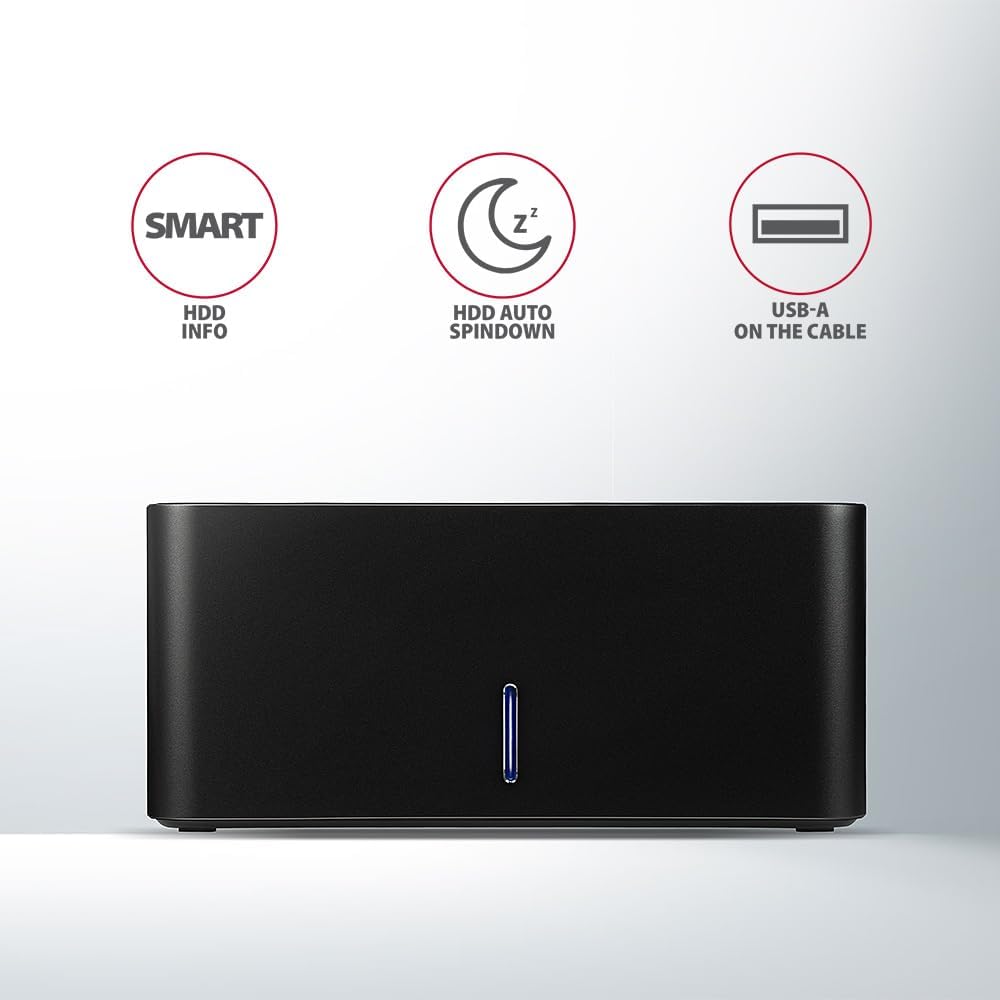
Image: The docking station from the front, indicating features like SMART HDD info, automatic HDD spindown, and USB-A connectivity.
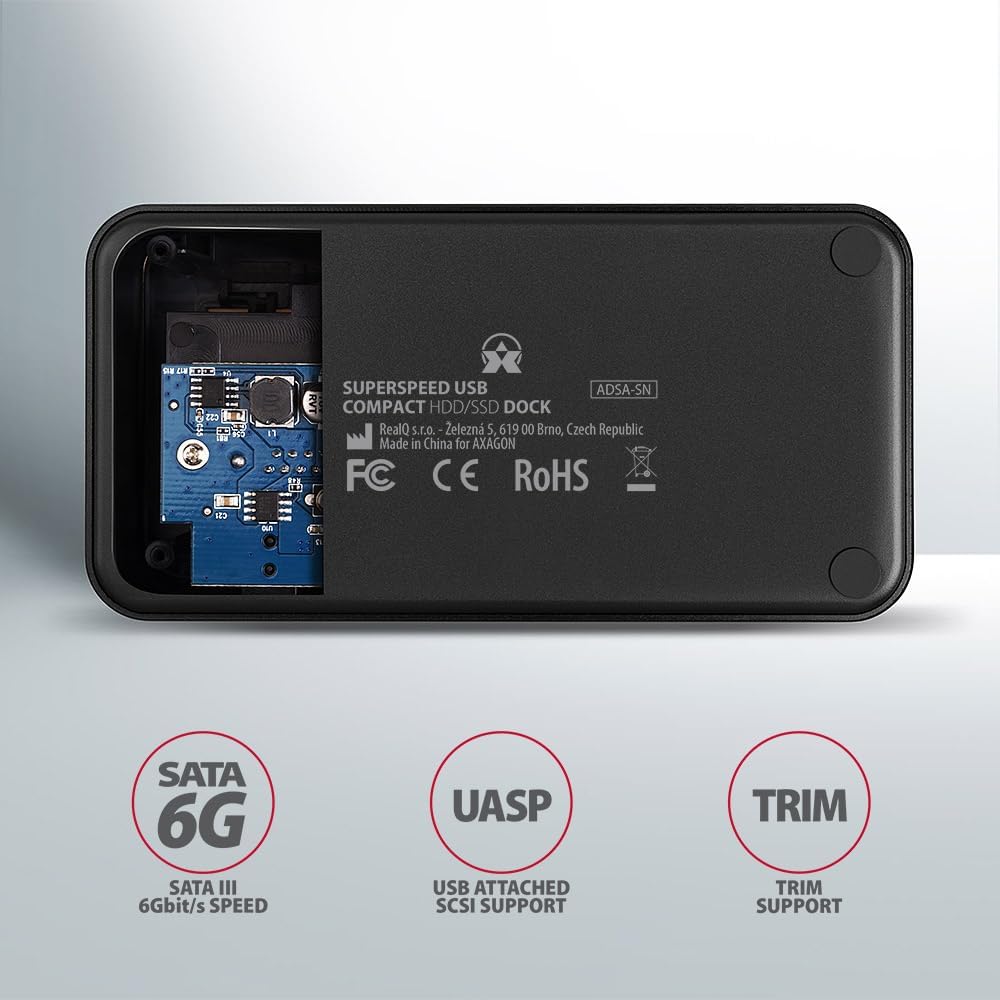
Image: The underside of the docking station, showing internal components and highlighting SATA 6G, UASP, and TRIM support.
סעטאַפּ אינסטרוקציעס
- פאַרבינדן מאַכט אַדאַפּטער: Plug the included power adapter into the DC IN port on the back of the docking station and then into a power outlet.
- פאַרבינדן צו קאָמפּיוטער: Connect the USB 3.0 cable from the docking station's Micro-B port to an available USB 3.0 (or higher) port on your computer.
- Insert HDD/SSD:
- For 2.5" SSD/HDD: Gently slide the 2.5" drive into the slot until it connects firmly with the SATA connector.
- For 3.5" HDD: Gently slide the 3.5" drive into the slot until it connects firmly with the SATA connector.
Ensure the drive is inserted correctly with the SATA connector facing the correct direction. Do not force the drive.

Image: A 2.5-inch SSD being inserted into the docking station, demonstrating compatibility with smaller drives.
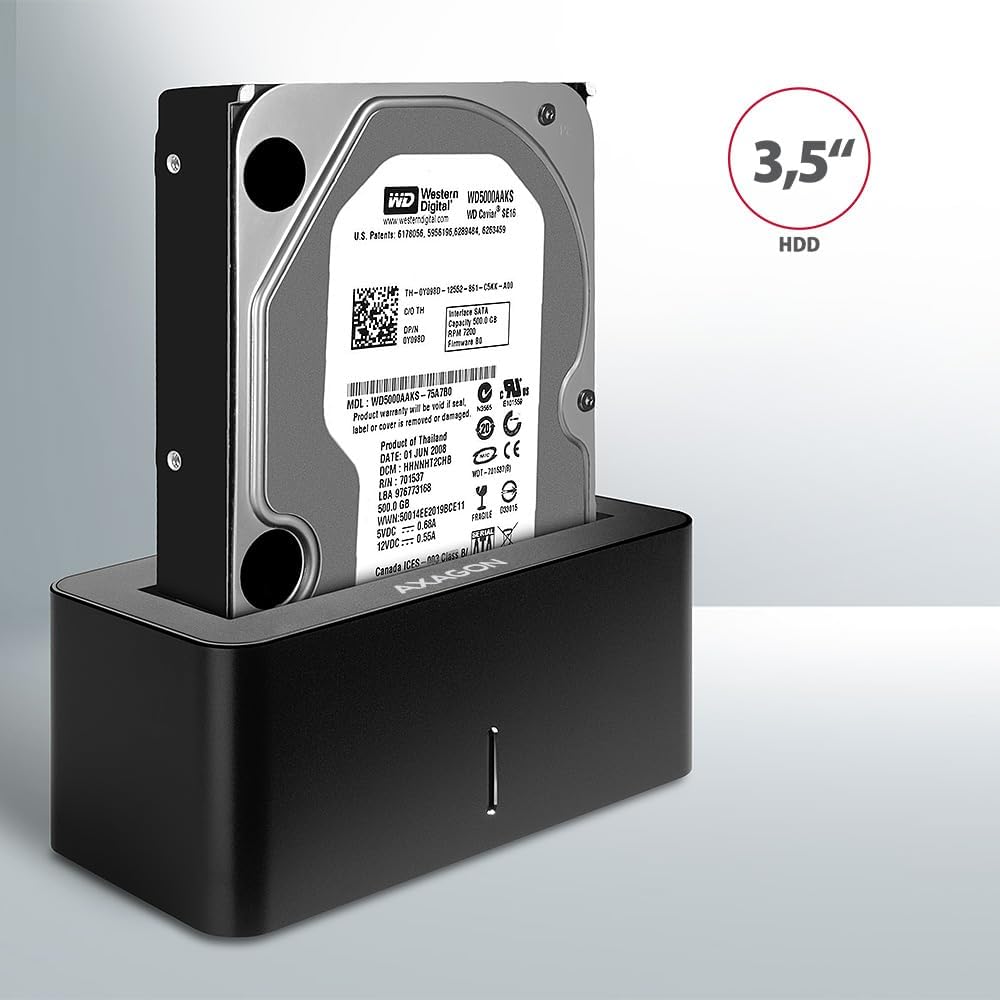
Image: A 3.5-inch HDD being inserted into the docking station, demonstrating compatibility with larger drives.
- מאַכט אויף: Press the power button located on the back of the docking station. The LED indicator on the front will illuminate.
Image: The rear panel of the docking station, showing the power button, USB Micro-B port, and power input for connection.
אַפּערייטינג ינסטראַקשאַנז
דרייוו דערקענונג
Once powered on and connected, your operating system should automatically detect the inserted drive. If it's a new drive, you may need to initialize and format it through Disk Management (Windows) or Disk Utility (macOS) before it appears in File אויספארשער/זוכער.
געפירט ינדיקאַטאָר
The LED indicator on the front of the docking station provides status information:
- סאָליד בלוי: Power on, drive idle.
- בליענדיק בלוי: Drive activity (reading or writing data).
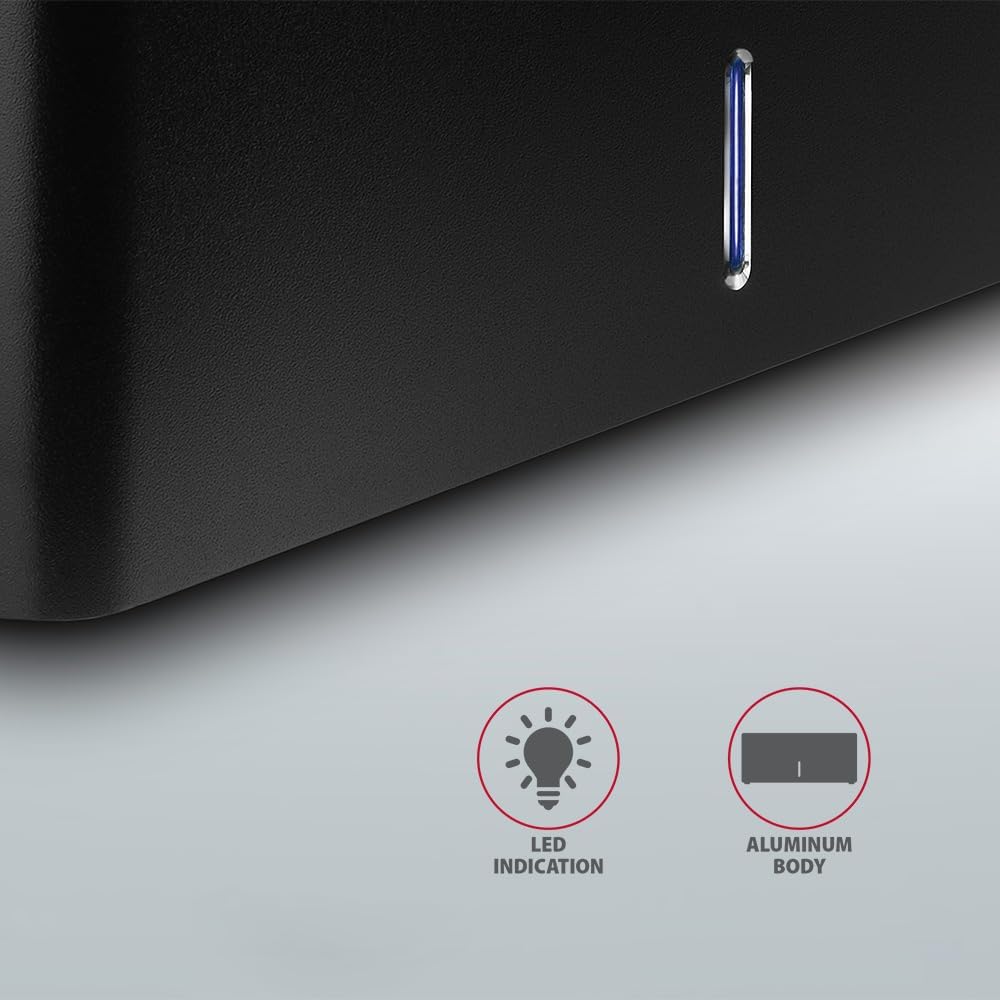
בילד: א נאָענטע בילד view of the docking station's front panel, highlighting the LED indicator light.
Removing a Drive
Before removing a drive, always safely eject it from your operating system to prevent data corruption. After ejection, gently pull the drive straight out of the docking station slot.
האַרד דיסק אויטאָ ספּינדאַון
The docking station supports automatic spindown of the HDD when it is idle for a certain period, conserving power and extending drive lifespan. This feature is managed by the operating system or the drive itself.
וישאַלט
- האַלט די דאָקינג סטאַנציע ריין און פריי פון שטויב. ניצט אַ ווייכע, טרוקענע שטאָף פֿאַר רייניקונג.
- ויסמיידן יקספּאָוזינג די מיטל צו עקסטרעם טעמפּעראַטורעס, הומידיטי אָדער דירעקט זונשייַן.
- פּרוּווט נישט צו צענעמען אָדער פאַרריכטן דעם אַפּאַראַט אַליין. ווענדט זיך צו קוואַליפֿיצירטע סערוויס פּערסאָנעל.
- זיכערט זיך אז עס איז דא געהעריגע ווענטילאציע ארום דער דאקינג סטאנציע בעתן אפעראציע.
טראָובלעשאָאָטינג
- דרייוו נישט דעטעקטירט:
- זיכער מאַכן אַז דער מאַכט אַדאַפּטער איז זיכער פארבונדן און די דאָקינג סטאַנציע איז אנגעצינדן.
- Verify the USB cable is properly connected to both the docking station and the computer.
- פּרוּווט אַ אַנדערש וסב פּאָרט אויף דיין קאָמפּיוטער.
- Ensure the HDD/SSD is fully seated in the docking station's slot.
- Check Disk Management (Windows) or Disk Utility (macOS) to see if the drive is recognized but uninitialized/unformatted.
- Test with a different HDD/SSD to rule out a drive issue.
- לאַנגזאַמע טראַנספער גיכקייטן:
- Ensure the docking station is connected to a USB 3.0 (or higher) port on your computer. USB 2.0 ports will limit speeds.
- באַשטעטיקן אַז אייער אָפּערייטינג סיסטעם און דרייווערס זענען אַרויף צו דאַטע.
- The actual speed depends on the drive's performance and your computer's USB controller.
- Drive disconnects randomly:
- קאָנטראָלירן אַלע קאַבלע קאַנעקשאַנז.
- זיכער מאַכן אַז דער מאַכט אַדאַפּטער צושטעלט סטאַביל מאַכט.
- Disable USB power saving features in your computer's operating system settings.
טעכניש ספּעסאַפאַקיישאַנז
| שטריך | דעטאַל |
|---|---|
| סאָרט | אַקסאָן |
| מאָדעל נומער | ADSA-SN |
| ייַזנוואַרג פּלאַטפאָרמע | PC |
| קאַמפּאַטאַבאַל דעוויסעס | לאַפּטאָפּ, דעסקטאָפּ פּיסי |
| פאָר קאַמפּאַטאַבילאַטי | 2.5" / 3.5" SATA I/II/III SSD/HDD |
| צובינד | וסב 3.0 (וסב 3.2 גענ 1) |
| דאַטאַ אַריבערפירן קורס | Up to 5 Gbps (USB 3.0), 6 Gbps (SATA III) |
| גאַנץ וסב פּאָרץ | 1 (Micro-B) |
| נומער פון דרייוו בייס | 1 |
| קאָליר | שוואַרץ |
| פּונקט וואָג | 2.2 פונט (אומגעפער 1 ק"ג) |
| פּעקל דימענשאַנז | 3.94 x 0.79 x 0.39 אינטשעס (אומגעפער 10 x 2 x 1 ס״מ) |
| ערשטער דאַטע בנימצא | 30 מערץ 2021 |
וואָראַנטי און שטיצן
For warranty information and technical support, please refer to the official AXAGON webזייטל אדער קאָנטאַקט אייער לאקאלן דיסטריביאַטאָר. האַלט אייער קויפן-באַווייַז פֿאַר וואָראַנטי-קליימז.


