1. הקדמה
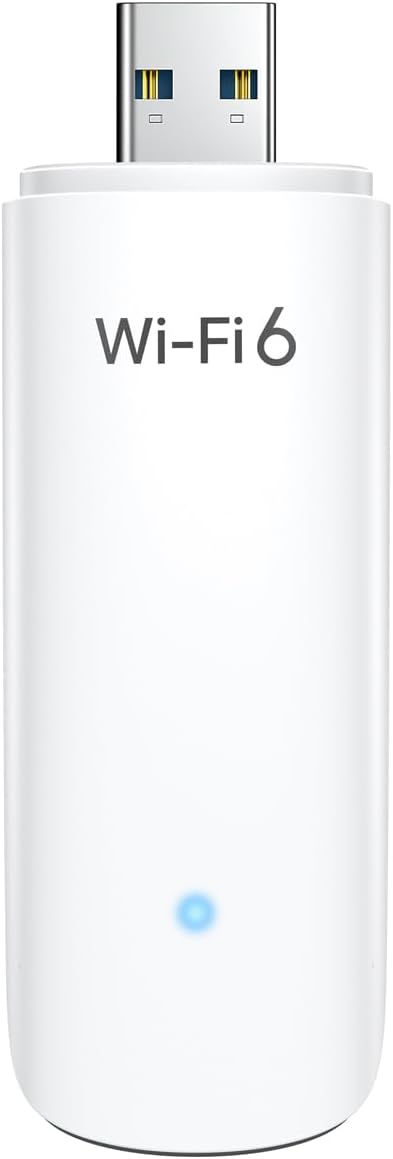
This manual provides detailed instructions for the installation, operation, and maintenance of your BrosTrend WiFi 6 AX1800Mbps USB WiFi Adapter (Model AX1). This device is designed to upgrade your PC, laptop, or desktop to the latest WiFi 6 standard, offering faster speeds and improved network efficiency. It supports Windows 11 and Windows 10 operating systems only.
2. זיכערקייַט אינפֿאָרמאַציע
- שטעלט נישט אויס דעם אפאראט צו וואסער אדער איבעריגע הומידיטי.
- ויסמיידן עקסטרעם טעמפּעראַטורעס.
- פּרוּווט נישט צו צענעמען אָדער פאַרריכטן דעם אַפּאַראַט אַליין. ווענדט זיך צו קוואַליפֿיצירטע סערוויס פּערסאָנעל.
- האַלטן אויס פון דערגרייכן פון קינדער.
- זיכער מאַכן אַז עס איז גענוג ווענטילאַציע ווען מען ניצט עס.
3. פּעקל אינהאַלט
באַשטעטיקן אַז דיין פּעקל כּולל די פאלגענדע זאכן:
- 1 x BrosTrend AX1800Mbps USB WiFi 6 Adapter (Model AX1)
- 1 x שנעל ינסטאַללאַטיאָן גייד
4. סעטאַפּ און ייַנמאָנטירונג
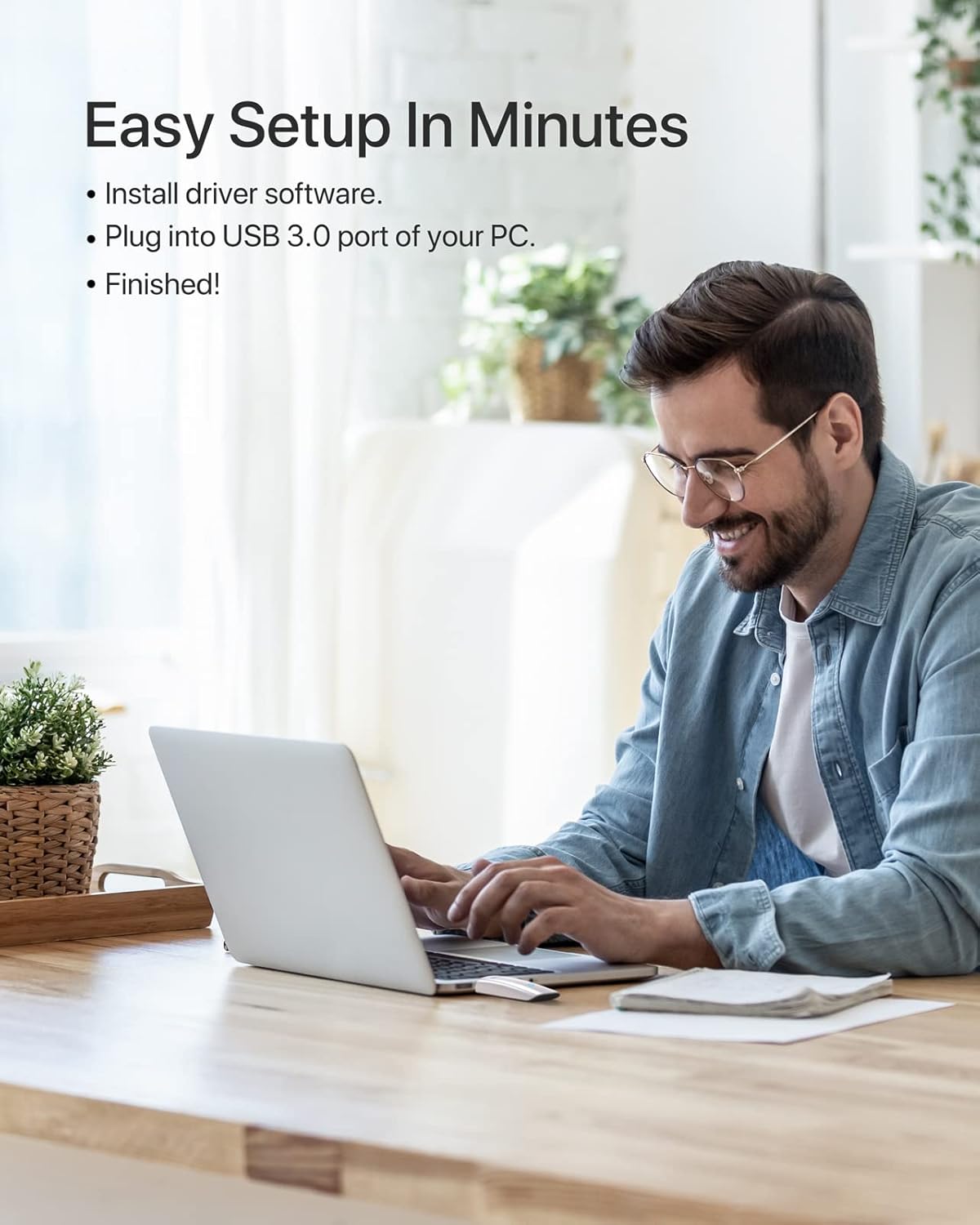
Follow these steps to install your BrosTrend WiFi 6 USB Adapter:
- סיסטעם רעקווירעמענץ: Ensure your computer is running Windows 11 or Windows 10. Linux operating systems are not supported.
- דרייווער ינסטאַלירונג: The adapter comes with a pre-loaded driver. When you plug it into your computer for the first time, the system should automatically detect the device and initiate driver installation. If automatic installation does not occur, you may need to access the adapter's internal storage (which appears as a virtual CD-ROM drive) and run the setup executable.
- פאַרבינדן די אַדאַפּטער: Insert the BrosTrend AX1800Mbps USB WiFi 6 Adapter into an available USB 3.0 port on your PC, laptop, or desktop. For optimal performance, use a USB 3.0 port (typically blue inside).
- באַשטעטיקן ינסטאַלירונג: After installation, a new wireless network adapter should appear in your computer's Device Manager. The blue LED indicator on the adapter will illuminate when it is properly connected and functioning.

5. אַפּערייטינג ינסטרוקטיאָנס
Once the adapter is installed, you can connect to a wireless network:
- צוטריט נעץ סעטטינגס: דריקט אויף די Wi-Fi בילדל אין אייער סיסטעם טאַץ (געוויינטלעך אין די אונטערשטע רעכטע ווינקל פון אייער עקראַן).
- אויסקלייַבן נעץ: א ליסטע פון פאראן ווייערלעסע נעטוואָרקס וועט דערשייַנען. אויסקלייבן אייער געוואונטשענע נעטוואָרק (SSID).
- פאַרבינדן: דריקט "פאַרבינדן" און אַרייַן די נעץ זיכערהייט שליסל (פּאַראָל) אויב געבעטן.
- צוויי-באַנד אָפּעראַציע: The adapter supports both 5GHz and 2.4GHz bands. For higher speeds and less interference, connect to a 5GHz network if available. For broader coverage, the 2.4GHz band is suitable.
- אַוואַנסירטע פֿעיִקייטן: The adapter utilizes UL/DL MU-MIMO and OFDMA technologies for improved network throughput and efficiency, especially in environments with multiple devices. Beamforming technology enhances signal strength and coverage.


6. וישאַלט
כדי צו זיכער מאַכן די לאַנגלעבעניש און אָפּטימאַלע פאָרשטעלונג פון דיין אַדאַפּטער:
- האַלט דעם אַדאַפּטער ריין און פֿרײַ פֿון שטויב. ניצט אַ ווייכן, טרוקענעם שטאָף פֿאַר רייניקונג.
- Avoid physical impact or dropping the device.
- When not in use, you may unplug the adapter and store it in a safe place. The adapter includes a protective cap for the USB connector.
- Periodically check the BrosTrend website for updated drivers, although the pre-loaded driver is generally sufficient.

7. טראָובלעשאָאָטינג
If you encounter issues with your BrosTrend WiFi 6 USB Adapter, consider the following:
- Adapter Not Detected / No Indicator Light:
- זיכער מאַכן אַז דער אַדאַפּטער איז גאָר אַרײַנגעשטעקט אין אַ USB 3.0 פּאָרט.
- פּרוּווט אַ אַנדערש וסב פּאָרט אויף דיין קאָמפּיוטער.
- ריסטאַרט דיין קאָמפּיוטער.
- Verify that your operating system is Windows 11 or Windows 10.
- לאַנגזאַמע גיכקייטן / אָפטע דיסקאַנעקשאַנז:
- Ensure you are connected to a 5GHz network if available and within range for optimal speed.
- Check for obstacles between your computer and the wireless router.
- דערהייַנטיקן דיין ראַוטער ס פירמווער.
- Temporarily disable any VPN or firewall software to see if it resolves the issue.
- Reinstall the adapter drivers.
- דרייווער אינסטאַלאַציע פּראָבלעמען:
- If the driver does not install automatically, open "This PC" or "My Computer", locate the virtual CD-ROM drive associated with the adapter, and run the setup file.
- Ensure your antivirus software is not blocking the driver installation.
- Download the latest drivers from the official BrosTrend support webפּלאַץ אויב נייטיק.
8. ספּעסאַפאַקיישאַנז
| שטריך | דעטאַל |
|---|---|
| מאָדעל נומער | AX1 |
| ווירעלעסס סטאַנדאַרד | IEEE 802.11ax (WiFi 6) |
| דאַטאַ אַריבערפירן קורס | ביז 1800Mbps (1201Mbps אויף 5GHz, 574Mbps אויף 2.4GHz) |
| אָפטקייַט באַנדס | 2.4GHz און 5GHz (צוויי-באַנד) |
| צובינד | וסב 3.0 |
| קאַמפּאַטאַבאַל אַפּערייטינג סיסטעמס | Windows 11, Windows 10 (Linux NOT supported) |
| אַנטענע טיפּ | Internal On-Board Antennas |
| דימענסיעס (L X W X H) | 3.62 X 1.18 X 0.51 אינטשעס (9.2 X 3.0 X 1.3 סענטימעטער) |
| פּונקט וואָג | 0.635 אונסעס (18 גראַם) |
| קאָליר | ווייַס |
| אַוואַנסירטע פֿעיִקייטן | UL/DL MU-MIMO, OFDMA, Beamforming, WPA3 Encryption |
9. וואָראַנטי און שטיצן
BrosTrend products come with a manufacturer's warranty. Please refer to the official BrosTrend website or the Quick Installation Guide for specific warranty terms and conditions.
For technical support, driver downloads, or further assistance, please visit the BrosTrend support page or contact their customer service. Contact information is typically provided in the Quick Installation Guide or on the official BrosTrend webפּלאַץ.
אָנליין שטיצן: www.brostrend.com/support (עקסample link, please verify actual support URL)


