הקדמה
This manual provides detailed instructions for the setup, operation, maintenance, and troubleshooting of your ECHTPower Wireless Bluetooth Ergonomic Vertical Mouse. Please read this manual thoroughly before using the device to ensure proper functionality and longevity.

Image: The ECHTPower Wireless Bluetooth Ergonomic Vertical Mouse, showing its vertical design and the included USB receiver.
פּראָדוקט פֿעיִקייטן
- ערגאָנאָמיש ווערטיקאַל פּלאַן: Designed to reduce wrist and forearm strain, promoting a natural hand posture.
- טריי-מאָד קאַנעקטיוויטי: Supports dual Bluetooth 5.0 connections and a 2.4GHz wireless USB connection, allowing control of up to three devices.
- אַדזשאַסטאַבאַל דפּי: Switch between 1000, 1600, and 2400 DPI settings for precise cursor control.
- קריקאָנלאָדלעך באַטערי: Built-in 700mAh battery provides up to 150 hours of continuous use on a 2-hour charge via Type-C port.
- שטילע קליק קנעפּלעך: Main left and right click buttons are designed for quiet operation, reducing noise by 90% compared to traditional mice.
- 7 קנעפּלעך: Includes left click, right click, scroll wheel, DPI switch, forward, back, and device switch buttons.

Image: Comparison showing the natural wrist posture with the ergonomic vertical mouse versus the bent wrist posture with a traditional mouse.

Image: The mouse demonstrating its ability to connect to three different devices simultaneously via 2.4G and dual Bluetooth modes.
פּעקל אינהאַלט
- ECHTPower Wireless Bluetooth Ergonomic Vertical Mouse
- USB ריסיווער (געפינט זיך אין דער מויז'ס אונטערשטער קאמפארטמענט)
- וסב-C טשאַרדזשינג קאַבלע
- באַניצער מאַנואַל (דעם דאָקומענט)
סעטאַפּ גייד
1. אויפלאָדן די מויז
Before first use, it is recommended to fully charge the mouse. Connect the provided USB-C charging cable to the Type-C port on the front of the mouse and the other end to a USB power source (e.g., computer USB port, USB wall adapter).
- The LED light will indicate charging status.
- א פול אָפּצאָל נעמט בעערעך 2 שעה.
- The mouse can be used for up to 150 hours on a full charge (with lights off state).
- If the battery is low, the indicator light will blink.

Image: The mouse being charged via its Type-C port, highlighting the 700mAh battery capacity and 2-hour charging time.
2. קאַנעקטינג די מאַוס
The ECHTPower mouse supports three connection modes: 2.4GHz Wireless USB and two Bluetooth 5.0 channels (BT1 and BT2).
- מאַכט אויף: Locate the power switch on the bottom of the mouse and slide it to the "ON" position.
- אויסקלייבן פֿאַרבינדונג מאָדע: Press the "Device Switch Button" on the bottom of the mouse to cycle through the modes:
- 2.4GHz מאָדע: The indicator light will show a specific color (refer to troubleshooting if not). Insert the USB receiver into an available USB port on your computer. The mouse should connect automatically.
- Bluetooth 1 (BT1) Mode: The indicator light will show a specific color. Press and hold the device switch button for 3-5 seconds until the indicator light flashes rapidly, indicating pairing mode.
- Bluetooth 2 (BT2) Mode: The indicator light will show a specific color. Press and hold the device switch button for 3-5 seconds until the indicator light flashes rapidly, indicating pairing mode.
- Pairing via Bluetooth (for BT1/BT2 modes):
- On your device (PC, Laptop, Mac, Tablet), go to Bluetooth settings.
- זוכן פֿאַר נייַ דעוויסעס.
- Select "ECHTPower Mouse" (or similar name) from the list of available devices.
- Confirm pairing. The indicator light on the mouse will stop flashing and remain solid once connected.
To switch between connected devices, simply press the "Device Switch Button" on the bottom of the mouse.

בילד: דעטאַלירט view of the mouse's underside, indicating the location of the power switch, device switch button, optical lens, and the compartment for the USB receiver.
אַפּערייטינג ינסטראַקשאַנז
קנעפּל פאַנגקשאַנז
| קנעפּל | פֿונקציע |
|---|---|
| לינקס דריקט קנעפּל | Standard left mouse click. Silent operation. |
| רעכט גיט קנעפּל | Standard right mouse click. Silent operation. |
| מעגילע וויל | סקראָלן אַרויף/אַראָפּ, מיטעלער קליק. |
| דפּי סוויטש קנעפּל | Cycles through DPI settings: 1000, 1600, 2400. |
| פאָרויס קנעפּל | נאַוויגירט פאָרויס אין web בראַוזערז אָדער file עקספּלאָרערס. |
| צוריק קנעפּל | נאַוויגירט צוריק אַרײַן web בראַוזערז אָדער file עקספּלאָרערס. |
| Device Switch Button (bottom) | Switches between 2.4GHz, Bluetooth 1, and Bluetooth 2 modes. Long press to enter Bluetooth pairing mode. |

בילד: פראָנט און זייט views of the mouse with labels for the DPI switch button, roller, left button, right button, forward button, back button, and LED light.
אַדזשאַסטינג DPI
Press the DPI switch button located on the top of the mouse, behind the scroll wheel, to cycle through the available DPI settings: 1000, 1600, and 2400. Each press will change the cursor sensitivity, allowing you to select the speed that best suits your needs.

Image: A visual representation of the DPI adjustment feature, indicating the three selectable DPI levels.
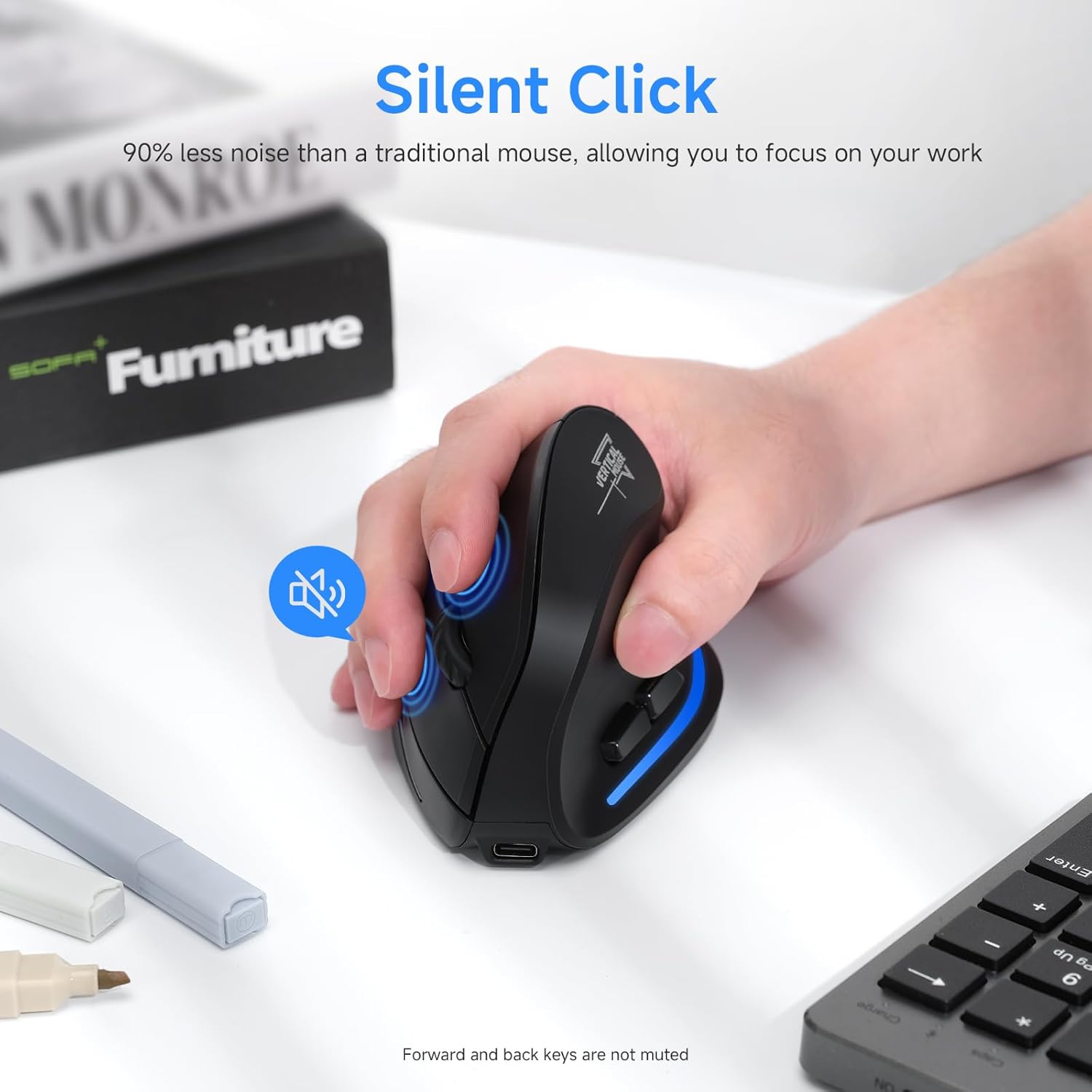
Image: A user's hand on the mouse, highlighting the silent click functionality of the main buttons. Note that forward and back keys are not muted.
וישאַלט
- רייניקונג: ניצט אַ ווייכע, טרוקענע שטאָף צו רייניקן די מויז. פֿאַר שווערע שמוץ, אַ ביסל טרוקןamp מען קען ניצן אַ שטאָף, אָבער זאָרגט זיך אַז קיין נעץ זאָל נישט אַרײַנגיין אין דעם אַפּאַראַט. ניצט נישט קיין שאַרפע כעמיקאַלן אָדער אַברייסיוו רייניקונגסמיטלען.
- סטאָרידזש: When not in use for extended periods, store the mouse in a cool, dry place. It is recommended to turn off the mouse to conserve battery life.
- באַטערי זאָרגן: To prolong battery life, avoid fully discharging the mouse frequently. Charge it when the low battery indicator blinks.
- וסב ופנעמער: When transporting the mouse, store the USB receiver in its designated compartment on the bottom of the mouse to prevent loss.
טראָובלעשאָאָטינג
| פּראָבלעם | מעגלעך סיבה | לייזונג |
|---|---|---|
| מויז ניט ריספּאַנדינג | Low battery; Mouse is off; Incorrect connection mode; USB receiver not properly inserted (2.4GHz mode); Bluetooth not paired (BT mode). | Charge the mouse; Turn on the mouse; Switch to the correct connection mode (2.4GHz, BT1, BT2); Re-insert USB receiver; Re-pair Bluetooth. |
| קורסאָר באַוועגונג איז נישט סטאַביל אָדער פּאַמעלעך | Low battery; Dirty optical sensor; Surface not suitable for optical mouse; DPI setting too low. | Charge the mouse; Clean the optical sensor with a soft cloth; Use a mouse pad or a non-reflective, opaque surface; Increase DPI setting. |
| קענען ניט פאַרבינדן דורך בלועטאָאָטה | Mouse not in pairing mode; Bluetooth on device is off; Interference; Already connected to another device. | Ensure mouse is in BT pairing mode (flashing light); Turn on Bluetooth on your device; Move closer to the device; Disconnect from other devices. |
| קנעפּלעך נישט ארבעטן | ווייכווארג קאנפליקט; מויז פראבלעם. | Restart your computer; Try the mouse on another device; If problem persists, contact customer support. |
ספּעסאַפאַקיישאַנז
- מאָדעל: SB-F35B
- קאַנעקטיוויטי: 2.4GHz Wireless, Bluetooth 5.0 (BT1, BT2)
- DPI סעטטינגס: 1000 / 1600 / 2400
- באַטאַרייע קאַפּאַציטעט: 700 מאַה קריקאָנלאָדלעך ליטהיום באַטערי
- טשאַרדזשינג צייט: בעערעך 2 שעה
- אַרבעט צייט: Up to 150 hours (with lights off)
- נומער פון קנעפּלעך: 7 (Left, Right, Scroll Wheel, DPI, Forward, Back, Device Switch)
- האַנט אָריענטירונג: Left (Note: Product images depict a right-handed mouse design.)
- נומער וואָג: 6.2 אונסעס
- דימענשאַנז (LxWxH): אומגעפער 4.33 x 2.83 x 2.95 אינטשעס (110 מ״מ x 72 מ״מ x 75 מ״מ)
- קאַמפּאַטאַבילאַטי: PC, Laptop, Mac, Windows (and other Bluetooth-enabled devices)
בילד: דעטאַלירט view of the mouse's underside, indicating the location of the power switch, device switch button, optical lens, and the compartment for the USB receiver.
בילד: פראָנט און זייט views of the mouse with labels for the DPI switch button, roller, left button, right button, forward button, back button, and LED light, along with dimensions.
וואָראַנטי און שטיצן
ECHTPower products are designed for reliability and performance. For warranty information and technical support, please refer to the official ECHTPower webזייטל אדער קאנטאקט זייער קאסטומער סערוויס גלייך.
קאָנטאַקט אינפֿאָרמאַציע:
- Webפּלאַץ: Visit the ECHTPower Store on Amazon
- For further assistance, please consult the product listing page or contact the seller directly through Amazon's messaging system.


