הקדמה
This manual provides instructions for the MageGee Typewriter Mechanical Gaming Keyboard. It covers setup, operation, maintenance, and troubleshooting to ensure optimal performance and longevity of your device. Please read this manual thoroughly before using the keyboard.
פּעקל אינהאַלט
- MageGee Typewriter Mechanical Gaming Keyboard
- מאַגנעטיק האַנטגעלענק מנוחה
- וסב קאַבלע
- באַניצער מאַנואַל (דעם דאָקומענט)
סעטאַפּ
1. קאַנעקטינג די קלאַוויאַטור
- געפינט דעם USB קאַבל וואָס קומט מיט אייער קלאַוויאַטור.
- Connect the USB Type-A end of the cable to an available USB port on your computer (PC, Laptop, or Mac).
- Connect the other end of the USB cable to the port on the keyboard.
- The keyboard is plug-and-play; no additional drivers or software are required for basic functionality. Your operating system should automatically detect and configure the device.
2. אנשטעלן די האַנטגעלענק-שטיצע
If your model includes a magnetic wrist rest, align it with the front edge of the keyboard. The magnets will help secure it in place, providing ergonomic support during use.
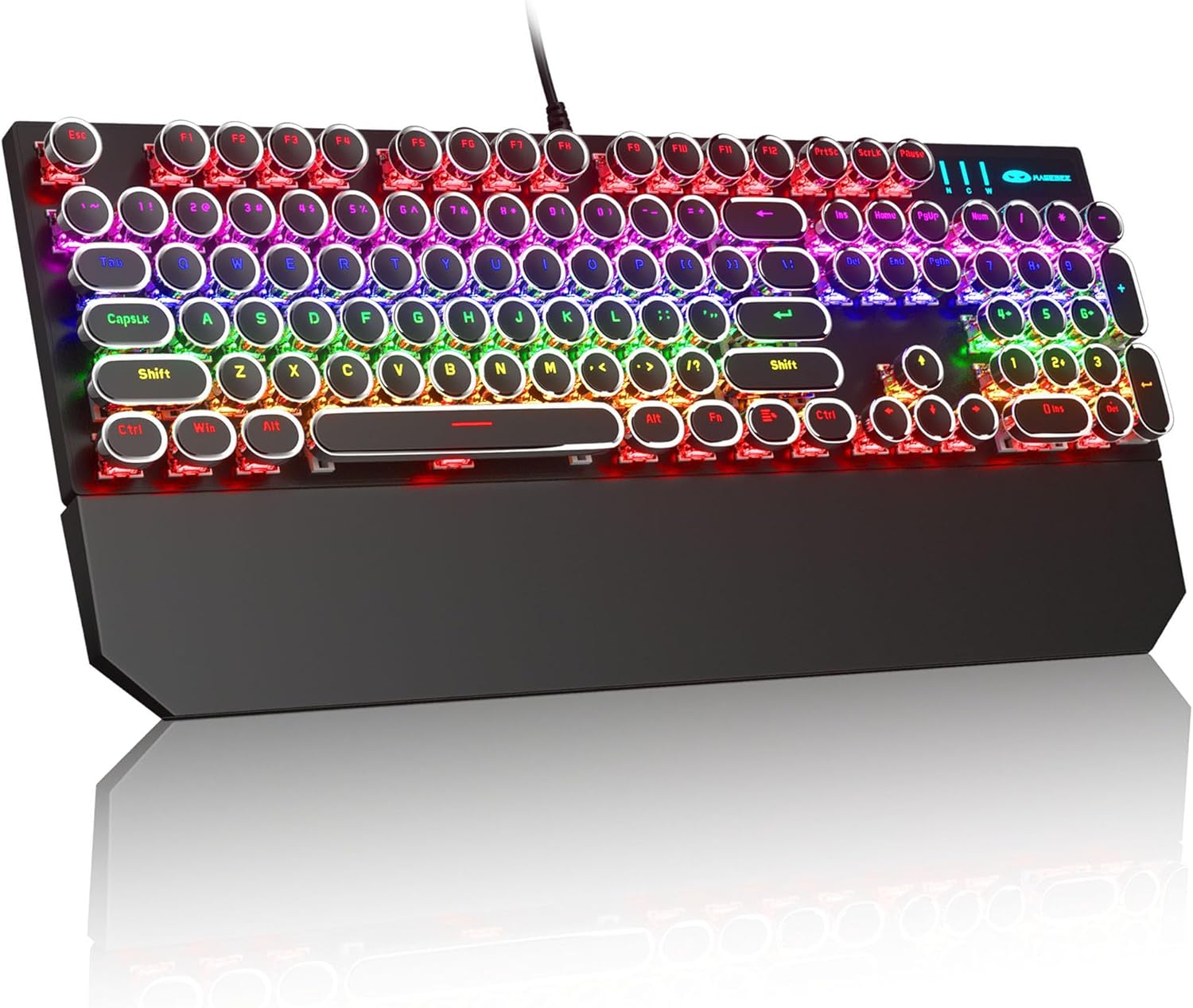
Image: The MageGee Typewriter Mechanical Gaming Keyboard connected via USB, with its magnetic wrist rest attached. The keyboard features retro round keycaps and vibrant RGB backlighting.
אַפּערייטינג ינסטראַקשאַנז
קלאַוויאַטור אויסלייג
The MageGee Typewriter Mechanical Gaming Keyboard features a full-size 104-key layout, including a numeric keypad and dedicated function keys (F1-F12).

בילד: אן איבערקאפ view of the keyboard, highlighting the full 104-key layout and the LED backlighting effect.
באַקלייט קאָנטראָל
The keyboard features multiple RGB rainbow backlit modes. Use the following key combinations to adjust the lighting effects:
- Fn + ינס: Cycle through various backlight modes.
- Fn + היים: אַדזשאַסטירן די ברייטקייט פון די באַקלייט.
- Fn + PgUp: פֿאַרגרעסערן די גיכקייט פֿון באַקלייט.
- Fn + PgDn: פֿאַרקלענערן די גיכקייט פֿון דער באַקלייטונג.
- Fn + Del: Change backlight color (if applicable to the current mode).
- Fn + סוף: Turn backlight on/off.

בילד: א נאָענטע בילד view of the keyboard's keys, illustrating the RGB backlighting and the visible blue mechanical switches beneath the round keycaps.
Multimedia and Function Keys
The F1-F12 keys can be used in conjunction with the Fn key to access multimedia and system functions. Specific functions may vary slightly depending on your operating system.
| שליסל קאָמבינאַציע | פֿונקציע |
|---|---|
| Fn + F1 | מעדיע פּלייַער |
| Fn + F2 | באַנד אַראָפּ |
| Fn + F3 | באַנד אַרויף |
| Fn + F4 | שטום |
| Fn + F5 | האַלטן |
| Fn + F6 | פֿריִערדיקע שפּירט |
| Fn + F7 | שפּיל / פּויזע |
| Fn + F8 | ווייַטער שפּור |
| Fn + F9 | בליצפּאָסט |
| Fn + F10 | Web בלעטערער |
| Fn + F11 | מיין קאָמפּיוטער |
| Fn + F12 | קאַלקולאַטאָר |
וישאַלט
רייניקונג די קלאַוויאַטור
- אָפּשטעקן די קלאַוויאַטור פֿון אייער קאָמפּיוטער איידער איר רייניקט.
- ניצן אַ ווייך, לינט-פֿרייַ שטאָף אַ ביסל דampשווענקט מיט וואַסער אָדער אַ מילדער רייניקונג לייזונג צו ווישן די קלאַוויאַטור און קלאַוויאַטור ייבערפלאַך.
- פֿאַר שטויב און שמוץ צווישן שליסלען, ניצט קאָמפּרעסירטע לופט.
- פֿאַרמײַדט די נוצן פֿון שאַרפֿע כעמיקאַלן, אַברייסיוו רייניגער, אָדער שפּריצן פֿליסיקייטן גלייך אויף דער קלאַוויאַטור.
אַלגעמיינע קער
- פֿאַרמײַדט אויסשטעלן די קלאַוויאַטור צו עקסטרעמע טעמפּעראַטורן, פֿײַכטקייט, אָדער דירעקטע זון.
- Do not drop the keyboard or subject it to strong impacts.
- Keep liquids away from the keyboard to prevent damage.
טראָובלעשאָאָטינג
קלאַוויאַטור ניט ריספּאַנדינג
- זיכער מאַכן אַז דער USB קאַבל איז זיכער פארבונדן צו ביידע די קלאַוויאַטור און דעם קאָמפּיוטער.
- פרובירט צו קאנעקטן די קלאַוויאַטור צו אַן אַנדער USB פּאָרט אויף אייער קאָמפּיוטער.
- פּרובירט די קלאַוויאַטור אויף אַן אַנדער קאָמפּיוטער צו אויסשליסן אַ קאָמפּיוטער-ספּעציפֿישן פּראָבלעם.
- ריסטאַרט דיין קאָמפּיוטער.
Backlight Not Working or Incorrect
- Ensure the backlight is not turned off (Fn + End).
- Adjust backlight brightness (Fn + Home).
- Cycle through different backlight modes (Fn + Ins) to see if the issue persists across all modes.
Keys Not Registering or Double Typing
- רייניקט די באַטראָפענע שליסל(ן) מיט קאָמפּרעסירטע לופט צו באַזײַטיקן יעדן דעבריס.
- If the issue persists, it may indicate a hardware fault. Contact customer support for assistance.
ספּעסאַפאַקיישאַנז
| שטריך | דעטאַל |
|---|---|
| מאָדעל | Typewriter Mechanical Gaming Keyboard |
| קאַנעקטיוויטי | ווייערד וסב 2.0 |
| שליסל טיפּ | Mechanical (Blue Switch) |
| קייקאַפּס | Retro Round, Double-shot injection molded |
| באַקלייט | RGB Rainbow Backlit |
| אויסלייג | 104-Key Full-Size, Anti-ghosting |
| קאַמפּאַטאַבילאַטי | Windows (2000, XP, ME, Vista, 7, 8), Linux, Mac |
| דימענסיעס (L X W X H) | 17.1 X 4.9 X 1.3 אינטשעס (434 מם X 130 מם X 37 מם) |
| פּונקט וואָג | 1.99 פונט |
| מאַטעריאַל | Aluminum alloy metal panel |

Image: A diagram illustrating the physical dimensions of the keyboard and its detachable wrist rest.
וואָראַנטי און שטיצן
וואָראַנטי אינפֿאָרמאַציע
MageGee products are designed for quality and reliability. This product comes with a standard manufacturer's warranty against defects in materials and workmanship. Please refer to the product packaging or the official MageGee webזייטל פֿאַר ספּעציפֿישע וואָראַנטי טערמינען און געדויער.
קונה שטיצן
If you encounter any issues or have questions regarding your MageGee Typewriter Mechanical Gaming Keyboard, please contact our customer support team:
- בליצפּאָסט: support@magegee.com
- Webפּלאַץ: www.magegee.com
When contacting support, please provide your product model and a detailed description of the issue.