הקדמה
This instruction manual provides comprehensive guidance for the 8Bitdo Media Remote (White Short Edition), designed for seamless media control on your Xbox One, Xbox Series X, and Xbox Series S consoles. This remote offers dedicated media playback buttons, Xbox system navigation, and motion-activated backlighting for enhanced usability.
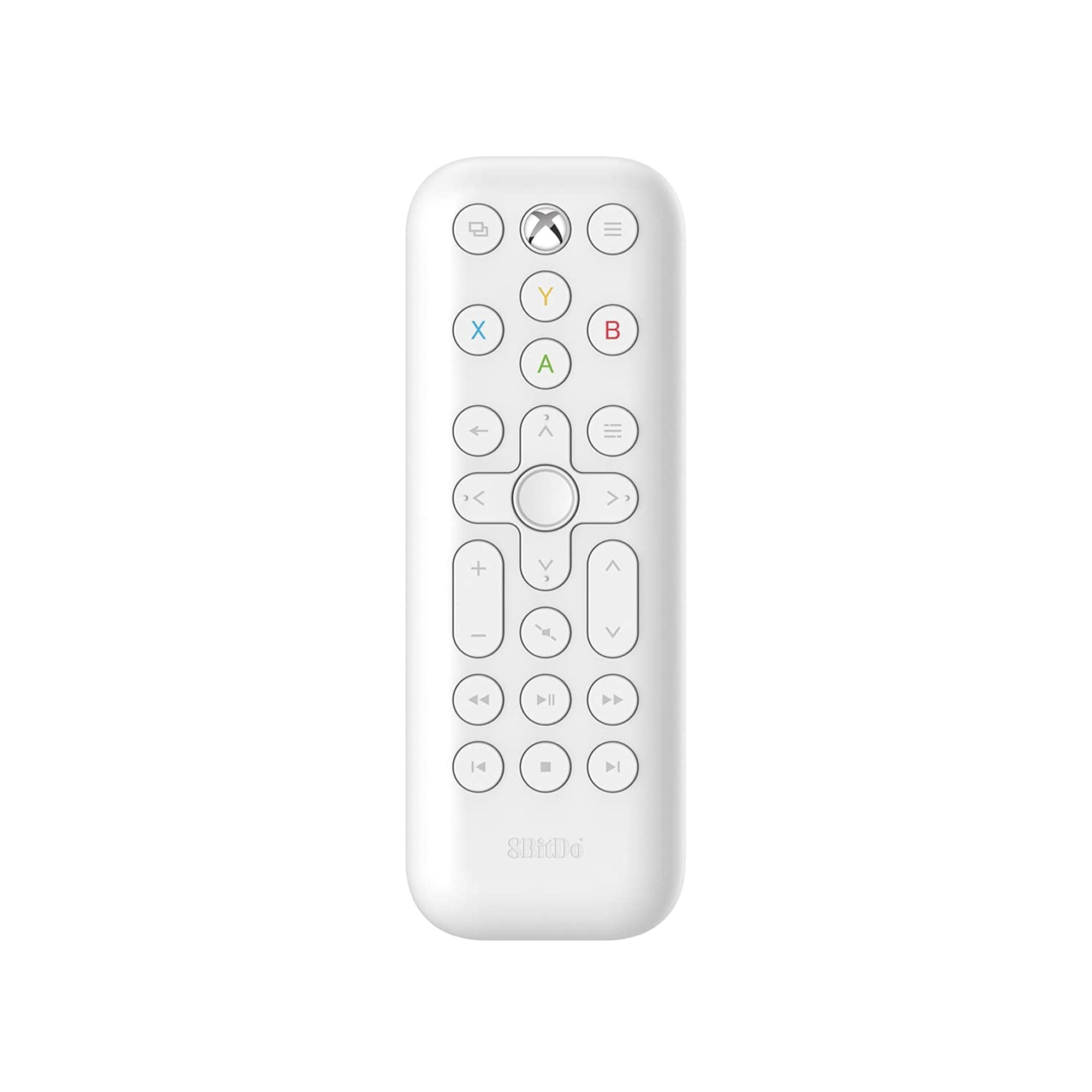
Image: The 8Bitdo Media Remote in White, Short Edition, showcasinג זײַן קאָמפּאַקטן דיזײַן און קנעפּל אויסלייג.
סעטאַפּ
1. באַטאַרייע ייַנמאָנטירונג
The 8Bitdo Media Remote requires two AAA batteries for operation. These are typically included with your purchase.
- געפינט דעם דעקל פונעם באַטעריע־אָפּטייל אויף דער הינטערשטער זייט פונעם ווײַטקאָנטראָל.
- שלעפּט דעם דעקל אַראָפּ צו עפֿענען דעם אָפּטייל.
- אַרײַנשטעלן צוויי AAA באַטעריעס, און זיכער מאַכן אַז די פּאָלאַריטעט איז ריכטיק (+ און -).
- שטופּט צוריק דעם דעקל פון דעם באַטעריע־אָפּטייל ביז עס קליקט זיכער.

Image: A hand demonstrating how to open the battery compartment and insert AAA batteries into the remote.
2. ערשטע פֿאַרבינדונג
The 8Bitdo Media Remote uses infrared (IR) technology. No manual pairing is required. Simply ensure a clear line of sight between the remote's IR emitter (located at the top) and your Xbox console's IR receiver.

Image: A user holding the 8Bitdo Media Remote, pointing it towards an Xbox Series S console, illustrating the line-of-sight requirement for infrared communication.
אַפּערייטינג ינסטראַקשאַנז
1. Powering On/Off and Navigation
- Dedicated Home Button: Press the Xbox Home button (located at the top center) to instantly wake your Xbox console.
- ריכטונגס-פאד (די-פאד): Use the circular D-Pad for navigating menus and selecting items.
- A/B/X/Y קנעפּלעך: These colored buttons correspond to standard Xbox controller functions for menu selection and interaction.

Image: The 8Bitdo Media Remote being used to wake an Xbox console, highlighting the dedicated Home button functionality.
2. מידיאַ פּלייבאַק קאָנטראָלס
The remote features a full suite of media playback buttons:
- שפּיל / פּויזע: אָנהייבן אָדער פּויזירן מעדיע ווידערשפּיל.
- שנעל פאָרויס / צוריק: Skip forward or backward through content.
- באַנד אַרויף / אַראָפּ: Adjust the volume of your media.
- שטום: שטום אָדער אַנמיוט אַודיאָ.
3. Motion-Activated Backlight
The buttons on the remote are motion-activated and will illuminate when the remote is picked up or moved, making it easy to use in low-light conditions.
4. OneGuide Button Customization
The OneGuide button (three horizontal lines icon) can be customized to launch a specific application on your Xbox. To configure this:
- On your Xbox, go to סעטטינגס.
- נאַוויגירן צו Devices & connections, דעמאָלט אויסקלייַבן מעדיע ווייַט.
- Choose the desired action or app to launch when the OneGuide button is pressed.
5. TV Volume Control (HDMI-CEC)
Your Xbox can control your TV's volume if your TV supports HDMI-CEC (Consumer Electronics Control). To enable this:
- Press the Xbox button on your controller to open the guide.
- גיין צו סעטטינגס > אַלגעמיינע > TV & display options.
- אויסקלייַבן מיטל קאָנטראָל > HDMI-CEC and enable all options.
- Consult your TV manufacturer's manual for specific HDMI-CEC settings.
וישאַלט
1. באַטערי פאַרבייַט
Replace the AAA batteries when the remote's performance diminishes or the backlight becomes dim. Refer to the 'Battery Installation' steps in the Setup section.
2. רייניקונג
Wipe the remote with a soft, dry cloth. Avoid using harsh chemicals or abrasive materials that could damage the finish or buttons.
טראָובלעשאָאָטינג
- ווייַט ניט ריספּאַנדינג:
- זיכער מאַכן אַז פרישע באַטעריעס זענען ריכטיק אינסטאַלירט.
- Verify a clear line of sight between the remote and your Xbox console. Obstructions can block the infrared signal.
- Confirm your Xbox console is powered on and not in a deep sleep mode that disables IR reception.
- Backlight constantly active:
- The backlight is motion-activated. Any movement will trigger it. This is normal operation.
- If battery life is a concern due to frequent backlighting, consider using rechargeable AAA batteries.
- TV volume control not working:
- Ensure your TV supports HDMI-CEC and that it is enabled in your TV's settings.
- Verify HDMI-CEC settings are correctly configured on your Xbox console (Settings > General > TV & display options > Device control > HDMI-CEC).
ספּעסאַפאַקיישאַנז
| מאָדעל | 6922621501848 (White Short Edition) |
| סאָרט | קסנומקסביטדאָ |
| קאַנעקטיוויטי | ינפרערעד (IR) |
| קאַמפּאַטאַבילאַטי | עקסבאָקס סעריע X, עקסבאָקס סעריע S, עקסבאָקס איינס |
| מאַכט מקור | 2 X AAA באַטעריז (אַרייַנגערעכנט) |
| Dimensions (Short Edition) | 134.25 X 48 X 18.8 מם |
| פּונקט וואָג | 2.88 אונסעס |

Image: A visual comparison of the 8Bitdo Media Remote in both short and long editions, detailing their respective dimensions.

Image: An illustration showing the 8Bitdo Media Remote's compatibility with Xbox One, Xbox Series X, and Xbox Series S consoles.
וואָראַנטי און שטיצן
8Bitdo is committed to producing high-quality gaming hardware. For specific warranty information, product support, or to access the latest firmware updates, please visit the official 8Bitdo webזייטל אדער קאנטאקט זייער קאסטומער סערוויס גלייך. האלט אייער באווייז פון קויפן פאר גאראנטיע פארלאנגען.
פֿאַר נאָך רעסורסן און פּראָדוקט אינפֿאָרמאַציע, קענט איר באַזוכן די 8Bitdo קראָם אויף עמעזאָן.
פּראָדוקט איבערview ווידעא
ווידעא: אן אפיציעלע איבערview of the 8Bitdo Media Remote for Xbox One and Xbox Series X|S, demonstrating its features and functionality.


