1. הקדמה
This manual provides detailed instructions for the setup, operation, and maintenance of your SKYWORTH T1 WiFi Bluetooth Projector. Please read this manual thoroughly before using the product to ensure proper function and to prevent damage.
The SKYWORTH T1 projector offers Native 1080P Full HD resolution with 4K support, 400 ANSI lumens brightness, and versatile connectivity options including WiFi and Bluetooth. It is designed for various entertainment and presentation needs.
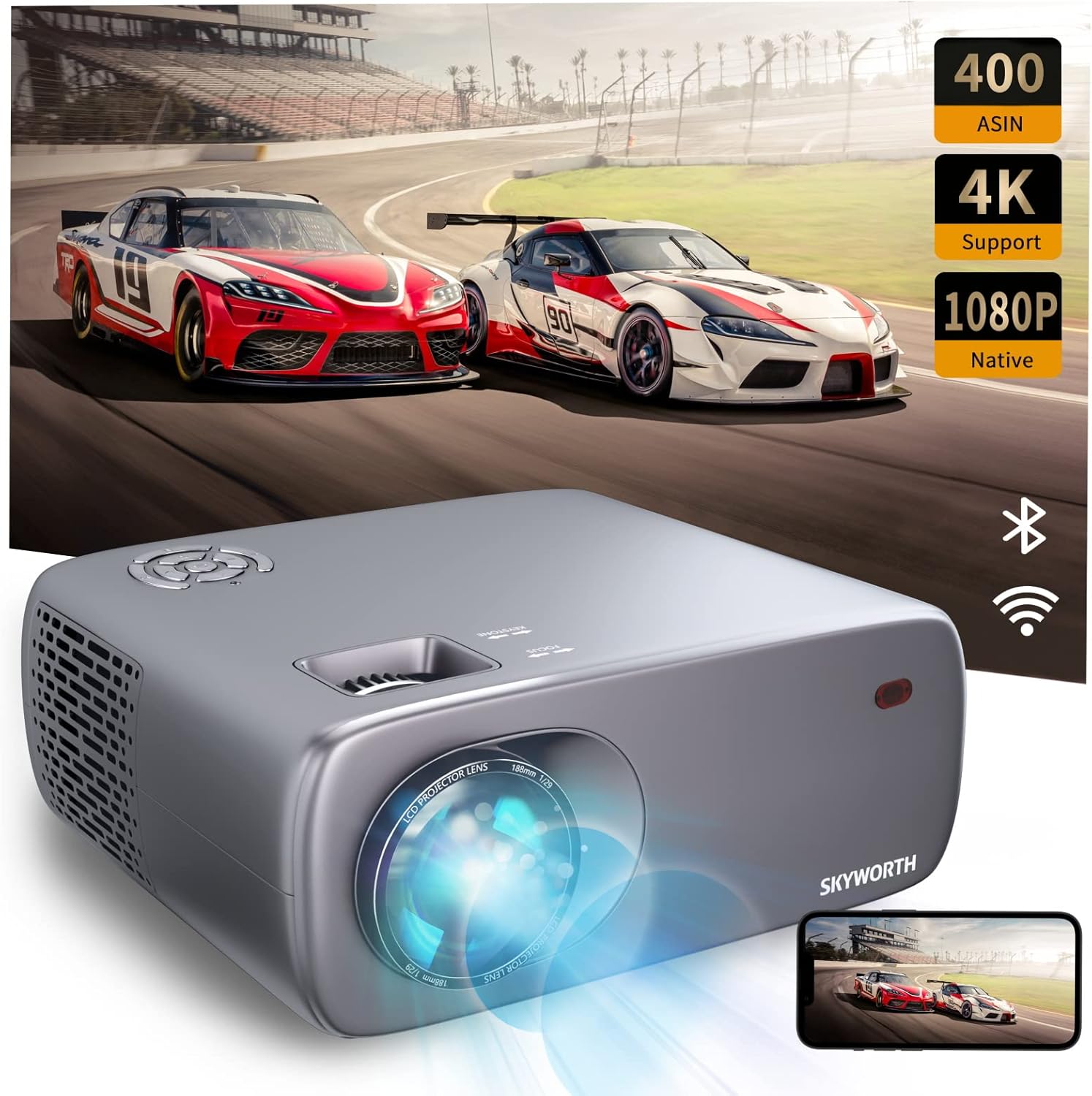
Image: The SKYWORTH T1 Projector, showcasing its capabilities with a vibrant projected image.
2. פּראָדוקט פֿעיִקייטן
2.1. High-Definition Display
The T1 projector delivers a Native 1080P Full HD resolution, supporting 4K content for clear and detailed images. With 400 ANSI lumens, it provides sufficient brightness for various viewing environments. The projector also features an 80% NTSC color gamut for accurate and vivid color reproduction.

Image: High-definition projection from the SKYWORTH T1, emphasizing 1080P Full HD, 4K support, and 400 ANSI lumens.

Image: Visual representation of the projector's 80% NTSC color gamut for enhanced color accuracy.
2.2. Versatile Connectivity
The projector supports multiple connection methods:
- WiFi: For wireless screen mirroring from compatible devices (iOS Cast, Miracast).
- בלועטאָאָטה: For connecting to external audio devices such as speakers or headphones.
- הדמי: Two HDMI 1.4 ports for connecting media players, gaming consoles, or laptops.
- וסב: Two USB 2.0 ports for playing media directly from USB drives.
- פון: One AV port for connecting older devices.
- ירפאָון: One 3.5mm earphone jack for private listening.

בילד: דעטאַלירט view of the projector's input and output ports.

Image: The projector highlighting its Bluetooth connection capabilities with a remote control.
2.3. בילד אַדזשאַסטמאַנט
The T1 projector includes advanced image adjustment features to ensure a perfect display:
- 4D/4P Keystone Correction: Adjusts vertical and horizontal angles up to ±40° to correct distorted images from off-axis projection.
- 50% זום פונקציע: Allows you to reduce the screen size without moving the projector, providing flexibility in placement.

Image: Visual explanation of 4D/4P keystone correction for ideal image alignment.

Image: Diagram demonstrating the 50% zoom capability for flexible screen sizing.
2.4. Audio and Cooling
- געבויט-אין רעדנער: Features a 5W HIFI speaker for integrated audio.
- Low-Noise Cooling: Equipped with a low-noise radiator dual fan system to minimize operational sound.

Image: Diagram illustrating the internal 5W HIFI speaker.
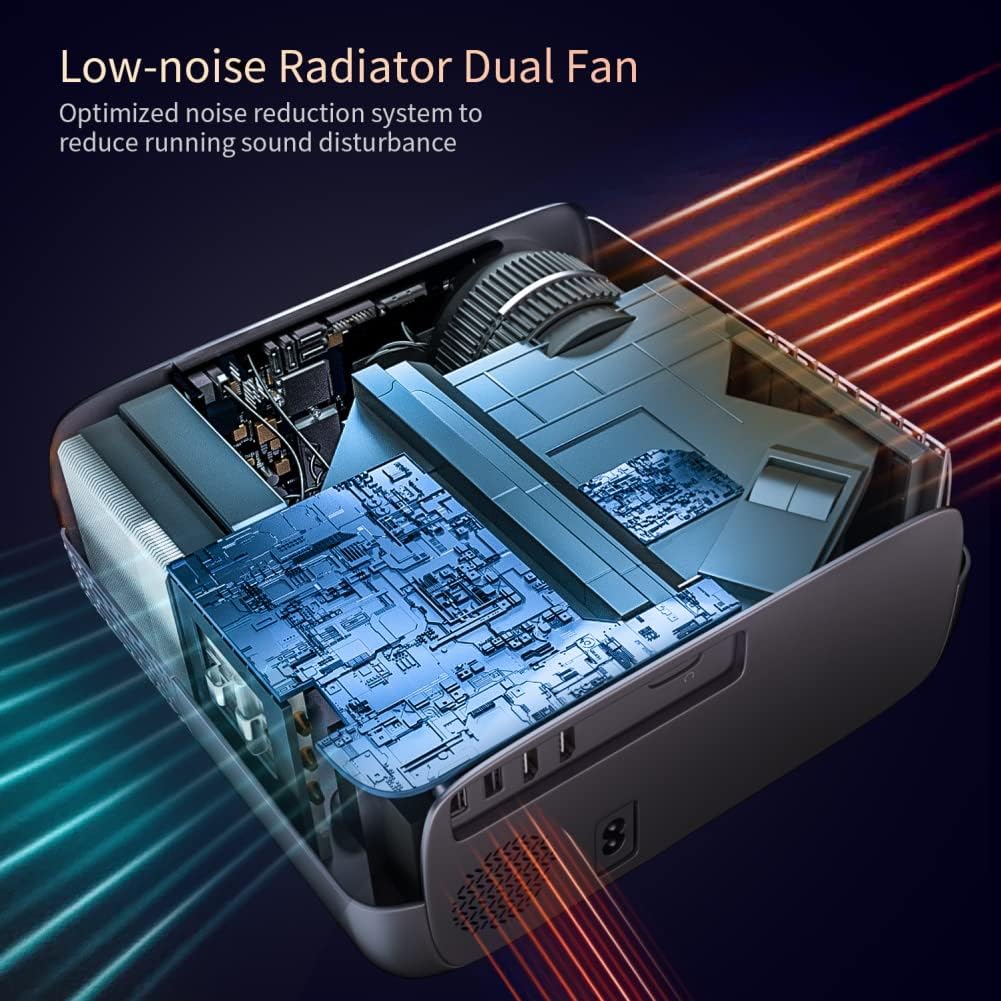
בילד: אינערלעך view of the projector's low-noise dual fan cooling system.
2.5. פּראָדוקט איבערview ווידעא
ווידעא: אן איבערview of the SKYWORTH T1 400 ANSI Lumens Projector, highlighting its WiFi and Bluetooth capabilities.
3. סעטאַפּ גייד
3.1. אויספּאַקן און קאָמפּאָנענטן
נעמט פֿאָרזיכטיק אַרויס אַלע קאָמפּאָנענטן פֿון דער פּאַקעט. מאַכט זיכער אַז די פֿאָלגנדיקע זאַכן זענען פֿאַראַן:
- SKYWORTH T1 Projector
- ווייַט קאָנטראָל
- מאַכט קאַבלע
- אב קאַבלע
- באַניצער מאַנואַל (דעם דאָקומענט)
קסנומקס. פּלאַסעמענט
שטעלט דעם פּראָיעקטאָר אויף אַ סטאַבילער, גלאַטער ייבערפלאַך. פֿאַר אָפּטימאַלן viewing, ensure the projector lens is perpendicular to the projection surface (wall or screen). Refer to the projection distance chart for recommended distances based on desired screen size.

Image: Recommended projection distances for different screen sizes.
3.3. מאַכט קאַנעקשאַן
- פֿאַרבינדט דעם מאַכט קאַבל צום פּראָיעקטאָר'ס מאַכט אַרייַנגאַנג פּאָרט.
- צאַפּן די אנדערע סוף פון די מאַכט קאַבלע אין אַ מאַכט ווענטיל.
- דריק דעם מאַכט קנעפּל אויף דעם פּראָיעקטאָר אָדער ווײַטקאָנטראָל צו עס אנצינדן.
3.4. פאָקוס און קיסטאָון אַדזשאַסטמענט
After powering on, adjust the focus and keystone correction for a clear, rectangular image.
- פאָקוס: Rotate the focus ring on the projector lens until the image appears sharp.
- שליסל שטיין: Use the keystone adjustment controls (manual or digital via remote) to correct any trapezoidal distortion, ensuring the image is perfectly rectangular. The T1 supports 4D/4P keystone correction up to ±40°.
4. אַפּערייטינג ינסטרוקטיאָנס
4.1. מקור סעלעקציע
Use the 'Source' button on the remote control or the projector's control panel to select the desired input source (HDMI1, HDMI2, USB1, USB2, AV, or Screen Mirroring).
4.2. ווירעלעסס סקרין מירערינג
דער פּראָיעקטאָר שטיצט וויירלעסס סקרין מירערינג פֿאַר iOS און אַנדרויד דעוויסעס.
- For iOS devices (iOS Cast): Select 'iOS Cast' from the main menu. Ensure your iOS device and the projector are connected to the same Wi-Fi network. On your iOS device, open Control Center and select 'Screen Mirroring', then choose the projector from the list.
- For Android devices (Miracast): Select 'Miracast' from the main menu. Ensure your Android device's wireless display feature (often called 'Smart View', 'Screen Cast', or 'Wireless Display') is enabled. Select the projector from the available devices.
באַמערקונג:
- Due to copyright restrictions, streaming services like Netflix, Amazon Prime Video, and Hulu may not support direct screen mirroring from mobile devices. For these services, it is recommended to use a TV Stick (e.g., Amazon Fire Stick, Roku) connected via HDMI.
- Bluetooth only supports audio transmission, not video.
4.3. בלועטאָאָטה אַודיאָ קאַנעקשאַן
צו פֿאַרבינדן עקסטערנע בלועטוט רעדנערס אדער כעדפאָונז:
- זיכער מאַכן אַז אייער בלוטוט אַודיאָ מיטל איז אין פּערינג מאָדע.
- אויף דעם פּראָיעקטאָר, נאַוויגירט צו די בלועטוט סעטטינגס מעניו.
- Select your device from the list of available Bluetooth devices to pair.
4.4. רימאָוט קאָנטראָל באַניץ
The included remote control allows you to navigate menus, adjust settings, change input sources, and control media playback. Ensure batteries are correctly inserted.
5. וישאַלט
5.1. רייניקונג פון די לינז
ניצט אַ ווייכע, לינט-פֿרייע שטאָף ספּעציעל דיזיינד פֿאַר אָפּטישע לענסעס צו פֿאָרזיכטיק ווישן די פּראָיעקטאָר לענס. פֿאַרמייַדט ניצן אַברייסיוו רייניגער אָדער איבערגעטריבענע קראַפֿט, ווײַל דאָס קען קראַצן די לענס.
5.2. Cleaning the Vents
Regularly clean the air vents to ensure proper airflow and prevent overheating. Use a soft brush or a vacuum cleaner with a brush attachment to remove dust from the vents.
5.3. סטאָרידזש
ווען נישט אין באַנוץ פֿאַר לענגערע פּעריאָדן, האַלט דעם פּראָיעקטאָר אין אַ קיל, טרוקן אָרט, אַוועק פון דירעקט זונשייַן און עקסטרעמע טעמפּעראַטורן. ניצט די אָריגינעלע פּאַקאַדזשינג אָדער אַ פּראַטעקטיוו קעסטל צו פאַרמייַדן שטויב אָנזאַמלונג און גשמיות שעדיקן.
6. טראָובלעשאָאָטינג
- No Image or Blurry Image:
- Check the focus ring on the lens.
- Adjust keystone correction to ensure a rectangular image.
- Verify the input source is correctly selected and the external device is powered on.
- Ensure the projection distance is within the recommended range. - קיין קול:
- קאָנטראָלירט די וואָלומען סעטטינגס אויף ביידע דעם פּראָיעקטאָר און דעם פֿאַרבונדענעם מקור מיטל.
- If using Bluetooth audio, ensure the device is properly paired and connected.
- If using HDMI, ensure the audio output settings on your source device are correct. - קען נישט פאַרבינדן צו WiFi/בלוטעט:
- Ensure the projector's WiFi and Bluetooth functions are enabled.
- For WiFi, verify the network password is correct and the signal is strong.
- For Bluetooth, ensure the external device is in pairing mode and within range. - רימאָוט קאָנטראָל ניט ריספּאַנדינג:
- קאָנטראָלירט און פאַרבייט די באַטעריעס אין דער ווײַטקאָנטראָל.
- Ensure there are no obstructions between the remote and the projector's IR receiver.
7. טעכניש ספּעסאַפאַקיישאַנז
| שטריך | באַשרייַבונג |
|---|---|
| סאָרט | סקיוואָרטה |
| מאָדעל נומער | T1 |
| פּונקט וואָג | 6.76 פונט |
| פּראָדוקט דימענשאַנז | 10.2 X 9.6 X 4.3 אינטשעס |
| ווייַז האַכלאָטע | 1920 x 1080 (געבוירן) |
| ווייַז האַכלאָטע מאַקסימום | 1920 x 1080 (Supports 4K input) |
| ברייטנאַס | 400 אַנסי לומענס |
| קאַנעקטיוויטי טעכנאָלאָגיע | Bluetooth, HDMI, USB, WiFi |
| רעדנער טיפּ | Built-In, Stereo (5W HIFI) |
| קייסטאָנע קערעקשאַן | 4D/4P, ±40° |
| פארגרעסער פונקציע | 50% |
| רעקאָממענדעד ניצט | TV Stick, Home Theater, Outdoor Projection |
8. וואָראַנטי און שטיצן
For warranty information, technical support, or service inquiries, please refer to the official Skyworth website or contact their customer service directly. Details are typically provided in the product packaging or on the manufacturer's official support pages.


