1. הקדמה
This manual provides detailed instructions for the setup, operation, maintenance, and troubleshooting of your A4Tech FSTYLER FG30S Wireless Mouse. Please read this guide thoroughly before using the device to ensure optimal performance and longevity.

Image 1.1: The A4Tech FSTYLER FG30S Wireless Mouse with its accompanying USB receiver.
2. פּעקל אינהאַלט
- A4Tech FSTYLER FG30S Wireless Mouse
- יו-עס-בי 2.4 גי-הרץ ריסיווער
- באַניצער מאַנואַל (דעם דאָקומענט)
Note: Batteries are not included and must be purchased separately. The mouse requires one AA battery.
3. סעטאַפּ
3.1 באַטאַרייע ייַנמאָנטירונג
- געפינען די באַטאַרייע אָפּטייל אויף די אַנדערסייד פון די מויז.
- עפענען די באַטאַרייע אָפּטייל דעקן.
- אַרײַנשטעלן איין AA באַטעריע, און זיכער מאַכן אַז די פּאָלאַריטעט איז ריכטיק (+/-).
- פאַרמאַכן די באַטאַרייע אָפּטייל דעקן סיקיורלי.
3.2 פֿאַרבינדן זיך דורך 2.4GHz ווירעלעס
- Remove the USB 2.4GHz receiver from its storage slot, usually located within the battery compartment.
- צאַפּן די וסב ופנעמער אין אַ בנימצא וסב פּאָרט אויף דיין קאָמפּיוטער.
- צינדט אָן די מויז מיטן אָן/אויס קנעפּל וואָס געפינט זיך אויף דער אונטערשטער זייט.
- Your computer should automatically detect and install the necessary drivers. The mouse will be ready for use.
3.3 קאַנעקטינג דורך בלועטאָאָטה
- צינדט אָן די מויז מיטן אָן/אויס קנעפּל אויף דער אונטערשטער זייט.
- Press and hold the Bluetooth pairing button (refer to the mouse diagram for location, typically near the On/Off switch) until the indicator light begins to flash, signifying pairing mode.
- אויף אייער קאָמפּיוטער, גייט צו די בלועטוט סעטטינגס.
- זוכן פֿאַר new devices and select "A4Tech FG30S" or a similar identifier from the list.
- Follow any on-screen prompts to complete the pairing process. The indicator light on the mouse will become solid when successfully connected.
4. אַפּערייטינג ינסטרוקטיאָנס

בילד 4.1: אויבן view of the mouse, highlighting primary buttons and scroll wheel.
4.1 יקערדיק באַניץ
- לינק קליקט: ערשטיקע סעלעקציע און אַקטיוואַציע.
- רעכט גיט: צוטריט קאָנטעקסטואַל מעניוז.
- סקראָל ראָד: סקראָלט אינהאַלט ווערטיקאַל. מען קען עס אויך קליקן פֿאַר מיטל-קליק פֿונקציאָנאַליטעט.
- זייַט קנעפּלעך: Typically function as 'Forward' and 'Back' in web בראַוזערז און file עקספּלאָרערס.
4.2 דפּי אַדזשאַסטמאַנט
The A4Tech FG30S mouse features 3 adjustable DPI (Dots Per Inch) levels: 1000, 1600, and 2000 DPI. DPI controls the sensitivity of the mouse cursor. To change the DPI setting:
- Locate the DPI switch button, usually positioned behind the scroll wheel.
- Press the DPI button to cycle through the available sensitivity levels. The mouse may have an indicator light that changes color or flashes to show the current DPI setting.
4.3 מאַכט מאַנאַגעמענט
- אָנ / אַוועק באַשטימען: A physical switch on the underside of the mouse allows you to conserve battery power when the mouse is not in use.
- Auto-Sleep Power Saving: The mouse is designed with an adjustable 4-level power-saving mode. It will automatically enter a sleep state after 0.2 seconds of inactivity to extend battery life. Move the mouse or click a button to wake it up.
5. אַוואַנסירטע פֿעיִקייטן
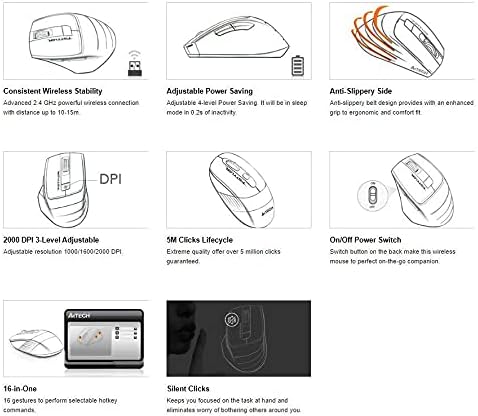
Image 5.1: Feature overview of the A4Tech FSTYLER FG30S mouse.
5.1 Consistent Wireless Stability
The mouse utilizes advanced 2.4 GHz wireless technology, providing a stable and reliable connection with a range of up to 10-15 meters, minimizing interference and lag.
5.2 שטילע קליקן
The A4Tech FG30S features silent click technology, reducing click noise by up to 90%. This allows for a quieter working environment, minimizing distractions for both the user and those nearby.
5.3 Anti-Slippery Side Design
The mouse incorporates an anti-slippery side design, enhancing grip and providing a more ergonomic and comfortable experience during extended use.
5.4 16-in-One Gestures
The mouse supports 16 customizable gestures, allowing users to perform various hotkey commands for increased productivity. Specific software may be required for full customization, typically available from the manufacturer's webפּלאַץ.
5.5 5 Million Clicks Lifecycle
The mouse buttons are engineered for durability, guaranteeing over 5 million clicks throughout the product's lifespan.
6. וישאַלט
6.1 רייניקונג
- זיכער מאַכן אַז די מויז איז אויסגעלאָשן איידער איר רייניגט עס.
- ניצט אַ ווייכן, טרוקענעם, לינט-פֿרייע שטאָף צו ווישן די ייבערפלאַך פֿון דער מויז.
- פאר עקשנות שמוץ, לייכט דampווייקט דעם שטאָף מיט וואַסער אָדער אַ מילדער רייניקונג לייזונג. פֿאַרמייַדט איבעריקע פֿײַכטקייט.
- ניצט נישט קיין שטרענגע כעמיקאלן, אברייסיוו רייניגער, אדער סאָלווענטן.
- Use a cotton swab or compressed air to clean around the scroll wheel and optical sensor.
6.2 באַטערי פאַרבייַט
When the mouse performance degrades or the indicator light signals low battery, replace the AA battery by following the steps outlined in Section 3.1.
7. טראָובלעשאָאָטינג
- מויז ענטפערט נישט:
- מאַכן זיכער אַז די מויז איז אויסגעדרייט אויף.
- קאָנטראָלירן די באַטאַרייע מדרגה און פאַרבייַטן אויב נייטיק.
- For 2.4GHz connection, ensure the USB receiver is securely plugged into a working USB port. Try a different port.
- For Bluetooth connection, ensure Bluetooth is enabled on your computer and the mouse is properly paired. Try re-pairing the device.
- Move the mouse closer to the receiver/computer to rule out range issues.
- קורסאָר באַוועגונג איז נישט סטאַביל אָדער שפּרינגיק:
- רייניקט דעם אָפּטישן סענסאָר אויף דער אונטערשטער זײַט פֿון דער מויז.
- זייט זיכער אז איר ניצט די מויז אויף א פאסיגע אויבערפלאך. פארמיידט שטארק רעפלעקטיווע אדער דורכזיכטיקע אויבערפלאכן.
- DPI איינשטעלונג טוישט זיך נישט:
- זייט זיכער אז איר דריקט דעם ריכטיקן DPI קנעפּל.
- קאָנטראָלירן די באַטאַרייע מדרגה.
8. ספּעסאַפאַקיישאַנז
| שטריך | באַשרייַבונג |
|---|---|
| מאָדעל נומער | FG30S |
| סאָרט | A4tech |
| קאַנעקטיוויטי | Bluetooth & 2.4GHz Wireless |
| דפּי לעוועלס | 1000 / 1600 / 2000 (3-level adjustable) |
| באַוועגונג דעטעקטיאָן | אָפּטיש |
| האַנט אָריענטירונג | אַמבידעקסטראַס |
| אַפּערייטינג סיסטעם קאַמפּאַטאַבילאַטי | Linux, Windows XP (and newer OS versions) |
| באַטערי טיפּ | 1x AA (ניט אַרייַנגערעכנט) |
| פּונקט וואָג | 150 ג |
| פּעקל דימענשאַנז | 17.5 X 12 X 7.3 סענטימעטער |
| גיט Lifecycle | Over 5 million clicks |
9. וואָראַנטי און שטיצן
For warranty information and technical support, please refer to the official A4Tech webזייטל אדער קאָנטאַקט אייער לאקאלן הענדלער. האַלט אייער קויף קוויטל ווי אַ באַווייַז פון קויפן פֿאַר וואָראַנטי קליימז.
אָנליין רעסורסן:
- A4Tech Official Webפּלאַץ: www.a4tech.com


