1. הקדמה
This manual provides essential information for the safe and efficient operation of your GIGABYTE AORUS FO48U 48" 4K OLED Gaming Monitor. Please read this manual thoroughly before using the product and retain it for future reference. The AORUS FO48U is designed to deliver a high-performance visual experience with its 4K OLED display, fast refresh rate, and advanced features.
2. זיכערקייַט אינפֿאָרמאַציע
אָבסערווירן די פאלגענדע זיכערהייט מיטלען צו פאַרמייַדן שעדיקן צו די מאָניטאָר און ענשור באַניצער זיכערהייט:
- שטעלט נישט אויס דעם מאָניטאָר צו רעגן אָדער פייכטקייט כּדי צו פֿאַרמייַדן פֿײַער אָדער שאָק געפֿאַרן.
- עפֿנט נישט דעם מאָניטאָר casinז. עס זענען נישטאָ קיין טיילן וואָס דער באַניצער קען סערוויסן אינעווייניק. לאָזט איבער אַלע סערוויסינג צו קוואַליפֿיצירטע פּערסאָנעל.
- שטעלט דעם מאָניטאָר אויף אַ סטאַבילער, גלאַטער ייבערפלאַך כּדי צו פאַרהיטן אַז ער זאָל נישט פאַלן.
- זיכער מאַכן אַז די ווענטילאַציע אַרום דעם מאָניטאָר איז ריכטיק. בלאָקירט נישט די ווענטילאַציע עפענונגען.
- ניצט נאָר די מאַכט אַדאַפּטער און קייבלס וואָס זענען צוגעשטעלט אָדער ספּעציפֿיצירט דורך דעם פאַבריקאַנט.
- נעמט ארויס דעם מאָניטאָר פֿון דער עלעקטרישער אַוטלעט בעת בליץ-שטורעמס אָדער ווען ער ווערט נישט גענוצט פֿאַר לאַנגע פּעריאָדן.
- ויסמיידן רירנדיק די פאַרשטעלן מיט שאַרף אַבדזשעקץ צו פאַרמייַדן שעדיקן.
3. פּעקל אינהאַלט
באַשטעטיקט אַז אַלע זאכן וואָס זענען אויסגערעכנט אונטן זענען אַרייַנגערעכנט אין אייער פּעקל:
- GIGABYTE AORUS FO48U 48" 4K OLED Gaming Monitor
- מאַכט קאַבלע
- HDMI 2.1 קאַבלע
- דפּ 1.4 קאַבלע
- USB 3.0 B to A cable
- שנעל אָנהייב גייד (QSG)
- וואָראַנטי קאָרט
- AORUS Remote Control
4. סעטאַפּ
4.1 פיזישע אויפשטעל
The monitor can be set up using its included stand or a VESA-compatible wall mount.
סטאנד אַסעמבלי:
Follow the instructions in the Quick Start Guide to securely attach the stand to the monitor base. Ensure all screws are tightened.
וועסאַ וואַנט מאָונט ינסטאַלירונג:
The AORUS FO48U supports VESA wall mounts with a 300 x 300mm pattern. Remove the stand if already attached. Use appropriate screws and a VESA-compatible bracket (not included) to mount the monitor. Refer to your wall mount's instructions for specific installation steps.

בילד: הינטערשטע view of the AORUS FO48U monitor, highlighting the VESA 300x300mm mounting points for wall installation.
4.2 קאַנעקטינג קאַבלעס
Connect the necessary cables to the monitor's I/O ports. Ensure the monitor is powered off before connecting or disconnecting cables.

Image: Detailed side view of the monitor's I/O ports, including USB 3.0, USB Upstream, USB Type-C (KVM), DisplayPort 1.4, HDMI 2.1, Headphone Jack, and Audio Line-Out.
- מאַכט קשר: פֿאַרבינדט דעם מאַכט קאַבל צום מאָניטאָר'ס מאַכט אַרייַנגאַנג און דערנאָך צו אַ מאַכט ווענטיל.
- ווידעא ינפּוט: Connect your PC or gaming console using either the provided HDMI 2.1 cable or DisplayPort 1.4 cable. The monitor features two HDMI 2.1 ports and one DisplayPort 1.4.
- וסב קאַנעקשאַנז: Connect the USB 3.0 B to A cable from your PC to the monitor's USB Upstream port to enable the monitor's USB 3.0 ports and KVM functionality.
- USB Type-C (KVM): For KVM functionality, connect a USB Type-C cable (10Gbps Type-C cable required, not always included) from your device to the monitor's USB Type-C port. This allows control of multiple devices with a single keyboard and mouse connected to the monitor.
- אַודיאָ רעזולטאַט: Use the Headphone Jack or Audio Line-Out for external audio devices.
4.3 ערשט מאַכט אויף
After connecting all necessary cables, press the power button on the monitor to turn it on. The monitor will automatically detect the active input source. If no signal is detected, ensure your source device is powered on and correctly connected.
5. אַפּערייטינג ינסטרוקטיאָנס
5.1 אויף-סקרין דיספּליי (OSD) נאַוויגאַציע
The monitor's settings can be adjusted using the OSD menu, typically accessed via a joystick or buttons on the monitor's rear or bottom edge, or with the included AORUS Remote Control.
- Use the joystick/buttons or remote to navigate through menu options.
- Press to select an option or enter a sub-menu.
- Move left/right or up/down to adjust values or select different settings.
- Press the back button or move the joystick in a specific direction (as indicated on-screen) to exit menus.
5.2 שליסל פֿעיִקייטן
The AORUS FO48U offers several features for an enhanced viewינג און גיימינג דערפאַרונג:
- 4K UHD Resolution (3840x2160): Provides crisp, detailed visuals.
- 120Hz דערפרישן קורס: Ensures smooth motion for gaming and fast-paced content.
- 1ms (GTG) רעאַקציע צייט: מינימיזירט גאָוסטינג און באַוועגונג בלער.
- FreeSync Premium Support: Synchronizes the monitor's refresh rate with your GPU for tear-free gaming.
- 10-bit Color / 98% DCI-P3 / 130% sRGB: Delivers accurate and vibrant color reproduction.

Image: Visual comparison demonstrating the difference between 1ms response time at 120Hz refresh rate and 5ms response time at 60Hz, illustrating smoother motion with higher specifications.
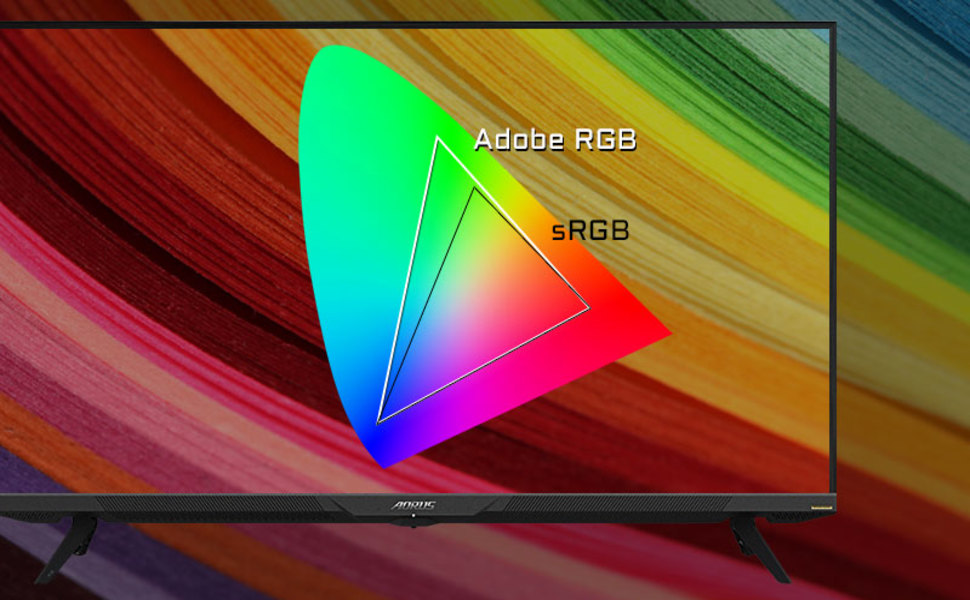
Image: A visual representation of color gamut, comparing Adobe RGB and sRGB color spaces, indicating the monitor's wide color coverage.
5.3 ספּעציעלע פֿעיִקייטן
The monitor includes several advanced features accessible via the OSD or OSD Sidekick software:
- OSD Sidekick: A software utility that allows you to control OSD settings directly from your desktop.
- Picture-in-Picture (PiP) / Picture-by-Picture (PbP): Display content from multiple sources simultaneously on the screen.
- דאַשבאָרד: Real-time hardware information display (e.g., CPU/GPU temperature, fan speed).
- שוואַרץ עקוואַליזער: פֿאַרבעסערט זעאונג אין טונקעלע געביטן אָן צו איבער-עקספּאָוזן העלע געביטן.
- שפּיל הילף: Provides in-game enhancements like crosshairs, timers, and refresh rate counters.
- Space Audio: Offers 5 modes of audio experiences for immersive sound.
- KVM Feature: Allows you to control multiple devices (e.g., two PCs) connected to the monitor using a single keyboard and mouse. Connect devices via USB Type-C and USB 3.0 Upstream ports.

Image: A diagram showing how the Type-C KVM feature allows switching between a desktop PC and a laptop connected to the monitor using one keyboard and mouse.
6. וישאַלט
6.1 רייניקונג די מאָניטאָר
To clean the monitor, first unplug the power cord. Use a soft, lint-free cloth lightly dampened with water or a mild, non-abrasive screen cleaner. Do not spray cleaner directly onto the screen. Avoid using alcohol, ammonia, or abrasive cleaners, as they can damage the screen surface.
6.2 OLED Care and Burn-in Prevention
OLED displays are susceptible to image retention (burn-in) if static images are displayed for extended periods. To prolong the life of your OLED panel:
- Avoid displaying static images (e.g., desktop icons, taskbars, logos) for long durations.
- Utilize screen savers or dynamic wallpapers.
- Enable the monitor's built-in OLED care features (e.g., pixel shift, pixel refresh, logo luminance adjustment) through the OSD menu.
- רעדוצירן די ברייטקייט פון דעם עקראַן ווען נישט נויטיק.
- Power off the monitor when not in use.
7. טראָובלעשאָאָטינג
אויב איר טרעפט פּראָבלעמען מיט אייער מאָניטאָר, זעט די פאלגענדע געוויינטלעכע פּראָבלעמען און לייזונגען:
| פּראָבלעם | מעגלעך סיבה | לייזונג |
|---|---|---|
| קיין בילד אויף פאַרשטעלן | Power cable disconnected; Video cable disconnected or loose; Incorrect input source selected; Source device off. | Check power and video cable connections; Ensure source device is on; Select correct input source via OSD. |
| בילד איז פארשוואומען אדער פארדרייט | Incorrect resolution; Video cable quality; Graphics card driver issues. | Set display resolution to 3840x2160; Use high-quality HDMI 2.1 or DP 1.4 cables; Update graphics drivers. |
| Screen randomly turns off/on | Loose video cable; Power supply issue; Monitor firmware issue; Source device instability. | Ensure video cables are securely connected; Try a different power outlet; Check for and install the latest monitor firmware updates from GIGABYTE's website; Test with a different source device. |
| קיין געזונט | Volume too low or muted; Incorrect audio output selected; Audio cable disconnected. | Adjust monitor volume; Select correct audio output in PC settings; Ensure external speakers/headphones are connected. |
| KVM feature not working | Incorrect USB cable; USB Upstream cable not connected; Devices not properly configured. | Ensure a 10Gbps USB Type-C cable is used for Type-C connection; Connect the USB 3.0 B to A cable to your primary PC; Refer to the OSD Sidekick software for KVM setup. |
8. ספּעסאַפאַקיישאַנז
Key technical specifications for the GIGABYTE AORUS FO48U monitor:
| שטריך | דעטאַל |
|---|---|
| פאַרשטעלן גרייס | 48 אינטשעס |
| טאַפליע טיפּ | OLED |
| האַכלאָטע | 3840 רענטגענ 2160 (4K UHD) |
| דערפרישן קורס | 120 הז |
| ענטפער צייט | 1 מס (גטג) |
| קאָליר גאַמע | 98% DCI-P3 / 130% sRGB |
| קאָליר דעפּט | 10-ביסל |
| Viewינג אַנגלע | 178°(H)/178°(V) |
| קאַנעקטיוויטי | 2x HDMI 2.1, 1x DisplayPort 1.4, 1x USB Type-C (KVM), 2x USB 3.0, 1x USB 3.0 Upstream, Earphone Jack, Audio Line-Out |
| ספּיקערז | 2x 15W, 1x 20W (Space Audio) |
| וועסאַ בארג | 300 X 300 מם |
| דימענשאַנז (WxHxD) | 26.58 x 42.07 x 9.89 אינטשעס (מיט שטאַנד) |
| וואָג | 39.8 פונט (מיט שטאַנד) |
9. וואָראַנטי און שטיצן
For detailed warranty information, please refer to the warranty card included in your product package or visit the official GIGABYTE website. For technical support, driver downloads, and further assistance, please visit the GIGABYTE support page or contact their customer service.
גיגאבייט אפיציעל Webפּלאַץ: www.gigabyte.com


