1. הקדמה
This manual provides detailed instructions for the installation, operation, and maintenance of your Xigmatek Aero Black Micro-ATX Case. Please read this manual thoroughly before beginning assembly to ensure proper setup and to maximize the lifespan of your components.
2. פּראָדוקט איבערview
The Xigmatek Aero is a compact Micro-ATX PC case designed for efficient component housing and airflow. It features a simple and stylish design, incorporating a tempered glass front panel and an acrylic side panel for visibility of internal components.
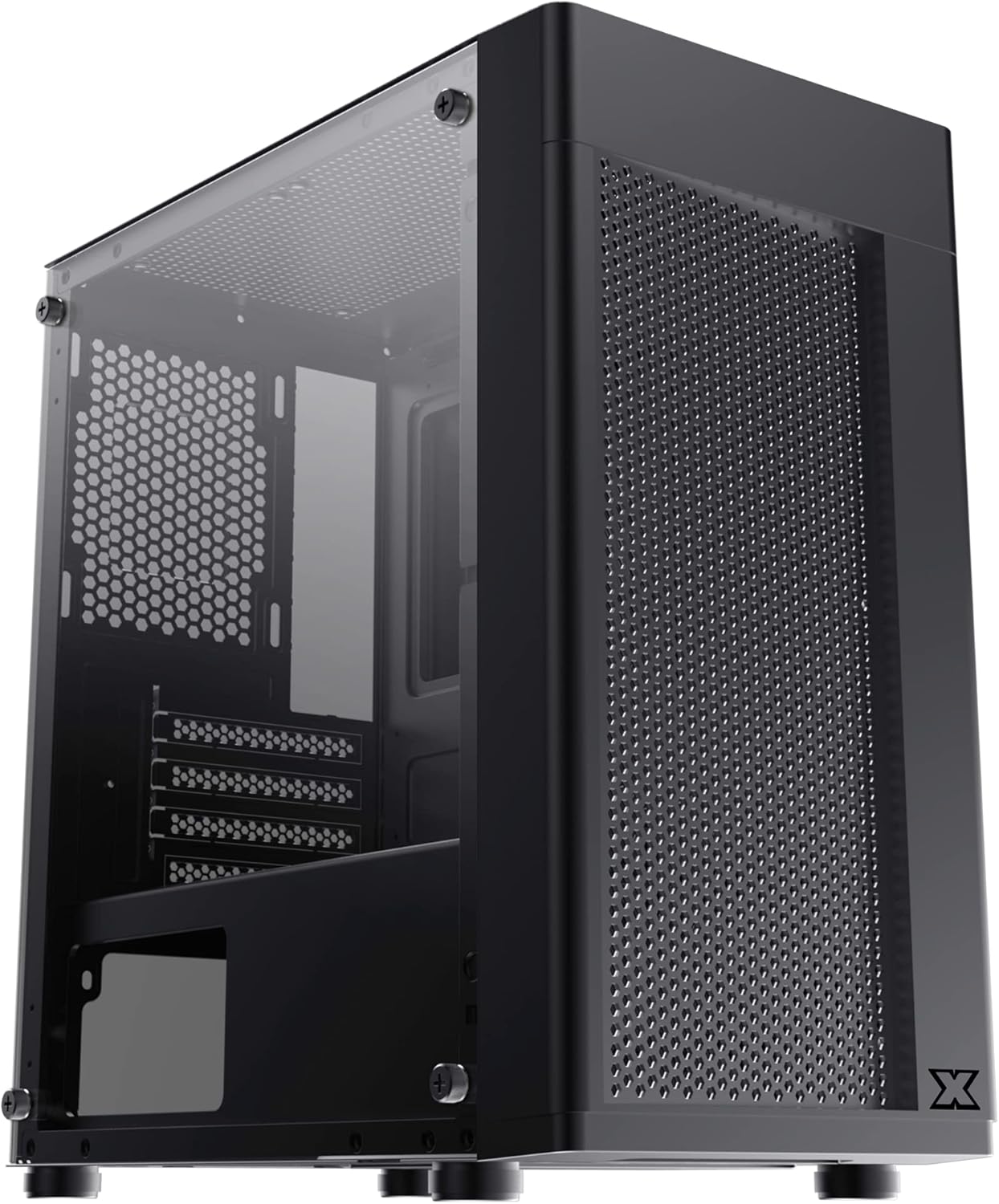
פיגור 2.1: פראָנט-לינקס view of the Xigmatek Aero Black Micro-ATX Case, showcasing the tempered glass front panel and acrylic side panel.
3. שליסל פֿעיִקייטן
- טעמפּערד גלאז זייט פּאַנעל: גיט אַ קלאָר view of internal components.
- Bottom Mounted PSU: Dedicated compartment for power supply unit, aiding in thermal management and cable routing.
- Mesh Design Front Panel: Enhances airflow for improved cooling performance.
- גרינג קאַבלע פאַרוואַלטונג: Designed with routing options and a PSU shroud to facilitate neat cable organization.
- Compact Micro-ATX Form Factor: Optimized for smaller builds while maintaining compatibility with standard components.
4. פּעקל אינהאַלט
Please verify that all items are present in the package before proceeding with installation:
- Xigmatek Aero Black Micro-ATX Case
- Accessory Box (containing screws, standoffs, zip ties)
- באַניצער מאַנואַל (דעם דאָקומענט)
5. סעטאַפּ און ייַנמאָנטירונג
Follow these steps carefully for proper installation of your PC components into the Xigmatek Aero case.
5.1 צוגרייטן דעם פאַל
- שטעלט דעם קעסטל אויף א פלאַכער, סטאַבילער ייבערפלאַך.
- Carefully remove the tempered glass side panel by unscrewing the four thumb screws. Set the panel aside on a soft, non-abrasive surface to prevent scratches.
- Remove the rear side panel (solid metal panel) by unscrewing the two thumb screws at the back and sliding it off. This provides access for cable management.
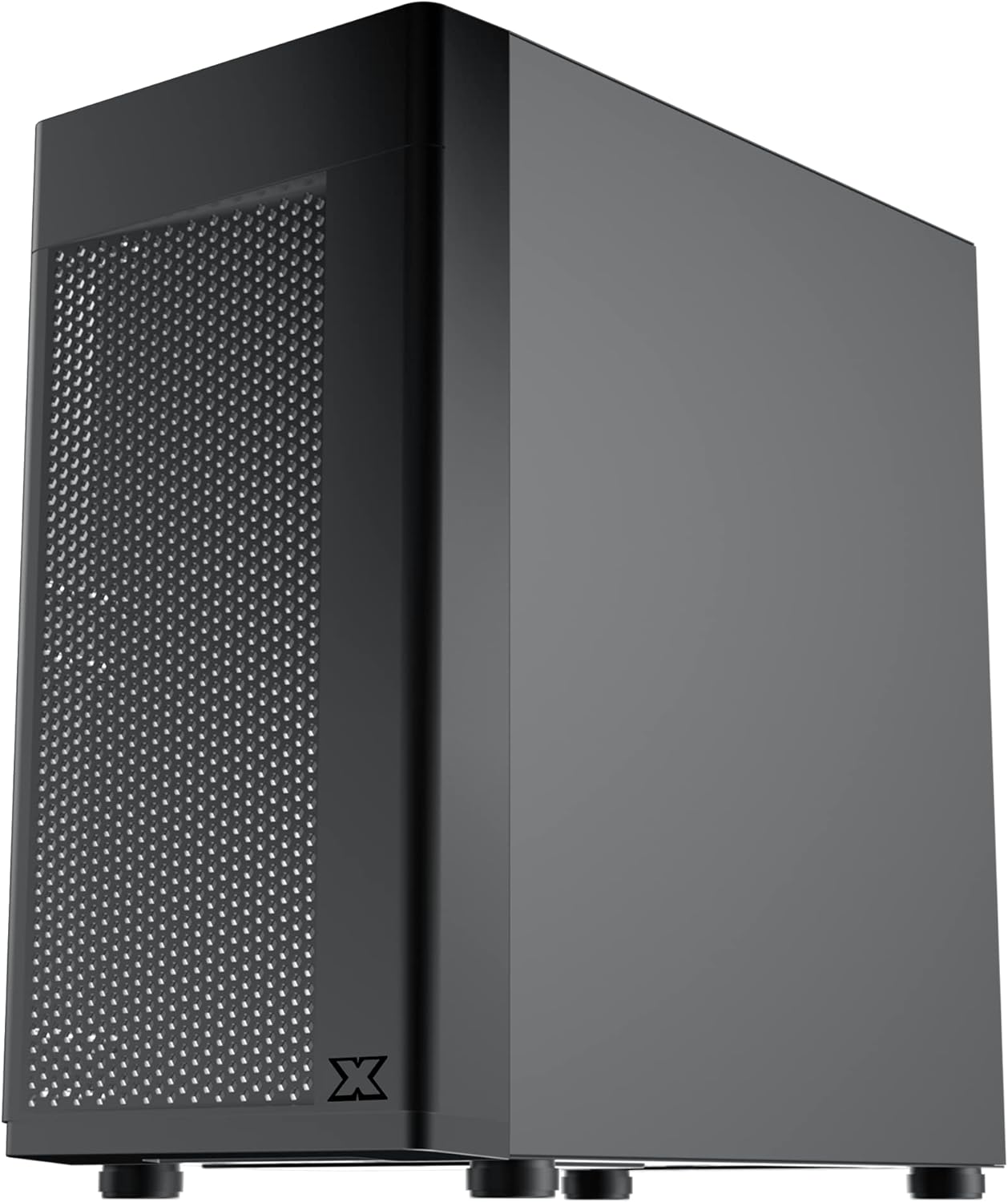
פיגורע 5.1: זייַט view of the case, showing the tempered glass panel secured by four thumb screws.
5.2 מאַכט סופּפּלי יוניט (פּסו) ינסטאַלירונג
- Locate the PSU mounting area at the bottom rear of the case, within the PSU shroud.
- Slide your PSU into the designated slot from the rear of the case. Ensure the PSU fan faces downwards (if the case has a bottom vent) or upwards, depending on your cooling preference and PSU design.
- באַפֿעסטיקן די PSU מיט שרויפֿן פֿון דער הינטערשטער זײַט פֿון דער קעיס.
- Route necessary PSU cables through the cutouts in the PSU shroud to the main compartment.

פיגורע 5.2: אינערלעכער view highlighting the PSU shroud and cable routing options.
5.3 מאָטהערבאָאַרד ינסטאַללאַטיאָן
- אינסטאלירט דעם I/O שילד (אויב אָנווענדלעך) אין דער הינטערשטער עפענונג פון דעם קעסטל.
- Align your Micro-ATX motherboard with the pre-installed standoffs. Ensure the screw holes on the motherboard match the standoffs.
- באַפעסטיקט דאָס מאַדערבאָרד מיט די צוגעשטעלטע שרויפן. נישט צו שטאַרק אָנציִען.

פיגורע 5.3: אינערלעכער view of the case, showing the motherboard tray and standoff locations.
5.4 סטאָרידזש דרייוו אינסטאַלאַציע
The case supports 3.5-inch HDDs and 2.5-inch SSDs.
- 3.5" האַרט דרייוו: Locate the drive cage under the PSU shroud. Slide the HDD into the drive bay and secure with screws. Note: Some users find it easier to remove the drive caddy by unscrewing from the underside of the case first.
- 2.5" SSD: SSDs can typically be mounted on dedicated brackets behind the motherboard tray or on top of the PSU shroud. Secure with screws.
5.5 גראַפיקס קאַרטל און יקספּאַנשאַן קאַרדס
- Remove the necessary expansion slot covers from the rear of the case. These are break-off covers, so bend them carefully until they detach.
- אַרײַנשטעלן אײַער גראַפיקס קאַרטל אָדער אַנדערע יקספּאַנשאַן קאַרדס אין די פּאַסיק PCIe סלאָץ אויף אײַער מוטערבאָרד.
- באַזײַטיקט די קאַרטלעך מיט שרויפן.

פיגורע 5.4: דערציען view of the case, showing expansion slots and I/O shield opening.
5.6 Fan and Cooling Installation
The Xigmatek Aero supports multiple fan configurations for optimal airflow.
- פראָנט: Up to 2x 120mm or 140mm fans. Can also support a 240mm AIO liquid cooler.
- אויבן: ביז 2x 120 מם פאַנס.
- הינטן: 1x 120mm fan.
Install fans by aligning them with the screw holes and securing them with fan screws. Pay attention to airflow direction (intake vs. exhaust).
5.7 קאַבלע מאַנאַגעמענט
Utilize the cutouts and tie-down points behind the motherboard tray to route and secure cables. This improves airflow and aesthetics.

פיגורע 5.5: View from the rear of the motherboard tray, showing space for cable routing.
5.8 פראָנט פּאַנעל קאַנעקשאַנז
Connect the front panel cables (USB 3.0, USB 2.0, Audio, Power LED, HDD LED, Power Switch, Reset Switch) to the corresponding headers on your motherboard. Refer to your motherboard manual for exact pin layouts.

פיגורע 5.6: שפּיץ view of the case, illustrating the front I/O ports including USB 3.0 and audio jacks.
5.9 לעצט אַסעמבלי
- Once all components are installed and cables are managed, reattach the rear side panel.
- Carefully reattach the tempered glass side panel and secure it with the four thumb screws.
6. אפעראציע באטראכטונגען
To ensure optimal performance and longevity of your system:
- לופט לויפן: Ensure proper fan configuration for intake and exhaust to maintain good internal temperatures. The mesh front panel is designed for excellent air intake.
- אָרט: Place the PC case on a hard, flat surface to allow adequate airflow to the bottom-mounted PSU and any bottom intake fans. Avoid placing it on carpet.
7. וישאַלט
Regular maintenance helps preserve your system's performance and extends its lifespan:
- שטויב רייניקונג: Periodically clean dust from the case interior and fan filters. The top panel features a magnetic dust filter for easy removal and cleaning.
- עקסטעריאָר רייניקונג: ניצן אַ ווייך, דamp cloth to clean the exterior surfaces. Avoid abrasive cleaners. For the tempered glass and acrylic panels, use a microfiber cloth and a gentle glass cleaner.
8. טראָובלעשאָאָטינג
If you encounter issues during or after assembly, consider the following:
- סיסטעם גייט נישט אן:
- Ensure all PSU cables are securely connected to the motherboard and components.
- וועריפיצירט אז דער פראנט פאנעל מאכט סוויטש קאבל איז ריכטיג פארבונדן צום מאדערבארד כעדער.
- Check the PSU switch is in the 'ON' position.
- פעןס דרייען זיך נישט:
- Confirm fan cables are properly connected to motherboard fan headers or a fan controller.
- Poor Airflow/High Temperatures:
- Check fan orientation (intake/exhaust).
- Ensure dust filters are clean.
- Verify no cables are obstructing airflow.
9. ספּעסאַפאַקיישאַנז
| שטריך | דעטאַל |
|---|---|
| מאָדעל נומער | EN46584 |
| פאָרם פאַקטאָר | Micro-ATX Tower |
| דימענסיעס (L X W X H) | 34.5 X 20 X 29 סענטימעטער |
| וואָג | 3.53 קג |
| מאַטעריאַל | Tempered Glass, Acrylic, Steel |
| מאָטהערבאָאַרד קאַמפּאַטאַבילאַטי | Micro ATX, Mini-ITX |
| פּסו מאָונטינג | דנאָ בארג |
| פאָר בייס | 1x 3.5" HDD, 2x 2.5" SSD (or 2x 3.5" HDD, 1x 2.5" SSD depending on configuration) |
| יקספּאַנשאַן סלאָץ | 4 |
| פען שטיצע (פראנט) | 2x 120 מם / 140 מם |
| פען שטיצע (אויבן) | 2 קס 120 מם |
| פען שטיצע (הינטן) | 1 קס 120 מם |
| ראַדיאַטאָר שטיצע (פראָנט) | אַרויף צו 240 מם |
| פראָנט איך / אָ פּאָרץ | 1x USB 3.0, 2x USB 2.0, HD Audio (Mic & Headphone) |
10. וואָראַנטי און שטיצן
For warranty information and technical support, please refer to the official Xigmatek webזייטל אדער קאָנטאַקט אייער לאקאלן הענדלער. האַלט אייער קויפן-באַווייַז פֿאַר וואָראַנטי-קליימז.


