הקדמה
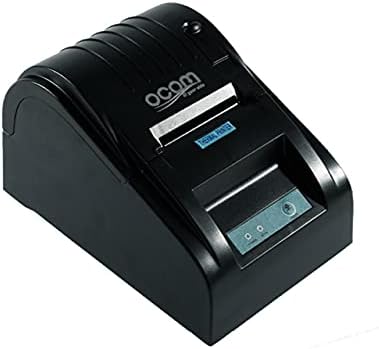
This image shows the OCOM OCPP-585A-U-B Thermal Receipt Printer from a slightly elevated front-right angle. The printer is black with a sleek, compact design. The paper output slot is visible at the top, and the control panel with 'POWER' and 'MODE' indicators is located on the front.
This manual provides detailed instructions for the OCOM OCPP-585A-U-B Thermal Receipt Printer. Please read this manual carefully before using the printer to ensure proper operation and longevity.
סעטאַפּ גייד
1. ונפּאַקקינג
Carefully remove the printer and all accessories from the packaging. Verify that all components are present: printer unit, power adapter, USB cable, and a roll of thermal paper.
2. לאָדן טערמיש פּאַפּיר
- Open the paper cover by pushing the cover open button (usually located on the side or front).
- Insert the thermal paper roll into the paper compartment, ensuring the printing side of the paper faces the print head. The paper should feed smoothly from the bottom of the roll.
- Pull out a small length of paper beyond the paper exit slot.
- Close the paper cover firmly until it clicks into place.
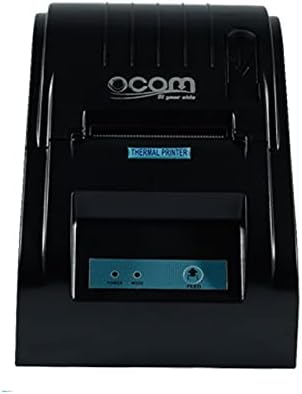
This image displays the OCOM OCPP-585A-U-B Thermal Receipt Printer from a direct top-down perspective. The paper compartment is visible, showing a thermal paper roll correctly inserted. The 'THERMAL PRINTER' label and the control panel with 'POWER' and 'MODE' indicators are clearly visible.
3. פֿאַרבינדן דעם דרוקער
- Connect the power adapter to the printer's power input port and then plug it into a power outlet.
- Connect the USB cable to the printer's USB port and the other end to your computer or POS system.
- Press the power button to turn on the printer. The power indicator light should illuminate.
אַפּערייטינג ינסטראַקשאַנז
יקערדיק פּרינטינג
Once connected and powered on, the printer is ready to receive print commands from your connected device. Ensure the correct printer driver is installed on your computer/POS system.
- עפֿענען דעם דאָקומענט אָדער אַפּלאַקיישאַן פֿון וואָס איר ווילט דרוקן.
- Select 'Print' from the file מעניו.
- Choose 'OCOM OCPP-585A-U-B' as your printer.
- Adjust print settings if necessary (e.g., paper size, print quality).
- דריקט 'דרוק'.
Self-Test Print
To perform a self-test print, ensure the printer is off. Hold down the 'FEED' button (if available, or a combination of buttons as per specific model) while turning on the printer. Release the button once printing begins. This will print a configuration page, confirming basic printer functionality.
וישאַלט
רייניקונג די דרוק קאָפּ
Regular cleaning of the print head ensures optimal print quality and extends printer life.
- קער אַוועק די דרוקער און אָפּשטעקן די מאַכט שנור.
- עפענען די פּאַפּיר דעקן.
- ניצט אַ וואַטע שטעכל לײַכטampened with isopropyl alcohol to gently wipe the thermal print head (the dark strip inside the printer).
- לאָזט דעם דרוק קאָפּ גאָר טרוקן ווערן איידער איר מאַכט צו דעם דעקל און צינדט אָן דעם דרוקער.
Cleaning the Paper Path
אַראָפּנעמען יעדן פּאַפּיר שטויב אָדער דעבריס פֿון דעם פּאַפּיר וועג מיט אַ ווייכן באַרשט אָדער קאָמפּרעסירטע לופט.
טראָובלעשאָאָטינג
| פּראָבלעם | מעגלעך סיבה | לייזונג |
|---|---|---|
| דרוקער גייט נישט אן | Power cable loose; Power outlet faulty | קאָנטראָלירט די עלעקטרישע פֿאַרבינדונגען; פּרוּווט אַן אַנדער אַוטלעט |
| קיין דרוק ארויסגאַנג | Paper loaded incorrectly; Out of paper; Driver not installed/selected | Reload paper correctly; Replace paper roll; Install/select correct printer driver |
| Faint or blank print | Thermal paper loaded upside down; Print head dirty; Paper quality issue | Flip paper roll; Clean print head; Try new thermal paper |
| דרוקער אפליין | USB cable disconnected; Printer driver issue | Reconnect USB cable; Reinstall printer driver |
ספּעסאַפאַקיישאַנז
| שטריך | דעטאַל |
|---|---|
| ערשטער בנימצא טאָג | 2021 יוני 20 |
| פאַבריקאַנט | OCOM |
| ASIN | B097LSGP62 |
| נומער מאָדעל נומער | OCPP-585-U-B |
| סאָרט נאָמען | OCOM |
| קאַנעקטיוויטי טעכנאָלאָגיע | וסב |
| דרוקער טעכנאָלאָגיע | טערמאַל |
| קאָליר | שוואַרץ |
| מאָדעל נאָמען | OCPP 585 U B |
| דרוק מידיאַ | לאַבעלס |
| סקאַננער טיפּ | קאַבאָלע |
וואָראַנטי און שטיצן
This OCOM printer typically comes with a standard manufacturer's warranty. Please refer to the warranty card included with your product for specific terms and conditions, or visit the official OCOM webפּלאַץ פֿאַר דיטיילד וואָראַנטי אינפֿאָרמאַציע.
For technical support, driver downloads, or further assistance, please visit the OCOM official support website or contact their customer service. Keep your model number (OCPP-585A-U-B) and purchase details ready when seeking support.


