1. הקדמה
Thank you for choosing the MageGee MK1 Mechanical Gaming Keyboard and Mouse Combo. This product is designed to enhance your gaming and work experience with its responsive mechanical keys, customizable LED backlighting, and ergonomic design. This manual provides detailed instructions for setup, operation, maintenance, and troubleshooting to ensure optimal performance.
The combo includes an 87-key mechanical keyboard with blue switches, an ergonomic gaming mouse, and a large mouse pad. The compact keyboard design saves desk space while offering a tactile and audible typing experience, suitable for both gaming and office tasks.

בילד 1.1: איבערview of the MageGee MK1 87-key mechanical keyboard with blue backlighting.
2. סעטאַפּ אינסטרוקציעס
Follow these steps to set up your MageGee MK1 Keyboard and Mouse Combo:
- ופשליסן די קאַמפּאָונאַנץ: Carefully remove the keyboard, mouse, and mouse pad from their packaging.
- פֿאַרבינדן די קלאַוויאַטור: צאַפּן די וסב קאַנעקטער פון די קלאַוויאַטור אין אַ בנימצא וסב פּאָרט אויף דיין קאָמפּיוטער.
- פאַרבינדן די מויז: שטעקט אריין דעם USB קאַנעקטאָר פון דער מויז אין אַן אַנדערן פאַראַן USB פּאָרט אויף אייער קאָמפּיוטער.
- לייגט די מויז פּאַד: Position the large mouse pad on your desk for optimal mouse movement.
- דרייווער ינסטאַלירונג: The keyboard and mouse are plug-and-play devices. Your operating system (Windows 10, 8, 7, Vista, XP, or limited Mac OS support) should automatically detect and install the necessary drivers. No additional software installation is typically required.
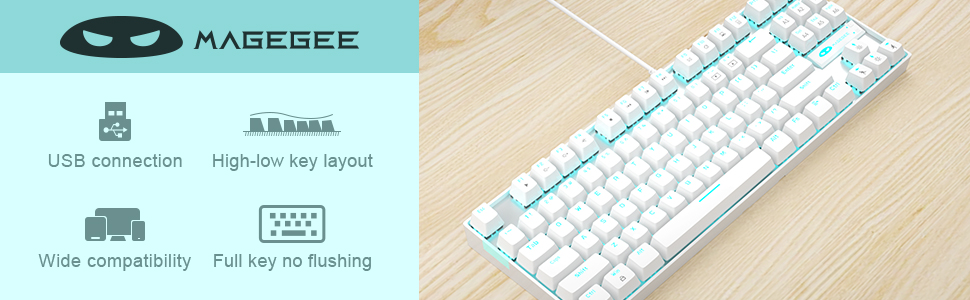
Image 2.1: Key features of the MageGee MK1 keyboard, including USB connection and wide compatibility.
3. אַפּערייטינג ינסטרוקטיאָנס
3.1 קלאַוויאַטור פאַנגקשאַנז
The MK1 keyboard features 87 mechanical keys with blue switches, providing a distinct tactile bump and audible click for precise feedback. The compact layout is designed for efficiency and comfort.
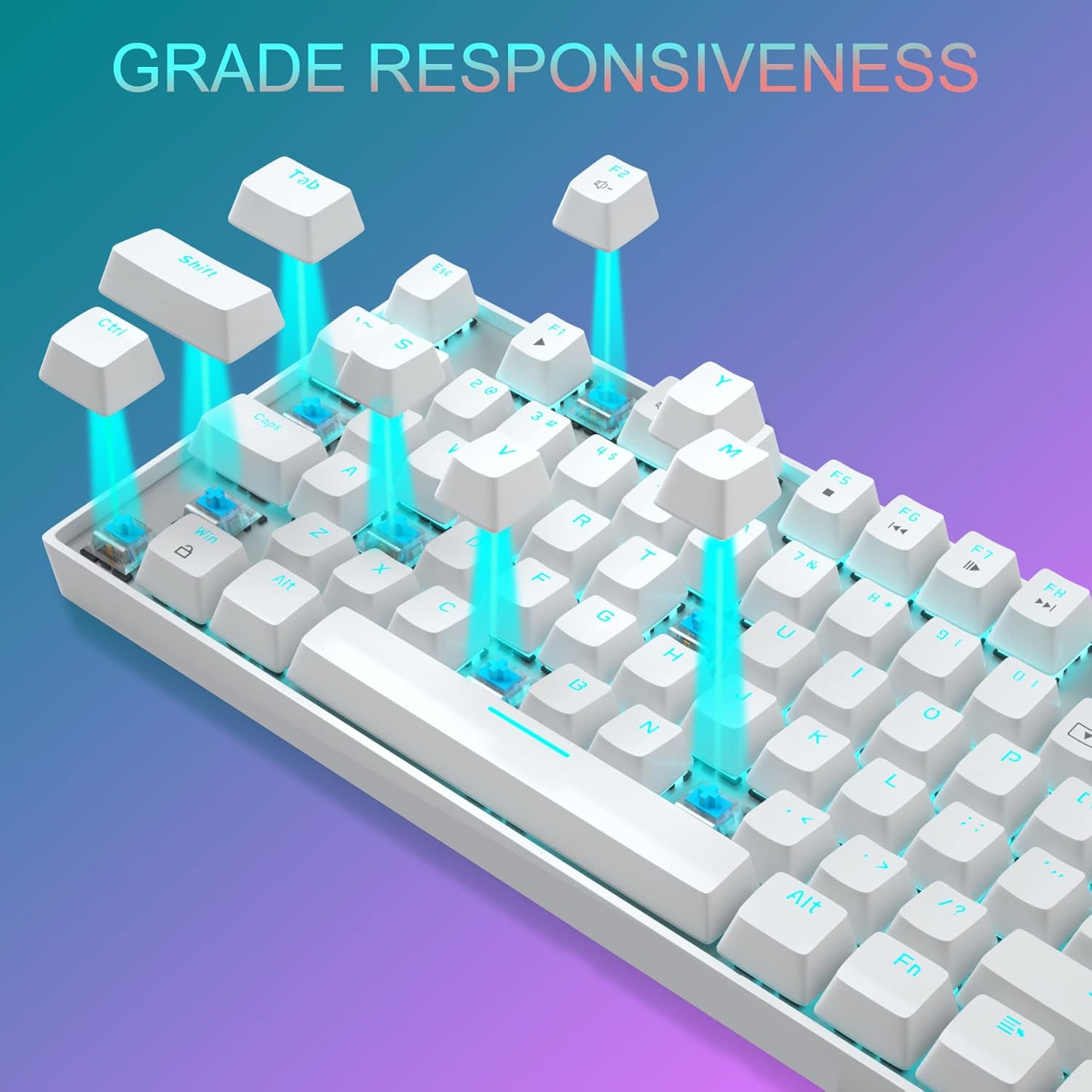
בילד 3.1: נאָענט־אַרויף view of the keyboard demonstrating the blue mechanical switches for responsive typing.
3.1.1 Backlighting Modes
The keyboard supports 24 different LED breathing backlight modes. Use the following key combinations to control the backlighting:
- FN + INS: Cycle through various preset lighting modes.
- FN + היים: Cycle through additional lighting effects.
- FN + PGUP: אַדזשאַסטירן די ברייטקייט פון דער באַקלייט (4 לעוועלס).
- FN + PGDN: Adjust breathing speed (4 levels).
- FN + DEL: Change backlight color in certain modes.
- FN + END: Activate or deactivate specific lighting patterns.
You can also customize lighting effects by pressing FN + 1/2/3/4/5 key combinations. The WASD and ARROW keys are interchangeable for user preference.
3.1.2 מולטימעדיאַ קיז
The keyboard includes 12 multimedia function keys, accessible by pressing the FN key in combination with the F1-F12 keys. These provide quick access to common functions:

Image 3.2: Chart detailing the FN key combinations for multimedia controls.
- FN+F1: מעדיע פּלייַער
- FN+F2: באַנד אַראָפּ
- FN+F3: באַנד אַרויף
- FN+F4: שטום
- FN+F5: האַלטן
- FN+F6: פֿריִערדיקע שפּירט
- FN+F7: שפּיל / פּויזע
- FN+F8: ווייַטער שפּור
- FN+F9: בליצפּאָסט
- FN+F10: Web/היים
- FN+F11: מיין קאָמפּיוטער
- FN+F12: קאַלקולאַטאָר
3.2 מויז פונקציעס
The gaming mouse features 7 programmable buttons and adjustable DPI settings for precision control.
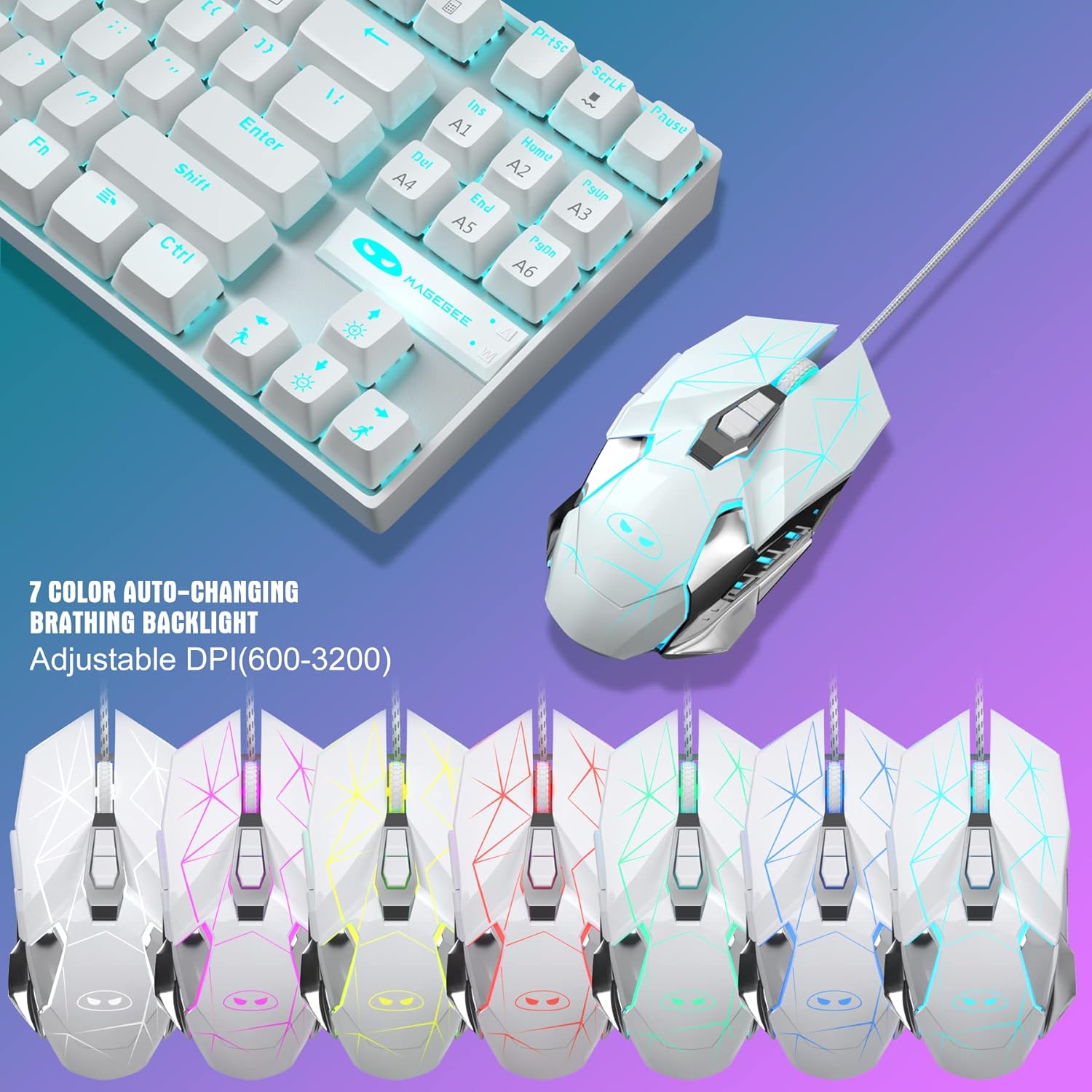
Image 3.3: The MageGee gaming mouse, showcasing its ergonomic design and customizable backlighting.
3.2.1 דפּי אַדזשאַסטמאַנט
The mouse offers 6 adjustable DPI levels (600, 800, 1200, 1600, 2400, 3200). Press the DPI button (usually located behind the scroll wheel) to cycle through these settings in real-time. Each DPI level is indicated by a different backlight color:
- געל
- בלוי
- לילאַ
- גרין
- רויט
- סיאַן
3.2.2 Mouse Backlight Control
The mouse backlight color changes with the DPI setting. To control the mouse backlight, press the "Forward + DPI" keys simultaneously. This combination allows you to select a single preferred color, enable automatic color flashing, or turn off the backlight.
3.3 Mouse Pad
The included large mouse pad (300x250 mm) features a silk-processed cloth surface for smooth, ultra-precise mouse movements. Its advanced multi-layer surface provides thousands of light-reflecting microscopic points for accurate tracking. The underside is made of natural processed foam rubber, ensuring a stable grip on various surfaces. Stitched edges prevent fraying and curling, enhancing durability. The mouse pad is waterproof and washable for easy cleaning.
4. וישאַלט
Proper maintenance ensures the longevity and performance of your keyboard and mouse combo:
- רייניקונג די קלאַוויאַטור: Use a soft, dry cloth to wipe down the keycaps and chassis. For deeper cleaning, you can use compressed air to remove dust and debris from between the keys. Avoid using harsh chemicals or abrasive materials.
- רייניקן די מויז: ווישט די מויז ייבערפלאַך מיט אַ ווייכן, לייכט נאַסן שטאָףamp cloth. Ensure no liquid enters the internal components. Clean the optical sensor area regularly to maintain tracking accuracy.
- רייניקונג פון די מויז פּאַד: The mouse pad is waterproof and washable. You can gently hand wash it with mild soap and water, then air dry completely before use.
- סטאָרידזש: When not in use for extended periods, store the combo in a clean, dry environment away from direct sunlight and extreme temperatures.
5. טראָובלעשאָאָטינג
If you encounter issues with your MageGee MK1 combo, refer to the following common solutions:
- קלאַוויאַטור/מויז רעאַגירט נישט:
- זייט זיכער אז ביידע USB קייבלס זענען זיכער אריינגעשטעקט אין די USB פּאָרטן פון אייער קאָמפּיוטער.
- פרובירט צו אריינשטעקן די דעווייסעס אין פארשידענע USB פּאָרטן.
- ריסטאַרט דיין קאָמפּיוטער.
- Test the keyboard/mouse on another computer to determine if the issue is with the device or your system.
- באַקלייט אַרבעט נישט אָדער איז נישט ריכטיק:
- Ensure the backlight is not turned off (check FN key combinations).
- Adjust brightness using FN + PGUP.
- Cycle through different lighting modes using FN + INS/HOME.
- מאַוס טראַקינג ישוז:
- Clean the mouse sensor and the mouse pad surface.
- Adjust the DPI setting to a level suitable for your use.
- Ensure the mouse pad is on a flat, stable surface.
- שליסלען רעגיסטרירט זיך נישט:
- זיכער מאַכן אַז די קלאַוויאַטור איז ריכטיק פֿאַרבונדן.
- רייניקט אַרום דעם אַפעקטירטן שליסל צו באַזײַטיקן יעדן דעבריס.
- If specific keys consistently fail, contact customer support.
6. ספּעסאַפאַקיישאַנז
| סאָרט | MageGee |
| מאָדעל | MK1 |
| קלאַוויאַטור טיפּ | מעטשאַניקאַל גיימינג קיבאָרד |
| באַשטימען טיפּ | בלוי סוויטשיז |
| שליסל אויסלייג | 87 Keys (Compact) |
| באַקלייט | LED Backlit (24 modes, adjustable brightness/speed) |
| קאַנעקטיוויטי | ווייערד וסב |
| מויז DPI לעוועלס | 600, 800, 1200, 1600, 2400, 3200 |
| מויז קנעפּלעך | 7 פּראָגראַממאַבלע קנעפּלעך |
| מאַוס פּאַד גרייס | 300 רענטגענ 250 מם |
| קאַמפּאַטאַבילאַטי | Windows 10/8/7/Vista/XP, Limited Mac OS support |
| פּונקט וואָג | 2.59 פונט (בעערעך) |
| פּעקל דימענשאַנז | 14.92 X 8.94 X 1.77 אינטשעס (בעערעך) |
7. וואָראַנטי און שטיצן
The MageGee MK1 Mechanical Gaming Keyboard and Mouse Combo comes with a full 1-year manufacturer's warranty from the date of purchase. This warranty covers defects in materials and workmanship under normal use.
For any questions, technical assistance, or warranty claims, please do not hesitate to contact our friendly customer service team. We are available 24 hours a day, 7 days a week to provide support.
Please refer to the contact information provided with your product packaging or visit the official MageGee webזייטל פֿאַר די מערסט אַרויף-צו-דאַטע שטיצע דעטאַילס.


