1. הקדמה
Thank you for choosing the AULA F2066 Mechanical Gaming Keyboard. This manual provides detailed instructions on how to set up, operate, and maintain your keyboard to ensure optimal performance and longevity. The AULA F2066 features anti-ghosting technology, blue mechanical switches, LED backlighting, and macro programming capabilities, designed for an enhanced gaming and typing experience on PC and laptop systems.
2. פּעקל אינהאַלט
- AULA F2066 Mechanical Gaming Keyboard
- וסב קאַבלע
- באַניצער מאַנואַל (דעם דאָקומענט)
3. סעטאַפּ
3.1 פֿאַרבינדן די קלאַוויאַטור
- געפינט אַ פאַראַן USB פּאָרט אויף אייער פּיסי אָדער לאַפּטאַפּ.
- Connect the USB cable from the keyboard to the USB port on your computer.
- The operating system (Windows 10 or compatible) will automatically detect and install the necessary drivers.
3.2 ווייכווארג אינסטאַלאַציע (אפציאָנעל)
For advanced customization, including macro programming and detailed lighting effects, you may need to install the dedicated AULA software. Please refer to the official AULA website for the latest software download.

Image: The AULA F2066 keyboard software interface, showing options for custom programmable functions, profiles, macro editor, and brightness control.
4. אַפּערייטינג ינסטרוקטיאָנס
4.1 גרונטלעכע שליסל פונקציעס
The AULA F2066 is a full-sized mechanical keyboard with standard QWERTY layout and a numeric keypad. All keys function as standard keyboard keys unless modified by special functions or macro programming.

בילד: אן איבערview of the AULA F2066 Mechanical Gaming Keyboard, showcasing its full layout and LED backlighting.
4.2 Multimedia Keys and Knob
The keyboard features dedicated multimedia keys and a multi-function knob for quick access to media controls and lighting adjustments.
- M1, M2, M3 Buttons: These are typically programmable macro keys or preset function keys.
- מולטימעדיאַ קאָנטראָלס: Dedicated buttons for Previous Piece, Play/Pause, Next Track.
- קנופּ: This knob serves multiple functions depending on the active mode.
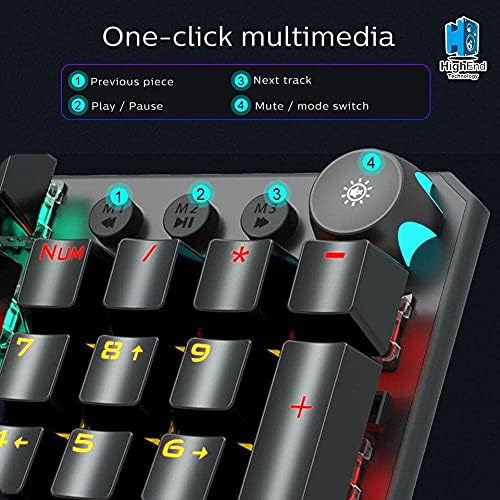
בילד: א נאָענטע בילד view of the AULA F2066 keyboard's multimedia keys (M1, M2, M3) and the multi-function knob, with labels indicating their primary functions.
4.3 Knob Functionality
The knob has two primary modes: Game Mode and Multimedia Mode. Long press the knob button for more than 3 seconds to switch between modes.
- שפּיל מאָדע: When in Game Mode, the knob button glows. Rotate the knob to adjust backlight brightness. Short press the knob to cycle through multiple lighting effects.
- מולטימעדיאַ מאָדע: When in Multimedia Mode, the knob button does not shine. Rotate the knob to adjust the system volume. Short press the knob for one-key mute/unmute.

Image: A visual guide demonstrating how to switch between Game Mode and Multimedia Mode using the knob, and the respective functions of the knob in each mode (brightness/lighting effects vs. volume/mute).
4.4 מאַקראָ פּראָגראַמירן
The AULA F2066 supports custom programmable functions via its software. This allows users to assign complex sequences of commands or single key functions to specific keys, enhancing productivity and gaming performance. Refer to the software's help section for detailed instructions on macro creation and assignment.
5. וישאַלט
5.1 רייניקונג
- אָפּשטעקן די קלאַוויאַטור פֿון אייער קאָמפּיוטער איידער איר רייניקט.
- ניצן אַ ווייך, דamp cloth to wipe the surface of the keyboard. Avoid harsh chemicals or abrasive materials.
- צו רייניקן צווישן די קלאַוויאַטור-קאַפּס, ניצט קאָמפּרעסירטע לופט צו באַזײַטיקן שטויב און שמוץ.
5.2 סטאָרידזש
Store the keyboard in a dry, cool place away from direct sunlight and extreme temperatures. Avoid placing heavy objects on the keyboard.
6. טראָובלעשאָאָטינג
- קלאַוויאַטור רעאַגירט נישט: זיכער מאַכן אַז דער USB קאַבל איז זיכער פארבונדן צו ביידע די קלאַוויאַטור און דעם קאָמפּיוטער. פּרוּווט אַן אַנדער USB פּאָרט.
- באַקלייט אַרבעט נישט: Check if the backlight is turned off or set to minimum brightness using the knob or software.
- Keys not registering or double-registering: This could indicate a switch issue. Ensure the keyboard is clean and free of debris. If the problem persists, contact customer support.
- מאַקראָ פונקציעס אַרבעטן נישט: Verify that the AULA software is installed and the macros are correctly configured and saved to the keyboard's profile.
7. ספּעסאַפאַקיישאַנז
| שטריך | דעטאַל |
|---|---|
| סאָרט | AULA |
| מאָדעל נומער | פ2066-איך |
| קאַנעקטיוויטי טיפּ | USB (ווייערד) |
| קלאַוויאַטור באַשרייַבונג | גאַמינג מעטשאַניקאַל קיבאָרד |
| ספּעציעלע פֿעיִקייטן | Backlit, Anti-Ghosting, Macro Programmable |
| אַפּערייטינג סיסטעם קאַמפּאַטאַבילאַטי | Windows 10 |
| קאַמפּאַטאַבאַל דעוויסעס | פּיסי, לאַפּטאַפּ |
| קאָליר | מולטי-קאָליר |
| פּונקט וואָג | 690 ג |
| פּעקל דימענשאַנז | 49.2 X 16.2 X 4.8 סענטימעטער |
| אַרייַנגערעכנט קאַמפּאָונאַנץ | וסב קאַבלע |
8. וואָראַנטי און שטיצן
8.1 וואָראַנטי אינפֿאָרמאַציע
The AULA F2066 Mechanical Gaming Keyboard comes with a standard manufacturer's warranty. Please retain your proof of purchase for warranty claims. The warranty covers defects in materials and workmanship under normal use. It does not cover damage caused by misuse, accidents, unauthorized modifications, or normal wear and tear.
8.2 קונה שטיצן
For technical assistance, warranty inquiries, or further information, please visit the official AULA website or contact your local retailer. Ensure you have your product model number (F2066-I) and proof of purchase ready when contacting support.