1. הקדמה און איבערview
This manual provides essential information for the installation, operation, and maintenance of your Acer FA200 NVMe Gen4 SSD 4TB. Designed for high-performance computing, this solid-state drive offers significant speed and efficiency improvements for various applications, including gaming, content creation, and general computing tasks.

Figure 1: Acer FA200 NVMe Gen4 SSD 4TB, a compact M.2 2280 form factor drive with a green label.
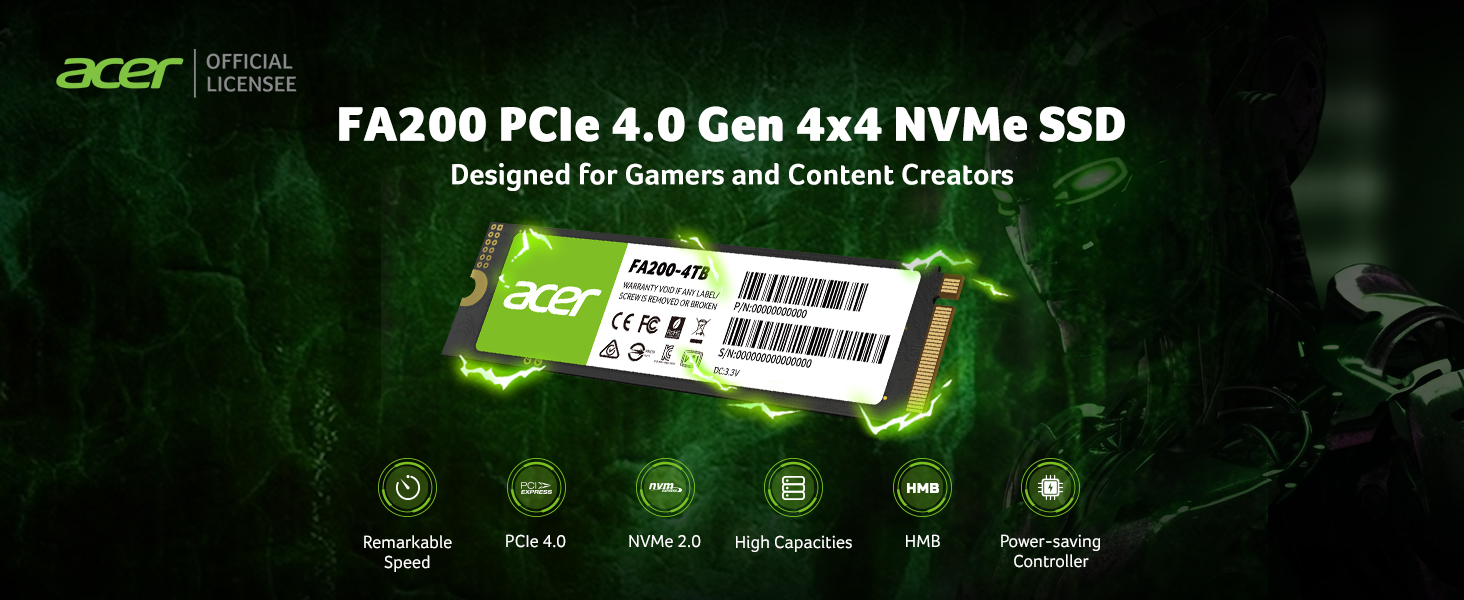
Figure 2: The Acer FA200 PCIe 4.0 Gen 4x4 NVMe SSD is engineered for demanding users like gamers and content creators.
ווידעא 1: אן אפיציעלער פראדוקט איבערview of the Acer FA200 Series M.2 SSD 4TB, highlighting its features and applications.
2. שליסל פֿעיִקייטן
- הויך-גיכקייַט פאָרשטעלונג: Utilizes a cutting-edge PCIe Gen 4 x4 NVMe controller with NVMe 2.0 interface, delivering read speeds up to 7200 MB/s and write speeds up to 6200 MB/s.
- Enhanced Data Handling: Features Host Memory Buffer (HMB) and SLC Cache mechanisms to significantly boost computer boot times, file transfers, and game loading speeds.
- Optimal Thermal Management: Equipped with a Thermal Throttle and Power Management system, including a high thermal conductivity graphene thermal pad, to ensure stable performance during intensive tasks.
- Data Migration Software: Includes a customized version of Acronis True Image for seamless data transfer, backup, and system restoration, ensuring data preservation and security.
- ווערסאַטאַל קאַמפּאַטאַבילאַטי: Standard M.2 2280 single-sided PCB design compatible with both Gen 4 and Gen 3 systems, making it suitable for desktops, laptops, and PS5 upgrades.

Figure 3: The Acer FA200 employs a DRAM-less design, supporting the NVMe 2.0 high-speed interface for remarkable performance.
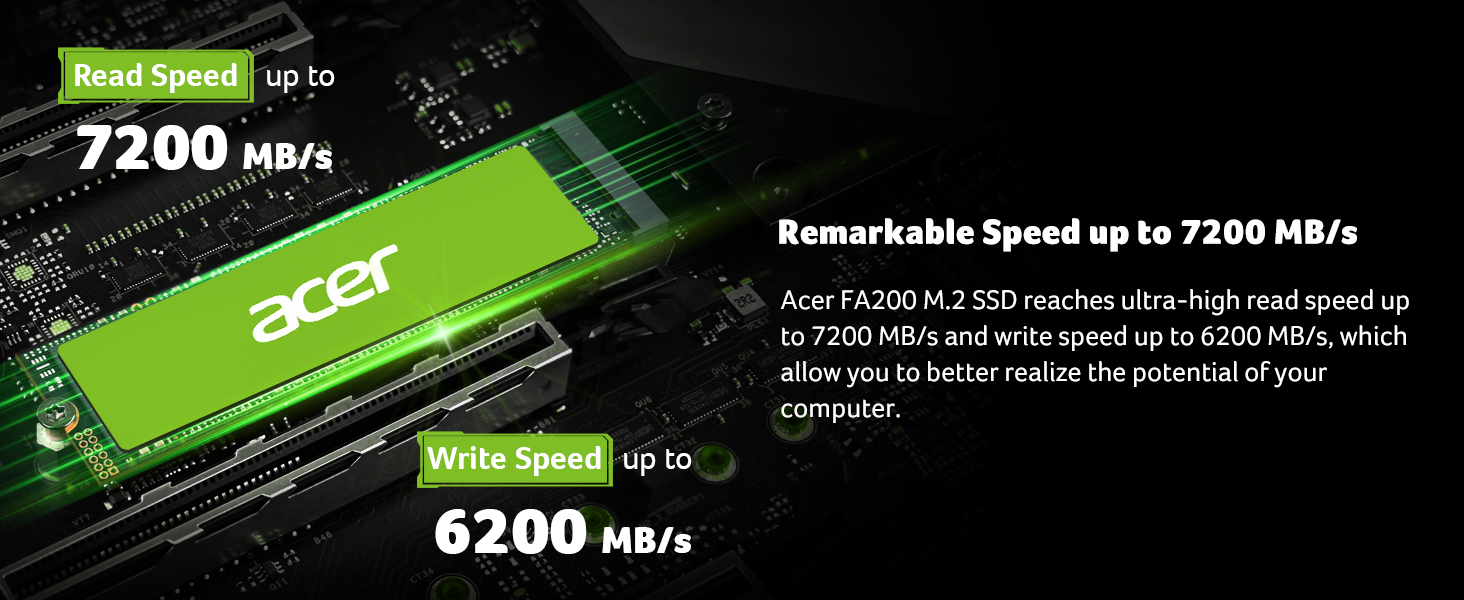
Figure 4: The Acer FA200 M.2 SSD achieves ultra-high read speeds up to 7200 MB/s and write speeds up to 6200 MB/s.
3. סעטאַפּ און ייַנמאָנטירונג
The Acer FA200 SSD is designed for easy installation in compatible systems. Ensure your motherboard or device supports the M.2 2280 form factor and PCIe Gen 4x4 NVMe interface.
אַלגעמיינע ינסטאַללאַטיאָן סטעפּס:
- צוגרייטונג: Power off your computer and disconnect all cables. For laptops, remove the battery if possible.
- צוטריט צו M.2 סלאָט: Open your computer case or laptop's bottom panel to locate the M.2 slot on the motherboard. Consult your device's manual for specific instructions on accessing the M.2 slot.
- אריינשטעלן SSD: Gently insert the Acer FA200 SSD into the M.2 slot at a 30-degree angle. Push it down until it clicks into place.
- זיכערע SSD: Secure the SSD with the provided screw (if applicable for your motherboard/device).
- ריאַסעמבאַל: Close your computer case or reattach the laptop's bottom panel. Reconnect all cables and power on your device.
- איניציאליזאציע: After booting, you may need to initialize and format the new SSD through your operating system's Disk Management utility before it can be used.

Figure 5: The Acer FA200 SSD offers wide compatibility with desktops, laptops, and PS5 gaming consoles.
4. אַפּערייטינג ינסטרוקטיאָנס
Once installed and initialized, your Acer FA200 SSD is ready for use. Its high-speed capabilities will enhance your system's responsiveness.
Data Transfer and Cloning:
The Acer FA200 SSD includes a customized version of Acronis True Image software. This software facilitates easy data migration from your old drive to the new SSD, as well as creating backups and restoring your system.
- Download Acronis True Image: באַזוכן go.acronis.com/Acer to download the customized software.
- ייַנמאָנטירונג: Follow the on-screen instructions to install Acronis True Image on your computer.
- Cloning/Backup: Use the software's intuitive interface to clone your existing operating system and data to the new SSD or create system backups for data preservation.

Figure 6: The Acer FA200 SSD comes with free Acronis cloning software for seamless data transfer and backup.

Figure 7: The Acer FA200 employs Host Memory Buffer (HMB) and SLC Cache to significantly enhance computer boot times, file transfers, and game loading speeds.
5. וישאַלט
To ensure the longevity and optimal performance of your Acer FA200 SSD, consider the following maintenance practices:
- טערמאַל פאַרוואַלטונג: The SSD features a Thermal Throttle and Power Management system. Ensure adequate airflow within your system to assist the graphene thermal pad in dissipating heat effectively. Avoid obstructing ventilation.
- Firmware דערהייַנטיקונגען: Periodically check the Acer support webזייטל פֿאַר אַלע בנימצא פירמווער דערהייַנטיקונגען פֿאַר דיין SSD מאָדעל. פירמווער דערהייַנטיקונגען קענען פֿאַרבעסערן פאָרשטעלונג, פעסטקייט און קאָמפּאַטאַבילאַטי.
- דאַטן אָרנטלעכקייַט: Regularly back up important data using the included Acronis True Image software or another reliable backup solution.
- ויסמיידן אָוווערפילינג: While the SSD has a large capacity, try to avoid consistently filling it to 100%. Leaving some free space can help maintain optimal performance and endurance.

Figure 8: The Acer FA200 is equipped with a Thermal Throttle and Power Management system to dynamically adjust operating temperatures and power consumption.
6. טראָובלעשאָאָטינג
If you encounter issues with your Acer FA200 SSD, try the following steps:
- דרייוו נישט דעטעקטירט:
- זייט זיכער אז די SSD איז ריכטיג אריינגעזעצט אין די M.2 סלאט.
- קאָנטראָלירט אייער סיסטעם'ס בייאָוס/UEFI סעטטינגס צו באַשטעטיקן אַז די M.2 סלאָט איז ענייבאַלד און קאָנפיגורירט ריכטיק (למשל, NVMe מאָדע).
- Verify compatibility with your motherboard/device.
- If it's a new drive, ensure it has been initialized and formatted in Disk Management (Windows) or Disk Utility (macOS).
- פּאַמעלעך פאָרשטעלונג:
- Ensure your system's M.2 slot supports PCIe Gen 4 speeds. If it's a Gen 3 slot, the drive will operate at Gen 3 speeds.
- Check for background processes consuming resources.
- זייט זיכער אז די SSD'ס פירמווער איז אפ טו דעיט.
- מאָניטאָרירט די טעמפּעראַטור פֿון דעם דרייוו. איבערגעטריבענע היץ קען פֿירן צו טערמישער פֿאַרקלענערונג און פֿאַרמינדערטע פּערפֿאָרמאַנס.
- סיסטעם אינסטאביליטעט/קראכן:
- Ensure all system drivers, especially chipset drivers, are up to date.
- Re-seat the SSD to ensure a secure connection.
- Run a diagnostic tool (if available from Acer or third-party) to check the SSD's health.
If issues persist, contact Acer customer support for further assistance.
7. ספּעסאַפאַקיישאַנז
| אַטריביוט | ווערט |
| סאָרט | אַסער |
| סעריע | FA200 |
| מאָדעל נומער | FA200-4TB |
| דיגיטאַל סטאָרידזש קאַפּאַציטעט | 4 טב |
| שווער דרייוו צובינד | סאָליד שטאַט |
| קאַנעקטיוויטי טעכנאָלאָגיע | מ.2 |
| שווער דיסק פאָרם פאַקטאָר | 2280 אינטשעס |
| ייַנמאָנטירונג טיפּ | אינערלעכער שווער פאָר |
| לייענען גיכקייט (מאַקס) | אַרויף צו 7200 מעגאבייטן / s |
| שרייב גיכקייט (מאַקס) | אַרויף צו 6200 מעגאבייטן / s |
| פּראָדוקט דימענשאַנז | 3.15 X 0.12 X 0.87 אינטשעס |
| פּונקט וואָג | 0.212 אונסעס |
| ספּעציעלע שטריך | צוריק קאַמפּאַטאַבאַל |

Figure 9: The Acer FA200 SSD is available in various capacities, including 500GB, 1TB, 2TB, and 4TB.
8. וואָראַנטי און שטיצן
Acer storage products are designed and manufactured by BIWIN Storage Technology company, a leading maker of quality flash memory, DRAM, and solid-state drives (SSDs). The Acer trademarks are licensed to BIWIN Semiconductor (HK) Co., Ltd. by Acer Incorporated.
For specific warranty details, please refer to the product packaging or the official Acer support website. General support and driver downloads can also be found on the Acer webפּלאַץ.
Remember to utilize the included customized version of Acronis True Image software for data backup and system restoration, which helps ensure data preservation, security, and privacy.


