1. הקדמה
This manual provides essential information for the safe and efficient operation of your iProda 2 in 1 Laptop, Model M1169YM. Please read this manual thoroughly before using the device and retain it for future reference. This convertible laptop features an 11.6-inch touchscreen, powered by an Intel N4100 processor, and runs on Windows 10 Pro.

Image: The iProda 2 in 1 Laptop can be used in multiple configurations, including traditional laptop, tent, stand, and tablet modes, showcasinג זיין ווערסאַטילאַטי.
2. זיכערקייַט אינפֿאָרמאַציע
Observe the following safety precautions to prevent damage to your device or injury to yourself:
- שטעלט נישט אויס דעם אפאראט צו עקסטרעמע טעמפעראטורן, דירעקטע זונשייַן, אדער הויכע הומידיטי.
- פֿאַרמײַדט צו לאָזן פֿאַלן אָדער אויסשטעלן דאָס אַפּאַראַט צו שווערע קלאַפּן.
- Use only the provided or approved power adapter for charging.
- האַלטן די מיטל אַוועק פון וואַסער און אנדערע ליקווידס.
- פּרוּווט נישט צו צענעמען אָדער פאַרריכטן דעם אַפּאַראַט אַליין. ווענדט זיך צו קוואַליפֿיצירטע סערוויס פּערסאָנעל.
3. פּעקל אינהאַלט
באַשטעטיקן אַז אַלע זאכן זענען פאַראַן אין דיין פּעקל:
- iProda 2 in 1 Laptop (Model M1169YM)
- מאַכט אַדאַפּטער
- באַניצער מאַנואַל (דעם דאָקומענט)
4. פּראָדוקט איבערview
The iProda 2 in 1 Laptop is designed for versatility, offering multiple usage modes and essential connectivity options.
4.1. שליסל פֿעיִקייטן
- 11.6-אינטש IPS טאָוטשסקרין: A responsive 10-point precision touchscreen with 1920x1080 resolution for interactive use.
- קאָנווערטיבלע פּלאַן: 360-degree hinge allows seamless transition between laptop, tablet, tent, and stand modes.
- Intel N4100 Processor: Provides efficient performance for daily tasks.
- ווינדאָוס 10 פּראָ: Pre-installed operating system for productivity and security.
- יקספּאַנדאַבאַל סטאָרידזש: Supports M.2 2242 SSD for additional storage capacity.

Image: Key features of the iProda laptop, including its touchscreen, operating system, display specifications, and camera resolution.

Image: The laptop's 360-degree hinge allows it to convert into a tablet, enabling direct interaction via its precision touchscreen.
4.2. פּאָרץ און קנעפּלעך
Familiarize yourself with the various ports and buttons on your laptop:
- טיפּ-C פּאָרט: Used for power supply and data transfer.
- Micro HDMI: פֿאַר פֿאַרבינדן צו עקסטערנע דיספּלייז.
- מיקראָ וסב: פֿאַר פֿאַרבינדן USB דעוויסעס.
- טף קאַרד שפּעלטל: For expanding storage with a TF (MicroSD) card.
- מאַכט קנעפּל: צו אנצינדן/אויסלעשן דעם אפאראט אדער עס אריינלייגן אין שלאף.
- באַנד קנעפּלעך: To adjust audio output.
- עאַרפאָנע דזשאַק: פֿאַר פֿאַרבינדן כעדפֿאָונז אָדער עקסטערנע רעדנערס.

בילד: א דעטאַלירטע view of the laptop's side panels, indicating the location and function of each port and button for easy identification.
5. סעטאַפּ
5.1. טשאַרדזשינג די באַטערי
Before first use, fully charge the laptop's battery. Connect the provided power adapter to the Type-C port on the laptop and plug it into a power outlet. The charging indicator light will illuminate.
5.2. ערשטער בוט און ווינדאָוס סעטאַפּ
- Press and hold the Power Button until the screen turns on.
- פֿאָלגט די אינסטרוקציעס אויף דעם עקראַן צו פֿאַרענדיקן די ערשטע סעטאַפּ פֿון Windows 10 Pro, אַרייַנגערעכנט שפּראַך אויסוואַל, נעץ פֿאַרבינדונג און באַניצער אַקאַונט שאַפונג.
6. אפערירן דיין לאַפּטאָפּ
6.1. ניצן די טאָוטשסקרעען
The 10-point precision touchscreen allows for intuitive interaction with Windows 10 Pro. Use gestures such as tapping, swiping, pinching, and stretching to navigate, zoom, and interact with applications.
6.2. קלאַוויאַטור און טאָוטשפּאַד
The integrated keyboard and touchpad provide traditional input methods. The touchpad supports multi-touch gestures for scrolling, zooming, and switching applications.

Image: The laptop's full-size American keyboard and responsive touchpad, designed for comfortable typing and navigation.
6.3. קאָנווערטאַבאַל מאָדעס
The 360-degree hinge allows you to switch between various modes:
- לאַפּטאָפּ מאָדע: Standard configuration for typing and productivity.
- טאַבלעט מאָדע: Fold the screen back completely for a tablet experience, ideal for browsing or drawing.
- געצעלט מאָדע: Position the laptop like a tent for media consumption or presentations.
- שטאַנד מאָדע: Flip the keyboard face down to use the screen as a display, suitable for watching videos.

Image: The laptop configured in tent mode, demonstrating its flexibility for viewing content without the keyboard in the way.
7. סטאָרידזש יקספּאַנשאַן
The laptop comes with 64GB eMMC storage. You can expand the storage capacity by installing an M.2 2242 SSD (128GB/256GB/512GB, not included).
7.1. Installing an M.2 2242 SSD
To install an M.2 2242 SSD:
- Power off the laptop and disconnect the power adapter.
- Carefully open the back cover of the laptop.
- Locate the M.2 slot.
- Insert the M.2 2242 SSD into the slot and secure it with the appropriate screw (if provided).
- פאַרבייַטן די צוריק דעקן.
- Upon booting, you may need to initialize and format the new SSD through Windows Disk Management.
Note: If you are unsure about this procedure, it is recommended to seek professional assistance.

Image: Visual representation of the M.2 SSD slot, illustrating how additional storage can be integrated into the laptop.
8. קאַנעקטיוויטי
8.1. ווי-פי קאַנעקשאַן
The laptop supports dual-frequency 2.4GHz/5GHz Wi-Fi. To connect to a wireless network:
- דריקט דעם Wi-Fi בילדל אין די סיסטעם טאַץ.
- אויסקלייבן אייער געוואונטשענע נעץ פון דער ליסטע.
- אַרייַן די נעץ פּאַראָל אויב געבעטן און גיט 'פאַרבינדן'.
8.2. External Display (Micro HDMI)
Connect an external monitor or TV using a Micro HDMI to HDMI cable. Once connected, you can configure display settings (duplicate, extend, second screen only) through Windows display settings.
8.3. וסב דעוויסעס
Use the Micro USB port or the Type-C port (with an appropriate adapter) to connect peripherals such as a mouse, keyboard, or external storage devices.
9. וישאַלט
9.1. רייניקונג
To clean the laptop, power it off and disconnect the power adapter. Use a soft, lint-free cloth slightly dampגעוואשן מיט וואַסער אָדער אַ פאַרשטעלן רייניגער פֿאַר דעם דיספּליי. פֿאַרמייַדן שטרענגע כעמיקאַלן אָדער אַברייסיוו מאַטעריאַלס.
9.2. באַטערי קער
צו פאַרלענגערן די באַטאַרייע לעבן:
- פֿאַרמײַדט אָפֿט פֿולשטענדיק אויסצולאָדן די באַטעריע.
- Do not expose the laptop to high temperatures.
- אויב איר לייגט אַוועק דעם לאַפּטאָפּ פֿאַר אַ לענגערע צייט, זאָרגט אַז די באַטאַרייע איז אָפּגעלאָדן צו אַרום 50-70%.
10. טראָובלעשאָאָטינג
דאָ זענען לייזונגען צו געוויינטלעכע פּראָבלעמען וואָס איר קענט באַגעגענען:
| פּראָבלעם | לייזונג |
|---|---|
| דער לאַפּטאָפּ גייט נישט אָן. | Ensure the battery is charged. Connect the power adapter and try again. If still unresponsive, perform a hard reset by holding the power button for 10-15 seconds. |
| דער עקראַן איז ליידיק אָדער פליקערט. | Restart the laptop. Check if an external display is connected and interfering. Update display drivers if possible. |
| Wi-Fi פֿאַרבינדונג פּראָבלעמען. | Ensure Wi-Fi is enabled. Restart your router and the laptop. Check network settings in Windows. |
| דער טאָוטשסקרין רעאַגירט נישט. | ריסטאַרט דעם לאַפּטאָפּ. מאַכט זיכער אַז דער עקראַן איז ריין. קאָנטראָלירט פֿאַר קיין וואַרטנדיקע Windows דערהייַנטיקונגען אָדער דרייווער דערהייַנטיקונגען פֿאַר דעם טאָוטשסקרין. |
11. ספּעסאַפאַקיישאַנז
Technical specifications for the iProda 2 in 1 Laptop (Model M1169YM):
| שטריך | דעטאַל |
|---|---|
| סאָרט | אייפּראָדאַ |
| מאָדעל נומער | M1169YM |
| אָפּערייטינג סיסטעם | Windows 10 פּראָ |
| פאַרשטעלן גרייס | 11.6 אינטשעס |
| פאַרשטעלן האַכלאָטע | 1920 x 1080 בילדצעלן (1080 פּ) |
| פּראַסעסער | Intel N4100 (up to 2.4 GHz Burst Frequency) |
| באַראַן | 4 גיגאבייט דדר4 |
| שווער דרייוו | 64 גיגאבייט eMMC |
| גראַפיקס קאַרד | Integrated (UHD 600 Graphics) |
| ווירעלעסס טיפּ | 2.4 GHz / 5 GHz Dual-frequency Wi-Fi |
| דורכשניטלעך באַטאַרייע לעבן | 8 Hours (3500mAh, 27Wh) |
| פּונקט וואָג | 3.63 פונט |
| פּראָדוקט דימענשאַנז | 11.99 X 11.6 X 0.5 אינטשעס |
| קאַנעקטיוויטי טעכנאָלאָגיע | HDMI, USB Type-C, Micro USB |
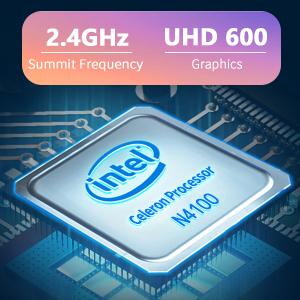
Image: The Intel Celeron N4100 processor, central to the laptop's performance, highlighting its clock speed and integrated graphics capabilities.

Image: The laptop's battery specifications, indicating its power capacity for extended use.
12. וואָראַנטי און שטיצן
For warranty information and technical support, please refer to the documentation included with your purchase or visit the official iProda website. Contact information for customer service can typically be found on the manufacturer's support page.


