הקדמה
This manual provides instructions for the MARVO GT-80 Wireless Gamepad. It covers setup, operation, maintenance, and troubleshooting for optimal use with compatible devices including PlayStation 4, PC, Android, and iOS.
פּעקל אינהאַלט
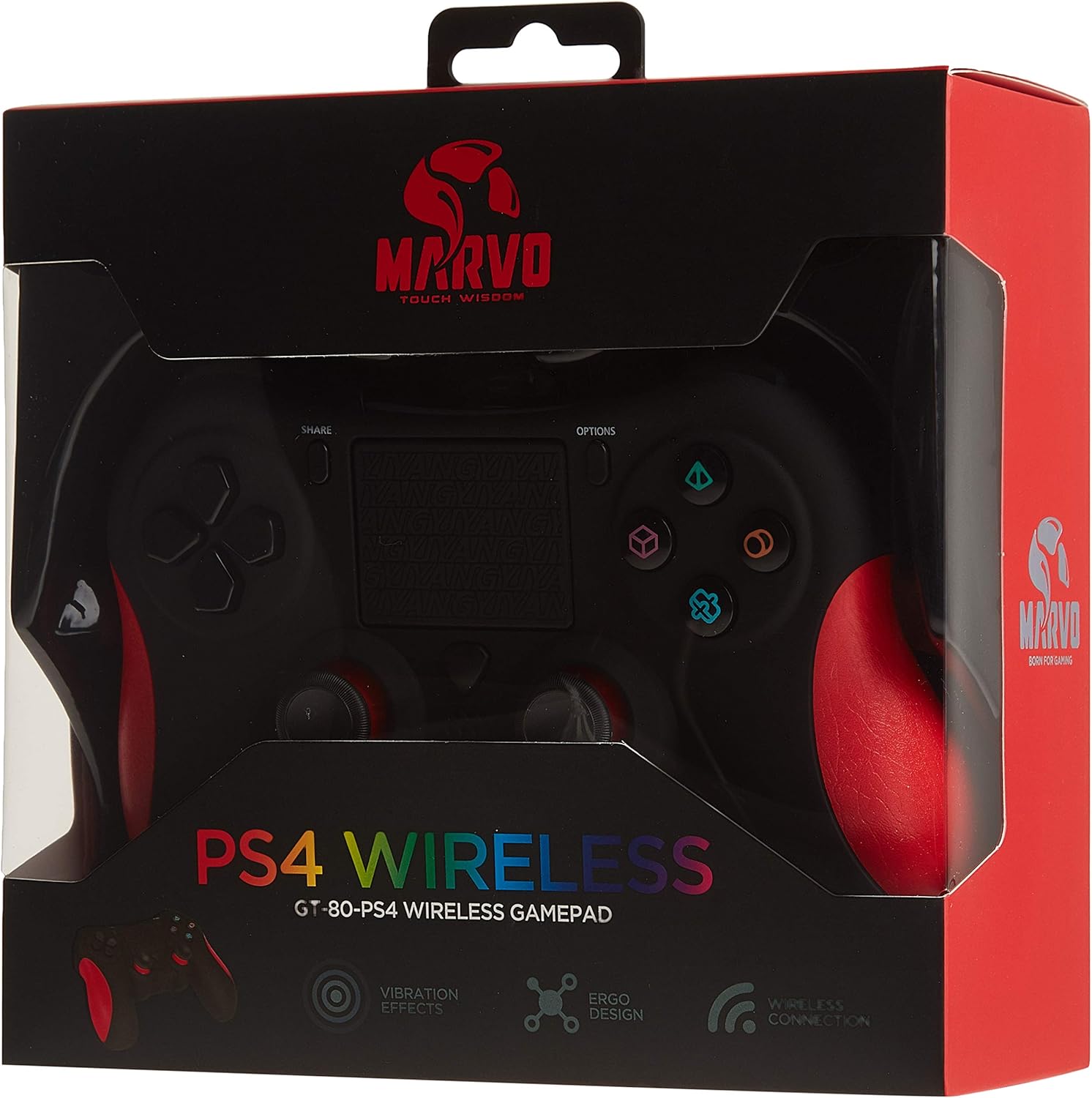
Image: The MARVO GT-80 Wireless Gamepad in its retail packaging.
- MARVO GT-80 ווירעלעסס גאַמעפּאַד
- USB Charging Cable (80 cm)
- באַניצער מאַנואַל (דעם דאָקומענט)
פּראָדוקט פֿעיִקייטן
- Wireless connectivity via Bluetooth V4.2
- Wired connectivity via USB cable
- Built-in rechargeable battery (600 mAh capacity)
- Double vibration feedback for immersive gaming
- Integrated 6-axis sensor (3D-Sensor + G-Sensor)
- Large LED light bar
- Built-in loudspeaker function
- 3.5 מם סטעריאָו כעדסעט דזשאַק שטיצן
- טאָוטשפּאַד קאָנטראָל
- 19 פּראָוגראַמאַבאַל קנעפּלעך
סעטאַפּ
1. אויפלאָדן דעם גאַמעפּאַד
Before first use, fully charge the gamepad. Connect the supplied USB cable to the Micro USB port on the gamepad and the other end to a USB power source (e.g., console, PC, USB wall adapter).

Image: The MARVO GT-80 Gamepad connected to its USB charging cable.
The LED light bar will indicate charging status. A full charge typically takes approximately 2-3 hours.
2. Connecting to PlayStation 4 (PS4)
- קער אויף דיין PS4 קאַנסאָול.
- Connect the gamepad to the PS4 console using the USB cable.
- Press the "PS" button on the gamepad. The gamepad will pair with the console.
- Once paired, you can disconnect the USB cable for wireless play.
3. Connecting to PC (Windows)
The gamepad supports both D-input and X-input modes for PC.
ווייערד קשר:
Connect the gamepad to your PC using the USB cable. The PC should automatically detect and install the necessary drivers. The gamepad will operate in D-input mode by default. Some games may require X-input mode, which can often be toggled via specific button combinations or software.
בלועטאָאָטה קאַנעקשאַן:
- זייט זיכער אז אייער קאמפיוטער האט בלועטוט ענייבאַלד.
- Put the gamepad into pairing mode (specific button combination, usually "SHARE" + "PS" button until LED flashes rapidly).
- On your PC, go to Bluetooth settings and search for new devices.
- Select "Wireless Controller" or "GT-80" from the list of available devices to pair.
4. Connecting to Android/iOS Devices
- Ensure Bluetooth is enabled on your Android or iOS device.
- Put the gamepad into pairing mode (specific button combination, usually "SHARE" + "PS" button until LED flashes rapidly).
- On your mobile device, go to Bluetooth settings and search for new devices.
- Select "Wireless Controller" or "GT-80" from the list of available devices to pair.
אַפּערייטינג ינסטראַקשאַנז
קנעפּל אויסלייג און פאַנגקשאַנז

בילד: פראָנט view of the MARVO GT-80 Wireless Gamepad.

בילד: הינטערשטע view of the MARVO GT-80 Wireless Gamepad, highlighting the M-buttons.
- Direction Buttons (D-Pad): Used for directional input.
- אנאַלאָג שטעקן: Two analog sticks for precise 3D movement and camera control.
- אַקציע קנעפּלעך (דרייעק, קרייז, קרייץ, קוואַדראַט): הויפּט קאַמף קנעפּלעך.
- טיילן קנעפּל: Used for sharing gameplay content (PS4).
- אָפּציעס קנעפּל: Access in-game menus or system options.
- PS קנעפּל: Power on/off the gamepad, access PS4 system menu.
- L1/R1 קנעפּלעך: אַקסל קנעפּלעך.
- L2/R2 טריגערס: Analog triggers.
- טאָוטשפּאַד: Multi-touch input surface.
- M1, M2, M3, M4 Buttons: Programmable back buttons (refer to device-specific instructions for programming).
ספּעציעלע פאַנגקשאַנז
- Double Vibration: גיט טאַקטיל פֿידבעק בעת גאַמעפּלייַ.
- 6-Axis Sensor: Includes a 3D-Sensor and G-Sensor for motion-controlled gameplay.
- הילכיקער: Integrated speaker for enhanced audio effects (PS4).
- ירפאָון פֿונקציע: Connect a 3.5mm stereo headset for audio output and microphone input (PS4).
וישאַלט
רייניקונג
Wipe the gamepad with a soft, dry cloth. Do not use harsh chemicals or abrasive cleaners. Avoid getting moisture into openings.
סטאָרידזש
Store the gamepad in a cool, dry place away from direct sunlight and extreme temperatures. Avoid placing heavy objects on the gamepad.
טראָובלעשאָאָטינג
Gamepad Does Not Power On
- Ensure the gamepad is fully charged. Connect it to a power source using the USB cable.
- Press the PS button to attempt to power it on.
קשר ישוז
- ווירעלעסס: Ensure Bluetooth is enabled on your device and the gamepad is in pairing mode. Try re-pairing the device.
- ווייערד: Ensure the USB cable is securely connected to both the gamepad and the device. Try a different USB port or cable.
- PS4: If issues persist, try resetting the gamepad (a small reset button is usually located on the back, requiring a pin to press).
Buttons or Joysticks Unresponsive
- זיכער מאַכן אַז די גאַמעפּאַד איז ריכטיק פארבונדן און אנגעצונדן.
- Test the gamepad with another game or application to rule out software issues.
- If possible, try resetting the gamepad.
ווייבריישאַן ניט ארבעטן
- קוק איבער די אין-שפּיל סעטטינגס צו זיכער מאַכן אַז ווייבריישאַן פֿידבעק איז ענייבאַלד.
- זיכער מאַכן אַז די גאַמעפּאַד איז גאָר אויפגעלאָדן.
ספּעסאַפאַקיישאַנז

Image: Technical specifications as printed on the product packaging.
| שטריך | דעטאַל |
|---|---|
| מאָדעל | GT-80 |
| קאַנעקטיוויטי | Wireless (Bluetooth V4.2), Wired (USB cable) |
| קנעפּלעך | 19 |
| באַטאַרייע קאַפּאַציטעט | 600 מאַ |
| רעדנער | 6/8Ω-1W |
| צובינד | EXT שטיצן, 3.5 מם דזשאַק |
| קאַמפּאַטאַבילאַטי | PS4, PC (D-input & X-input), Android, iOS |
| באַוועגונג סענסאָר | 3D-Sensor + G-Sensor |
| מיקראָ וסב קאַבלע לענג | 80 סענטימעטער |
| דימענשאַנז | 40.49 X 9.5 X 9.5 סענטימעטער |
| וואָג | 310 ג |
וואָראַנטי און שטיצן
For warranty information and technical support, please refer to the documentation provided with your purchase or contact MARVO customer service directly. Keep your proof of purchase for warranty claims.