הקדמה
This manual provides essential information for setting up, operating, maintaining, and troubleshooting your SYSTEMTREFF PC AMD Ryzen 7 5700G. Please read this manual thoroughly before using your new computer to ensure proper functionality and longevity.

בילד: פראָנט-זייט view of the SYSTEMTREFF PC, showcasing its transparent side panel and illuminated internal components.
סעטאַפּ גייד
Follow these steps to set up your SYSTEMTREFF PC.
1. אויספּאַקן און פּלאַצירונג
- Carefully remove the PC from its packaging. Retain all packaging materials for future transport or service.
- Place the PC on a stable, flat surface with adequate ventilation. Ensure there is sufficient space around the computer for airflow, especially at the front, rear, and top vents.
- Avoid placing the PC near heat sources, in direct sunlight, or in areas with excessive dust or humidity.

בילד: פארשידענע views of the PC case illustrating its physical dimensions for proper placement.
2. קאַנעקטינג פּעריפעראַלס
Connect your monitor, keyboard, mouse, and other devices to the appropriate ports.
- מאָניטאָר: Connect your monitor to the HDMI or DVI-D port on the rear of the PC. Ensure the cable is securely fastened.
- קלאַוויאַטור און מויז: Connect your USB keyboard and mouse to any available USB ports (USB 2.0 or USB 3.0/3.2). PS/2 ports are also available for compatible devices.
- אַודיאָ: Connect speakers or headphones to the audio output jack (green) and a microphone to the microphone input jack (pink) on the rear or front panel.
- נעץ: For a wired connection, connect an Ethernet cable from your router to the RJ45 LAN port on the rear. For wireless connectivity, ensure the included USB Wi-Fi stick is connected.
- מאַכט: Connect the power cable to the power supply unit (PSU) at the rear of the PC, then plug the other end into a grounded electrical outlet.

בילד: דעטאַלירט view of the available front and rear ports for connecting various peripherals.
אַפּערייטינג ינסטראַקשאַנז
1. First Boot and Initial Setup
- After connecting all peripherals, press the power button located on the top front of the PC.
- The system will boot into Windows 10 Pro. Follow the on-screen instructions to complete the initial Windows setup, including region, language, and user account creation.
- Drivers for all components are pre-installed, ensuring a plug-and-play experience.
2. יקערדיק באַניץ
- מאַכט אויף / אַוועק: Press the power button to turn on. To shut down, click the Start button in Windows, then select Power > Shut down.
- ריסטאַרט: צו ריסטאַרטן דאָס סיסטעם, גיט דעם סטאַרט קנעפּל, און דערנאָך סעלעקטירט פּאַוער > ריסטאַרט.
- שלאָפן מאָדע: כדי צו שטעלן די סיסטעם אין שלאָף מאָדע, גיט דעם אָנהייב קנעפּל, און דערנאָך סעלעקטירן מאַכט > שלאָף.
- קאַנעקטיוויטי: The PC supports Wi-Fi and Bluetooth for wireless connections. Use the Windows settings to connect to wireless networks or pair Bluetooth devices.

בילד: עקסamples of typical usage scenarios for the PC, including productivity, entertainment, and gaming.
וישאַלט
Regular maintenance helps ensure the optimal performance and longevity of your PC.
1. רייניקונג
- עקסטעריע: ניצן אַ ווייך, דamp cloth to clean the exterior of the case. Avoid abrasive cleaners.
- שטויב: Periodically clean dust from the vents and fans using compressed air. Ensure the PC is powered off and unplugged before cleaning. The case features a mesh front and side panel for improved airflow and dust filtration.

Image: Features of the PC case designed for efficient cooling and maintenance access.
2. ווייכווארג דערהייַנטיקונגען
- קאָנטראָלירט רעגולער פֿאַר און אינסטאַלירט ווינדאָוז דערהייַנטיקונגען צו ענשור סיסטעם פעסטקייט און זיכערהייט.
- Keep your graphics drivers updated for optimal performance, especially for gaming and multimedia applications.
טראָובלעשאָאָטינג
די סעקציע באהאנדלט אלגעמיינע פראבלעמען וואס איר קענט באגעגענען.
קיין מאַכט
- זיכער מאַכן אַז דער מאַכט קאַבל איז זיכער פארבונדן צו ביידע דעם פּיסי און די עלעקטרישע ווענטיל.
- Verify that the power switch on the back of the power supply unit (PSU) is in the 'On' position.
- Test the outlet with another device to confirm it is functional.
קיין אַרויסווייַזונג אויף מאָניטאָר
- Check that the monitor is powered on and its video cable is securely connected to the PC's HDMI or DVI-D port.
- Ensure the monitor input source is correctly selected (e.g., HDMI 1, DVI).
- If you have multiple display outputs, try connecting to a different port.
סיסטעם פארלאנגזאמונג אדער איינפרירן
- שליסט אומנייטיקע אַפּליקאַציעס וואָס לויפן אין הינטערגרונט.
- Check for sufficient free space on your drives, especially the C: drive (SSD).
- לויפט א ווירוס סקען צו קאָנטראָלירן פֿאַר מאַלוואַרע.
- זייט זיכער אז דער קאמפיוטער האט גענוג ווענטילאציע און ווערט נישט איבערהייצט.
ספּעסאַפאַקיישאַנז
Detailed technical specifications of your SYSTEMTREFF PC.
| קאָמפּאָנענט | באַשרייַבונג |
|---|---|
| פּראַסעסער | AMD Ryzen 7 5700G (8 Cores, up to 4.6 GHz Turbo) |
| גראַפיקס | Integrated AMD Radeon RX Vega 8 (4GB, 2000 MHz, DirectX 12.1) |
| באַראַן | 32 גיגאבייט DDR4 3200 מעגארץ |
| סטאָרידזש | 1TB M.2 NVMe SSD + 2TB HDD |
| אָפּערייטינג סיסטעם | Windows 10 Pro (64-bit, pre-installed) |
| מאַכט צושטעלן | 500 וואט |
| קאַנעקטיוויטי | Wi-Fi, Bluetooth, Gigabit LAN (RJ45) |
| פראָנט פּאָרץ | 1x USB 3.0, 2x USB 2.0, Audio In/Out |
| דערציען פּאָרץ | HDMI 4K HD, DVI-D, PS/2, 4x USB 3.2, 2x USB 2.0, HD 7.1 Sound, RJ45 LAN |
| דימענשאַנז (HxWxD) | 45 X 20.5 X 38.5 סענטימעטער |
| וואָג | 12 קג |

Image: Visual summary of the PC's core performance components.


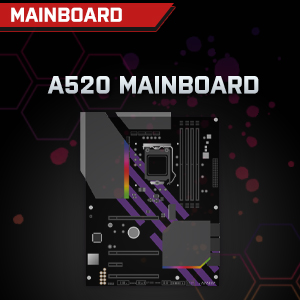

Image: Individual component representations for CPU, RAM, Graphics, Storage, Mainboard, and Power Supply.
וואָראַנטי און שטיצן
SYSTEMTREFF is committed to providing excellent customer service.
- פאַבריקאַנט ס וואָראַנטי: Your SYSTEMTREFF PC comes with a 36-month (3-year) manufacturer's warranty. This warranty covers defects in materials and workmanship under normal use.
- קוואַליטעט קאָנטראָל: All individually assembled PCs undergo a quality control check before shipment.
- קערט: In case of issues, SYSTEMTREFF offers free returns.
- קאָנטאַקט שטיצן: For technical assistance, warranty claims, or any other inquiries, please contact SYSTEMTREFF customer support. Contact details can typically be found on the manufacturer's official webוועבזייטל אדער די דאקומענטאציע וואס איז אריינגערעכנט מיט אייער קויפן.

Image: Information regarding warranty, ease of setup, and customer support availability.


