1. הקדמה
Welcome to the user manual for your Orbic Journey V Verizon Postpaid 4G LTE Flip Phone. This guide provides essential information on setting up, operating, maintaining, and troubleshooting your device. The Orbic Journey V is a compact and reliable flip phone designed for clear communication and essential smart features, running on the KaiOS operating system and supporting 4G LTE connectivity.
Please read this manual thoroughly to ensure proper use and to maximize the performance and longevity of your phone.
2. סעטאַפּ
2.1. אויספּאַקן און פּאַקעט אינהאַלט
Upon opening your Orbic Journey V package, verify that all components are present:
- אָרביק דזשאָורניי V פליפּ טעלעפאָן
- קריקאָנלאָדלעך ליטהיום יאָן באַטערי
- טשאַרדזשער
2.2. באַטאַרייע ייַנמאָנטירונג
- געפינט די באַטעריע דעקל אויף דער צוריק פון דעם טעלעפאָן.
- Gently pry open the battery cover using the designated notch.
- Align the battery's gold contacts with the terminals inside the battery compartment.
- Press the battery down firmly until it clicks into place.
- Replace the battery cover, ensuring it is securely latched.
2.3. סים קאָרט ינסטאַלירונג
Your Orbic Journey V requires a Nano-SIM card for cellular service. Ensure the phone is powered off before inserting or removing the SIM card.
- Remove the battery cover and the battery as described in Section 2.2.
- Locate the SIM card slot, typically near the battery compartment.
- Insert the Nano-SIM card into the slot with the gold contacts facing down and the notched corner aligned with the slot's guide.
- Gently push the SIM card until it locks into place.
- צוריקשטעלן די באַטאַרייע און באַטאַרייע דעקל.
2.4. ערשטע איינשטראָם און אויפלאָדן
To power on your phone for the first time, press and hold the Power/End Call button until the screen illuminates. It is recommended to fully charge the phone before first use.
- פֿאַרבינדט דעם טשאַרדזשער צום טעלעפֿאָן'ס טשאַרדזשינג פּאָרט.
- צאַפּן די טשאַרדזשער אין אַ נאָרמאַל עלעקטריקאַל ווענטיל.
- דער טשאַרדזשינג אינדיקאַטאָר וועט דערשייַנען אויף דעם עקראַן.
- אַמאָל גאָר באפוילן, דיסקאַנעקט די טשאַרדזשער.
3. אפערירן דיין טעלעפאָן
3.1. Phone Layout and Keys
Familiarize yourself with the physical components and buttons of your Orbic Journey V.
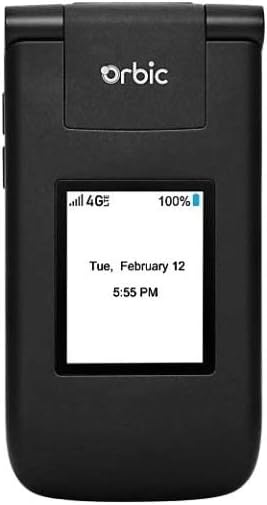
פיגורע 3.1: פראָנט view of the Orbic Journey V, closed. The external display shows signal strength, battery level, and the current time and date.

Figure 3.2: Orbic Journey V in open position, revealing the main screen and the full alphanumeric keypad with navigation buttons.

פיגורע 3.3: דערציען view of the Orbic Journey V, highlighting the main camera lens and the Verizon branding.
- פונדרויסנדיק ווייַז: Shows time, date, notifications, and caller ID when the phone is closed.
- אינערלעכע אויסשטעלונג: Main screen for navigating menus, viewing content, and interacting with applications.
- Navigation Key (D-Pad): געניצט צו גיין דורך מעניוז און אויסקלייבן אָפּציעס.
- Center Select Key: קאַנפערמז סאַלעקשאַנז.
- Call/Send Key: Initiates calls and answers incoming calls.
- ענדיגן רוף/מאכט קנעפל: Ends calls, returns to the home screen, and powers the phone on/off.
- צוריק/אויסמעקן קנעפל: Returns to the previous screen or deletes characters.
- באַנד קיז: Adjusts call volume, media volume, and ringer volume.
- קאַמעראַ שליסל: Quick access to the camera function.
3.2. יקערדיק נאַוויגאַציע
The Orbic Journey V operates on KaiOS. Use the Navigation Key to scroll through menu options and the Center Select Key to open applications or confirm actions.
- From the home screen, press the Navigation Key (up, down, left, right) to access shortcuts or navigate the main menu.
- Press the Center Select Key to open the main application menu.
- Press the Back/Clear key to go back to the previous screen.
3.3. מאכן און ריסיווינג קאַללס
- צו מאַכן אַ רוף: Enter the phone number using the keypad and press the Call/Send key. Alternatively, navigate to Contacts, select a contact, and press the Call/Send key.
- צו ענטפֿערן אַ רוף: When the phone rings, press the Call/Send key.
- צו ענדיקן אַ רוף: Press the End Call/Power key.
3.4. שיקן און באַקומען מעסעדזשעס
- To Send a Message: From the main menu, select 'Messages'. Choose 'New Message', enter the recipient's number or select from contacts, type your message using the keypad, and press 'Send'.
- To Receive a Message: New messages will typically display a notification on the screen. Navigate to the 'Messages' application to view דיין ינבאָקס.
3.5. קאַמעראַ יוז
The Orbic Journey V is equipped with front and rear cameras. The rear camera is located on the upper-right back of the phone.
- To Open Camera: Press the dedicated Camera key or navigate to the 'Camera' application from the main menu.
- צו נעמען אַ פאָטאָ: Frame your shot on the screen and press the Center Select key to capture the image.
- Viewאין פאָטאָס: Access your photos through the 'Gallery' application.
3.6. Connectivity (Bluetooth, Wi-Fi)
Your phone supports Bluetooth and Wi-Fi for wireless connectivity.
- בלועטאָאָטה: Go to 'Settings' > 'Network & Connectivity' > 'Bluetooth'. Turn Bluetooth on, and the phone will search for available devices. Select a device to pair.
- ווי-פי: Go to 'Settings' > 'Network & Connectivity' > 'Wi-Fi'. Turn Wi-Fi on, select an available network, and enter the password if required.
4. וישאַלט
4.1. רייניקן דיין טעלעפאָן
To keep your phone in optimal condition, clean it regularly:
- ניצט אַ ווייכן, לינט-פֿרייע שטאָף צו ווישן דעם עקראַן און קערפּער.
- פֿאַרמײַדן ניצן שטרענגע כעמיקאַלן, אַברייסיוו רייניגער, אָדער אַעראָסאָל ספּרײַס.
- Ensure the phone is powered off and unplugged before cleaning.
4.2. באַטערי קער
Proper battery care can extend its lifespan:
- ויסמיידן עקסטרעם טעמפּעראַטורעס.
- Do not leave the phone charging for excessively long periods after it's full.
- If the phone will not be used for an extended period, store it with a partial charge (around 50%).
4.3. ווייכווארג דערהייַנטיקונגען
רעגולערע ווייכווארג דערהייַנטיקונגען צושטעלן נייַע פֿעיִקייטן, זיכערהייט פֿאַרבעסערונגען און באַג פיקסיז.
- פאַרבינדן דיין טעלעפאָן צו Wi-Fi.
- Go to 'Settings' > 'Device' > 'Software Update'.
- Follow the on-screen prompts to check for and install any available updates.
5. טראָובלעשאָאָטינג
This section addresses common issues you might encounter with your Orbic Journey V.
5.1. טעלעפאָן טוט זיך נישט אָן
- זיכער מאַכן אַז די באַטאַרייע איז ריכטיק אינסטאַלירט און אויפגעלאָדן. פֿאַרבינדט דעם טשאַרדזשער און וואַרט אַ פּאָר מינוט איידער איר פּרוּווט עס אָנצוצינדן.
- Try removing and reinserting the battery, then attempt to power on again.
5.2. Poor Call Quality or No Signal
- Check your location for network coverage. Move to an area with better signal.
- זייט זיכער אַז אייער סים קאַרטל איז ריכטיק אַרײַנגעשטעלט.
- ריסטאַרט די טעלעפאָן.
- Verify that your account with Verizon is active and in good standing.
5.3. באַטעריע דריינט זיך שנעל אויס
- שליסט נישט גענוצטע אַפּליקאַציעס וואָס לויפן אין הינטערגרונט.
- רעדוצירן פאַרשטעלן ברייטנאַס.
- אויסלעשן Wi-Fi, בלועטוט, אדער GPS ווען נישט אין באנוץ.
- Check for and install any available software updates, as these often include battery optimizations.
5.4. Software or Navigation Issues
- If the phone is unresponsive, try a soft reset by removing and reinserting the battery.
- Ensure the phone's software is up to date.
- אויב פראבלעמען בלייבן, באַטראַכט אַ פאַבריק ריסעט (Note: This will erase all data on the phone. Back up important information first.). Navigate to 'Settings' > 'Device' > 'Reset Phone'.
6. ספּעסאַפאַקיישאַנז
| שטריך | דעטאַל |
|---|---|
| מאָדעל נאָמען | אָרביק דזשאָורניי V |
| סאָרט | אָרביק |
| ASIN | B08971YYM1 |
| אָפּערייטינג סיסטעם | קאַיאָס |
| ווירעלעסס קאַריער | וועריזאָן |
| סעליאַלער טעכנאָלאָגיע | LTE |
| קאַנעקטיוויטי טעכנאָלאָגיע | בלועטאָאָטה, ווי-פי |
| פאָרם פאַקטאָר | פליפּ |
| קאָליר | שוואַרץ |
| פאַרשטעלן גרייס | 5.8 inches (Standing screen display size) |
| האַכלאָטע | 1520 X 720 |
| אַפּאַראַט פֿעיִקייטן | פראָנט, דערציען |
| אַודיאָ דזשאַק | קיין כעדפאָון דזשעק |
| באַטעריז | 1 ליטהיום יאָן באַטאַרייע (אַרייַנגערעכנט) |
| פּונקט וואָג | 12.8 אונסעס |
| פּעקל דימענשאַנז | 5 X 3 X 3 אינטשעס |
| ערשטער דאַטע בנימצא | 26 מאי 2020 |
7. וואָראַנטי און שטיצן
For warranty information and technical support regarding your Orbic Journey V phone, please refer to the documentation provided with your purchase or contact Orbic directly. You can also visit the official Orbic webפּלאַץ פֿאַר שטיצן רעסורסן.
For service-related inquiries, please contact your wireless carrier, Verizon.
- פאַבריקאַנט: אָרביק
- ווירעלעסס טרעגער: וועריזאָן