1. הקדמה
This user manual provides detailed instructions for the installation, operation, and maintenance of the Delock HDMI/USB-C™ KVM Switch 4K 60Hz with USB 2.0, Model 11477. Please read this manual thoroughly before using the device to ensure proper functionality and to prevent damage.
2. זיכערקייַט אינפֿאָרמאַציע
כדי צו זיכער מאַכן זיכערע אָפּעראַציע און פאַרלענגערן די לעבן פון אייער אַפּאַראַט, ביטע אָבסערווירן די פאלגענדע זיכערהייט מיטלען:
- שטעלט נישט אויס דעם אפאראט צו פייכטקייט, עקסטרעמע טעמפעראטורן, אדער דירעקטער זונשייַן.
- נעמט נישט אויס אדער מאדיפיצירט נישט דאס אפאראט. דאס וועט בטל מאכן די גאראנטיע און קען שאפן שאדן.
- Use only the specified power adapter (if applicable) and cables.
- האַלטן די מיטל אַוועק פון שטאַרק ילעקטראָומאַגנעטיק פעלדער.
- זיכער מאַכן אַז די ווענטילאַציע אַרום דעם אַפּאַראַט איז ריכטיק בעתן אָפּעראַציע.
3. פּעקל אינהאַלט
Please check the package contents upon unpacking. If any items are missing or damaged, contact your vendor immediately.
- Delock HDMI/USB-C™ KVM Switch 4K 60Hz (Model 11477)
- USB-C™ to USB-C™ cable
- וסב-א צו וסב-ב קאַבלע
- באַניצער מאַנואַל

Figure 3.1: Delock KVM Switch with included USB-C to USB-C and USB-A to USB-B cables.
4. פּראָדוקט איבערview
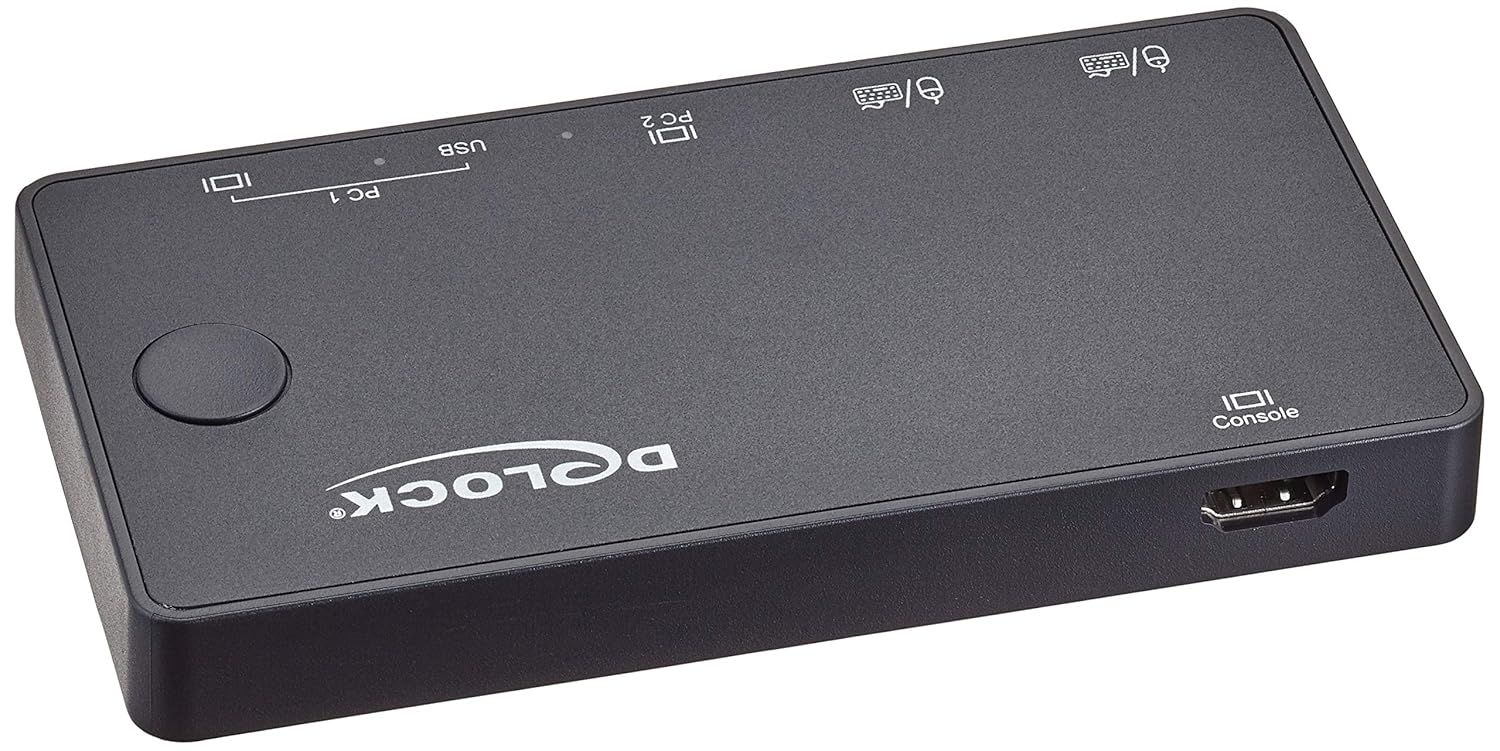
The Delock KVM Switch allows you to control two computers (one with HDMI/USB-A, one with USB-C) from a single set of console peripherals (monitor, keyboard, mouse).
4.1 Front/Top Panel

פיגורע 4.1: שפּיץ view of the Delock KVM Switch.
- Console USB Ports (Keyboard/Mouse): Two USB 2.0 Type-A ports for connecting your keyboard and mouse.
- PC 2 USB-C™ Port: Connects to a computer with a USB-C™ port for video and USB data.
- PC 1 USB Port: Connects to a computer's USB-A port for USB data.
- PC 1 HDMI Port: Connects to a computer's HDMI output for video.
- באַשטימען קנעפּל: Press to switch between PC 1 and PC 2.
- LED ינדיקאַטאָרס: Indicate the currently active PC (PC 1 or PC 2).
4.2 דערציען פּאַנעל
פיגורע 4.2: דערציען view of the Delock KVM Switch.
- Console HDMI Port: Connects to your monitor.
5. סעטאַפּ און ייַנמאָנטירונג
Follow these steps to set up your Delock KVM Switch:
- Connect Console Peripherals:
- Connect your HDMI monitor to the "Console HDMI" port on the rear of the KVM switch.
- Connect your USB keyboard and mouse to the "Console USB" ports on the front of the KVM switch.
- Connect PC 1:
- Connect an HDMI cable from your PC 1's HDMI output to the "PC 1 HDMI" input on the KVM switch.
- Connect the included USB-A to USB-B cable from your PC 1's USB-A port to the "PC 1 USB" input on the KVM switch.
- Connect PC 2:
- Connect the included USB-C™ to USB-C™ cable from your PC 2's USB-C™ port (which supports DisplayPort Alternate Mode and USB data) to the "PC 2 USB-C™" input on the KVM switch.
- מאַכט אויף:
The KVM switch is typically powered via the USB connections from the connected computers. Ensure both PCs are powered on for stable operation.
Once all connections are made, the KVM switch should automatically detect the active computer. The LED indicator will show which PC is currently selected.
6. אַפּערייטינג ינסטרוקטיאָנס
The Delock KVM Switch offers simple operation to switch between connected computers.
6.1 וועקסלען צווישן קאָמפּיוטערס
To switch between PC 1 and PC 2, simply press the "Switch Button" located on the top panel of the KVM switch. The corresponding LED indicator will illuminate to show the active computer.
באַמערקונג: Ensure both computers are powered on and sending a video signal for seamless switching.
7. טראָובלעשאָאָטינג
If you encounter issues with your Delock KVM Switch, please refer to the following common problems and solutions:
| פּראָבלעם | מעגלעך סיבה / לייזונג |
|---|---|
| קיין ווידעא ארויסגאנג אויף מאָניטאָר. |
|
| קלאַוויאַטור/מויז רעאַגירט נישט. |
|
| Cannot switch between PCs. |
|
| Video resolution/refresh rate issues. |
|
8. ספּעסאַפאַקיישאַנז
The following are the technical specifications for the Delock KVM Switch 11477:
- מאָדעל: 11477
- פֿונקציע: HDMI / USB-C™ KVM Switch
- ווידעא האַכלאָטע: Up to 4K (3840 x 2160) @ 60Hz
- וסב סטאַנדאַרד: USB 2.0 (for keyboard/mouse), USB-C™ (for PC 2 data/video)
- אַרייַנשרייַב פּאָרץ:
- PC 1: 1 x HDMI, 1 x USB-B
- PC 2: 1 x USB-C™ (DisplayPort Alt Mode)
- Output Ports (Console):
- קסנומקס רענטגענ הדמי
- 2 x USB-A (for keyboard/mouse)
- באַשטימען אופֿן: דרוק קנעפּל
- דימענשאַנז (LxWxH): 3.6 x 1.72 x 2.25 אינטשעס (אומגעפער 91.44 x 43.69 x 57.15 מ״מ)
- וואָג: 11.29 אונס (בעערעך 320 גראַמז)
- אָפּעראַציע מאָדע: מאַנואַל
- פאַבריקאַנט: דעלאָקק
9. וישאַלט
The Delock KVM Switch requires minimal maintenance. Follow these guidelines to keep your device in optimal condition:
- רייניקונג: ניצט אַ ווייכע, טרוקענע שטאָף צו רייניקן די אויסערלעכע זייט פון דעם אַפּאַראַט. ניצט נישט קיין פליסיקע רייניקונגס-מיטלען אדער אַעראָזאָלן.
- סטאָרידזש: ווען נישט אין באַנוץ פֿאַר לענגערע פּעריאָדן, זאָל מען דאָס אַפּאַראַט אויפֿהיטן אין אַ קיל, טרוקן אָרט, אַוועק פֿון דירעקטער זון און עקסטרעמע טעמפּעראַטורן.
- ווענטילאַטיאָן: זיכערט זיך אז די ווענטילאציע עפענונגען פונעם אפאראט זענען נישט פארשטאפט כדי צו פארמיידן איבערהיצונג.
10. וואָראַנטי און שטיצן
For warranty information and technical support, please refer to the documentation provided with your purchase or visit the official Delock webזייטל. האַלט דיין קויפן באַווייַז פֿאַר וואָראַנטי קליימז.
Delock Official Webפּלאַץ: www.delock.com


