1. הקדמה
Thank you for choosing the HiLook HIKVISION 204U-K1 4-Channel 5MP HD DVR. This manual provides essential information for the proper installation, operation, and maintenance of your digital video recorder. Please read this manual thoroughly before using the product and retain it for future reference.
2. וויכטיק סאַפעטי אינסטרוקציעס
- מאַכט צושטעלן: ניצט נאָר דעם מאַכט אַדאַפּטער וואָס איז ספּעציפֿיצירט פֿאַר דעם מיטל. זיכערט זיך אַז דער מאַכט וואָלומען איזtage is stable and meets the requirements.
- ווענטילאַטיאָן: בלאָקירט נישט קיין ווענטילאַציע עפענונגען. אינסטאַלירט לויט די אינסטרוקציעס פונעם פאַבריקאַנט.
- וואַסער און נעץ: Do not expose the device to rain or moisture. Do not place objects filled with liquids, such as vases, on the apparatus.
- טעמפּעראַטור: Operate the device within the specified temperature range. Avoid extreme hot or cold environments.
- רייניקונג: ריין בלויז מיט אַ טרוקן שטאָף. דו זאלסט נישט נוצן פליסיק קלינערז אָדער אַעראָסאָל קלינערז.
- סערוויס: דו זאלסט נישט פּרווון צו דינען דעם פּראָדוקט זיך. קאָנטאַקט אַלע קוואַלאַפייד סערוויס פּערסאַנעל.
- שווער פאָר: Handle the hard drive with care. Improper installation or removal can cause data loss or damage.
3. פּעקל אינהאַלט
Verify that all items are present and in good condition upon unpacking. If any items are missing or damaged, contact your retailer.
- HiLook HIKVISION 204U-K1 DVR Unit
- מאַכט אַדאַפּטער
- וסב מאַוס
- SATA Data Cable (for HDD connection)
- SATA Power Cable (for HDD connection)
- שנעל אָנהייב גייד

Figure 3.1: The HiLook HIKVISION 204U-K1 DVR unit, shown with an optional hard drive and included accessories such as a mouse and cables.
4. ערשט סעטאַפּ
4.1. פֿאַרבינדן דעם DVR
Follow these steps to connect your DVR to cameras, a monitor, and the network.
- אינסטאַלירן האַרט דרייוו (אפציאָנעל): If your DVR did not come with a pre-installed hard drive, open the DVR casing, connect the SATA data and power cables to the HDD, and secure the HDD inside the DVR.
- פֿאַרבינדן קאַמעראַס: Connect your surveillance cameras to the BNC video input ports on the rear panel of the DVR. This model supports 4 channels.
- פֿאַרבינדן מאָניטאָר: Connect a monitor to the HDMI or VGA output port on the rear panel.
- פאַרבינדן נעץ: Connect an Ethernet cable from the DVR's LAN port to your router or network switch for remote access and network features.
- פאַרבינדן USB מויז: Plug the included USB mouse into one of the USB ports for navigation.
- פאַרבינדן מאַכט: Connect the power adapter to the DVR's power input and then plug it into a power outlet.

Figure 4.1: Rear panel of the DVR, illustrating the various input and output ports including video in, audio in/out, VGA, HDMI, USB, network interface, and power supply.
4.2. פּאַוערינג אויף
After all connections are made, the DVR will power on automatically. The system will boot up, and you should see the HiLook logo on your connected monitor. Follow the on-screen prompts for initial setup, including setting up an administrator password and configuring network settings.
5. אָפּעראַציע גייד
5.1. באַניצער צובינד איבערview
The DVR's graphical user interface (GUI) can be navigated using the USB mouse. Right-click to access the main menu, and left-click to select options. The live view displays feeds from connected cameras.
5.2. רעקאָרדינג און פּלייַבאַקק
- מאַנואַל רעקאָרדינג: פון די לייוו view, click the record icon to start or stop manual recording for a specific channel.
- סקעדזשולד רעקאָרדינג: Access the main menu, navigate to רעקאָרד > סקעדזשול to set up continuous or motion-triggered recording schedules for each camera.
- פּלייבאַק: פון די הויפּט מעניו, אויסקלייַבן פּלייַבאַקק. Choose the date, time, and camera channel to review רעקאָרדעד פוtage.
5.3. באַוועגונג דעטעקציע און וואָרענונגען
The DVR supports smart motion detection and can send alerts via email or push notifications to a mobile application.
- Configure Motion Detection: גיין צו Main Menu > Alarm > Motion Detection. Select the camera channel, enable motion detection, and define the detection area and sensitivity.
- Set Up Email Alerts: In Main Menu > Network > Email, configure your SMTP server settings and recipient email addresses. Enable email linkage for motion detection events.
- Mobile App Notifications: Download the official HiLook mobile application. Add your DVR to the app and enable push notifications for alarm events.

Figure 5.1: A smartphone screen showing a real-time email notification triggered by smart motion detection.

Figure 5.2: A smartphone displaying multiple smart motion-triggered alerts, indicating movement detected in specific areas monitored by surveillance cameras.
6. וישאַלט
- רייניקונג: Regularly clean the exterior of the DVR with a soft, dry cloth. Ensure ventilation openings are free from dust.
- Firmware דערהייַנטיקונגען: Check the official HiLook website for the latest firmware updates. Updating firmware can improve performance and add new features. Follow the provided instructions carefully.
- האַרט דרייוו פאַרוואַלטונג: Periodically check the health of your hard drive through the DVR's system settings. Ensure sufficient storage space is available for recordings.
- שפּריכוואָרט זיכערהייט: Regularly change your administrator password to maintain system security.
7. טראָובלעשאָאָטינג
If you encounter issues with your DVR, refer to the table below for common problems and solutions.
| פּראָבלעם | מעגלעך סיבה | לייזונג |
|---|---|---|
| קיין ווידעא ארויסגאַנג אויף מאָניטאָר | Loose HDMI/VGA cable; Incorrect monitor input; DVR not powered on. | Check cable connections; Select correct input on monitor; Verify power supply. |
| קיין אַפּאַראַט בילד | Camera not powered; Loose BNC cable; Faulty camera. | Ensure camera power; Check BNC connections; Test camera with another input if possible. |
| קען נישט צוטריטן צו דער DVR פון ווייטנס | Network cable disconnected; Incorrect network settings; Firewall blocking access. | Verify Ethernet connection; Check IP address, gateway, DNS settings; Configure router/firewall. |
| ניט רעקאָרדינג | Hard drive not installed/initialized; Recording schedule not set; HDD full. | Install/initialize HDD; Configure recording schedule; Check HDD status and capacity. |
| באַוועגונג דיטעקשאַן איז נישט ארבעטן | Motion detection disabled; Sensitivity too low; Detection area not set. | Enable motion detection; Adjust sensitivity; Define detection area. |
8. טעכניש ספּעסאַפאַקיישאַנז
Below are the key technical specifications for the HiLook HIKVISION 204U-K1 DVR.
| שטריך | באַשרייַבונג |
|---|---|
| מאָדעל | 204U-K1 |
| ווידעא אַרייַנשרייַב | 4-channel BNC interface (supports HDTVI/AHD/CVI/CVBS/IP) |
| ווידעא קאַמפּרעשאַן | H.265 Pro+/H.265 Pro/H.265/H.264 |
| ווידעא רעזולטאַט | 1 HDMI, 1 VGA (simultaneous output) |
| HDMI רעזולטאַט האַכלאָטע | Up to 4K (3840 × 2160) for 204U-K1 |
| אַודיאָ אַרייַנשרייַב / רעזולטאַט | 1-ch RCA (2-way audio) / 1-ch RCA |
| שווער דיסק דרייוו (הדד) | 1 SATA צובינד, ביז 10 טב קאַפּאַציטעט |
| נעץ צובינד | 1 RJ45 10M/100M זיך-אַדאַפּטיוו עטהערנעט צובינד |
| וסב צובינד | 2 × וסב 2.0 |
| מאַכט צושטעלן | 12 וודק |
| דימענשאַנז (ב × ד × ה) | Approx. 200 × 200 × 45 mm (7.9 × 7.9 × 1.8 inch) |
| וואָג (אָן הדד) | בעערעך. 1 קג (2.2 לב) |
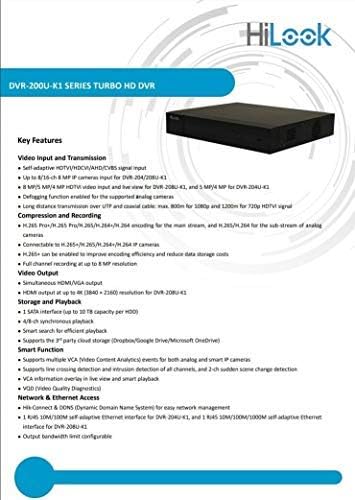
Figure 8.1: A detailed list of key features for the DVR-200U-K1 series, including video input/transmission, compression, video output, storage, smart functions, and network access.
9. גאַראַנטיע און קונה שטיצע
Your HiLook HIKVISION 204U-K1 DVR comes with a limited warranty. Please refer to the warranty card included in your package or visit the official HiLook website for detailed warranty terms and conditions. For technical assistance, troubleshooting, or service inquiries, please contact your authorized HiLook dealer or customer support.
אָנליין רעסורסן: For additional support, firmware downloads, and FAQs, please visit the official HiLook support webפּלאַץ.


