1. הקדמה
This manual provides detailed instructions for the memzuoix 2.4G Portable Wireless Mouse, Model WM-697. Please read this manual carefully before using the product to ensure proper operation and to maximize its lifespan.
פּעקל אינהאַלט
- 1 x memzuoix 2.4G Portable Wireless Mouse (Model WM-697)
- 1 x וסב נאַנאָ ופנעמער
- 1 x באַניצער מאַנואַל (דאָס דאָקומענט)

Image 1.1: The memzuoix wireless mouse and its USB nano receiver.
2. ספּעסאַפאַקיישאַנז
| שטריך | דעטאַל |
|---|---|
| מאָדעל | WM-697 |
| קאַנעקטיוויטי | 2.4GHz ווירעלעס (USB ריסיווער) |
| דפּי | 1400 דפּי |
| קנעפּלעך | 5 (Left, Right, Scroll Wheel, Forward, Backward) |
| באַוועגונג דעטעקטיאָן | אָפּטיש |
| אַפּערייטינג קייט | אַרויף צו 43 פֿיס (13 מעטער) |
| מאַכט מקור | 2 X AAA באַטעריז (ניט אַרייַנגערעכנט) |
| שלאָף מאָדע | Automatic after 7 minutes of inactivity |
| דימענסיעס (L X W X H) | 4.19 X 2.63 X 1.50 אינטשעס |
| וואָג | 2.22 אונסעס |
| קאַמפּאַטאַבילאַטי | Windows 7/8/10/XP, Vista 7/8, Mac OS, Linux |

Image 2.1: Physical dimensions of the mouse.
3. סעטאַפּ גייד
3.1 באַטאַרייע ייַנמאָנטירונג
- געפינט דעם דעקל פונעם באַטעריע־אָפּטייל אויף דער אונטערשטער זייט פון דער מויז.
- Gently slide the cover open.
- אַרײַנשטעלן צוויי AAA באַטעריעס (נישט אַרײַנגערעכנט) אין דעם אָפּטייל, און זיכער מאַכן אַז די פּאָלאַריטעט איז ריכטיק (+/-).
- פֿאַרמאַכט דעם דעקל פֿון דער באַטעריע־אָפּטיילונג ביז עס קליקט זיכער אַרײַן אין פּלאַץ.
3.2 USB ריסיווער קאַנעקשאַן
- Locate the USB nano receiver, which is typically stored in a slot within the battery compartment for safekeeping during transport.
- אַרויסנעמען דעם USB ופנעמער פֿון זײַן סטאָרידזש סלאָט.
- Plug the USB nano receiver into an available USB port on your computer (laptop, PC, desktop, MacBook, etc.).
- צינדט אָן די מויז מיטן אָן/אויס קנעפּל וואָס געפינט זיך אויף דער אונטערשטער זייט.
- Your computer should automatically detect and install the necessary drivers. No manual driver installation is required.

Image 3.1: Underside of the mouse, illustrating battery compartment, USB receiver slot, and power switch.

Image 3.2: Wireless connection setup with a laptop.
4. אַפּערייטינג ינסטרוקטיאָנס
4.1 יקערדיק פאַנגקשאַנז
- לינק קליקט: ערשטיקע סעלעקציע און אַקטיוואַציע.
- רעכט גיט: צוטריט קאָנטעקסטואַל מעניוז.
- סקראָל ראָד: Scrolls content vertically. Can also be clicked for middle-click functionality (application dependent).
4.2 Advanced Functions (5-Button Mouse)
- פֿאָרווערטס קנעפּל: נאַוויגירט פאָרויס אין web בראַוזערז אָדער file explorers. (Located on the side of the mouse)
- צוריק קנעפּל: נאַוויגירט צוריק אין web בראַוזערז אָדער file explorers. (Located on the side of the mouse)
באַמערקונג: The side buttons (Forward/Backward) are not available for Mac OS. Other functions operate normally.
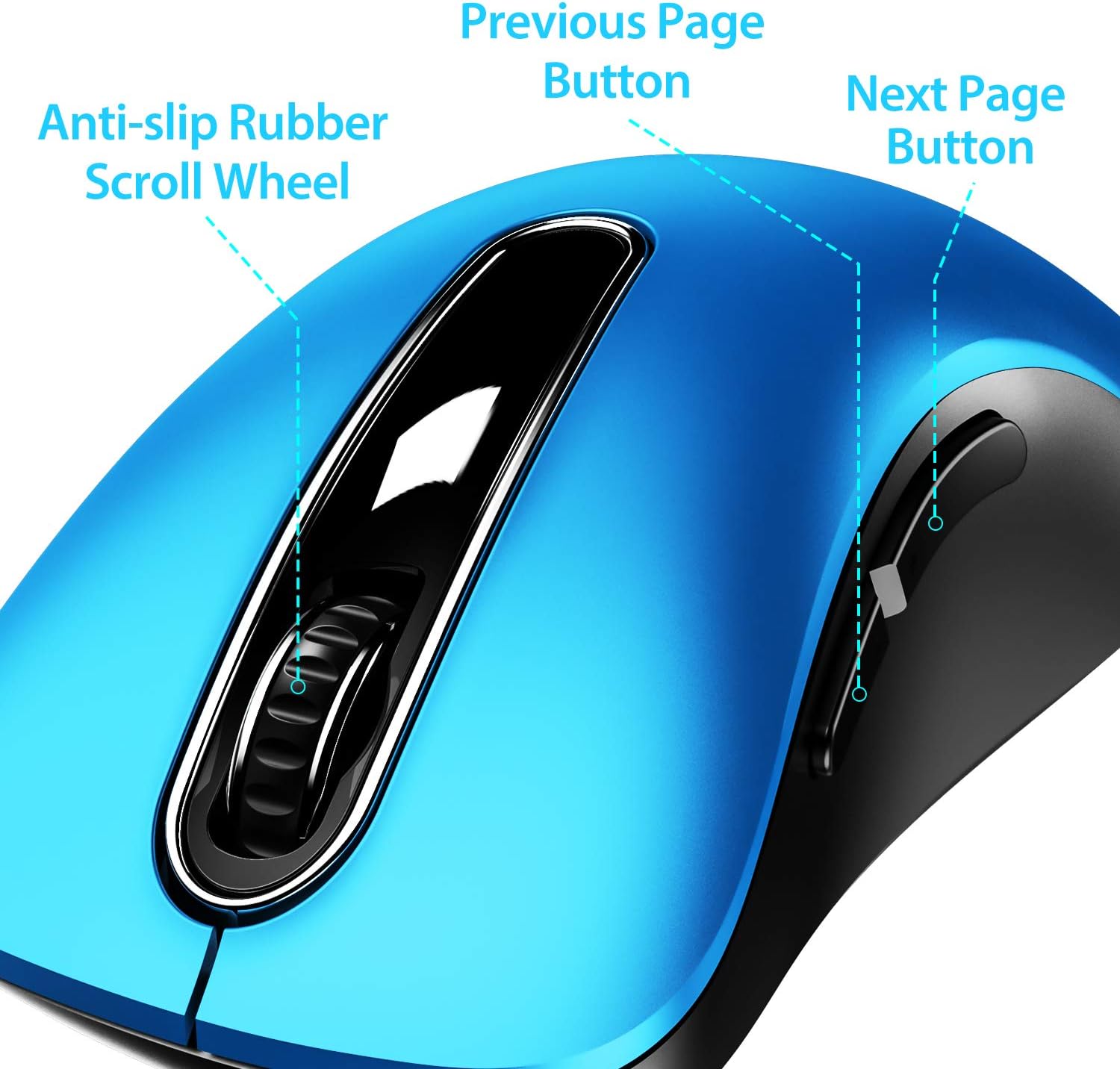
בילד 4.1: איבערview of mouse buttons, including the scroll wheel and side navigation buttons.
4.3 מאַכט שפּאָרן מאָדע
The mouse features an automatic power-saving sleep mode. If inactive for 7 minutes, the mouse will enter sleep mode to conserve battery life. To reactivate the mouse, simply click any button.
5. וישאַלט און קער
- רייניקונג: ניצט אַ ווייכע, טרוקענע שטאָף צו רייניקן די מויז. פֿאַר שווערע שמוץ, אַ ביסל טרוקןamp מען קען ניצן אַ שטאָף, אָבער זאָרגט זיך אַז קיין נאַס זאָל נישט אַרײַנגיין אין די אינעווייניקסטע קאָמפּאָנענטן.
- באַטערי פאַרבייַט: Replace batteries when the mouse performance degrades or stops responding. Always use fresh AAA batteries.
- סטאָרידזש: When not in use for extended periods, turn off the mouse using the ON/OFF switch and store the USB receiver in its dedicated slot on the mouse's underside to prevent loss.
- ויסמיידן עקסטרעמע טנאָים: שטעלט נישט אויס די מויז צו עקסטרעמע טעמפּעראַטורן, דירעקטע זונשייַן, אדער איבערגעטריבענע פייכטקייט.
6. טראָובלעשאָאָטינג
| פּראָבלעם | מעגלעך לייזונג |
|---|---|
| מויז ניט ריספּאַנדינג |
|
| קורסאָר באַוועגונג איז נישט סטאַביל אָדער פּאַמעלעך |
|
| זייט קנעפּלעך אַרבעטן נישט אויף מעק אָ.עס. | This is a known compatibility limitation. The side buttons are not supported on Mac OS. Other mouse functions should work normally. |
| מויז גייט אריין אין שלאף-מאָדוס צו שנעל | The mouse is designed to enter sleep mode after 7 minutes of inactivity to conserve power. This is normal operation. Click any button to wake it up. |
7. וואָראַנטי און שטיצן
The memzuoix 2.4G Portable Wireless Mouse (Model WM-697) comes with a 365-day worry-free warranty from the date of purchase. This warranty covers manufacturing defects and malfunctions under normal use.
For warranty claims, technical support, or any inquiries, please contact memzuoix customer service through the retailer where the product was purchased or visit the official memzuoix webפּלאַץ פֿאַר קאָנטאַקט אינפֿאָרמאַציע.
ביטע באַהאַלטן אייער קויפן-באַווייַז פֿאַר וואָראַנטי וואַלידאַציע.


