הקדמה
Thank you for choosing the memzuoix Ergonomic Wireless Mouse. This manual provides detailed instructions for setting up, operating, and maintaining your new mouse. Designed for comfort and efficiency, this vertical mouse aims to reduce wrist strain during prolonged use. Please read this manual thoroughly before using the product to ensure optimal performance and longevity.
פּראָדוקט איבערview
The memzuoix Ergonomic Wireless Mouse features a unique vertical design to promote a natural handshake grip, reducing pressure on your wrist. It operates on a 2.4G wireless connection and offers adjustable DPI settings for precise control.

Image: The memzuoix Ergonomic Wireless Mouse in purple, showcasing its vertical design and the included USB receiver.
קאַמפּאָונאַנץ
- Ergonomic Wireless Mouse (Purple)
- USB 2.0 Receiver
- באַניצער מאַנואַל (דעם דאָקומענט)
מויז אויסלייג

Image: A detailed diagram illustrating the six buttons and textured thumb area on the ergonomic mouse.
- לינקס קנעפּל: נאָרמאַלע לינקס-קליק פונקציע.
- רעכט קנעפּל: נאָרמאַלע רעכט-קליק פונקציע.
- סקראָל ראָד: פֿאַר ווערטיקאַל סקראָלן און מיטל-קליק.
- DPI סוויטש קנעפּל: Adjusts cursor sensitivity (800/1200/1600 DPI).
- קנעפל פון פריערדיגע בלאט: נאַוויגירט צוריק אַרײַן web בראַוזערז אָדער file explorers. (Note: Not compatible with Mac OS)
- נעקסטע בלאט קנעפל: נאַוויגירט פאָרויס אין web בראַוזערז אָדער file explorers. (Note: Not compatible with Mac OS)
- Textured Thumb Area: Provides a comfortable grip for the thumb.
סעטאַפּ גייד
1. ינסטאַלירן באַטעריז
- געפינען די באַטאַרייע אָפּטייל אויף די אַנדערסייד פון די מויז.
- עפענען די באַטאַרייע אָפּטייל דעקן.
- Insert two (2) AAA dry batteries, ensuring correct polarity (+/-). (Batteries are not included and must be prepared by the user.)
- פאַרמאַכן די באַטאַרייע אָפּטייל דעקן סיקיורלי.

Image: The mouse, USB receiver, and two AAA batteries, illustrating the battery installation process.
2. פֿאַרבינדן דעם USB ריסיווער
- The USB receiver is typically stored inside the battery compartment for safekeeping. Remove it.
- Plug the USB receiver into an available USB port on your computer (Laptop, Mac, PC, Desktop).
- The computer should automatically detect and install the necessary drivers. This is a plug-and-play device.

Image: The USB receiver connected to a laptop, demonstrating the plug-and-play setup for the wireless mouse.

Image: Visual representation of the mouse's compatibility with various operating systems (Windows, macOS, Chrome OS, Linux) via its USB receiver.
אַפּערייטינג ינסטראַקשאַנז
ערגאַנאַמיק גריפּ
Position your hand on the mouse so that your wrist is in a natural "handshake" position. This vertical orientation is designed to reduce pronation of the forearm and minimize wrist pressure, promoting comfort during extended use.

Image: A visual comparison demonstrating the ergonomic benefits of the vertical mouse in reducing wrist pressure compared to a traditional mouse.
אַדזשאַסטינג DPI סענסיטיוויטי
The mouse features an adjustable DPI (Dots Per Inch) setting, allowing you to change the cursor speed and sensitivity. Press the דפּי סוויטש קנעפּל (located near the scroll wheel) to cycle through the available DPI settings: 800, 1200, and 1600 DPI. Choose the setting that best suits your task and preference for precise tracking.
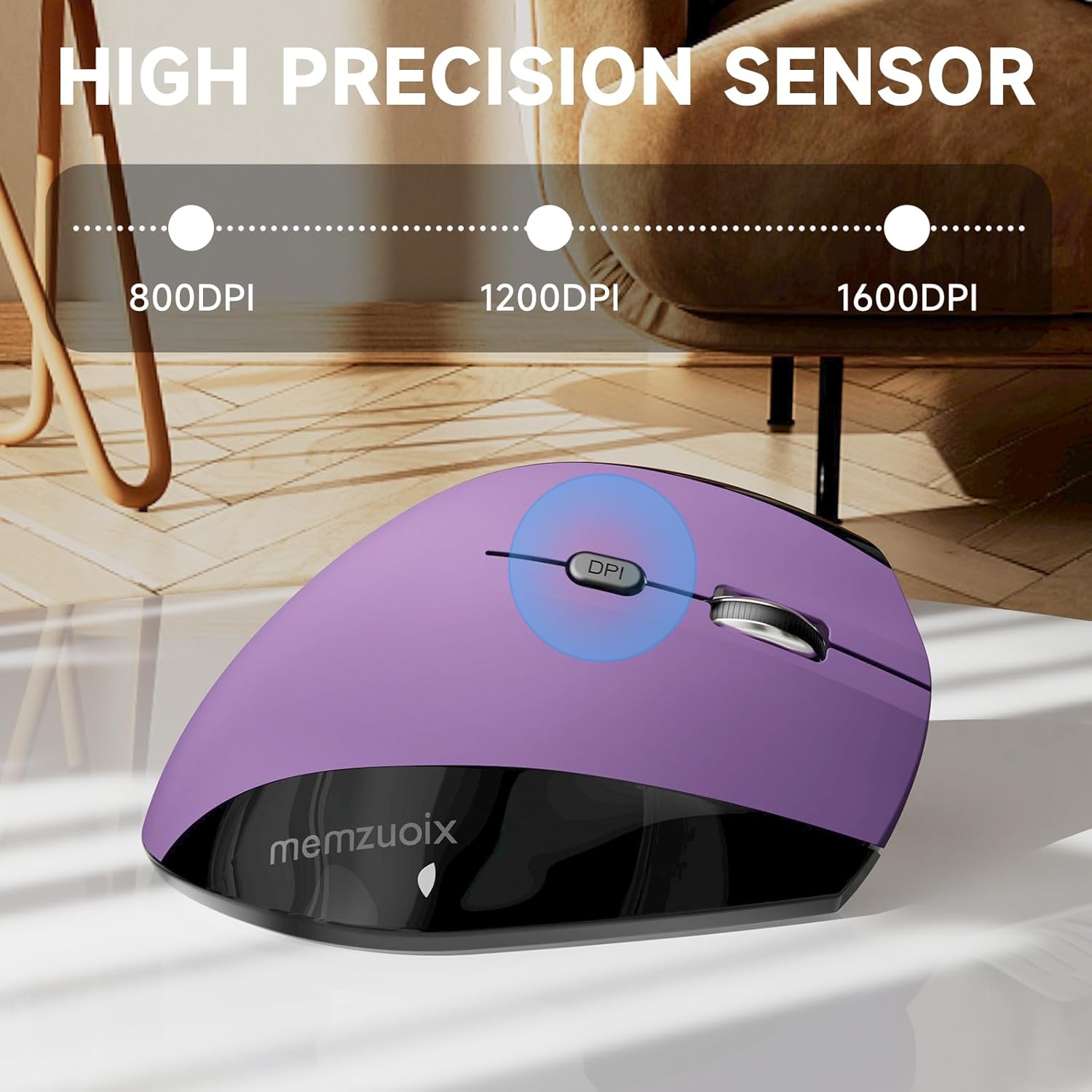
Image: The mouse with a visual indicator for the DPI button, showing the three adjustable sensitivity levels.

Image: A visual demonstrating the adjustable DPI settings (800/1200/1600) for high sensitivity and precise tracking.
מאַכט שפּאָרן מאָדע
To conserve battery life, the mouse will automatically enter sleep mode after 7 minutes of inactivity. To reactivate the mouse, simply click any button.
וישאַלט
רייניקונג
- Ensure the mouse is powered off or batteries are removed before cleaning.
- ניצט אַ ווייכן, טרוקענעם שטאָף צו ווישן די ייבערפלאַך פון דער מויז.
- פאר עקשנות שמוץ, לייכט דampווישט דעם שטאָף מיט וואַסער אָדער אַ מילדן, נישט-שרייַבנדיקן רייניגער. פֿאַרמייַדט איבעריקע פֿײַכטקייט.
- ניצט נישט קיין שאַרפע כעמיקאַלן, סאָלווענטן, אדער אַברייסיוו מאַטעריאַלן, ווייל די קענען שאַטן די מויז'ס ענדיקונג.
- Clean the optical sensor on the underside periodically with a cotton swab to ensure accurate tracking.
באַטערי פאַרבייַט
When the mouse's performance degrades or it stops responding, it may be time to replace the batteries. Follow the "Install Batteries" steps in the Setup Guide to replace the two AAA batteries. Dispose of used batteries responsibly according to local regulations.
טראָובלעשאָאָטינג
| פּראָבלעם | מעגלעך סיבה | לייזונג |
|---|---|---|
| מויז ניט ריספּאַנדינג |
|
|
| קורסאָר באַוועגונג איז נישט סטאַביל אָדער שפּרינגיק |
|
|
| Forward/Back buttons not working on Mac OS | Incompatibility with Mac OS | The forward/back buttons are not compatible with Mac OS. This is a design limitation. |
| Mouse not detected on Linux | May require specific software settings | For Linux systems, you may need to configure related software settings for the mouse to function normally. Refer to your Linux distribution's documentation for peripheral setup. |
ספּעסאַפאַקיישאַנז
| שטריך | דעטאַל |
|---|---|
| מאָדעל נומער | ワイヤレスマウス |
| קאַנעקטיוויטי טעכנאָלאָגיע | 2.4G ווירעלעס (USB ריסיווער) |
| באַוועגונג דעטעקטיאָן | אָפּטיש |
| דפּי סעטטינגס | 800 / 1200 / 1600 DPI (Adjustable) |
| נומער פון קנעפּלעך | 6 (Left, Right, Scroll Wheel, DPI Switch, Forward, Back) |
| מאַכט מקור | 2 X AAA באַטעריז (ניט אַרייַנגערעכנט) |
| פּראָדוקט דימענשאַנז | 4.86 X 2.78 X 2.42 אינטשעס |
| פּונקט וואָג | 3.9 אונסעס |
| קאַמפּאַטאַבילאַטי | Windows 8/9/10/XP, Windows Vista, Linux (Forward/Back buttons not compatible with Mac OS) |
| ספּעציעלע פֿעיִקייטן | Ergonomic Design, Wireless, Adjustable Sensitivity, Power Saving Mode |
זיכערקייַט אינפֿאָרמאַציע
- האַלטן די מיטל אַוועק פון וואַסער און אנדערע ליקווידס.
- ויסמיידן דראַפּינג אָדער אונטערטעניק די מויז צו שטאַרק ימפּאַקץ.
- פרובירט נישט צו צענעמען אדער פאררעכטן דאס אפאראט אליין. דאס וועט בטל מאכן די גאראנטיע.
- פּאָטער פון באַטעריז לויט צו היגע ינווייראַנמענאַל רעגיאַליישאַנז.
- האַלטן אויס פון דערגרייכן פון קינדער.
וואָראַנטי און שטיצן
memzuoix products are designed for reliability and performance. For warranty information or technical support, please refer to the contact details provided with your purchase or visit the official memzuoix webזייטל. ביטע באַהאַלטן אייער קויפן באַווייַז פֿאַר וואָראַנטי קליימז.
For further assistance, you may contact the seller directly via the platform where the product was purchased.


