1. הקדמה
This manual provides detailed instructions for the setup, operation, maintenance, and troubleshooting of your Sharkoon Light² 200 Gaming Mouse. Please read this manual thoroughly before using the device to ensure optimal performance and longevity.
2. פּעקל אינהאַלט
באַשטעטיקן אַז אַלע זאכן זענען פאַראַן אין פּעקל:
- Sharkoon Light² 200 Gaming Mouse
- Interchangeable Solid Top Cover (7g)
- Set of Replacement PTFE Glide Feet
- ינסטראַקשאַנז מאַנואַל
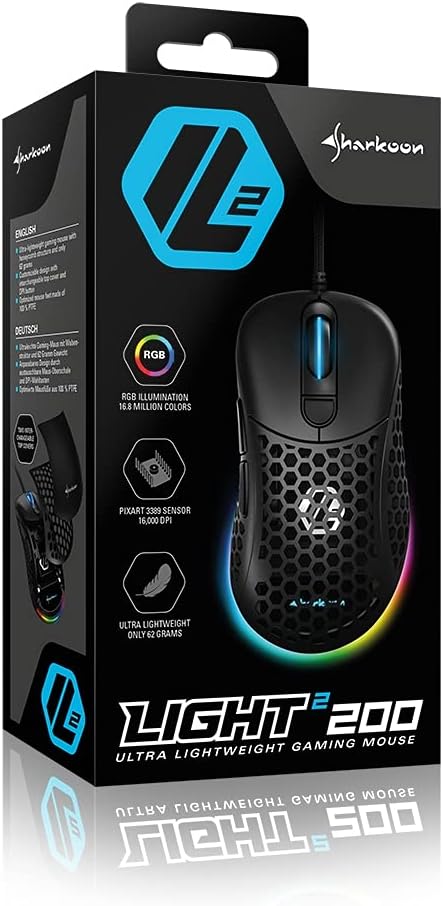
Image: The retail packaging for the Sharkoon Light² 200 Gaming Mouse, showing the mouse and its key features.
3. סעטאַפּ
3.1 פֿאַרבינדן די מויז
- Unpack the Sharkoon Light² 200 Gaming Mouse from its packaging.
- שטעקט אריין דעם USB קאַנעקטאָר פון דעם מויז קאַבל אין אַ פאַראַן USB פּאָרט אויף אייער קאָמפּיוטער.
- די אָפּערייטינג סיסטעם וועט אויטאָמאַטיש דעטעקטירן און אינסטאַלירן די נייטיקע דרייווערס.

Image: The Sharkoon Light² 200 Gaming Mouse with its USB cable, ready for connection to a computer.
3.2 ווייכווארג ינסטאַלירונג
For full customization and access to all features, download and install the Sharkoon gaming software from the official Sharkoon website. The software allows for DPI adjustments, button programming, and RGB lighting control.
- Visit the official Sharkoon webפּלאַץ.
- Navigate to the support or downloads section for the Light² 200 Gaming Mouse.
- Download the latest version of the gaming software.
- גיי די ינסטראַקשאַנז אויף דעם עקראַן צו פאַרענדיקן די ינסטאַלירונג.
4. אפערירן די מויז
4.1 יקערדיק פאַנגקשאַנז
The Light² 200 features standard mouse buttons and a scroll wheel:
- לינק קליקט: הויפּט אַקציע קנעפּל.
- רעכט גיט: צווייטיקער אַקציע קנעפּל, טיפּיש פֿאַר קאָנטעקסט מעניוז.
- סקראָל ראָד: For vertical scrolling. Can also be pressed for a middle-click function.
- זייַט קנעפּלעך: Two buttons located on the left side, typically for 'forward' and 'back' navigation.
- DPI קנעפּל: געפינען זיך הינטער דעם סקראָלל ראָד, גענוצט צו דורכגיין די DPI סעטטינגס.

בילד: זייט view of the Sharkoon Light² 200 Gaming Mouse, highlighting the two programmable side buttons and the honeycomb structure.
4.2 דפּי אַדזשאַסטמאַנט
The optical PixArt sensor supports up to 16,000 DPI. You can adjust the DPI sensitivity using the dedicated DPI button behind the scroll wheel or through the Sharkoon gaming software. The RGB lighting on the scroll wheel and rear of the mouse indicates the current DPI profile.
4.3 פּראָגראַממאַבלע קנעפּלעך
The Light² 200 features six programmable buttons. Use the Sharkoon gaming software to assign custom functions, macros, or key bindings to these buttons for an optimized gaming experience.
4.4 RGB לייטינג קאַסטאַמייזיישאַן
The mouse features adjustable RGB illumination on the scroll wheel and the back end. The gaming software allows you to customize colors, effects, and brightness to match your preferences or gaming setup.
4.5 Modular Design: Changing the Top Cover
The Light² 200 has a modular design, allowing you to change the top surface. The default honeycomb top cover can be replaced with a closed 7-gram alternative for a different feel or aesthetic.
- Gently lift the rear edge of the honeycomb top cover to detach it. It is held by magnets.
- Align the replacement solid top cover with the mouse body and gently press it down until the magnets secure it in place.

Image: The Sharkoon Light² 200 Gaming Mouse with its honeycomb top cover removed, revealing the internal structure and magnetic attachment points.
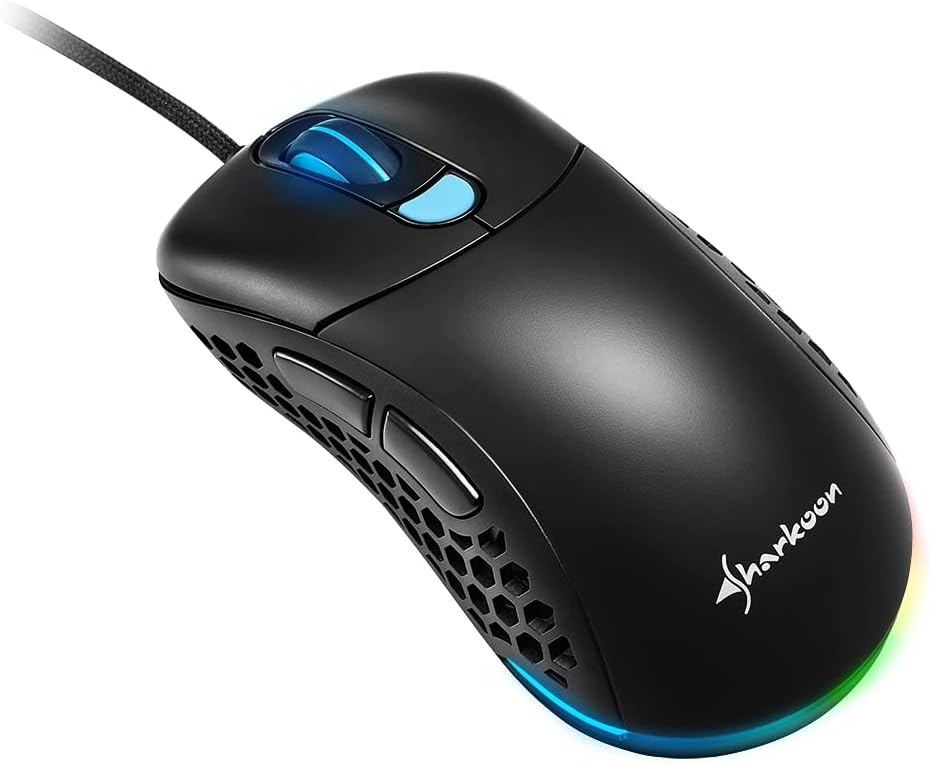
Image: The Sharkoon Light² 200 Gaming Mouse with the alternative solid top cover installed, providing a different aesthetic and feel.
5. וישאַלט
5.1 רייניקן די מויז
כּדי צו האַלטן די אָפּטימאַלע פאָרשטעלונג, רייניקט רעגולער אייער מויז:
- דיסקאָנעקט די מויז פֿון דיין קאָמפּיוטער.
- ניצט אַ ווייכן, טרוקענעם שטאָף צו ווישן די ייבערפלאַך פון דער מויז.
- פֿאַר שווערן שמוץ, אַ ביסל דampווישט דעם שטאָף מיט וואַסער אָדער אַ מילדער רייניקונג לייזונג. פֿאַרמייַדט שטרענגע כעמיקאַליעס.
- Use compressed air to clear dust from the honeycomb structure and around buttons.
- Clean the optical sensor area with a cotton swab lightly dampמיט יסאָפּראָפּיל אַלקאָהאָל.
5.2 Replacing PTFE Glide Feet
The PTFE glide feet ensure smooth movement. If they become worn, replace them using the included spare set:
- פֿאָרזיכטיק שאָלט אַראָפּ די אַלטע PTFE פֿיס מיט אַ דין, נישט-אַבראַוויזיוו געצייג.
- רייניקט די ייבערפלאַך וואו די פֿיס זענען געווען אַטאַטשט צו זיכער מאַכן אַז קיין רעשטלעך בלייבן נישט.
- Peel the new PTFE feet from their backing and carefully apply them to the corresponding areas on the mouse's underside.
- דריקן פעסט צו ענשור געהעריק אַדכיזשאַן.

Image: The underside of the Sharkoon Light² 200 Gaming Mouse, showing the optical sensor, the DPI switch, and the four white PTFE glide feet.
6. טראָובלעשאָאָטינג
- מויז ענטפערט נישט:
- Ensure the USB cable is securely connected to a working USB port.
- Try connecting the mouse to a different USB port or another computer to rule out port or system issues.
- ריסטאַרט דיין קאָמפּיוטער. - DPI סעטטינגס טוישן זיך נישט:
- Ensure the Sharkoon gaming software is installed and running.
- Check if the DPI button is functioning correctly. - RGB לייטינג ארבעט נישט אדער נישט ריכטיג:
- Verify that the Sharkoon gaming software is installed and that lighting settings are configured correctly.
- Ensure the mouse is properly connected. - Mouse movement is erratic or imprecise:
- Clean the optical sensor on the underside of the mouse.
- Ensure you are using the mouse on a suitable surface (e.g., a mouse pad).
- Check for any physical obstructions around the sensor. - קנעפּלעך נישט ריספּאַנד:
- Check button assignments in the Sharkoon gaming software.
- Ensure no physical debris is obstructing the button mechanism.
7. ספּעסאַפאַקיישאַנז
| שטריך | דעטאַל |
|---|---|
| מאָדעל נאָמען | ליכט² 200 |
| נומער מאָדעל נומער | 4044951029013 |
| פּראָדוקט דימענשאַנז | 4.72 X 2.6 X 1.65 אינטשעס (120 X 66 X 42 מם) |
| פּונקט וואָג | 2.19 אונסעס (62 גראַמז) |
| באַוועגונג דעטעקשאַן טעכנאָלאָגיע | Optical (PixArt Sensor) |
| מאַקסימום דפּי | 16,000 דפּי |
| פּראָגראַממאַבלע קנעפּלעך | 6 |
| קאַנעקטיוויטי טעכנאָלאָגיע | וסב |
| ספּעציעלע שטריך | RGB LED Lights, Modular Design |
| פאַבריקאַנט | שאַרקאָן טעטשנאָלאָגיעס |
8. וואָראַנטי און שטיצן
8.1 וואָראַנטי אינפֿאָרמאַציע
Sharkoon products are covered by a manufacturer's warranty against defects in materials and workmanship. The specific warranty period and terms may vary by region. Please retain your proof of purchase for warranty claims.
8.2 טעכניש שטיצן
For technical assistance, driver downloads, or further information, please visit the official Sharkoon webפּלאַץ:
- Webפּלאַץ: www.sharkoon.com
You may also find FAQs and troubleshooting guides on their support pages.


