הקדמה
The Wacom STU-430 is a monochrome signature pad designed for capturing electronic signatures securely and efficiently. This device integrates seamlessly into various workflows, allowing for the digital signing of documents such as PDFs. Its robust design and advanced Electro-Magnetic Resonance (EMR) technology ensure a natural and reliable signing experience. This manual provides essential information for setting up, operating, maintaining, and troubleshooting your STU-430 Signature Pad.

Figure 1: Wacom STU-430 Signature Pad and Pen
The STU-430 features a 4.5-inch reflective LCD display with a resolution of 320 x 200 pixels, providing a clear view of the signature. The included battery-free pen offers 1,024 levels of pressure sensitivity, ensuring biometric accuracy for all handwriting styles. The scratch-resistant screen is built for durability, capable of capturing over 500,000 signatures without significant wear.
סעטאַפּ
קעסטל אינהאַלט
איידער איר גייט ווייטער מיט דער סעטאַפּ, זיכערט זיך אז אלע קאָמפּאָנענטן זענען פאַראַן:
- Wacom STU-430 Signature Pad
- Cordless and Battery-Free Pen
- USB Cable (9.84ft / 3m)
- שנעל אָנהייב גייד
- Pen Tether (nylon fibre, 19.7 inch / 50cm)
- Sign pro PDF Software (downloadable or included)

Figure 2: Contents of the Wacom STU-430 Package
ייַזנוואַרג קאַנעקשאַן
- Connect the USB cable to the STU-430 Signature Pad.
- פאַרבינדן די אנדערע סוף פון די וסב קאַבלע צו אַ בנימצא וסב פּאָרט אויף דיין קאָמפּיוטער.
- Attach the pen tether to the signature pad and the pen to prevent loss.
ווייכווארג ינסטאַלירונג
The Wacom STU-430 requires a driver to function correctly with your operating system. It is compatible with Windows 10 Education and other Windows versions.
- Visit the official Wacom support website to download the latest driver for the STU-430.
- Run the downloaded installer and follow the on-screen instructions to complete the driver installation.
- Install the included Sign pro PDF software, if not already installed, to enable PDF signing functionality.
- ריסטאַרט אייער קאָמפּיוטער אויב געבעטן נאָך די ינסטאַלירונג.
אַפּערייטינג ינסטראַקשאַנז
Capturing a Signature
Once the hardware is connected and software is installed, you can begin capturing signatures:
- Open a document that requires a signature using the Sign pro PDF software or another compatible application.
- When prompted to sign, the signature area will appear on the STU-430 pad's display.
- Use the cordless, battery-free pen to sign directly on the pad's screen. The reflective LCD display allows for clear visibility of your signature as you write.
- The pad typically presents options such as OK, קלאָר, און באָטל מאַכן. Tap the appropriate button on the pad with the pen to finalize, clear, or cancel the signature.

Figure 3: User interacting with the STU-430 Signature Pad
Pen Usage
- The pen is designed for comfortable and accurate use. Hold it like a regular pen.
- Apply natural pressure as you would when writing on paper. The pad's 1,024 pressure levels will capture the nuances of your signature.
- Avoid pressing excessively hard on the screen, although it is scratch-resistant.
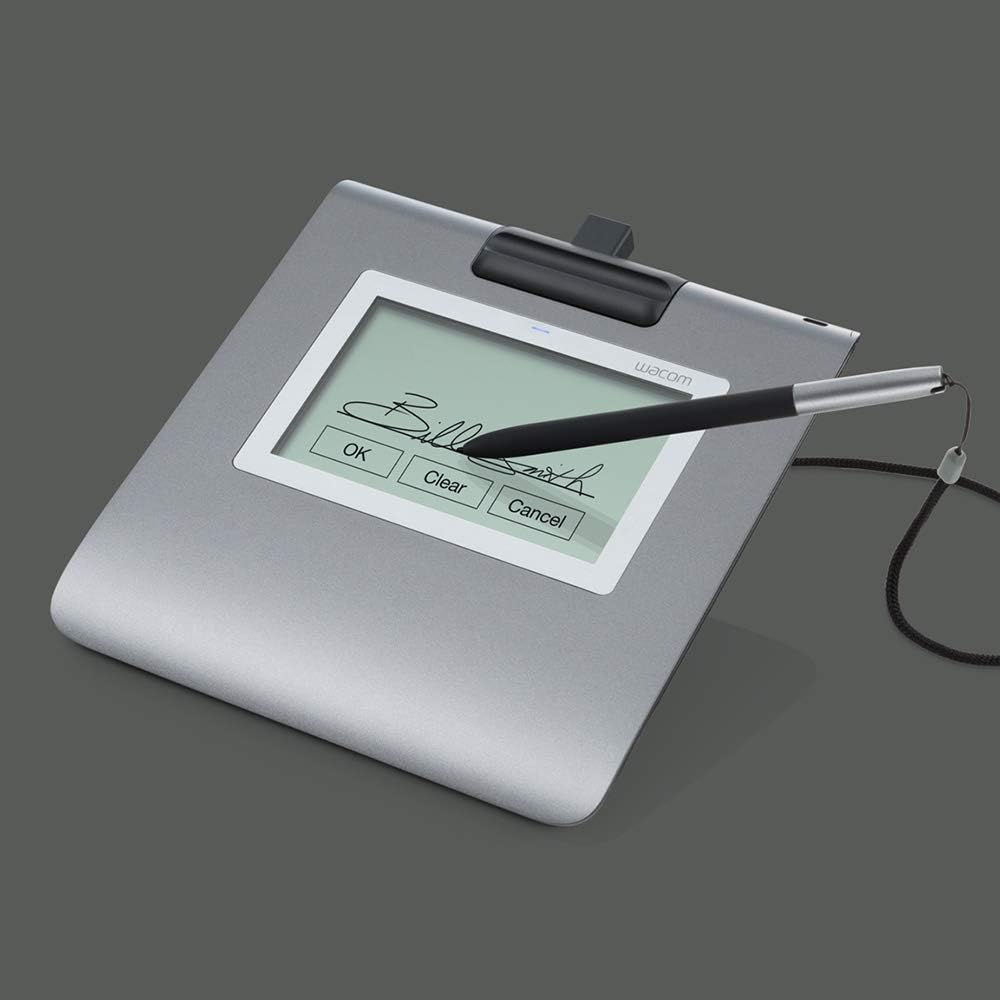
פיגורע 4: דעטאַילעד view of a signature on the STU-430 display
וישאַלט
Cleaning the Signature Pad
To ensure optimal performance and longevity of your STU-430, follow these cleaning guidelines:
- Always disconnect the pad from the computer before cleaning.
- ניצן אַ ווייך, לינט-פֿרייַ שטאָף אַ ביסל דampגעוואשן מיט וואַסער אָדער אַ מילדער, נישט-אַברייזיווער רייניקונג לייזונג.
- Gently wipe the screen and the casinז. פֿאַרמײַדן איבעריקע פֿײַכטקייט.
- Do not use harsh chemicals, abrasive cleaners, or solvents, as these can damage the screen surface or casing.
- Allow the pad to dry completely before reconnecting it.
Pen Care
- Store the pen securely, ideally using the integrated pen holder or tether, to prevent it from being misplaced or damaged.
- Avoid dropping the pen or subjecting it to strong impacts.
- The pen is battery-free and does not require charging.
טראָובלעשאָאָטינג
If you encounter issues with your Wacom STU-430, refer to the following common problems and solutions:
| פּראָבלעם | מעגלעך לייזונג |
|---|---|
| Pad is not recognized by the computer. |
|
| Pen does not write or respond. |
|
| Signature appears distorted or inaccurate. |
|
ספּעסאַפאַקיישאַנז
Detailed technical specifications for the Wacom STU-430 Signature Pad:
| שטריך | דעטאַל |
|---|---|
| מאָדעל נאָמען | STU-430 |
| פּראָדוקט דימענשאַנז | 9.45 X 9.45 X 0.79 אינטשעס (240 X 240 X 20 מם) |
| פּונקט וואָג | 9.8 אונסעס (277 גראַמז) |
| ווייַז טיפּ | F-STN Reflective LCD |
| ווייַז גרייס | 11.4 סענטימעטער (4.5 אינטשעס) |
| האַכלאָטע | 320 רענטגענ 200 פּיקסעלס |
| אַקטיוו שטח | 96 רענטגענ 60 מם |
| פּען טעכנאָלאָגיע | Electro-Magnetic Resonance (EMR) |
| דרוק לעוועלס | 1,024 |
| קאַנעקטיוויטי טעכנאָלאָגיע | וסב |
| אַפּערייטינג סיסטעם קאַמפּאַטאַבילאַטי | Windows 10 Education (and other Windows versions) |
| ספּעציעלע שטריך | Electromagnetic Resonance, Scratch-resistant screen |
| באַטעריז פארלאנגט | None (pen is battery-free) |
וואָראַנטי אינפֿאָרמאַציע
For detailed information regarding the warranty coverage for your Wacom STU-430 Signature Pad, please refer to the warranty card included with your product or visit the official Wacom webזייטל. גאַראַנטיע טערמינען און באדינגונגען קענען זיין אַנדערש לויט געגנט און קויף דאַטע.
קונה שטיצן
If you require further assistance, technical support, or have questions not covered in this manual, please contact Wacom customer support through their official webזייטל. איר קענט טיפּיש געפֿינען שטיצע רעסורסן, אָפֿט געשטעלטע פֿראַגעס, און קאָנטאַקט אינפֿאָרמאַציע ביי www.wacom.com/support.


