הקדמה
Welcome to your new TERIOS Mobile Game Controller. This manual provides detailed instructions for setup, operation, and maintenance to ensure optimal performance and an enhanced gaming experience across various platforms including Android smartphones, Windows PCs, and PlayStation 3 consoles. Please read this manual thoroughly before using the device.
שליסל פֿעיִקייטן
- Innovative Gaming: Designed to enrich your mobile gaming experience with precision and responsiveness.
- ברייט קאַמפּאַטאַבילאַטי: Connects via Bluetooth 4.0 to Android smartphones, and is compatible with Windows PC and PlayStation 3. Supports popular games like PUBG, Call of Duty, and Mobile Legends.
- Gaming Joysticks: Features dual analog sticks for comprehensive and precise control.
- ערגאָנאָמיק פּלאַן: Comfortable grip with an integrated smartphone holder for extended gaming sessions.
- טורבאָ פונקציע: Allows for rapid, continuous input with a single button press.
- Responsive Active Buttons: Includes 2 quick access buttons on the back and numerous action buttons for enhanced accuracy.
- לאנג באַטאַרייע לעבן: Up to 12 hours of continuous play on a single charge.
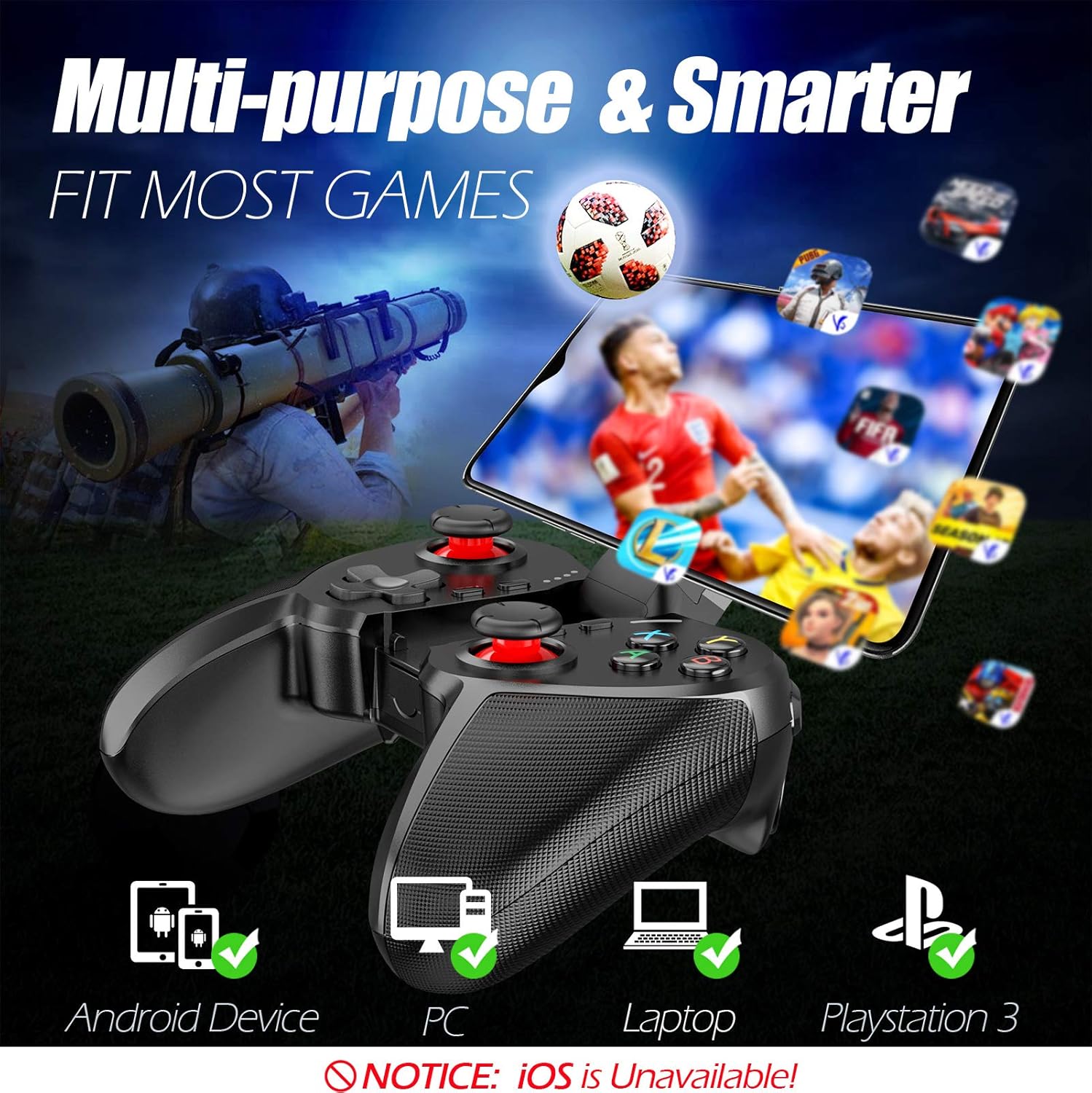
Figure 1: The TERIOS controller is compatible with Android devices, PCs, Laptops, and PlayStation 3.

Figure 2: Detail of the controller's built-in smartphone bracket, accurate buttons, and comfortable soft rubber grips.
סעטאַפּ און קאַנעקשאַן
1. אויפלאָדן דעם קאָנטראָללער
Before first use, fully charge the controller. Connect the provided Micro USB cable to the controller's charging port and the other end to a USB power source (e.g., computer USB port, USB wall adapter). The indicator lights will show charging status and turn off when fully charged.

Figure 3: The controller features a 400mAh battery, providing 12-14 hours of playtime with a 2-3 hour charging time.
2. פּאָווערינג אויף / אויסגעלאשן
- צו מאַכט אויף: דריקן און האַלטן די היים button for 2 seconds. The indicator lights will flash.
- צו מאַכט אַוועק: דריקן און האַלטן די היים button for 5 seconds until the indicator lights turn off. The controller will automatically power off after 5 minutes of inactivity.
3. Bluetooth Pairing (Android Smartphones / PS3)
- זייט זיכער אז דער קאנטראלער איז אויסגעלאשן.
- On your Android smartphone or PS3, enable Bluetooth.
- דריקן און האַלטן די היים button on the controller until the indicator lights flash rapidly, indicating pairing mode.
- On your device, search for new Bluetooth devices. Select "TERIOS Gamepad" or similar from the list.
- אַמאָל פארבונדן, וועט די אינדיקאַטאָר ליכט ווערן האַרט.
4. פּיסי קאַנעקשאַן
For PC connection, the controller typically uses a USB dongle (often included). Insert the USB dongle into an available USB port on your PC. The controller should automatically connect. If not, press the היים button to initiate connection.
5. Initial Setup and App (V3 App)
For optimal customization and compatibility with certain mobile games, it is recommended to download the V3 app from the Google Play Store. This app allows you to map virtual keys on your screen to the physical buttons of the controller.
- Download the "V3" app from the Google Play Store.
- Connect the TERIOS gamepad to your smartphone via Bluetooth.
- Open the V3 app and follow the on-screen instructions to customize key mappings for your desired games.

Figure 4: The V3 app allows for easy customization of virtual keys to match controller buttons, creating more combinations.
אַפּערייטינג ינסטראַקשאַנז
1. קנעפּל אויסשטעל און פונקציעס

Figure 5: The TERIOS Mobile Game Controller with a smartphone securely mounted in its integrated holder.
- לינקער אנאלאג שטעקן: ערשטיקע באַוועגונג קאָנטראָל.
- רעכטער אנאלאג שטעקן: קאַמעראַ קאָנטראָל אָדער צווייטיקע באַוועגונג.
- די-פּאַד (דירעקציאָנעל פּאַד): Precise directional input.
- ABXY קנעפּלעך: Standard action buttons (A, B, X, Y).
- L1/L2, R1/R2 Buttons: Shoulder and trigger buttons for various in-game actions.
- SELECT קנעפּל: Typically used for menu navigation or specific game functions.
- אָנהייב קנעפּל: טיפּיש געניצט צו פּויזירן שפּילן אָדער צו צוטריט מעניוז.
- HOME קנעפּל: Powers on/off, enters pairing mode, and returns to home screen on some devices.
- TURBO קנעפּל: Activates the turbo function for other buttons.
- CLEAR קנעפּל: Deactivates the turbo function.

Figure 6: The dual analog sticks are designed for precise control and execution in games.
2. טורבאָ פונקציע
The Turbo function allows a button to be pressed repeatedly as long as you hold it down, which is useful for rapid-fire actions in games.
- צו אַקטאַווייט: דריקן און האַלטן די TURBO button, then press the desired action button (e.g., A, B, X, Y, L1, R1). Release both buttons. Now, holding down the action button will activate turbo fire.
- צו דיאַקטיווייט: דריקן און האַלטן די קלאָר button, then press the action button for which turbo was activated. Release both buttons.

Figure 7: The dedicated Turbo button enables rapid-fire functionality with one click.
3. Smartphone Holder Usage
The integrated smartphone holder can accommodate most smartphone sizes. Gently extend the holder and place your smartphone securely within the clamps. Ensure the phone is centered for balance.
וישאַלט
- רייניקונג: ניצט אַ ווייכע, טרוקענע שטאָף צו רייניקן דעם קאָנטראָללער. ניצט נישט קיין שרײַבנדיקע רייניגערס אדער סאָלווענטן.
- סטאָרידזש: האַלט דעם קאָנטראָללער אין אַ קיל, טרוקן אָרט אַוועק פון דירעקט זונשייַן און עקסטרעמע טעמפּעראַטורן.
- באַטערי זאָרגן: כדי צו פארלענגערן די לעבן פון די באַטעריע, זאָלט איר נישט אָפט אויסלאָדן דעם קאָנטראָללער. לאָדט עס אָפט אויף, אפילו אויב עס ווערט נישט גענוצט פאר לענגערע צייטן.
טראָובלעשאָאָטינג
| אַרויסגעבן | מעגלעך סיבה | לייזונג |
|---|---|---|
| Controller not connecting via Bluetooth. | קאָנטראָללער נישט אין פּערינג מאָדע; מיטל בלועטוט אויסגעלאָשן; שטערונג. | Ensure controller is in pairing mode (rapid flashing lights). Check device Bluetooth settings. Move closer to the device. Try restarting both controller and device. |
| Buttons are unresponsive or delayed. | Low battery; software glitch; interference. | Charge the controller fully. Restart the controller. Ensure no other strong wireless signals are nearby. For mobile games, check V3 app settings. |
| דער קאָנטראָללער דיסקאָנעקט זיך אָפט. | נידעריגע באַטעריע; צו ווייט פֿון אַפּאַראַט; שטערונג. | Charge the controller. Stay within the recommended Bluetooth range. Minimize wireless interference. |
| טורבאָ פונקציע אַרבעט נישט. | Incorrect activation sequence; button not supported. | Ensure you press and hold TURBO, then press the desired action button, then release both. Some games or buttons may not fully support turbo. |
פּראָדוקט ספּעסאַפאַקיישאַנז
| שטריך | דעטאַל |
|---|---|
| סאָרט | TERIOS |
| מאָדעל | ה-12 |
| קאַנעקטיוויטי טעכנאָלאָגיע | בלועטאָאָטה 4.0 |
| קאַמפּאַטאַבאַל דעוויסעס | Android Smartphones, Windows PC, PlayStation 3 |
| מאַכט מקור | באַטעריע געטריבן (ליטיום פּאָלימער) |
| באַטאַרייע קאַפּאַציטעט | 400mAh (approx. 1.48 Watt Hours) |
| שפּיל צייט | אַרויף צו 12-14 שעה |
| טשאַרדזשינג צייט | 2-3 שעה |
| נומער פון קנעפּלעך | 16 (including ABXY, D-pad, analog sticks, L/R triggers/bumpers, Select, Start, Home, Turbo, Clear) |
| ספּעציעלע פֿעיִקייטן | Turbo Function, Dual Analog Sticks, In-built Smartphone Holder, Responsive Action Buttons |
| דימענשאַנז (פּאַקאַץ) | 17 X 12.4 X 7.7 סענטימעטער |
| וואָג (פּאַקעט) | 310 ג |
וואָראַנטי און שטיצן אינפֿאָרמאַציע
The TERIOS Mobile Game Controller is designed for durability and performance. For any product-related inquiries, technical support, or warranty claims, please refer to the contact information provided with your purchase or visit the official TERIOS support webזייטל. ביטע באַהאַלטן אייער קויפן באַווייַז פֿאַר וואָראַנטי צוועקן.


