הקדמה
This manual provides essential information for the setup, operation, and maintenance of your OREI Sony UBP-X800M2 Region Free 4K UHD Blu-ray Player. This player is designed for worldwide use, supporting all Blu-ray disc zones (A/B/C) and DVD regions (0-8), with a built-in NTSC↔PAL 4K HD converter. Enjoy stunning 4K UHD visuals, high-resolution audio including Dolby Atmos and DTS:X, and seamless access to streaming services via Wi-Fi or Ethernet.

פיגורע 1: פראָנט view of the OREI Sony UBP-X800M2 4K UHD Blu-ray Player.
סעטאַפּ
1. אַנפּאַקינג און פּלייסמאַנט
- קערפאַלי באַזייַטיקן אַלע קאַמפּאָונאַנץ פון די פּאַקקאַגינג.
- Place the player on a stable, level surface with adequate ventilation.
- Ensure no objects block the ventilation openings.
2. קאַנעקטינג צו דיין טעלעוויזיע
Connect the player to your TV using an HDMI cable for optimal 4K UHD video and audio.
- פֿאַרבינדט איין עק פֿון אַן HDMI קאַבל צום HDMI OUT פּאָרט אויף דער הינטערשטער זייט פון די בלו-רэй שפּילער.
- פאַרבינדן די אנדערע סוף פון די HDMI קאַבלע צו אַ HDMI אַרייַנשרייַב אויף דיין טעלעוויזיע.
- If using an audio receiver, connect the player's HDMI OUT to the receiver's HDMI IN, then the receiver's HDMI OUT to the TV's HDMI IN.

Figure 2: Rear panel connections, showing HDMI, LAN, and audio outputs.
3. מאַכט קאַנעקשאַן
- Connect the AC power cord to the player's power input and then to a suitable electrical outlet.
4. נעץ פֿאַרבינדונג (אָפּציאָנעל)
For streaming services and firmware updates, connect the player to your home network.
- ווייערד קשר: Connect an Ethernet cable from the player's לאַן (100) port to your router or modem.
- ווירעלעסס קשר: Navigate to the network settings in the player's menu to connect to your Wi-Fi network.
5. Region Changing Instructions
This player supports all DVD regions (0-8) automatically. Blu-ray regions (A, B, C) are changed manually using the remote control.
- Turn the player ON און OPEN THE DISC TRAY.
- Once the tray is completely open, press the corresponding colored button on the remote to select the desired Blu-ray region:
- זאָנע א: דרוק די געל קנעפּל אויף די ווייַט קאָנטראָל.
- זאָנע ב: דרוק די בלוי קנעפּל אויף די ווייַט קאָנטראָל.
- זאָנע C: דרוק די רויט קנעפּל אויף די ווייַט קאָנטראָל.
- You can now put your disc in the tray and then close the tray.

Figure 3: Remote control with colored buttons for region selection.
אַפּערייטינג ינסטראַקשאַנז
1. דיסק ווידערשפּיל
The player supports a wide range of disc formats, including 4K UHD Blu-ray, standard Blu-ray, Blu-ray 3D, DVD, CD, and Super Audio CD (SACD).
- דרוק די עפענען / נאָענט קנעפּל אויף דעם שפּילער אָדער ווייַטקאָנטראָל צו עפענען די דיסק טאַץ.
- Place the disc gently onto the tray with the label side facing up.
- דרוק די עפענען / נאָענט קנעפּל ווידער צו פאַרמאַכן דעם טאַץ.
- The player will automatically begin playback or display a disc menu.

פיגורע 4: פראָנט view פונעם שפּילער מיטן דיסק טאַץ אָפֿן, גרייט צום אַרײַנשטעלן דעם דיסק.
2. סטרימינג סערוויסעס
Access popular streaming services like Netflix and YouTube directly from the player's home menu.
- Ensure the player is connected to the internet (Wi-Fi or Ethernet).
- From the home screen, select the desired streaming application.
- Log in with your account credentials to begin streaming.
3. USB מעדיע ווידערשפּיל
שפּיל מעדיע files (audio, video, photos) from a USB storage device.
- Insert your USB device into the front USB port.
- Select the USB option from the player's home menu to browse and play your media.
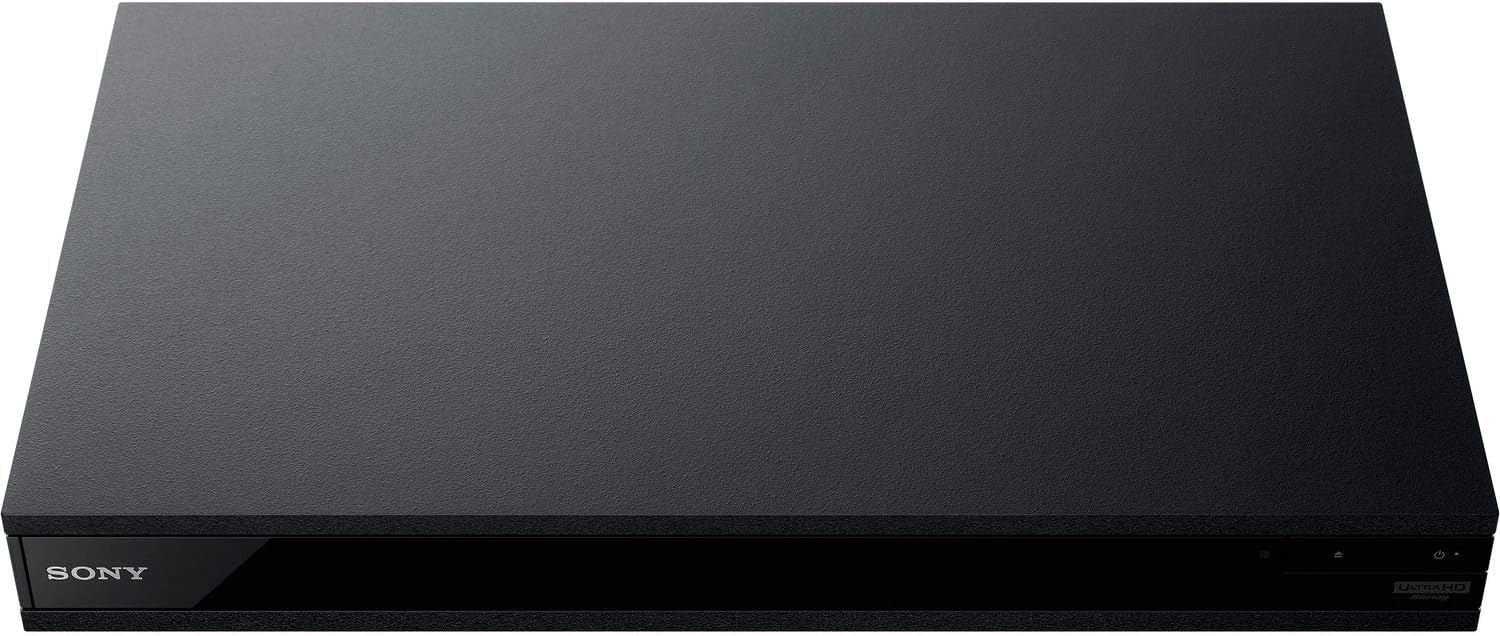
פיגורע 5: פראָנט view of the player with a USB drive inserted into the front port.
וישאַלט
1. Cleaning the Player
- ווישט ווי די אויסערליכע זייט פון דעם שפּילער מיט אַ ווייכן, טרוקענעם שטאָף.
- ניצט נישט קיין אברייסיוו רייניגער, וואקס, אדער סאָלווענטן.
- זיכער מאַכן אַז ווענטילאַציע עפענונגען בלייבן ריין פון שטויב און דעבריס.
2. דיסק זאָרג
- האַלט אָן די דיסקס ביי זייערע ברעגן צו פֿאַרמייַדן פֿינגער־אָפּדרוקן און קראַצן.
- רייניקט די דיסקס מיט אַ ווייכן, לינט-פֿרייע שטאָף, ווישנדיק פֿון צענטער אַרויס.
- האַלט די דיסקס אין זייערע קעסטלעך אַוועק פון דירעקטער זון און עקסטרעמע טעמפּעראַטורן.
3. פירמוואַרע דערהייַנטיקונגען
Firmware updates can be done via the internet to ensure optimal performance and access to the latest features.
- Go to the home menu, then setup menu, and then to Software Update.
- Click on "Update Via Internet". If a new firmware is available, the player will automatically update.
- טאָן ניט turn off the player while it is updating.
- טאָן ניט perform firmware updates by USB unless instructed by OREI support.
טראָובלעשאָאָטינג
פּראָסט ישוז
- קיין בילד/קלאַנג:
- Check all HDMI and audio cable connections.
- Ensure the TV input is set to the correct HDMI port.
- Verify the player is powered on.
- Disc Does Not Play:
- זייט זיכער אז די דיסק איז ריין און פריי פון קראַצן.
- Verify the disc is inserted correctly (label side up).
- For Blu-ray discs, confirm the player's region setting matches the disc's region (refer to "Region Changing Instructions" in the Setup section).
- Open the tray again and leave the disc in the tray. Once fully open, press the color button to select the region. Then close the tray.
- Region Code Error Message:
If you put in a disc before changing regions, you may get an error message indicating the wrong region. The player remembers this message. To remove that error, you need to reset the player.
- דרוק די היים button on the remote with no disc inside to go to the home screen.
- Use arrow buttons on the remote to go to the upper right corner where it says סעטאַפּ און דריקן אַרייַן.
- מעגילע אַראָפּ צו רעסעטטינג on the bottom of the menu.
- אויסקלייַבן באַשטעטיק צו פאַבריק פעליקייַט סעטטינגס.
- מעגילע אַראָפּ און סעלעקטירן אַלע סעטטינגס און דריקן אַרייַן -> דרוק אָנהייב אַרייַן -> Close אַרייַן.
- Turn the player off and then on again after 30 seconds.
- Select Language English and then select quick start mode OFF. You may need to activate network settings again.
- If you prefer not to connect the player to the internet, you may press the היים button and go to the home screen. Now start from step 1 under "Region Changing Instructions" to change regions.
ספּעסאַפאַקיישאַנז
| סאָרט | OREI |
| מאָדעל נאָמען | Sony X800M2 (UBP-X800M2) |
| פּראָדוקט דימענשאַנז | 19 X 14.1 X 3.8 אינטשעס |
| פּונקט וואָג | 8.82 פונט (4000 גראַמז) |
| מעדיע טיפּ | Blu-Ray Disc, DVD, 4K UHD Blu-ray, Blu-ray 3D, CD, Super Audio CD |
| האַכלאָטע | 3840x2160 (4K UHD) |
| קאַנעקטיוויטי טעכנאָלאָגיע | עטערנעט, HDMI, USB, Wi-Fi |
| קאַנעקטער טיפּ | HDMI |
| אַודיאָ רעזולטאַט מאָדע | Surround (Dolby Atmos, DTS:X, High-Resolution Audio) |
| קאָליר | שוואַרץ |
| באַטעריז | 2 AAA באַטעריז פארלאנגט (פֿאַר ווייַט) |
| ספּעציעלע שטריך | Region Free (Blu-ray Zones A/B/C, DVD Regions 0-8), Built-in NTSC↔PAL 4K HD Converter |
וואָראַנטי און שטיצן
וואָראַנטי אינפֿאָרמאַציע
For specific warranty details, please refer to the warranty card included with your product or visit the official OREI webזייטל. האַלט אייער קויף קוויטל ווי אַ באַווייַז פון קויפן.
קונה שטיצן
If you encounter any issues or have questions regarding your OREI Sony UBP-X800M2 Blu-ray Player, please contact OREI customer support.
- אָנליין שטיצן: באַזוכן די OREI Store on Amazon פֿאַר FAQ און שטיצן רעסורסן.
- טעכניש הילף: Contact OREI directly for technical support. (Specific contact details not provided in source data, please refer to product packaging or official webפּלאַץ).


