1. הקדמה
Welcome to the TMEZON Wireless Security Camera System user manual. This guide provides detailed instructions for the setup, operation, and maintenance of your MZ-WF8430W system. Please read this manual thoroughly before installation and use to ensure proper functionality and safety. This system features 3-megapixel cameras, an 8-channel Network Video Recorder (NVR), and IP66 waterproof cameras suitable for both indoor and outdoor surveillance.
2. פּעקל אינהאַלט
ביטע טשעק די פּאַקעט פֿאַר די פאלגענדע זאכן:
- 1 x 8-Channel Wireless NVR
- 4 x 3MP וויירלעס IP קאַמעראַס
- 1 x NVR Power Adapter
- 4 x Camera Power Adapters
- 1 רענטגענ וסב מאַוס
- 1 רענטגענ קאַבלע
- 1 x באַניצער מאַנואַל
- מאָנטירונג שרויף קיץ

בילד: איבערview of the TMEZON Wireless Security Camera System components, including the NVR and four cameras.
3. סעטאַפּ גייד
3.1 ערשטע NVR פֿאַרבינדונג
פֿאָלגט די סטעפּס צו סעטאַפּן אייער NVR:
- פֿאַרבינדט דעם NVR צו אַ מאָניטאָר מיט אַן HDMI אָדער VGA קאַבל.
- פֿאַרבינדט די USB מויז צום NVR'ס USB פּאָרט.
- Connect the NVR to your router using the provided network cable for internet access and remote viewing.
- Connect the NVR power adapter and plug it into an electrical outlet. The NVR will power on automatically.

Image: Diagram illustrating the connections for the NVR, including power, monitor, and network cable to a router.
3.2 אַפּאַראַט ינסטאַלירונג
The cameras are IP66 waterproof, making them suitable for both indoor and outdoor use. Ensure cameras are within the NVR's wireless range.
- Choose suitable locations for your cameras, considering coverage area and power outlet proximity.
- Mount the cameras securely using the provided screw kits.
- Connect each camera to its respective power adapter and plug into an electrical outlet.
- The cameras will automatically pair with the NVR. If not, refer to the troubleshooting section for manual pairing.
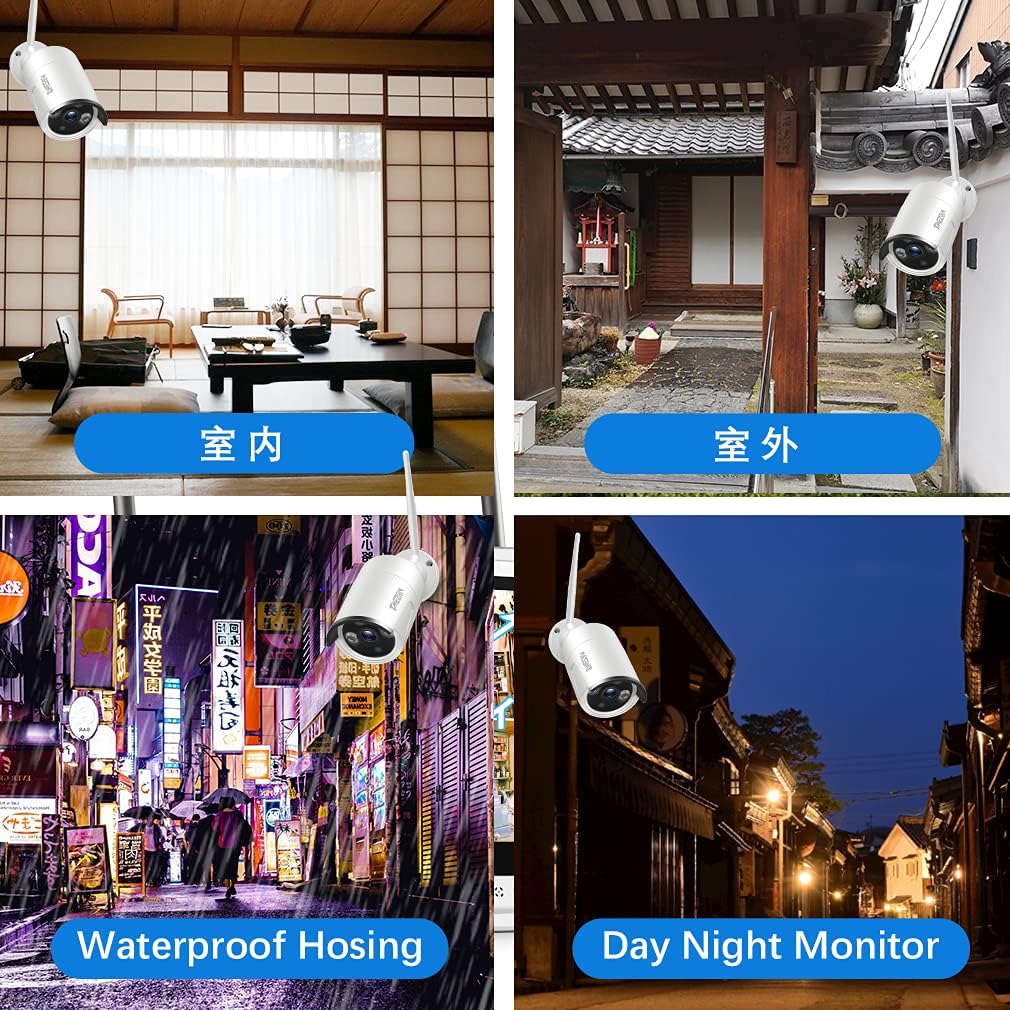
בילד: עקסamples of camera placement for both indoor and outdoor environments.
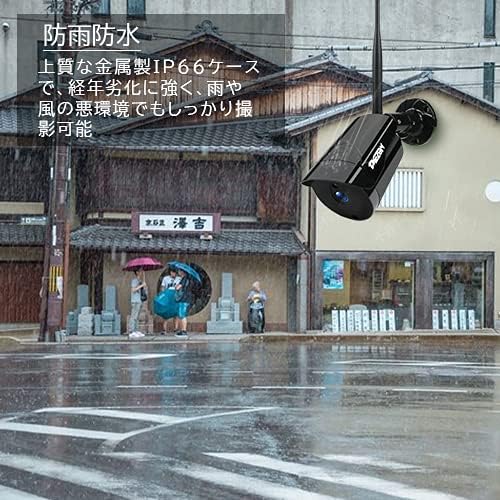
Image: A camera mounted outdoors, demonstrating its IP66 waterproof capability in a rainy setting.
3.3 Remote Access Setup (Mobile App)
צו view your cameras remotely on a smartphone or PC, follow these steps:
- Download the 'IP PRO' app from the App Store (iOS) or Google Play Store (Android).
- רעגיסטרירט אַ נייעם חשבון אין דער אַפּ.
- Scan the QR code on your NVR or manually enter the device ID to add your system to the app.
- אַמאָל צוגעגעבן, קענט איר view לעבעדיגע פידס, ווידערשפּיל רעקאָרדירונגען, און פירן סעטטינגס פון דיין מאָביל מיטל.

Image: Demonstrates remote access to the camera system from various devices including tablets, laptops, and smartphones.

Image: A visual guide showing the steps for easy remote access setup via the mobile application.
ווידעא: גענעראל איבערview of the system's features and setup process.
4. אַפּערייטינג ינסטרוקטיאָנס
4.1 לעבן View און רעקאָרדינג
After initial setup, the NVR will display live feeds from all connected cameras. You can navigate the interface using the USB mouse. The system is configured for continuous recording by default. You can adjust recording schedules and modes (e.g., motion-triggered) in the NVR settings.
4.2 פּלייבאַק
צו שייַעךview רעקאָרדעד פוtage:
- Right-click on the NVR interface to access the main menu.
- Select 'Playback'.
- Choose the desired camera, date, and time to view רעקאָרדירונגען.
4.3 באַוועגונג דעטעקשאַן
The system supports motion detection, which can trigger recording and alerts. To configure:
- Access the NVR's main menu and go to 'Alarm' or 'Motion Detect' settings.
- Enable motion detection for specific cameras.
- Adjust sensitivity and define detection areas as needed.

Image: Highlights key features such as WiFi wireless connectivity, motion detection, night vision mode, IP66 waterproof rating, remote monitoring, and email alerts.
4.4 נאַכט זעאונג
The cameras are equipped with infrared (IR) LEDs for automatic night vision, providing clear black and white video footage in low-light or no-light conditions.
4.5 Email Alerts
You can configure the system to send email notifications when motion is detected:
- In the NVR settings, navigate to 'Network' then 'Email'.
- Enter your email server details and recipient email addresses.
- Enable email alerts for motion detection events.

Image: A smartphone screen displaying an instant email notification triggered by an alarm event, showing a person attempting to break in.
Video: Demonstrates various operational aspects of the security camera system.
5. וישאַלט
רעגולערע אויפהאלטונג גאראנטירט אפטימאלע פאָרשטעלונג און לאַנגלעבעדיקייט פון אייער זיכערהייט סיסטעם:
- ריינע קאַמעראַס: Periodically wipe camera lenses with a soft, damp cloth to remove dust and dirt, ensuring clear image quality.
- טשעק קאַנעקשאַנז: Ensure all power and network cables are securely connected to prevent signal loss.
- Firmware דערהייַנטיקונגען: Check the TMEZON official website for any available firmware updates for your NVR and cameras to enhance features and security.
- האַרט דרייוו געזונט: If your NVR has a hard drive, regularly check its status in the system settings to prevent recording failures.
6. טראָובלעשאָאָטינג
דאָ זענען לייזונגען צו געוויינטלעכע פּראָבלעמען וואָס איר קענט באַגעגענען:
6.1 קיין ווידעאָ אַרויסווייַזונג אויף מאָניטאָר
- טשעק מאַכט: זיכער מאַכן אַז די NVR און מאָניטאָר זענען אנגעצונדן און ריכטיק פארבונדן.
- קאַבלע קשר: Verify the HDMI/VGA cable is securely connected between the NVR and monitor.
- אַרייַנשרייַב מקור: Confirm the monitor's input source is set to the correct HDMI/VGA port.
6.2 Cameras Not Showing on NVR
- אַפּאַראַט מאַכט: Ensure all cameras are powered on.
- ווירעלעסס קייט: Check if cameras are within the NVR's wireless range. Obstacles like thick walls can reduce signal strength.
- מאַנואַל פּערינג: If cameras do not automatically connect, you may need to manually pair them. Access the NVR's 'IPC Channel Config' or 'Wireless Add' menu and follow the on-screen instructions to add cameras.
6.3 ווײַט־צוטריט אַרבעט נישט
- NVR Internet Connection: Ensure the NVR is connected to your router and has internet access. Check the network status in NVR settings.
- אַפּ לאָגין: Verify you are logged into the correct account on the mobile app.
- צוגעלייגטע דעווייס: Confirm the NVR device has been successfully added to your app account.
- ראָוטער סעטטינגס: Ensure your router is not blocking the NVR's internet access.
6.4 שלעכטע בילד קוואַליטעט
- ריין לענס: Clean the camera lens as described in the maintenance section.
- האַכלאָטע סעטטינגס: Check the camera's resolution settings in the NVR. Ensure it's set to 3MP (2048*1536P) for optimal clarity.
- לייטינג: Ensure adequate lighting for color images during the day. Night vision will be black and white.
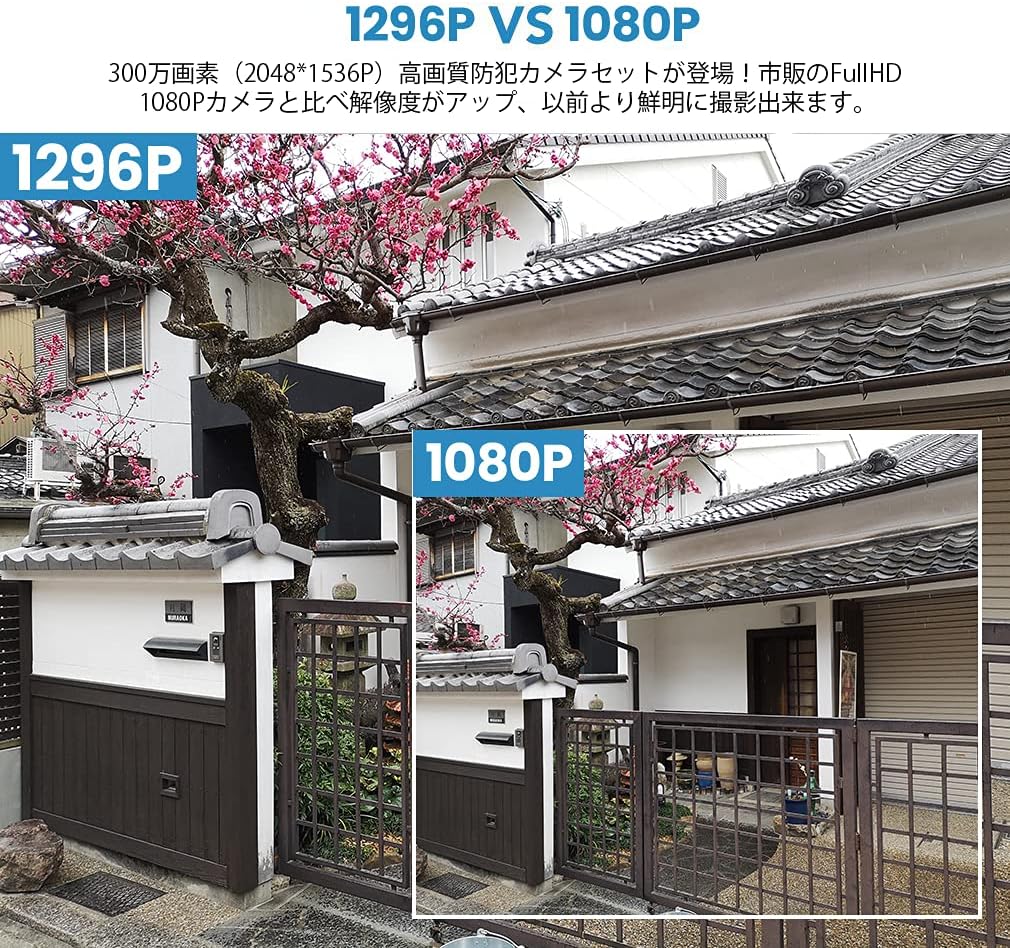
Image: A visual comparison demonstrating the improved clarity and detail of 1296P resolution compared to 1080P.

Image: A comparison showing the difference in image quality between 1080P and 720P resolutions, highlighting the superior detail of 1080P.
7. ספּעסאַפאַקיישאַנז
| שטריך | באַשרייַבונג |
|---|---|
| סאָרט | TMEZON |
| מאָדעל נומער | MZ-WF8430W |
| קאַנעקטיוויטי טעכנאָלאָגיע | ווירעלעסס |
| ווידעא קאַפּטורע רעסאָלוטיאָן | 1944p (3 Megapixels) |
| ספּעציעלע פֿעיִקייטן | וואָטערפּרוף (IP66) |
| נומער פון טשאַנאַלז | 8 |
| פּעקל דימענשאַנז | 32 X 31.1 X 18.3 סענטימעטער |
| פּעקל וואָג | 3.64 קילאָגראַמס |
| באַטעריז פארלאנגט | ניין |
8. וואָראַנטי און שטיצן
TMEZON provides customer support for its products. For warranty information, technical assistance, or any questions not covered in this manual, please contact TMEZON customer service through their official website or the contact information provided with your purchase. Please have your model number (MZ-WF8430W) and purchase details ready when contacting support.


