1. הקדמה
Welcome to the user manual for your Genius Manticore Gaming Keyboard. This guide provides essential information for setting up, operating, maintaining, and troubleshooting your new gaming keyboard. Please read these instructions carefully to ensure optimal performance and longevity of your device.
2. פּראָדוקט איבערview
The Genius Manticore Gaming Keyboard is designed for an enhanced gaming experience, featuring a durable build and responsive keys. It connects via USB and is compatible with a wide range of devices. The keyboard includes 104 keys with a standard QWERTY layout, complemented by additional gaming-specific features.
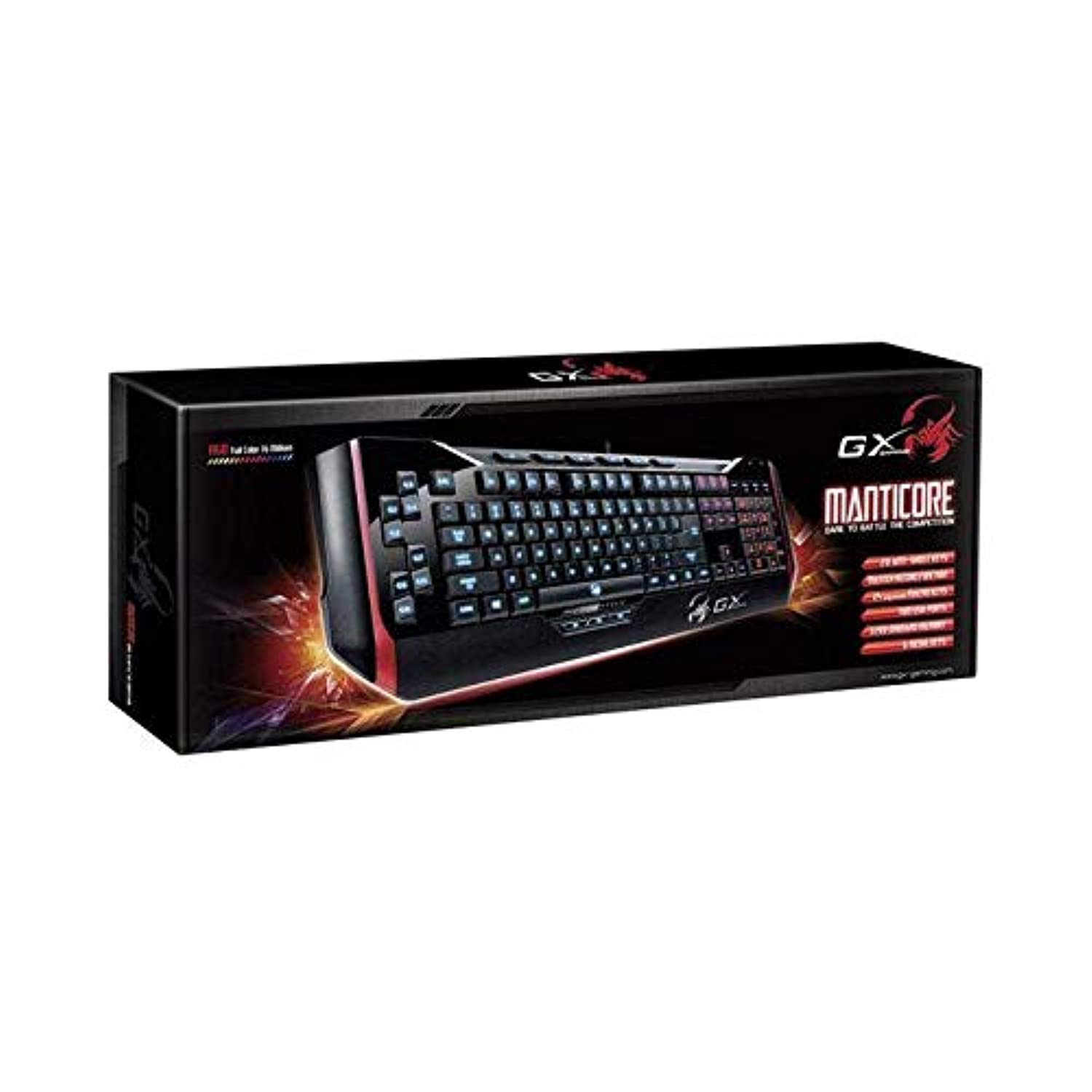
פיגורע 1: Genius Manticore Gaming Keyboard. This image displays the Genius Manticore Gaming Keyboard, featuring a black body with red accents on the sides. The keys are illuminated, indicating its gaming functionality. The keyboard has a standard QWERTY layout with additional keys on the left side, likely for macros, and a numeric keypad on the right.
3. סעטאַפּ
- ופשליסן די קלאַוויאַטור: Carefully remove the Genius Manticore Gaming Keyboard from its packaging. Ensure all components are present.
- פאַרבינדן צו דיין מיטל: Locate an available USB port on your computer or compatible device. Insert the USB connector of the keyboard firmly into the USB port.
- דרייווער ינסטאַלירונג (אויב נייטיק): For most modern operating systems, the keyboard will be recognized automatically, and standard drivers will be installed. If prompted, follow the on-screen instructions to complete any driver installation.
- טעסט פאַנגקשאַנאַליטי: עפֿנט אַ טעקסט רעדאַקטאָר אָדער אַ web browser and test the keys to ensure they are responding correctly.
4. אַפּערייטינג ינסטרוקטיאָנס
The Genius Manticore Gaming Keyboard offers a standard QWERTY layout for general typing and dedicated features for gaming.
- נאָרמאַל שליסל פונקציעס: All standard alphanumeric, symbol, and function keys operate as expected on a typical QWERTY keyboard.
- גיימינג פֿעיִקייטן: The keyboard is designed for gaming. Specific gaming features, such as customizable backlighting or programmable macro keys (if available on your model), can typically be configured through dedicated software provided by Genius or through specific key combinations. Refer to the Genius website for any available software downloads or advanced feature guides.
- מאַכט מקור: The keyboard is powered directly via the USB connection to your device. No external power supply or batteries are required.
5. וישאַלט
געהעריגע אויפהאלטונג גאראנטירט די לאנגעוויטי און עפעקטיווקייט פון אייער קלאַוויאַטור.
- רייניקונג: ניצט אַ ווייכע, טרוקענע שטאָף צו ווישן די קלאַוויאַטור ייבערפלאַך. פֿאַר שטויב און שמוץ צווישן קנעפלעך, ניצט קאָמפּרעסירטע לופט. פֿאַרמייַדט ניצן שטרענגע כעמיקאַלן אָדער אַברייסיוו מאַטעריאַלס.
- פליסיק ויסשטעלן: This keyboard is נישט וואַסער-קעגנשטעליק. Avoid spilling liquids on the keyboard, as this can cause permanent damage. If liquid exposure occurs, immediately disconnect the keyboard from your device and allow it to dry completely before attempting to use it again.
- סטאָרידזש: ווען נישט אין באַנוץ, האַלט די קלאַוויאַטור אין אַ ריינער, טרוקענער סביבה אַוועק פון עקסטרעמע טעמפּעראַטורן און דירעקטער זון.
6. טראָובלעשאָאָטינג
אויב איר טרעפט פּראָבלעמען מיט אייער קלאַוויאַטור, פּרוּווט די פאלגענדע לייזונגען:
- קלאַוויאַטור ניט ריספּאַנדינג:
- זיכער מאַכן אַז דער USB קאַבל איז זיכער פארבונדן צו ביידע די קלאַוויאַטור און דעם קאָמפּיוטער.
- פרובירט צו קאנעקטן די קלאַוויאַטור צו אַן אַנדער USB פּאָרט אויף אייער קאָמפּיוטער.
- פּרובירט די קלאַוויאַטור אויף אַן אַנדער קאָמפּיוטער צו באַשטימען צי די פּראָבלעם איז מיטן קלאַוויאַטור אָדער מיטן אָריגינעלן קאָמפּיוטער.
- ריסטאַרט דיין קאָמפּיוטער.
- ספּעציפֿישע קנעפּלעך אַרבעטן נישט:
- Check for any physical obstructions under the non-functional keys.
- רייניקט די קלאַוויאַטור ווי באַשריבן אין דער וישאַלט סעקציע.
- Ensure no software conflicts are present (e.g., macro software interfering with standard key functions).
- פראבלעמען מיט באַקלייטונג:
- If your model features adjustable backlighting, ensure it is not turned off or set to the lowest brightness level. Consult the Genius website for specific key combinations to control backlighting.
If these steps do not resolve the issue, please contact Genius customer support for further assistance.
7. ספּעסאַפאַקיישאַנז
| שטריך | דעטאַל |
|---|---|
| סאָרט נאָמען | זשעני |
| מאָדעל נומער | GE31310058108 |
| קאַמפּאַטאַבאַל דעוויסעס | אַלע |
| קאַנעקטיוויטי טעכנאָלאָגיע | וסב |
| קלאַוויאַטור באַשרייַבונג | גיימינג |
| ספּעציעלע פֿעיִקייטן | גיימינג |
| קאָליר | Multi-color (Black and Red) |
| סטייל | מאָדערן |
| מאַטעריאַל | קייפל מאַטעריאַלס |
| טעמע | גאַמעס |
| מאַכט מקור | וסב מאַכט |
| נומער פון קיז | 104 |
| קלאַוויאַטור אויסלייג | QWERTY קלאַוויאַטור |
| האַנט אָריענטירונג | אַמבידעקסטראַס |
| קנעפּל קוואַנטיטעט | 104 |
| וואַסער קעגנשטעל מדרגה | ניט וואַסער קעגנשטעליק |
| פאַבריקאַנט | זשעני |
| ASIN | B07MQMXJS9 |
8. וואָראַנטי און שטיצן
Your Genius Manticore Gaming Keyboard is covered by a standard manufacturer's warranty. For detailed information regarding warranty terms, registration, or to access technical support, please visit the official Genius webזייטל אדער קאנטאקט זייער קאסטומער סערוויס דעפארטמענט. האלט אייער קויף קוויטל אלס באווייז פון קויפן.
פֿאַר ווייטערדיקע הילף, קענט איר באַזוכן די Genius Official Webפּלאַץ.


