1. הקדמה
The Modecom Oberon Pro Midi Tower is a computer case designed for users seeking a functional and spacious interior with a modern aesthetic. This manual provides essential information for the proper installation, operation, and maintenance of your computer case, ensuring optimal performance and longevity of your components.
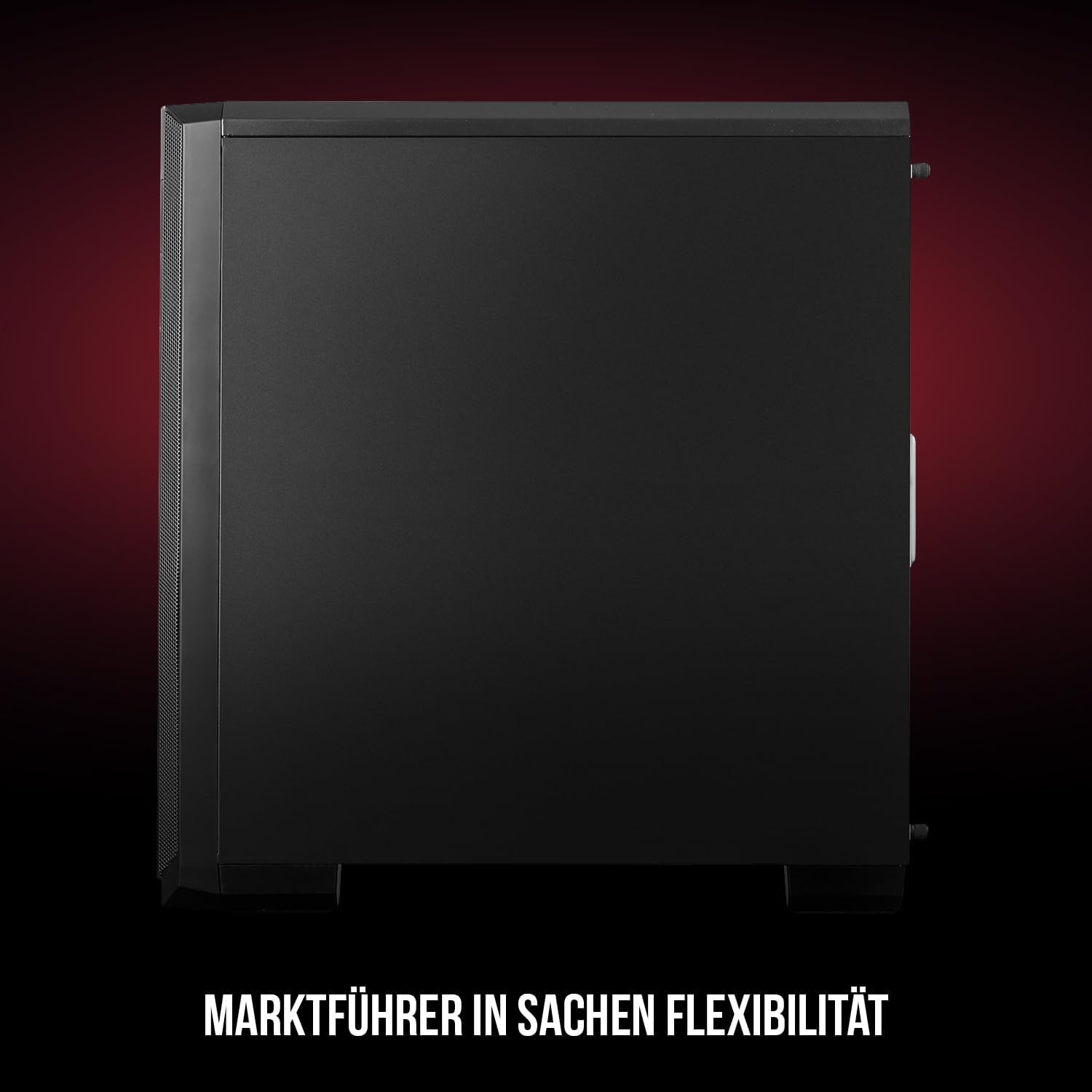
פיגורע 1: פראָנט און זייַט view of the Modecom Oberon Pro Midi Tower computer case.
2. זיכערקייַט אינפֿאָרמאַציע
- שטענדיק אָפּשטעקן די מאַכט צושטעל פון די וואַנט אַוטלעט איידער איר ינסטאַלירן אָדער אַראָפּנעמען קיין קאָמפּאָנענטן.
- באַהאַנדלט קאָמפּאָנענטן מיט פֿאָרזיכט צו פֿאַרמייַדן עלעקטראָסטאַטישע אָפּלאָד. באַטראַכט צו ניצן אַן אַנטיסטאַטיש האַנטגעלענק-רימען.
- האַלטן קליין טיילן און מכשירים אַוועק פון קינדער.
- זאָרגט פֿאַר געהעריקע ווענטילאַציע אַרום דעם קעסטל צו פֿאַרמייַדן איבערהיצונג.
- Do not attempt to modify the case structure, as this may void your warranty and pose safety risks.
3. פּעקל אינהאַלט
באַשטעטיקט אַז אַלע די פאלגענדע זאכן זענען פאַראַן אין דיין פּעקל:
- Modecom Oberon Pro Midi Tower Computer Case
- Accessory box (screws, standoffs, cable ties)
- באַניצער מאַנואַל (דעם דאָקומענט)
4. שליסל פֿעיִקייטן
- ראַכוועסדיק ינלענדיש: Designed to accommodate high-end components and facilitate good airflow.
- עפעקטיוו קאָאָלינג: Includes two pre-mounted 120mm fans (front and rear) to prevent component overheating.
- מכשירים-פריי ינסטאַלירונג: Supports tool-free mounting for SSD/HDD drives and expansion cards.
- שטויב פילטראַציע: Features easily dismountable magnetic filters on the top, front, and bottom (under the power supply unit) to keep the interior clean.
- Optimized Cable Management: Provides a system for convenient wiring organization.
- Long PSU Tunnel: Offers a 240mm space for power supplies, simplifying installation and cable arrangement.
5. סעטאַפּ און ייַנמאָנטירונג
5.1. צוגרייטן דעם פאַל
Before installation, remove the side panels of the case. The Oberon Pro features sound-dampening mats on the side panels to reduce noise.

פיגורע 2: ינלענדיש view showing sound-dampening mats on the side panel.
5.2. מאָטהערבאָאַרד ינסטאַללאַטיאָן
Install the necessary standoffs for your motherboard form factor (ATX, Micro ATX, ITX). Carefully place your motherboard into the case, aligning it with the standoffs, and secure it with screws.

Figure 3: Interior layout with pre-installed rear fan and motherboard tray.
5.3. Drive Installation (SSD/HDD)
The Oberon Pro supports tool-free installation for three 2.5" SSDs and two 3.5" HDDs. The 3.5" HDD bays are located in the power supply tunnel at the bottom of the case. 2.5" SSDs can be mounted on both sides of the motherboard tray.

Figure 4: Dedicated bays for HDD and SSD storage devices.
5.4. מאַכט סופּפּלי ינסטאַללאַטיאָן
The case features a long PSU tunnel (240mm) at the bottom. Install your power supply unit into this tunnel and secure it. This design aids in cable management and airflow.
5.5. Expansion Card Installation (PCI/PCIe)
Install your graphics card or other expansion cards into the PCI/PCIe slots. The case supports tool-free mounting for these cards, allowing for easy installation and removal.
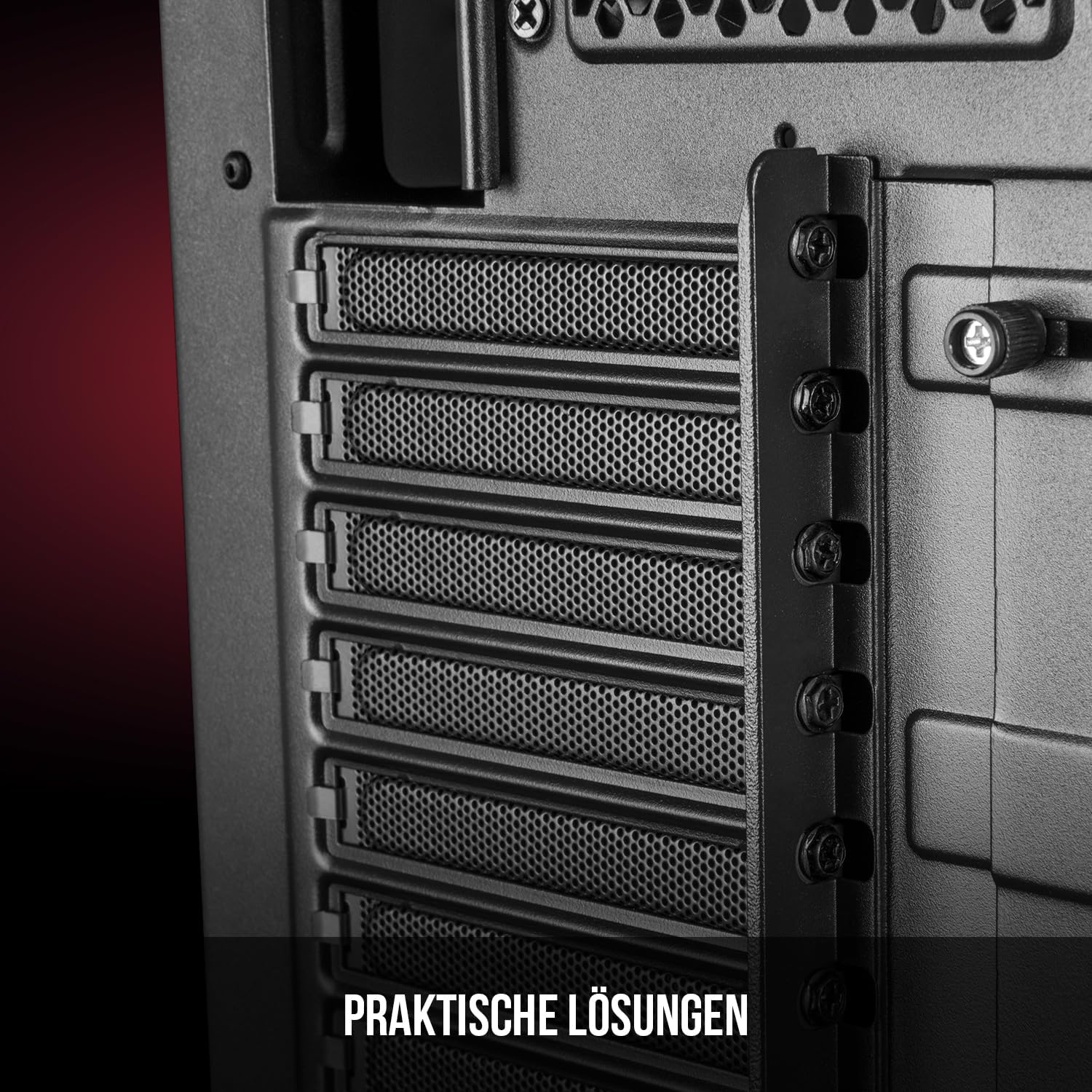
פיגור 5: הינטערשטע אינעווייניק view highlighting the expansion card slots.
5.6. קאַבלע מאַנאַגעמענט
Utilize the provided cable routing options and tie-down points behind the motherboard tray to organize cables. This improves airflow and maintains a tidy interior.
6. קאָאָלינג סיסטעם
The Oberon Pro comes with two pre-installed 120mm fans, one at the front and one at the rear, to ensure adequate airflow. The maximum height for a CPU cooler is 163mm, and the maximum length for a video card is 395mm, allowing for compatibility with a wide range of components.
7. וישאַלט
To maintain optimal performance and prevent dust buildup, regularly clean the dust filters. The magnetic filters on the top, front, and bottom of the case are easily dismountable for cleaning. Use compressed air or a soft brush to remove accumulated dust.
8. טראָובלעשאָאָטינג
- קיין מאַכט: Ensure all power cables are securely connected to the motherboard, power supply, and wall outlet. Check the power button connection to the motherboard.
- איבערהייצונג: Verify that all fans are spinning correctly and that dust filters are clean. Ensure proper cable management to avoid obstructing airflow.
- פראָנט פּאַנעל פּאָרץ אַרבעטן נישט: Check that the front panel connectors (USB, audio) are correctly plugged into the motherboard headers.
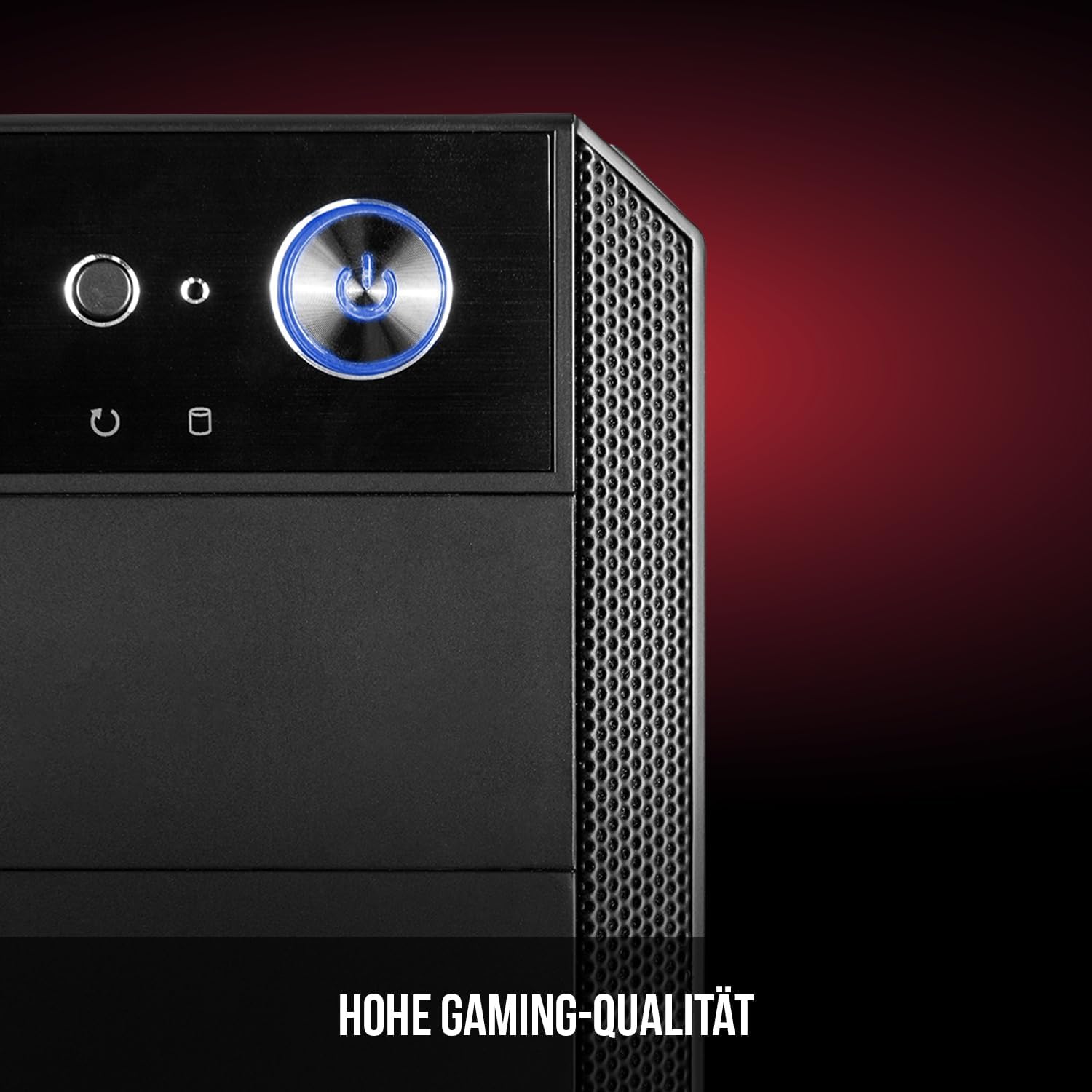
Figure 6: Front panel I/O ports for connectivity.
9. ספּעסאַפאַקיישאַנז
| שטריך | באַשרייַבונג |
|---|---|
| סאָרט | Modecom |
| מאָדעל נאָמען | Oberon Pro |
| מאָדעל נומער | AT-OBERON-PS-10-000000-0002 |
| קאָליר | שוואַרץ |
| טיפּ פון קאַסטן | מידי טאַוער |
| מאָטהערבאָאַרד קאַמפּאַטאַבילאַטי | ATX, Micro ATX, ITX |
| מאַטעריאַל | אַללוי סטיל |
| קאָאָלינג אופֿן | לופט |
| פאַר-אינסטאַלירן פאַנס | 2 x 120mm (Front, Rear) |
| מאַקסימום קפּו קולער הייך | 163 מם |
| מאַקסימום גפּו לענג | 395 מם |
| פאָר בייס | 3 x 2.5" SSD, 2 x 3.5" HDD |
| גאַנץ וסב פּאָרץ | 4 |
| ספּעציעלע פֿעיִקייטן | Reset Button, Dust Filter, LED Indicators, Side Window |
| פּונקט וואָג | 5270 גראַמז |

Figure 7: Rear exterior view of the computer case.
10. וואָראַנטי און שטיצן
For warranty information and technical support, please refer to the official Modecom webזייטל אדער קאָנטאַקט אייער הענדלער. האַלט אייער קויפן באַווייַז פֿאַר קיין וואָראַנטי קליימז.


