הקדמה
This manual provides instructions for the installation, setup, operation, and maintenance of your Feit Electric OM60/SW/HK A19 Smart LED Light Bulb. This smart bulb is designed to work with Apple HomeKit and Siri Voice Control, offering convenient lighting management without requiring a separate smart home hub for direct control. For remote access and advanced automations, an Apple Home Hub (Apple TV, iPad, or HomePod) is required.
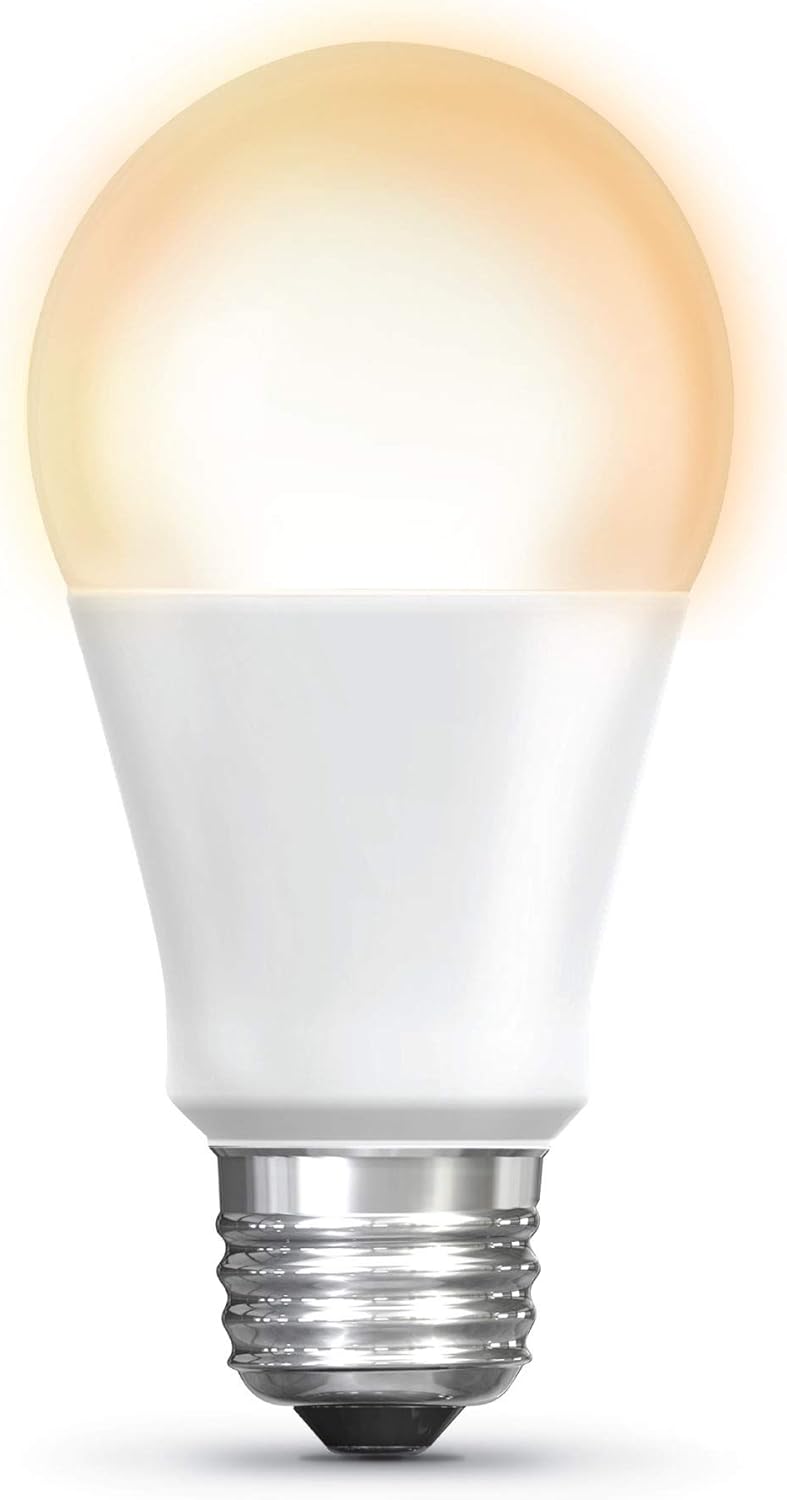
Image: The Feit Electric A19 Smart LED Light Bulb illuminated, showcasing its soft white light output.
זיכערקייַט אינפֿאָרמאַציע
- ריזיקירן פון עלעקטריק קלאַפּ: שטענדיק אויסשליסן די עלעקטריע צום פיקסטשער איידער איר אינסטאלירט אדער ארויסנעמט די גלאָביר.
- דרינענדיק/דרויסנדיק נוצן: This bulb is rated for outdoor use. Ensure the fixture is suitable for the environment.
- דיממער קאַמפּאַטאַבילאַטי: This smart bulb is dimmable via the Apple Home app or Siri. Do not use with standard incandescent dimmer switches, as this may damage the bulb.
- אַפּערייטינג טעמפּעראַטור: Do not install in enclosed fixtures that restrict airflow, as this can shorten bulb life.
- באַזייַטיקונג: Dispose of LED bulbs according to local regulations. Do not dispose of with general household waste.
פּעקל אינהאַלט
אייער פּעקל זאָל אַנטהאַלטן די פאלגענדע זאַך:
- 1 x Feit Electric OM60/SW/HK A19 Smart LED Light Bulb
סעטאַפּ אינסטרוקציעס
1. גשמיות ייַנמאָנטירונג
- זיכער מאַכן אַז די מאַכט צו די ליכט פיקסטשער איז אויסגעלאָשן ביים סוויטש איידער די אינסטאַלאַציע.
- Carefully screw the Feit Electric Smart LED Light Bulb into a standard E26 medium base socket.
- צינד אן די שטראָם צום לאָמפּ. די לאָמפּ זאָל אָנצינדן.
2. Apple HomeKit Pairing
The bulb connects directly to your Apple device via Bluetooth. No separate hub is required for basic control.
- עפענען די עפּל היים אַפּ on your iPhone, iPad, or iPod touch (iOS 10.0.1 or later required).
- צאַפּן אויף "+" icon in the upper right corner and select "Add Accessory".
- יבערקוקן די HomeKit סעטאַפּ קאָד located on the bulb or its packaging. Follow the on-screen prompts to add the bulb to your Home app and assign it to a room.

Image: A smartphone screen showing the Apple Home app interface, used to control smart lighting in a living room setting.
3. Firmware Update (Important)
To ensure optimal performance and compatibility with the latest iOS versions, it is recommended to update the bulb's firmware using the Feit OTA app.
- אָפּלאָדירן די "Feit OTA" app from the Apple App Store.
- Ensure the smart bulb is powered on.
- Open the Feit OTA app. Grant Bluetooth access permissions if prompted.
- נאַוויגירן צו "More" (bottom right corner) and select "EQUIPMENT UPGRADE GATT".
- Select the desired light bulb from the list.
- If a firmware update is available, select "UPDATE RIGHT NOW". Keep your phone screen active and do not leave the app during the update process to prevent interruption.
- After the update is complete, you may need to repeat steps 3-6 if multiple updates are required. The app will indicate when no further updates are needed.
- Once updated, return to the Apple Home app to confirm functionality. If issues persist, try resetting the bulb to factory settings (see Troubleshooting) and re-pairing.
4. Home Hub Setup for Remote Access
For control of your smart bulb when away from home, or for advanced automations and scheduling, an Apple Home Hub is required.
- Set up an Apple TV (4th generation or later), HomePod, or an iPad (running iOS 10 or later) as your Home Hub.
- Ensure your Home Hub device is connected to your home Wi-Fi network and signed in with the same Apple ID as your other HomeKit devices.
- Keep the Home Hub device powered on and connected to power to maintain remote access.
אַפּערייטינג ינסטראַקשאַנז
1. Control with Apple Home App
Once paired, you can control your smart bulb directly from the Apple Home app:
- קער אויף / אַוועק: Tap the bulb icon in the Home app.
- דימינג: Press and hold the bulb icon to access controls for brightness adjustment.
- Schedules & Automations: Use the Home app to create custom schedules for turning lights on/off or to set up automations based on time, location, or other HomeKit accessories.
- גרופּינג: גרופּירט קייפל גלאָבירלעך צוזאַמען צו קאָנטראָלירן זיי סיימאַלטייניאַסלי.
2. סירי שטימע קאנטראל
Use Siri on your iPhone, iPad, HomePod, or Apple Watch to control your smart bulb with voice commands:
- "Hey Siri, turn on the [Room Name] light."
- "Hey Siri, dim the [Light Name] to 50%."
- "Hey Siri, turn off all the lights."
באַמערקונג: Direct control via Bluetooth has a limited range (approximately 75 feet) and may experience slight delays compared to Wi-Fi based smart devices. For consistent remote control and faster response times, ensure a Home Hub is properly configured.
וישאַלט
- רייניקונג: זיכער מאַכן אַז די לאָמפּ איז קיל און די מאַכט איז אויסגעלאָשן איידער איר רייניקט. ווישט מיט אַ ווייכן, טרוקענעם שטאָף. ניצט נישט פליסיקע אָדער שאַרפע רייניקונגסמיטלען.
- סטאָרידזש: If storing the bulb, keep it in its original packaging in a cool, dry place.
- No user-serviceable parts are inside. Do not attempt to disassemble the bulb.
טראָובלעשאָאָטינג
Bulb Not Responding or Connecting
- טשעק מאַכט: Ensure the light fixture switch is on and the bulb is receiving power.
- בלועטאָאָטה ראַנגע: If controlling directly, ensure your Apple device is within Bluetooth range of the bulb.
- מאַכט ציקל: Turn the light switch off for 10 seconds, then turn it back on. This can often resolve minor connectivity issues.
- Firmware דערהייַנטיקן: Verify that the bulb's firmware is up to date using the Feit OTA app (refer to Setup Instructions). Outdated firmware can cause connectivity problems.
- באַשטעטיק באַלב: To factory reset the bulb, turn it off for 1 second, then on for 1 second, repeating this cycle 5 times. The bulb will flash to indicate a successful reset. Then, attempt to re-pair with the Apple Home app.
- Home Hub Check: If using remote access, ensure your Apple Home Hub (Apple TV, iPad, or HomePod) is online, powered, and connected to the same network.
Delay in Response
- This bulb uses Bluetooth for direct control, which can sometimes introduce a slight delay compared to Wi-Fi devices. Ensure your controlling device is close to the bulb.
- A properly configured Apple Home Hub can improve response times, especially for automations and remote control.
Bulb Turns Soft White After Power Outage
- The bulb is designed to return to a default soft white state after a power interruption. This behavior cannot be changed.
ספּעסאַפאַקיישאַנז
| שטריך | דעטאַל |
|---|---|
| מאָדעל נומער | OM60/SW/HK |
| ליכט טיפּ | געפירט |
| ציבעלע פאָרעם גרייס | A19 |
| באַלב באַסע | E26 מיטל |
| וואָסtage | 10 וואטס |
| ינקאַנדעסאַנט עקוויוואַלענט | 60 וואטס |
| ברייטנאַס | 800 לומענס |
| ליכט קאָליר | 2700K ווייך ווייַס |
| קאָליר רענדערינג אינדעקס (CRI) | 90 |
| Voltage | 120 וואלטס |
| דורכשניטלעך לעבן | 15,000 שעה |
| קאָנטראָל מעטאָד | App (Apple Home), Voice (Siri) |
| קאַנעקטיוויטי | Bluetooth (for direct control) |
| פּראָדוקט דימענשאַנז | 2.4" ברייט x 4.4" הויך |
| מאַטעריאַל | Glass, Metal, Plastic, Powdered Metal Steel, Rubber |
| דרינענדיק / דרויסנדיק באַניץ | דרויסנדיק |

Image: Dimensional drawing of the A19 light bulb, indicating a height of 4.4 inches and a diameter of 2.4 inches.
וואָראַנטי און שטיצן
וואָראַנטי אינפֿאָרמאַציע
This Feit Electric smart LED light bulb comes with a איין יאָר וואָראַנטי פון די דאַטע פון קויפן. די וואָראַנטי קאָווערס חסרונות אין מאַטעריאַלס און ווערקמאַנשיפּ אונטער נאָרמאַל נוצן.
For warranty claims or further assistance, please contact Feit Electric customer service.
קונה שטיצן
If you encounter any issues or have questions regarding your Feit Electric Smart LED Light Bulb, please contact:
- בליצפּאָסט: info@feit.com
- אָפּצאָל-פריי טעלעפאָן: 1-866-326-BULB (1-866-326-2852)
Please have your model number (OM60/SW/HK) and proof of purchase ready when contacting support.


