1. הקדמה
The Lexar JumpDrive Fingerprint F35 is a USB 3.0 flash drive designed to provide secure data storage through integrated fingerprint authentication and 256-bit AES encryption. This manual provides instructions for setting up, operating, maintaining, and troubleshooting your device to ensure optimal performance and data security.
2. פּעקל אינהאַלט
- Lexar JumpDrive Fingerprint F35 USB 3.0 Flash Drive
3. פּראָדוקט איבערview
The Lexar JumpDrive Fingerprint F35 features a sleek design with a built-in fingerprint sensor for quick and secure access to your files. It includes a standard USB-A connector for broad compatibility.

פיגורע 1: פראָנט view of the Lexar JumpDrive Fingerprint F35.
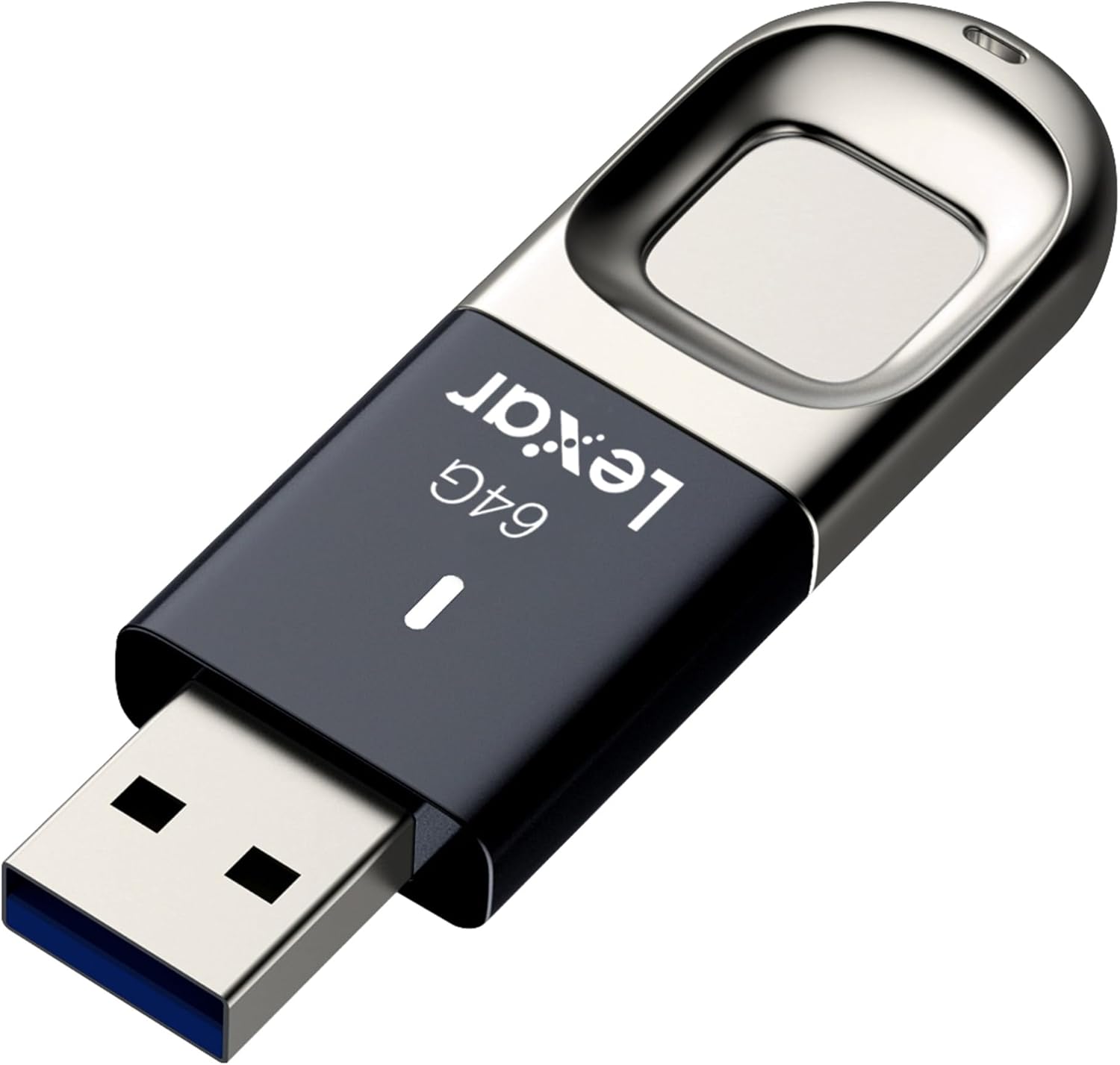
פיגור 2: ווינקלדיק view highlighting the fingerprint sensor.

Figure 3: Illustration of the fingerprint sensor location.

Figure 4: The drive features a convenient keychain loop for portability.
4. סעטאַפּ
4.1 סיסטעם רעקווירעמענץ
- Fingerprint Registration Software: Compatible with Windows XP, Vista, 7, 8, 10.
- Regular Flash Drive Use: קאַמפּאַטאַבאַל מיט Windows, Linux און Mac OS.
- פֿאַראַן USB 3.0 אָדער USB 2.0 פּאָרט.
4.2 Software Installation and Fingerprint Registration (Windows Only)
The fingerprint registration software is pre-loaded on the drive. This software is required to create/edit user accounts and adjust partition sizes. Once configured on a Windows PC, the secure partition can be accessed via fingerprint on compatible systems.
- Insert the Lexar JumpDrive F35 into an available USB port on your Windows computer.
- The drive will appear as a removable disk. Locate and run the setup executable for the fingerprint management software.
- גיי די ינסטראַקשאַנז אויף דעם עקראַן צו ינסטאַלירן די ווייכווארג.
- Launch the fingerprint management software.
- Register your fingerprints. The software will guide you through scanning your finger multiple times from different angles to ensure accurate recognition. Up to 10 fingerprint IDs can be registered.
- Configure the public and private (secure) partitions as desired. The secure partition is protected by your registered fingerprints.
4.3 Mac and Linux Users
While the Lexar JumpDrive F35 is compatible with Mac OS and Linux for regular flash drive use, the fingerprint registration and management software is only compatible with Windows operating systems. To utilize the fingerprint security features, the initial setup and fingerprint registration must be performed on a Windows PC. Once configured, the secure partition can be accessed on Mac and Linux systems by presenting a registered fingerprint.
5. אַפּערייטינג די מיטל
5.1 פֿאַרבינדן דעם דרייוו
Carefully insert the USB connector of the JumpDrive F35 into an available USB port on your computer. Ensure it is fully seated.
5.2 Accessing Partitions
- Public Partition: Upon insertion, the public partition of the drive will be automatically accessible, similar to a standard USB flash drive.
- Secure Partition: To access the secure partition, place a registered finger on the fingerprint sensor. The drive will recognize your fingerprint in less than one second, unlocking the secure partition.
5.3 דאַטאַ אַריבערפירן
The JumpDrive F35 utilizes USB 3.0 technology, offering read speeds of up to 150MB/s. For optimal transfer speeds, connect the drive to a USB 3.0 compatible port on your computer. You can drag and drop files to and from the accessible partitions.
5.4 זיכער אַרויסנעמען דעם דרייוו
Always safely eject the drive before physically removing it from your computer to prevent data corruption. This can typically be done by right-clicking the drive icon in your operating system's file explorer and selecting "Eject" or "Safely Remove Hardware."
Video 1: Official Lexar video demonstrating the quick fingerprint recognition and secure data handling of the JumpDrive F35. This video highlights the ease of use and security features of the product.
6. זיכערהייַט פֿעיִקייטן
- Fingerprint Authentication: Provides ultra-fast recognition in less than one second, allowing only authorized users access to the secure partition.
- 256-ביסל AES ענקריפּשאַן: Protects your sensitive files with advanced encryption standards, ensuring data confidentiality.
- Multiple Fingerprint IDs: Supports up to 10 unique fingerprint IDs, enabling shared access among trusted individuals if needed.
7. וישאַלט
- Cleaning the Fingerprint Sensor: Gently wipe the sensor with a soft, dry, lint-free cloth to remove any dust or smudges that might affect recognition accuracy. Avoid using harsh chemicals or abrasive materials.
- Protecting the USB Connector: Keep the USB connector free from dust and debris. Use the included cap or a protective case when not in use.
- דאַטאַ באַקקופּ: Regularly back up important data stored on the drive to another secure location to prevent data loss from unforeseen circumstances.
8. טראָובלעשאָאָטינג
8.1 דרייוו נישט דערקענט
- זיכער מאַכן אַז דער דרייוו איז גאָר אַרײַנגעשטעלט אין דעם USB פּאָרט.
- פּרוּווט אַ אַנדערש וסב פּאָרט אויף דיין קאָמפּיוטער.
- פּרובירט דעם דרייוו אויף אַן אַנדער קאָמפּיוטער צו אויסשליסן אַ קאָמפּיוטער-ספּעציפֿישן פּראָבלעם.
- Check your computer's Device Manager (Windows) or System Information (Mac) to see if the drive is detected.
8.2 פינגער-אפדרוק נישט דערקענט
- פאַרזיכערן דיין פינגער איז ריין און טרוקן.
- לייגט אייער פינגער פעסט און אינגאנצן אויפן סענסאר.
- Try different angles or positions of your finger, similar to how you registered it.
- If recognition consistently fails, re-register your fingerprint using the management software on a Windows PC.
8.3 לאַנגזאַמע טראַנספער גיכקייטן
- Ensure the drive is connected to a USB 3.0 port for optimal performance. USB 2.0 ports will result in slower speeds.
- שליסט צו אלע אומנייטיקע אפליקאציעס וואס לויפן אין הינטערגרונט און קענען פארנוצן סיסטעם רעסורסן.
- פֿאַרמײַדן איבערצוגעבן אַ סך קליינע fileס גלייכצייטיג, ווייל דאָס קען זיין שטייטער ווי איבערפירן אַ פּאָר גרויסע files.
8.4 Software Issues (Windows Only)
- מאַכן זיכער אַז דיין Windows אָפּערייטינג סיסטעם איז דערהייַנטיקט.
- If the software is not functioning correctly, try uninstalling and reinstalling it from the drive.
- Verify that your Windows version is supported by the fingerprint registration software (XP, Vista, 7, 8, 10).
9. ספּעסאַפאַקיישאַנז
| קאַפּאַציטעט | 64 גיגאבייט |
| צובינד | וסב 3.0 (צוריק קאַמפּאַטאַבאַל מיט וסב 2.0) |
| לייענען ספּיד | אַרויף צו 150 מעגאבייטן / s |
| שרייב ספּיד | 60 מב/ס |
| ענקריפּשאַן | 256-ביסל AES |
| פינגערפּרינט IDs | אַרויף צו 10 |
| דימענשאַנז (LxWxH) | 2.53 X 0.81 X 0.31 אינטשעס |
| וואָג | 0.8 אונסעס |
| אַפּערייטינג טעמפּעראַטור | 0°C צו 60°C (32°F צו 140°F) |
| סטאָרידזש טעמפּעראַטור | -20°C צו 85°C (-4°F צו 185°F) |
10. וואָראַנטי און שטיצן
10.1 וואָראַנטי אינפֿאָרמאַציע
Lexar products are designed for reliability and performance. This product is covered by a limited warranty. For specific warranty terms and conditions applicable to your region, please refer to the official Lexar webוועבזייטל אדער די וואָראַנטי קאַרטל וואָס איז אַרייַנגערעכנט מיט אייער קויפן.
10.2 קונה שטיצן
If you encounter any issues or have questions regarding your Lexar JumpDrive Fingerprint F35, please visit the official Lexar support website for FAQs, driver downloads, and contact information. You can typically find support resources at www.lexar.com/support.


