1. הקדמה
This manual provides comprehensive instructions for the installation, operation, maintenance, and troubleshooting of your Seagate Barracuda 2TB 3.5-inch SATA III Internal Hard Drive (Model ST2000DM008). Designed for desktop computers, this drive offers reliable storage for your data, applications, games, and media files.

בילד 1.1: פראָנט view of the Seagate Barracuda 2TB Internal Hard Drive, showcasing its sleek design and the Barracuda branding.
2. סעטאַפּ און ייַנמאָנטירונג
The Seagate Barracuda ST2000DM008 is an internal hard drive designed for desktop computer systems. Proper installation is crucial for optimal performance and data integrity.
2.1. סיסטעם רעקווירעמענץ
- Available 3.5-inch drive bay in your desktop computer.
- Available SATA data port on your motherboard.
- Available SATA power connector from your power supply unit (PSU).
- Compatible operating system (e.g., Windows, macOS, Linux).
2.2. גשמיות ייַנמאָנטירונג
- מאַכט אַוועק און דיסקאַנעקט: זייט זיכער אז אייער קאמפיוטער איז אינגאנצן אויסגעלאשן און ארויסגעצויגן פון עלעקטרישע ווענטיל.
- עפֿענען קאָמפּיוטער קעסטל: Remove the side panel of your computer case to access the internal components.
- געפינען דרייוו ביי: Identify an available 3.5-inch drive bay. Some cases may require a drive caddy.
- מאָנטירן דעם דרייוו: Carefully slide the hard drive into the drive bay. Secure it with screws or the case's tool-less mechanism.
- פאַרבינדן קאַבלעס:
- Connect one end of the SATA data cable to the hard drive and the other end to an available SATA port on your motherboard.
- Connect a SATA power cable from your PSU to the hard drive's power connector.
- פֿאַרמאַכן דעם קעסטל און אָנצינדן: Replace the computer case panel and reconnect the power cable. Power on your computer.
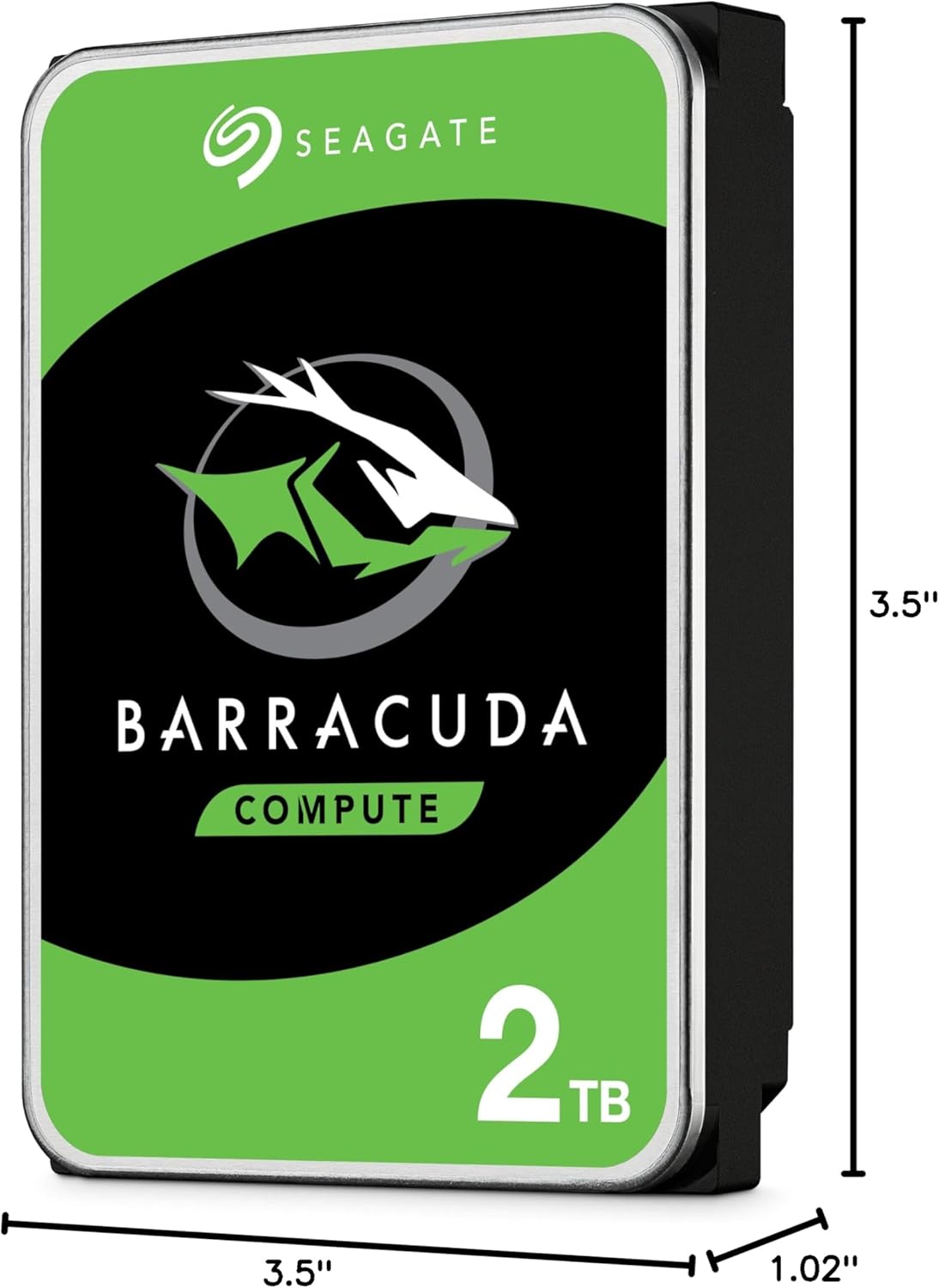
Image 2.1: Dimensions of the Seagate Barracuda 2TB Hard Drive, illustrating its 3.5-inch form factor and physical measurements for compatibility with desktop drive bays.
2.3. Software Setup (Initial Use)
After physical installation, the drive needs to be initialized, partitioned, and formatted by your operating system before it can be used for storage.
- צוטריט דיסק פאַרוואַלטונג:
- Windows: רעכט-קליק אויף 'דיז קאמפיוטער' אדער 'מיין קאמפיוטער', סעלעקטיר 'פארוואלטן', דערנאך 'דיסק פארוואלטונג'.
- macOS: גיי צו 'אַפּליקאַציעס' > 'יוטילאַטיז' > 'דיסק יוטילאַטי'.
- לינוקס: Use a disk utility like GParted or the 'fdisk'/'parted' command-line tools.
- איניציאליזירן דיסק: The new drive should appear as 'Unallocated Space'. You may be prompted to initialize it (e.g., MBR or GPT partition style). GPT is recommended for drives larger than 2TB.
- Create Partition(s): Create one or more partitions on the initialized disk.
- Format Partition(s): Format the partition(s) with a suitable file system (e.g., NTFS for Windows, HFS+ or APFS for macOS, Ext4 for Linux).
- Assign Drive Letter/Mount Point: Assign a drive letter (Windows) or mount point (Linux) to the new partition(s).
3. אפערירן דעם הארט דרייוו
Once installed and formatted, your Seagate Barracuda hard drive functions as a standard storage device within your computer system. It is designed for continuous operation in a desktop environment.
3.1. דאַטן סטאָרידזש און צוטריט
- File פאַרוואַלטונג: ניצט אייער אפערירן סיסטעם'ס file explorer (e.g., Windows Explorer, macOS Finder) to save, copy, move, and delete fileס אויף די פאָר.
- אַפּלאַקיישאַן ינסטאַלירונג: Install software applications directly onto the drive.
- מעדיע סטאָרידזש: Store large media files such as videos, photos, and music.
- גיימינג: Install and run games from the drive to utilize its capacity.
3.2. פאָרשטעלונג
The drive utilizes a SATA 6Gb/s interface, providing high-speed data transfer rates for typical desktop usage. Actual performance may vary based on system configuration, file sizes, and workload.

Image 3.1: Illustrates the 'Store More' capability of the Seagate Barracuda drive, highlighting its suitability for storing a large volume of games, movies, and music files.
4. וישאַלט און קער
געהעריגע אויפהאלטונג העלפט זיכער מאכן די לאנגעוויטי און פארלעסלעכקייט פון אייער הארט דרייוו.
- רעגולער באַקקופּס: Periodically back up important data to another storage device or cloud service. This is the most critical maintenance step to prevent data loss.
- דעפראַגמענטאַציע (פֿאַר האַרט דיסקס): For Windows users, regularly defragmenting the drive can help optimize performance. macOS and Linux typically handle this automatically.
- Check Drive Health: Use disk utility tools provided by your operating system or third-party software to monitor the drive's S.M.A.R.T. status and overall health.
- האַלטן סיסטעם קיל: זאָרגט פֿאַר גענוג לופֿטפֿלוס אין אייער קאָמפּיוטער קעסטל כּדי צו פֿאַרהיטן אַז דער דרייוו זאָל זיך נישט איבערהייצן.
- פֿאַרמייַדן פֿיזישע שאַקס: Hard drives are sensitive to physical impact. Avoid moving or bumping your computer while it is operating.
- ווייכווארג דערהייַנטיקונגען: Keep your operating system and drivers updated to ensure compatibility and optimal performance.

Image 4.1: Depicts the 'Get Protected' feature, emphasizing Seagate Secure data protection, which contributes to the overall reliability of the drive.
5. טראָובלעשאָאָטינג
If you encounter issues with your Seagate Barracuda hard drive, try the following common troubleshooting steps.
5.1. דרייוו נישט דעטעקטירט
- טשעק קאַבלעס: זיכער מאַכן אַז ביידע די SATA דאַטן און מאַכט קייבאַלז זענען זיכער פארבונדן צום דרייוו און צום מוטערבאָרד/PSU.
- Check BIOS/UEFI: Verify that the SATA port the drive is connected to is enabled in your computer's BIOS/UEFI settings.
- פרובירט אן אנדערן פארט/קאבל: Test the drive with a different SATA data cable, power cable, or motherboard SATA port.
- קוק די מאַכט צושטעלן: זייט זיכער אז אייער PSU האט גענוג וואסערtage און פאַראַן קאַנעקטערז.
- דיסק פאַרוואַלטונג: קוק דיסק מענעדזשמענט (ווינדאָוס) אדער דיסק יוטיליטי (מעקאָס) צו זען אויב דער דרייוו ווערט דעטעקטירט אָבער נישט איניציאַליזירט אדער נישט פֿאָרמאַטירט.
5.2. לאַנגזאַמע פאָרשטעלונג
- טשעק דיסק באַניץ: Ensure the drive is not nearly full. Performance can degrade significantly when a drive is almost at capacity.
- דעפראַגמענטאַציע: Perform a disk defragmentation (Windows) if the drive is heavily fragmented.
- SMART סטאַטוס: Check the drive's S.M.A.R.T. status for any warnings indicating potential failure.
- הינטערגרונט פּראַסעסאַז: Close any unnecessary background applications that might be accessing the drive.
- דרייווער דערהייַנטיקונגען: Ensure your motherboard's SATA drivers are up to date.
5.3. אומגעוויינטלעכע גערוישן
- קליקן/שלייפן: Unusual clicking, grinding, or scraping noises often indicate a mechanical failure. Immediately back up any accessible data and consider replacing the drive.
- ווייבריישאַן: Ensure the drive is securely mounted in its bay to prevent vibrations.
If these steps do not resolve the issue, please refer to the support section or contact Seagate customer support.
6. ספּעסאַפאַקיישאַנז
Key technical specifications for the Seagate Barracuda 2TB Internal Hard Drive (Model ST2000DM008).
| שטריך | באַשרייַבונג |
|---|---|
| מאָדעל נומער | סט 2000 דמ 008 |
| דיגיטאַל סטאָרידזש קאַפּאַציטעט | 2000 גיגאבייט (2 טב) |
| שווער דיסק צובינד | סאַטאַ 6 גיגאבייט / s |
| פאָרם פאַקטאָר | 3.5 אינטשעס |
| שווער דיסק באַשרייַבונג | Mechanical Hard Disk (HDD) |
| קאַמפּאַטאַבאַל דעוויסעס | דעסקטאָפּ קאָמפּיוטערס |
| ייַנמאָנטירונג טיפּ | אינערלעכער שווער פאָר |
| פּונקט וואָג | 7 אונס (בעערעך 198 גראַמז) |
| פּראָדוקט דימענשאַנז (LxWxH) | 5.78 x 4.01 x 0.8 אינטשעס (אומגעפער 14.68 x 10.19 x 2.03 ס״מ) |
7. וואָראַנטי אינפֿאָרמאַציע
The Seagate Barracuda ST2000DM008 Internal Hard Drive typically comes with a 2-יאָר לימיטעד וואָראַנטי פון די דאַטע פון קויפן. די וואָראַנטי קאָווערס חסרונות אין מאַטעריאַלס און ווערקמאַנשיפּ אונטער נאָרמאַל נוצן.
For complete details regarding warranty terms, conditions, and limitations, please refer to the official Seagate warranty statement available on their website or contact Seagate customer support. Keep your proof of purchase for warranty claims.

Image 7.1: Highlights the 'Trusted Durability' of the Seagate Barracuda drive, backed by a 2-year limited warranty, ensuring peace of mind for users.
8. קונה שטיצן
For further assistance, technical support, or to register your product, please visit the official Seagate support resources:
- Seagate Official Webפּלאַץ: www.seagate.com/support/
- Seagate Brand Store on Amazon: Visit Seagate Store
You may also find helpful resources, FAQs, and driver downloads on their support pages.