הקדמה
This manual provides detailed instructions for the Microsoft N9Z-00017 All-In-One Media Keyboard. This wireless keyboard features an integrated multi-touch trackpad, media hotkeys, and 128-bit AES encryption for secure data transmission. It is designed for use with Smart TVs, laptops, and desktop computers, offering a convenient and versatile input solution.
Please read this manual thoroughly before using your keyboard to ensure proper setup and operation.
סעטאַפּ
1. פּעקל אינהאַלט
- Microsoft N9Z-00017 All-In-One Media Keyboard
- וסב ווירעלעסס ופנעמער
- AA באַטעריעס (פאַר-אינסטאַלירט אָדער אַרייַנגערעכנט)
- שנעלע אָנהייב גייד (אויב אָנווענדלעך)
2. באַטאַרייע ייַנמאָנטירונג
The keyboard typically comes with AA batteries pre-installed or included. If not, follow these steps:
- געפינט דעם דעקל פונעם באַטעריע־אָפּטייל אויף דער אונטערשטער זייט פונעם קלאַוויאַטור.
- שלעפּט אָדער הייבט אויף דעם דעקל צו עפֿענען דעם אָפּטייל.
- Insert the AA batteries, ensuring correct polarity (+ and -).
- פאַרמאַכן די באַטאַרייע אָפּטייל דעקן סיקיורלי.
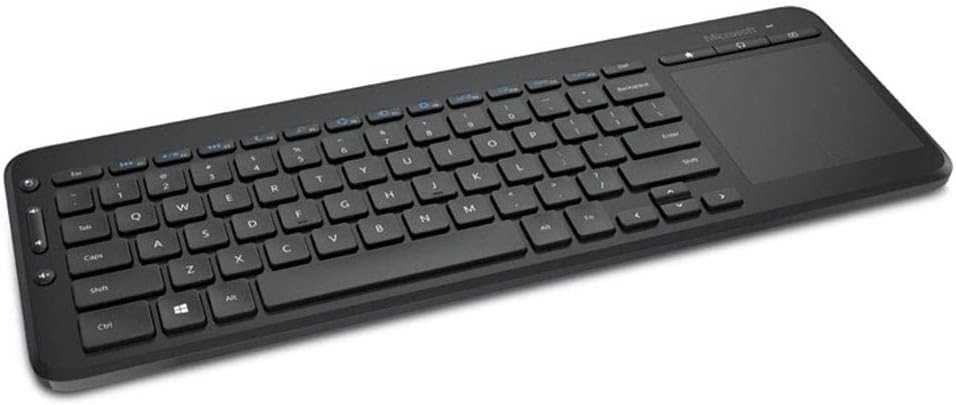
Image: The Microsoft All-In-One Media Keyboard, showing its compact design with an integrated touchpad on the right side. This image provides a general overview פון דעם פּראָדוקט'ס אויסזען.
3. פֿאַרבינדן דעם דראָטלאָזן ופנעמער
- Locate the USB wireless receiver, usually stored in a compartment on the keyboard or included separately.
- Plug the USB wireless receiver into an available USB port on your computer or Smart TV.
- The operating system should automatically detect and install the necessary drivers. This process may take a few moments.
- Once installed, the keyboard should be ready for use.
אַפּערייטינג ינסטראַקשאַנז
1. גרונטלעכע קלאַוויאַטור פונקציעס
The keyboard functions like a standard QWERTY keyboard. This specific model features a Turkish Q layout. All standard alphanumeric keys, function keys (F1-F12), and modifier keys (Shift, Ctrl, Alt) are present.
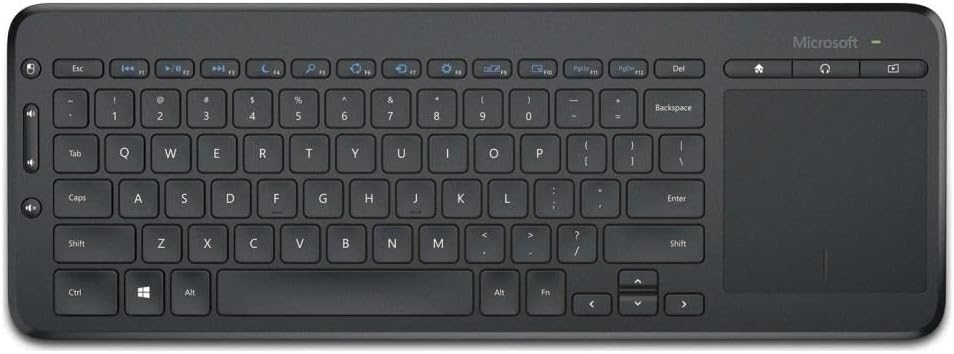
בילד: א פון אויבן אראפ view of the Microsoft All-In-One Media Keyboard, clearly displaying the Turkish Q keyboard layout and the integrated multi-touch trackpad.
2. Integrated Multi-Touch Trackpad
The large integrated trackpad supports multi-touch gestures, allowing for intuitive navigation.
- איין פינגער טאַפּ: לינקס-גיט.
- צוויי פינגער טאַפּ: רעכט גיט.
- צוויי פינגער סקראל: Scroll vertically or horizontally.
- קניפּ צו פארגרעסערן: Zoom in or out (application dependent).
3. Media Hotkeys
Dedicated media hotkeys are located above the function keys for quick access to media controls and other common functions. These include volume control, mute, play/pause, and home screen access.
4. 128-bit AES Encryption
The keyboard utilizes 128-bit Advanced Encryption Standard (AES) technology to encrypt your keystrokes. This feature helps protect your personal and business information by securing the wireless communication between the keyboard and the receiver.
5. מיטל קאָמפּאַטיביליטי
This keyboard is compatible with a range of devices, including:
- Smart Televisions
- לאַפּטאָפּס
- דעסקטאָפּ קאָמפּיוטערס
Ensure your device has an available USB port for the wireless receiver.
וישאַלט
1. רייניקן די קלאַוויאַטור
- Disconnect the keyboard from its power source (remove batteries) before cleaning.
- ניצן אַ ווייך, לינט-פֿרייַ שטאָף אַ ביסל דampמיט וואַסער אָדער אַ מילד רייניקונג לייזונג.
- פֿאַרמײַדט צו ניצן אַברייסיוו רייניגער, סאָלווענטן, אָדער אַעראָסאָל שפּריץ גלייך אויף דער קלאַוויאַטור.
- פֿאַר רייניקונג צווישן שליסלען, ניצט קאָמפּרעסירטע לופט צו באַזייַטיקן שטויב און שמוץ.
- Wipe the trackpad gently with a clean, dry cloth.
2. באַטערי פאַרבייַט
When the keyboard's performance degrades or the battery indicator (if present) signals low power, replace the batteries:
- Open the battery compartment on the underside of the keyboard.
- אַראָפּנעמען די אַלט אַאַ באַטעריז.
- Insert new AA batteries, observing the correct polarity.
- פאַרמאַכן די באַטאַרייע אָפּטייל סיקיורלי.
- אַוועקוואַרפן אַלטע באַטעריעס לויט די לאָקאַלע רעגולאַציעס.
טראָובלעשאָאָטינג
| פּראָבלעם | מעגלעך סיבה | לייזונג |
|---|---|---|
| קלאַוויאַטור ניט ריספּאַנדינג |
|
|
| שליסלען ארבעטן נישט ריכטיק |
|
|
| טרעקפּאַד רעאַגירט נישט |
|
|
ספּעסאַפאַקיישאַנז
- סאָרט: מייקראָסאָפֿט
- מאָדעל: N9Z-00017
- קאַנעקטיוויטי טעכנאָלאָגיע: ווירעלעסס
- קלאַוויאַטור אויסלייג: טערקיש ק
- קאַמפּאַטאַבאַל דעוויסעס: Smart Television, Laptop, Desktop Computer
- רעקאַמענדיד נוצן: Office, Home Entertainment
- זיכערהייט: 128-ביסל אַעס ענקריפּשאַן
- מאַכט מקור: אַאַ באַטעריז
וואָראַנטי און שטיצן
For warranty information, technical support, or to register your product, please visit the official Microsoft support website. You can typically find detailed warranty terms and contact information for customer service there.
Official Microsoft Support: support.microsoft.com
ביטע האַלטן דיין דערווייַז פון קויפן פֿאַר וואָראַנטי קליימז.


