1. סעטאַפּ
1.1 אַנפּאַקינג די מאָניטאָר
פֿאָרזיכטיק אַרויסנעמען אַלע קאָמפּאָנענטן פֿון דער פּאַקאַדזשינג. זיכער מאַכן אַז אַלע זאַכן וואָס זענען אויסגערעכנט אונטן זענען פֿאַראַן:
- BenQ EX3501R Monitor
- מאָניטאָר שטאַנד (באַזע און האַלדז)
- מאַכט אַדאַפּטער
- מאַכט שנור
- HDMI קאַבלע
- DisplayPort קאַבלע
- וסב- C קאַבלע
- באַניצער מאַנואַל (דעם דאָקומענט)
1.2 צוזאַמענשטעלן דעם שטאַנד
פֿאָלגט די סטעפּס צו באַפֿעסטיקן דעם שטאַנד צו אייער מאָניטאָר:
- לייגט דעם מאָניטאָר מיטן פּנים אַראָפּ אויף אַ ווייכן, ריינעם שטאָף צו פאַרמייַדן קראַצן.
- Attach the stand neck to the back of the monitor. Ensure it clicks securely into place.
- Connect the stand base to the neck, tightening any screws as indicated in the quick start guide.

פיגורע 1: פראָנט view of the BenQ EX3501R monitor with its stand.
1.3 קאַנעקטינג קאַבלעס
Connect the necessary cables to the monitor and your computer. The monitor supports various input options:
- מאַכט: Connect the power adapter to the monitor and then to a power outlet.
- ווידעא ינפּוט: Use either the HDMI, DisplayPort, or USB-C cable to connect your computer to the monitor.
- וסב- C: The USB-C port supports video, data transfer, and power delivery, allowing for a single-cable connection with compatible devices.
- וסב 3.0 פּאָרץ: Utilize the integrated USB 3.0 ports for connecting peripherals.
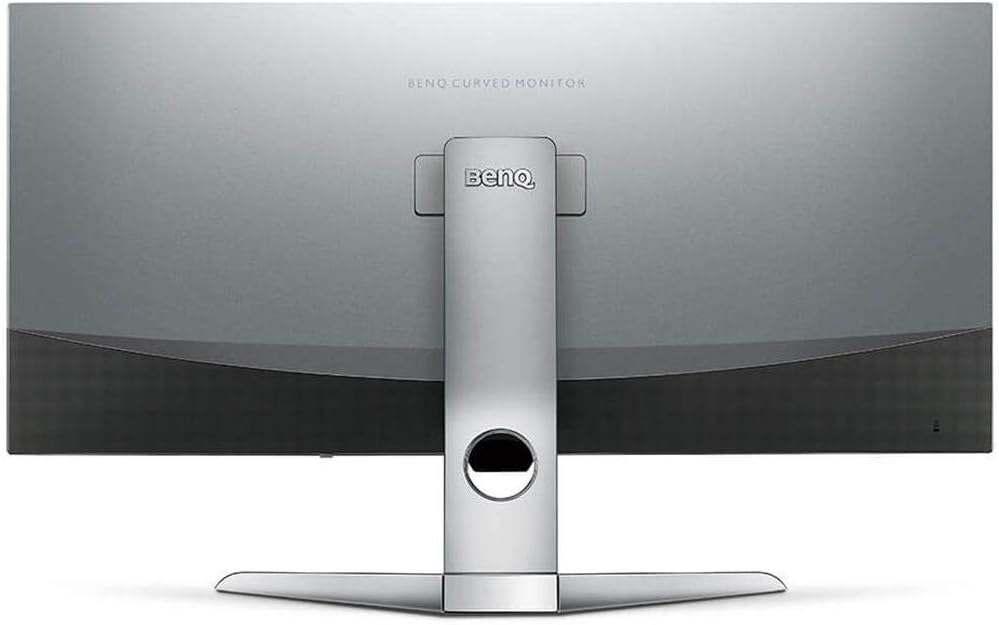
פיגורע 2: דערציען view of the monitor displaying the connectivity ports.
2. אַפּערייטינג די מאָניטאָר
2.1 מאַכט אויף / אַוועק
Press the power button, usually located on the bottom right side of the monitor, to turn it on or off. The power indicator light will illuminate when the monitor is active.
2.2 אויף-סקרין דיספּליי (OSD) נאַוויגאַציע
Use the joystick or buttons located on the monitor's underside to navigate the On-Screen Display (OSD) menu. This menu allows you to adjust various settings such as brightness, contrast, color modes, and input sources.
2.3 Display Features and Eye-Care Technology
The BenQ EX3501R incorporates several technologies designed to enhance viewing experience and reduce eye strain:
- ברייטקייט אינטעליגענץ פּלוס (BI+): This patented technology automatically senses ambient lighting conditions and adjusts the screen's brightness and color temperature to provide optimal viewing comfort and protect your eyes during extended use.
- נידעריק בלוי ליכט: Filters out harmful blue light emissions to reduce eye fatigue. Multiple levels of blue light reduction are available.
- ZeroFlicker™: Eliminates screen flickering at all brightness levels, further reducing eye strain and discomfort.
- HDR (High Dynamic Range): Offers enhanced brightness and contrast, bringing greater detail and vibrancy to HDR video content.
ווידעא 1: אן איבערview of BenQ's Eye-Care technology, including Low Blue Light, ZeroFlicker, and Brightness Intelligence Plus, demonstrating how these features work to reduce eye strain and adjust screen settings automatically based on ambient light.
2.4 Resolution and Refresh Rate
The monitor features a QHD (3440x1440) resolution and a 100Hz refresh rate, providing a smooth and detailed visual experience. The 21:9 ultrawide aspect ratio offers ample screen space for multitasking, such as viewing multiple documents side-by-side without needing a second monitor.
2.5 AMD פריסינק
For a fluid gaming experience, the monitor supports AMD FreeSync technology, which synchronizes the monitor's refresh rate with your graphics card's frame rate to eliminate screen tearing and stuttering.
3. וישאַלט
3.1 רייניקונג די מאָניטאָר
To maintain optimal performance and appearance, regularly clean your monitor:
- פאַרשטעלן: ווישט אָפּ דעם עקראַן מיט אַ ווייכן, לינט-פֿרייע שטאָף. פֿאַר שווערע פֿלעקן, ניצט אַ מאָניטאָר-ספּעציפֿישע רייניקונג לייזונג וואָס ווערט אויפֿגעטראָגן אויף דעם שטאָף, נישט גלייך אויף דעם עקראַן.
- עקסטעריע: Use a soft, dry cloth to wipe dust and debris from the monitor casing and stand.
Avoid using abrasive cleaners, waxes, or solvents as they can damage the monitor's surface.
3.2 General Care Tips
- בלאָקירט נישט די ווענטילאַציע עפענונגען אויף דעם מאָניטאָר.
- ויסמיידן פּלייסינג די מאָניטאָר אין דירעקט זונשייַן אָדער לעבן היץ קוואלן.
- שעפּן די מאָניטאָר מיט זאָרג צו פאַרמייַדן גשמיות שעדיקן.
4. טראָובלעשאָאָטינג
If you encounter issues with your BenQ EX3501R monitor, refer to the following common troubleshooting steps:
4.1 No Display or Black Screen
- זיכער מאַכן אַז דער מאַכט קאַבל איז זיכער פארבונדן צו ביידע דעם מאָניטאָר און די מאַכט ווענטיל.
- איבערצייגט אז דער ווידעא קאבל (HDMI, DisplayPort, אדער USB-C) איז פעסט פארבונדן סיי צום מאָניטאָר און סיי צו אייער קאָמפּיוטער.
- קאָנטראָלירט צי די ריכטיקע אינפוט מקור איז אויסגעקליבן אין דעם מאָניטאָר'ס OSD מעניו.
- ריסטאַרט דיין קאָמפּיוטער.
4.2 Flickering or Unstable Image
- Ensure the ZeroFlicker™ feature is enabled in the OSD menu.
- Check for loose video cable connections.
- דערהייַנטיקן דיין graphics קאָרט דריווערס צו די לעצטע ווערסיע.
- If using AMD FreeSync, ensure it is properly configured in your graphics card settings.
4.3 Color or Brightness Issues
- סטרויערן העלקייט, קאנטראסט און קאליר סעטינגס דורך די OSD מעניו.
- Enable or disable Brightness Intelligence Plus (B.I.+) to see if it resolves the issue.
- Perform a factory reset through the OSD menu.
5. ספּעסאַפאַקיישאַנז
Key technical specifications for the BenQ EX3501R monitor:
| שטריך | באַשרייַבונג |
|---|---|
| פאַרשטעלן גרייס | 35 אינטשעס |
| מאַקסימום סקרין האַכלאָטע | 3440 x 1440 Pixels (QHD Ultrawide) |
| אַספּעקט פאַרהעלטעניש | 21:9 |
| דערפרישן קורס | 100 הז |
| קערוואַטשער | 1800ר |
| טאַפליע טיפּ | VA (ווערטיקאַל אַליינמאַנט) |
| קאַנעקטיוויטי | USB-C, HDMI, DisplayPort |
| ספּעציעלע פֿעיִקייטן | AMD FreeSync, Brightness Intelligence Plus, Low Blue Light, ZeroFlicker |
| פּונקט וואָג | 21.3 פונט |
| פּראָדוקט דימענשאַנז | 6.88 X 3.47 X 12.93 אינטשעס |
6. וואָראַנטי און שטיצן
6.1 פּראָדוקט וואָראַנטי
The BenQ EX3501R monitor typically comes with a 3-year manufacturer's warranty. Please refer to the warranty card included in your product packaging for specific terms and conditions, or visit the official BenQ webפּלאַץ פֿאַר דיטיילד וואָראַנטי אינפֿאָרמאַציע.
6.2 קונה שטיצן
For further assistance, technical support, or warranty claims, please contact BenQ customer service. You can find contact information and support resources on the official BenQ webפּלאַץ: www.benq.com/en-us/support.html


