1. הקדמה
The WeMo F7C059 Dimmer Wi-Fi Light Switch allows you to control and dim your lights from anywhere using the WeMo app, voice commands, or directly from the wall switch. This device integrates with your existing Wi-Fi network, eliminating the need for a separate hub. It is compatible with Amazon Alexa, Google Assistant, and Apple HomeKit, offering flexible control options for your smart home lighting.

בילד: פראָנט view of the WeMo F7C059 Dimmer Wi-Fi Light Switch, showing its sleek white design with a vertical dimming strip and a circular power button.
2. וויכטיק סאַפעטי אינפֿאָרמאַציע
Please read and understand all safety instructions before installation and use. Failure to follow these instructions may result in electric shock, fire, or property damage.
- ריזיקירן פון עלעקטריק קלאַפּ: שטענדיק אויסשליסן די עלעקטריע ביים קרייז ברעיקער איידער איר אינסטאלירט אדער סערוויסט דעם סוויטש.
- נייטראַל דראָט פארלאנגט: This device requires a neutral wire for operation. If your existing switch box does not have a neutral wire (typically white), this dimmer is not compatible.
- Single-Pole Installation Only: This dimmer is designed for single-pole light switches only. It is not compatible with 3-way (multi-location control) switches.
- Avoid Metal Faceplates: Not recommended for use with metal faceplates, as this may interfere with Wi-Fi signal.
- בלויז דרינענדיק נוצן: די דעווייס איז בדעה פֿאַר נוצן אינעווייניק אין טרוקענע ערטער.
- מאַקסימום וואַסערtage: אַדכיר צו די ספּעסיפיעד מאַקסימום וואַטtage: 400W Incandescent (single-gang), 250W Incandescent (multi-gang), 150W CFL/LED (single or multi-gang).
3. פּעקל אינהאַלט
באַשטעטיקן אַז אַלע זאכן זענען פאַראַן אין דיין פּעקל:
- WeMo Wi-Fi Smart Dimmer (F7C059)
- שנעלער אָנהייב גייד (נישט אַרייַנגערעכנט אין דעם דיגיטאַלן מאַנואַל)
- Wire Nuts (typically included for installation)
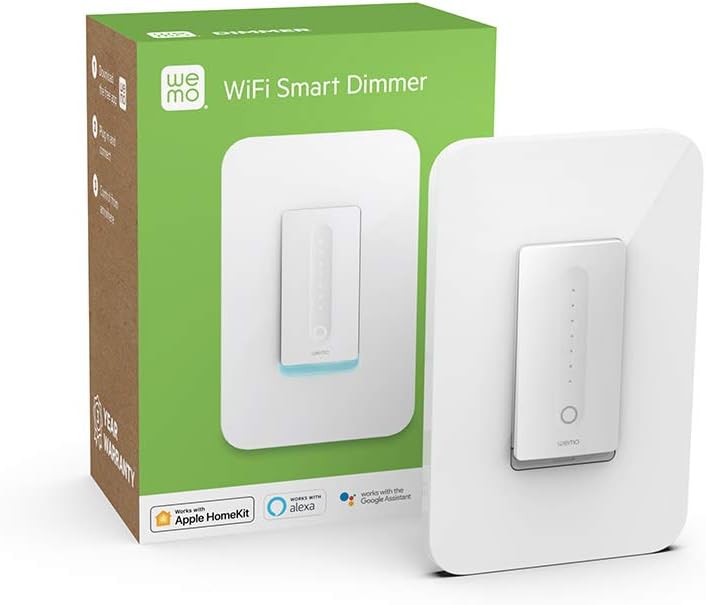
Image: The WeMo Wi-Fi Smart Dimmer shown alongside its retail packaging, highlighting the product and its box.
4. אינסטאַלאַציע (סעטאַפּ)
This section guides you through the physical installation of your WeMo Dimmer. If you are unsure about any steps, consult a qualified electrician.
4.1 פאַר-ינסטאַלירונג טשעקס
- באַשטעטיקן קאַמפּאַטאַבילאַטי: Ensure your existing switch is a single-pole switch (controls lights from one location) and that a neutral wire is present in the electrical box.
- מכשירים פארלאנגט: You will need a screwdriver, wire strippers, and electrical tape.
4.2 וויירינג אינסטרוקציעס
- קער אַוועק מאַכט: Locate your circuit breaker panel and turn off the power to the light switch you are replacing. Verify the power is off by attempting to turn on the light.
- אַראָפּנעמען אַלטן סוויטש: Carefully remove the existing wall plate and unscrew the old switch from the electrical box. Disconnect the wires, noting their connections.
- אידענטיפיצירן דראָטן:
- ליניע (הייס) דראָט: טיפּיש שוואַרץ, ברענגט מאַכט פֿון די קרייַז ברעאַקער.
- לאָדן דראָט: Typically black, sends power to the light fixture.
- נייטראַל דראָט: Typically white, required for the WeMo Dimmer.
- ערד דראָט: Typically green or bare copper.
- Connect WeMo Dimmer:
- Connect the WeMo Dimmer's שוואַרץ דראָט to the electrical box's Line (Hot) wire.
- Connect the WeMo Dimmer's רויט דראָט to the electrical box's מאַסע דראָט.
- Connect the WeMo Dimmer's ווייַס דראָט to the electrical box's נייטראַל דראָט.
- Connect the WeMo Dimmer's גרין דראָט to the electrical box's ערד דראָט.
- בארג די דימער: Carefully push the wired dimmer into the electrical box. Screw the dimmer into place.
- ינסטאַלירן וואנט פּלאַטע: Attach your existing or a new standard rocker-style wall plate.
- ומקערן מאַכט: Return to your circuit breaker panel and turn the power back on.
בילד: א נאָענטע בילד view of the WeMo Dimmer with its wires (black, red, white, green) extending, ready for electrical connection. This illustrates the wiring process.
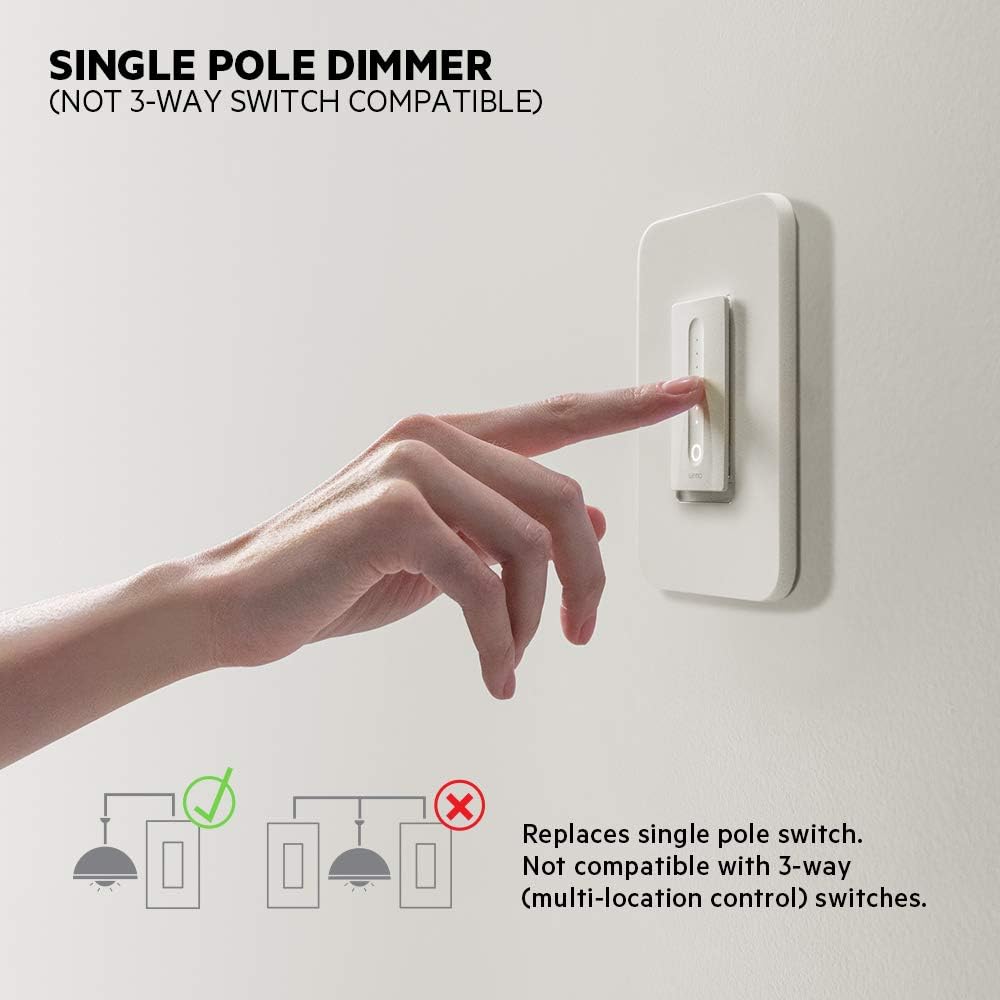
Image: Diagram illustrating that the WeMo Dimmer is compatible with single-pole switches (one switch controlling one light) and not with 3-way switches (multiple switches controlling one light).
5. WeMo App Setup
After physical installation, set up your WeMo Dimmer using the WeMo app to enable smart features.
- Download the WeMo App: Download the free WeMo app from the Apple App Store (for iOS) or Google Play Store (for Android).
- Launch App and Add Device: Open the WeMo app and follow the on-screen instructions to add a new device.
- Connect to WeMo Wi-Fi: Your phone will temporarily connect to the WeMo Dimmer's Wi-Fi network during setup.
- פאַרבינדן צו היים Wi-Fi: Select your home 2.4GHz Wi-Fi network and enter the password when prompted.
- Name Your Dimmer: Give your dimmer a descriptive name (e.g., "Living Room Lights").
- Calibrate Dimmer: The app will guide you through a calibration process to optimize dimming for your specific bulbs (incandescent, CFL, or LED) and prevent flickering.

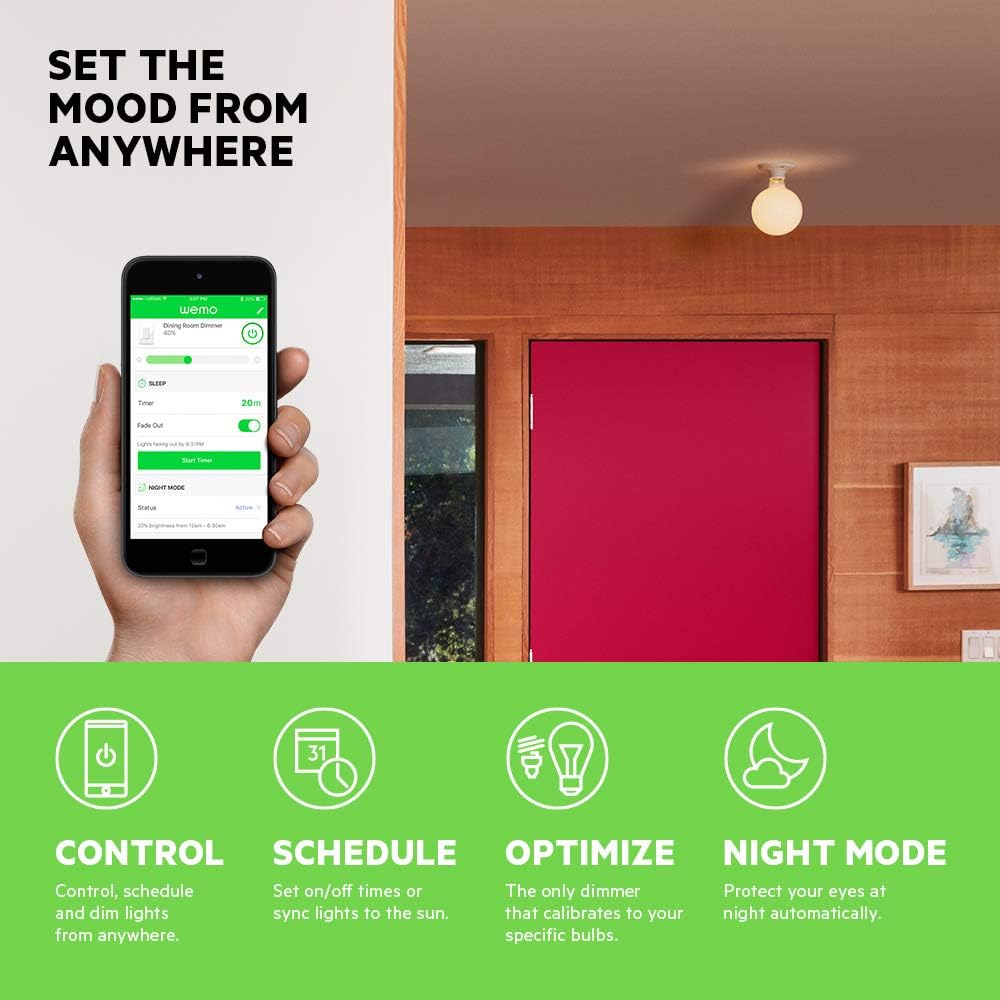
Image: A smartphone displaying the WeMo app interface, showing controls for dimming, scheduling, and night mode settings for a connected light switch.
6. אָפּעראַציע
Control your lights using the physical switch, the WeMo app, or voice commands.
6.1 מאַנואַל קאָנטראָל
- אויף / אַוועק: Press the main circular button to turn the lights on or off.
- דימינג: Slide your finger along the vertical touch-sensitive strip to adjust brightness levels.
6.2 אַפּ קאָנטראָל
The WeMo app provides advanced control features:
- ווייַט קאָנטראָל: Turn lights on/off and adjust brightness from anywhere with an internet connection.
- Schedules and Timers: Set custom schedules for lights to turn on/off or dim at specific times, or sync with sunrise/sunset.
- נאַכט מאָדע: Configure a low-light setting for specific hours to protect your eyes from bright lights during the night.

Image: A couple relaxing on a couch, watching television, with the text "Set the mood from anywhere" suggesting remote control of lighting.
7. שטימע קאנטראל אינטעגראציע
Integrate your WeMo Dimmer with popular voice assistants for hands-free control.
- אַמאַזאָן אַלעקסאַ: Enable the WeMo skill in the Alexa app and discover devices. You can then say commands like, "Alexa, dim the living room lights to 50%."
- גוגל אַססיסטאַנט: Link your WeMo account in the Google Home app. Use commands such as, "Hey Google, turn off the bedroom light."
- Apple HomeKit: While advertised as compatible, some users may experience issues with HomeKit setup. Ensure your WeMo Dimmer firmware is up to date. If a HomeKit code is not present on the device or packaging, direct integration may not be immediately available.
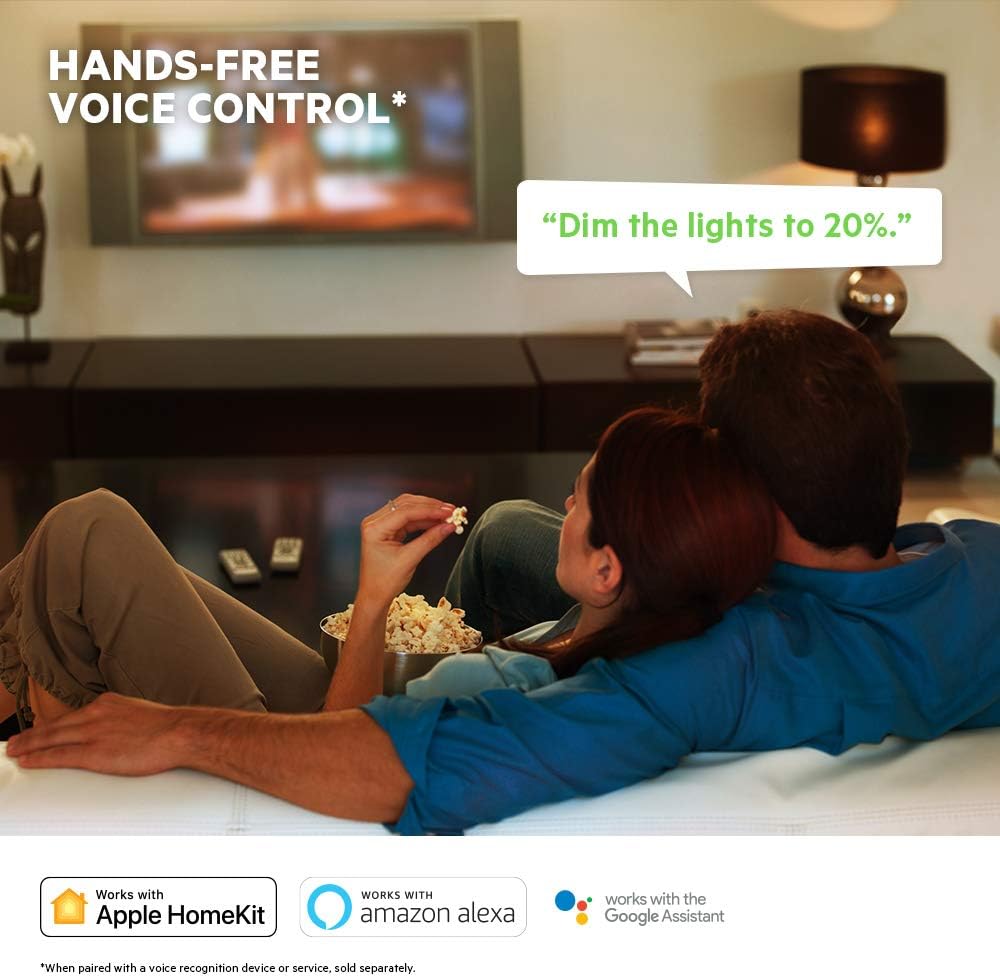
Image: A visual representation of voice control, showing a speech bubble with "Dim the lights to 20%." and logos for Apple HomeKit, Amazon Alexa, and Google Assistant.
8. וישאַלט
To ensure optimal performance and longevity of your WeMo Dimmer:
- רייניקונג: Wipe the dimmer and wall plate with a soft, dry cloth. Do not use abrasive cleaners or solvents.
- Firmware דערהייַנטיקונגען: Regularly check the WeMo app for available firmware updates. These updates can improve performance, add features, and enhance security.
- מאַכט סייקלינג: If the dimmer becomes unresponsive, try turning off the power at the circuit breaker for 10 seconds, then turning it back on.
9. טראָובלעשאָאָטינג
If you encounter issues with your WeMo Dimmer, refer to the following common problems and solutions:
| פּראָבלעם | מעגלעך סיבה / לייזונג |
|---|---|
| Dimmer does not turn on/off or dim. |
|
| Cannot connect to WeMo app or Wi-Fi. |
|
| Lights flicker or dimming range is poor. |
|
| שטימע קאנטראל ארבעט נישט. |
|
10. ספּעסאַפאַקיישאַנז
| שטריך | דעטאַל |
|---|---|
| מאָדעל נומער | F7C059 |
| סאָרט | WeMo |
| אַפּערייטינג וואָלtage | 120 וואַק |
| מאַקס וואַטtage (גלייכנדיק) | 400W (single-gang), 250W (multi-gang) |
| מאַקס וואַטtage (CFL/LED) | 150W (single or multi-gang) |
| קאַנעקטיוויטי פּראָטאָקאָל | ווי-פי (2.4GHz 802.11b/g/n) |
| קאָנטראָל מעטאָד | App, Voice, Manual |
| קאָנטראָללער טיפּ | Amazon Alexa, Google Assistant, HomeKit, WeMo App |
| קרייַז טיפּ | 1-way (Single-Pole) |
| נייטראַל ווירע | פארלאנגט |
| פּראָדוקט דימענשאַנז | 3.3 X 1.7 X 5 אינטשעס |
| פּונקט וואָג | 8 אונסעס |
| קאָליר | ווייַס |
11. וואָראַנטי און שטיצן
For warranty information, technical support, or further assistance, please visit the official WeMo support website or contact their customer service. Details are typically available on the product packaging or the WeMo webפּלאַץ.
אָנליין שטיצן: www.wemo.com/support (עקסampדער לינק, דער פאקטישער לינק קען זיין אנדערש)


